Whether you’ve been making videos for years or uploading your very first one, you already know custom thumbnails matter. In fact, 90% of the best-performing videos on YouTube have them. The problem isn't awareness—it's execution.
Designing a thumbnail for every video, every episode, every release is brutal. It's creative work that pulls you away from the work only you can do. So most creators do one of two things: they either skip it (and leave views on the table), or they burn cycles on it that could go toward content.
But fortunately, there's a third option. You can automate thumbnail generation without sacrificing quality with the help of templates, a simple database, and a workflow that takes seconds to trigger.
This guide walks you through setting up a system where hitting a single checkbox in Airtable generates a professional YouTube thumbnail on-demand. It takes about 30 minutes to set up. After that, you've got thumbnails at your fingertips every time you’re ready to publish.
Want to learn how to set all of this up? Keep reading!
What You Will Need
The tools you’ll need to start generating Youtube thumbnails on demand are:
- Airtable : To store video data and trigger thumbnail generation when you’re ready
- Bannerbear : To design thumbnail templates and generate variations on demand
- Zapier : To connect actions in different apps so one trigger cascades
When everything's connected, checking a box in Airtable kicks off Bannerbear thumbnail generation. Then, the image lands back in Airtable as an attachment so you can grab it whenever you need it.
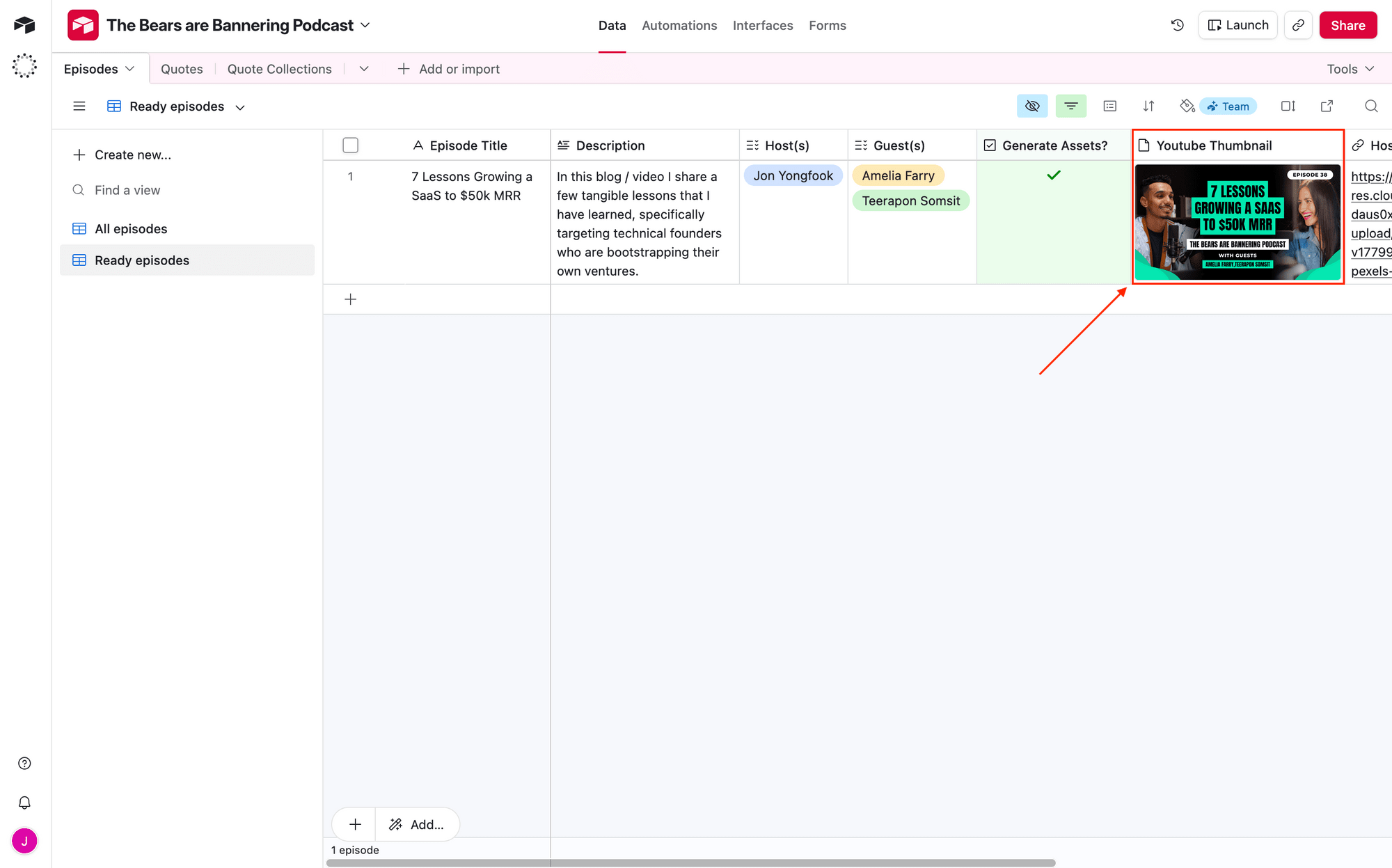

Sample photos by Ben Khatry and the Los Muertos Crew via Pexels
Now, let’s go over how to set it all up.
How to Use Nocode Tools to Generate Custom Youtube Thumbnails Automatically
You don’t always need to design thumbnails from scratch, especially if you’re looking to make a particular channel or series recognizable to viewers. The secret is templates.
A good template is reusable, flexible enough to work across episodes or series, and constrains your choices so decision fatigue doesn't slow you down. Once it's built, you'll be able to generate dozens of thumbnails from it, and make small changes as viewer preferences evolve.
Step 1 - Design a Bannerbear Template
Log into your Bannerbear account (or create a free account if you don’t have one yet—no credit card required! 🥳), and create a new project.
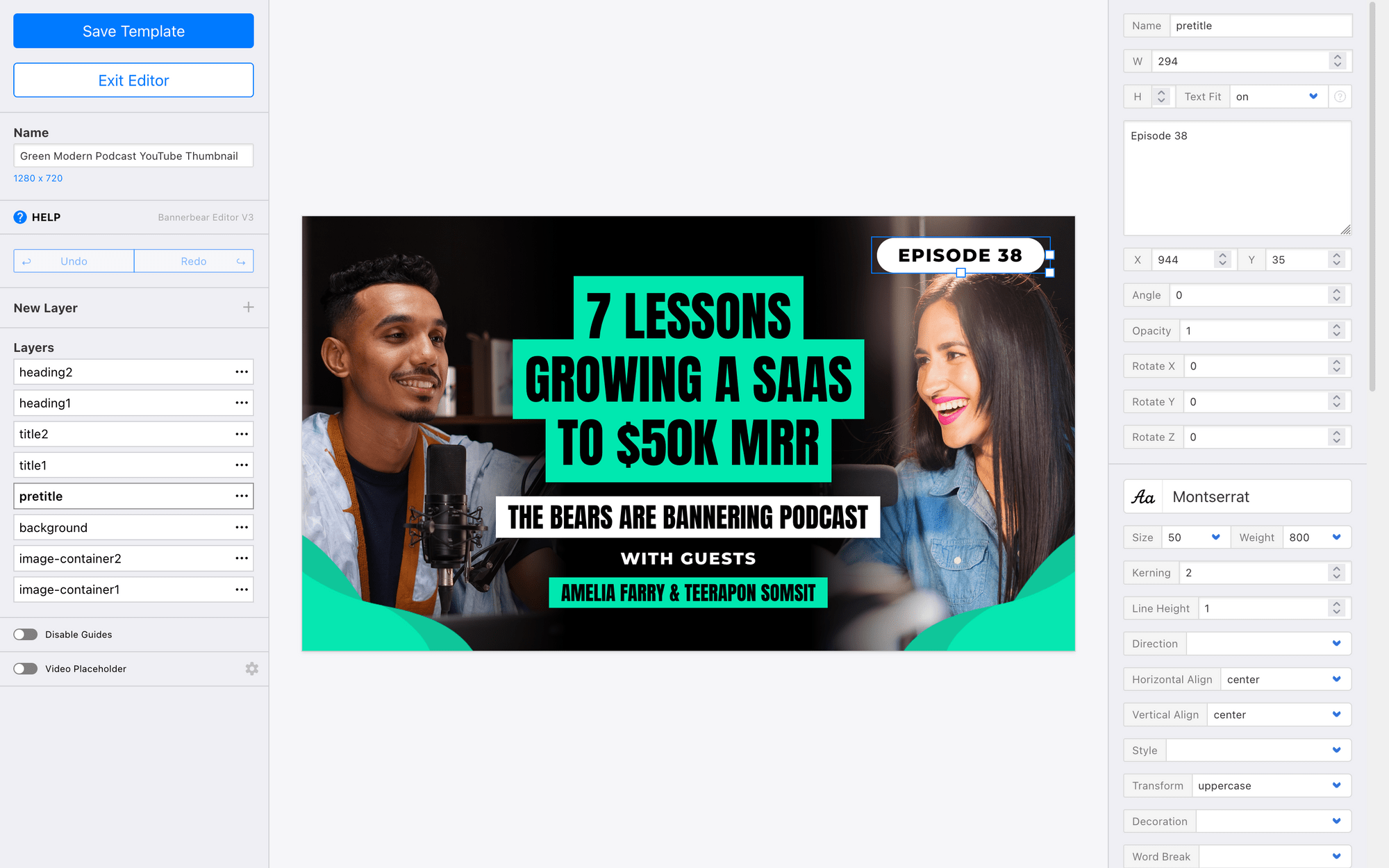
You can build from scratch, but Bannerbear has a library of pre-built YouTube thumbnail templates designed to scale. Pick one and customize it with your branding:



A few tips for designing Youtube thumbnails that scale:
- Get the dimensions right
- Build 2-3 color scheme variants to add visual interest to your page
- Cycle a few templates instead of limiting yourself to one
- Invest in a set of high-quality stock images and brand elements
- Design with versatility in the forefront of your mind
Make changes to your template until you’re happy with the design.
Bear Tip 🐻: Youtube’s technical thumbnail specifications matter. Ignore them, and your thumbnails may look blurry and unprofessional when cropped to fit. It’s always smart to double-check the latest specifications when you build!
Step 2 - Set Up Your Airtable Base
Log in and load your base. You can start from scratch or work on an existing base, as long as you have the essential details covered: video title, channel or series name, host name(s), and any visual or brand elements you want to include.
In addition to the dynamic data you want to use in your templates, make sure you have:
- A checkbox field for approval
- An attachment field for generated thumbnails
Your table should look something like this:
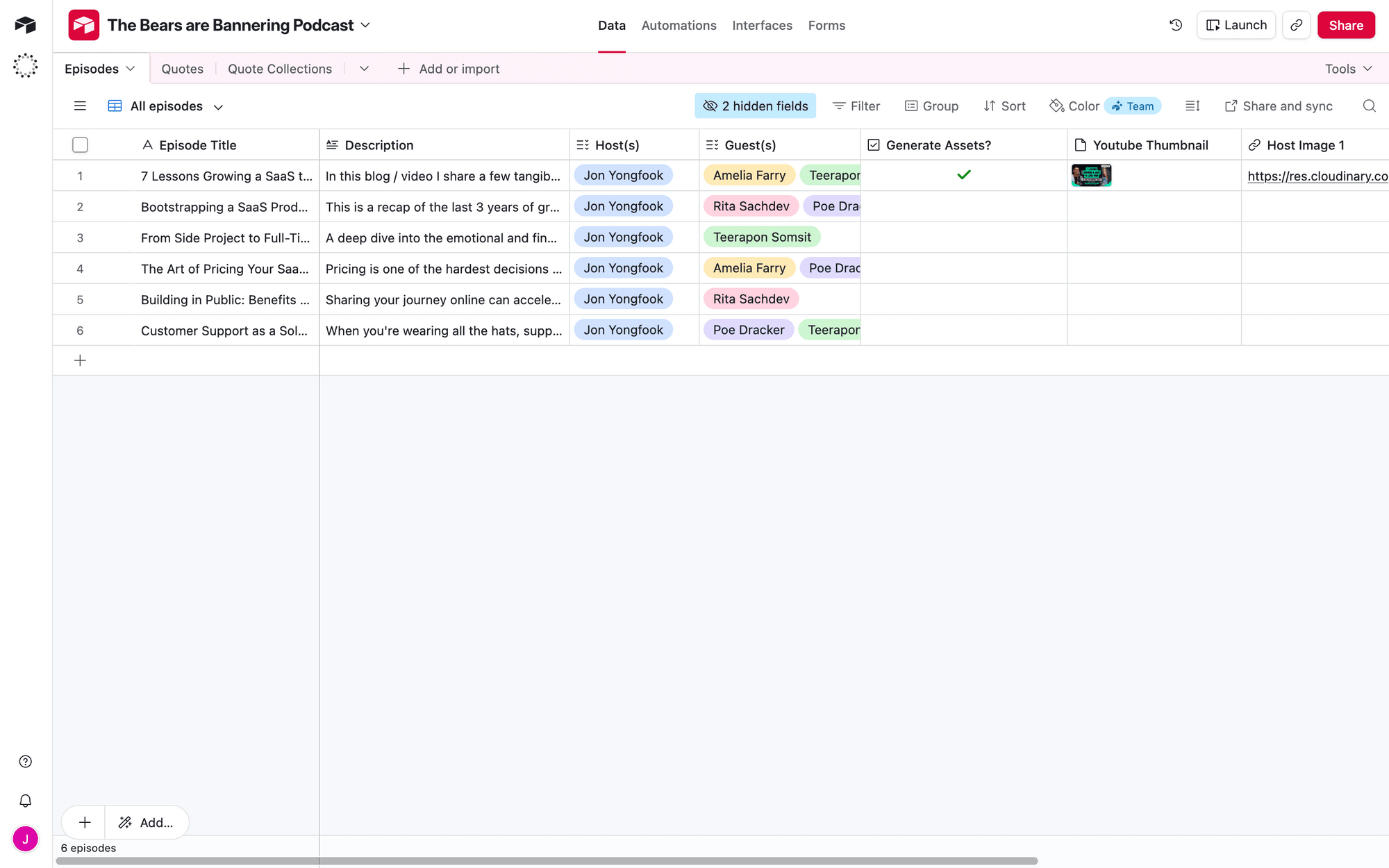
Create a filtered view that shows only records where Generate Assets? is checked. This is the view Zapier will monitor.
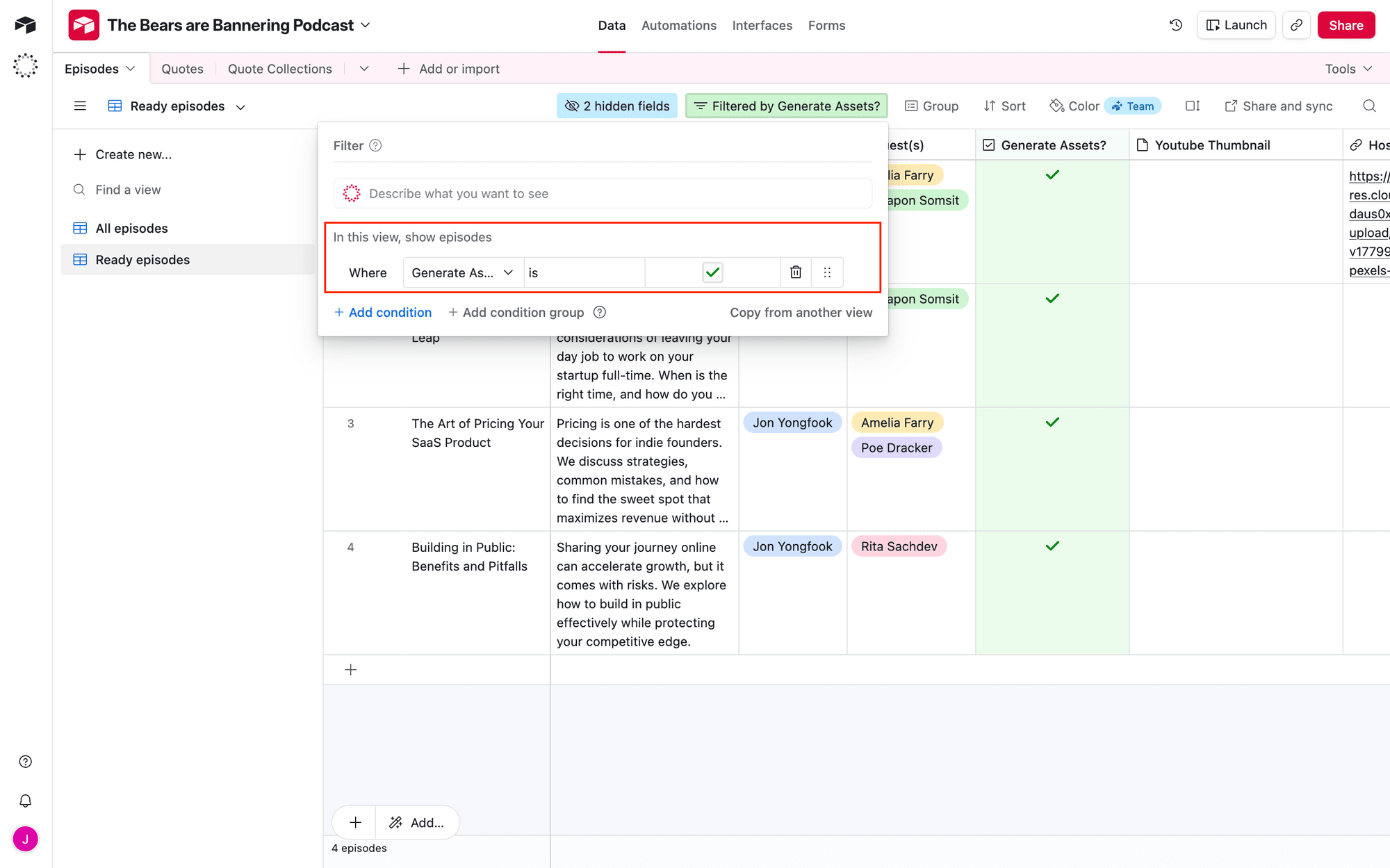
Fill in at least one test record with data before moving to the next step.
Step 3 - Create a Zap to Generate Images On-demand
Zapier makes it easy to set up a quick three-step automation in a matter of minutes. It’s one of the simplest ways to start off automating easy workflows without using any code.
Bear Tip 🐻: Prefer staying in Airtable? Follow this tutorial to learn how to use the Scripting extension instead of Zapier to trigger generation with a button click.
Log into your Zapier account, and create a new Zap. Here’s the three-step flow:
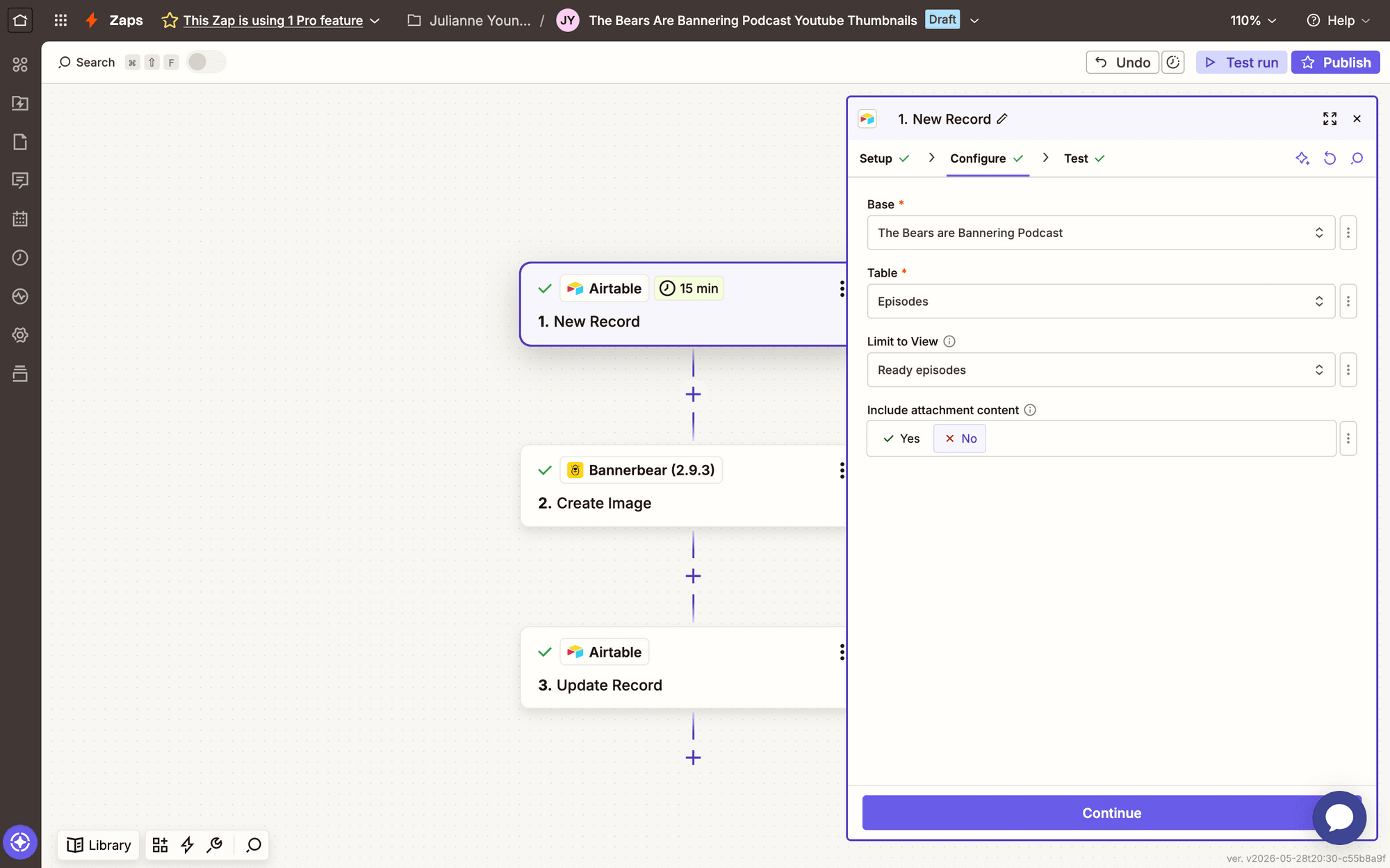
Trigger: New Record in Airtable
Choose Airtable → New Record. Select your base and table, and filter to show only selected records.
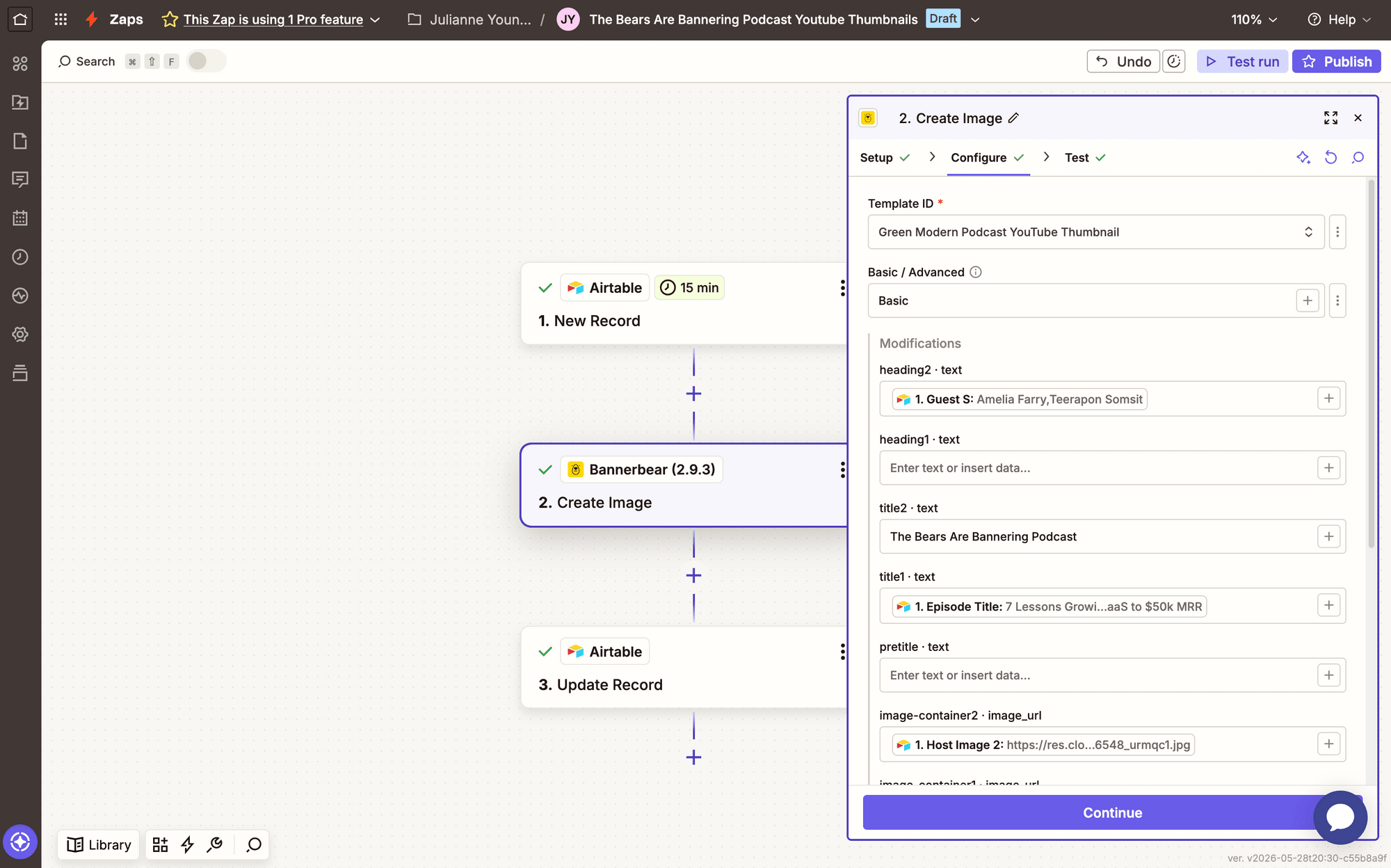
Action: Create Image in Bannerbear
Select Bannerbear → Create Image. Connect your account using your API key.
Choose the template you design, then set up the modifications by mapping dynamic fields to template layers.
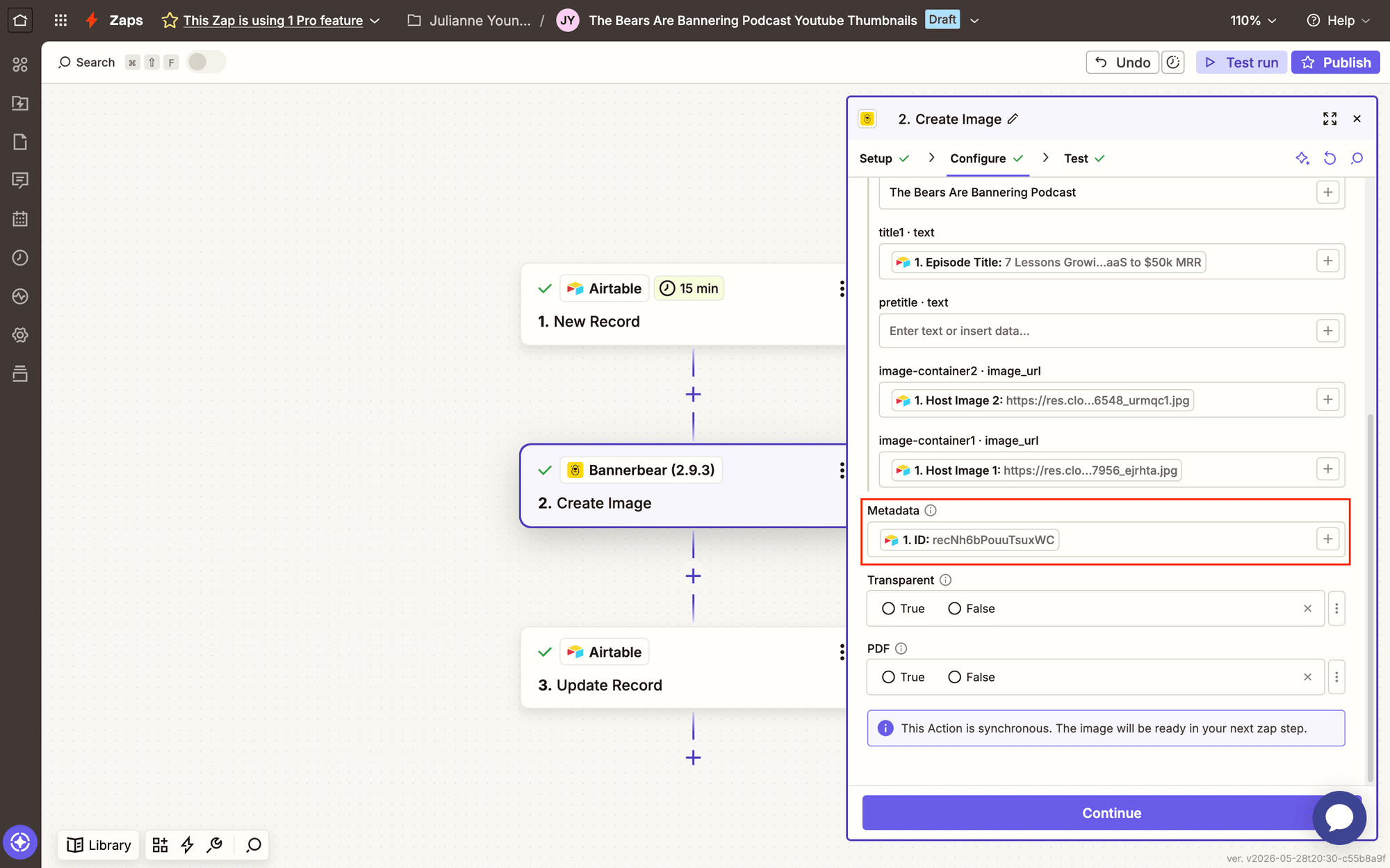
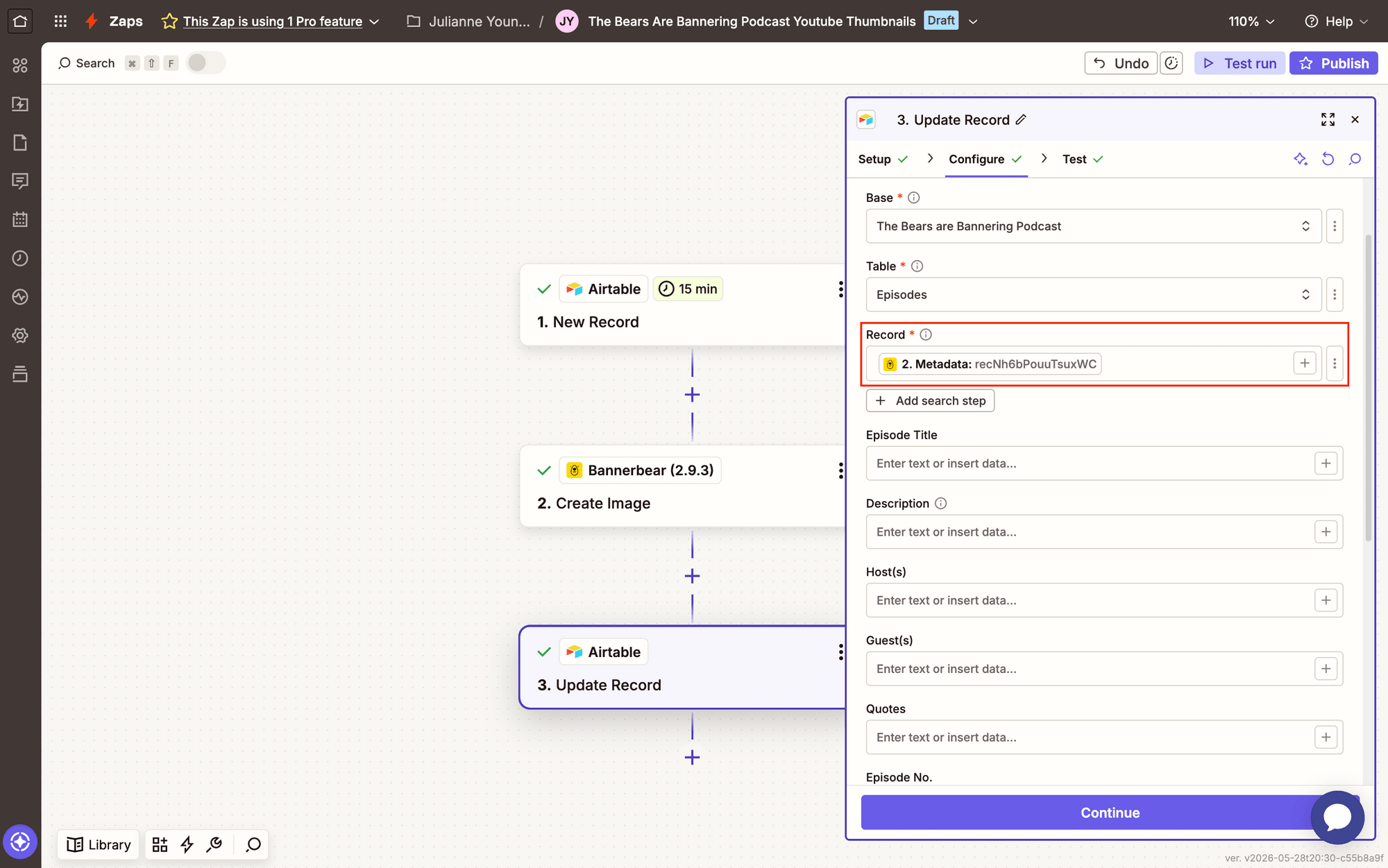
Use Airtable record ID as metadata to match the image back to its source.
Test it. You should see a generated image URL in the output.
Action: Update Record in Airtable
It’s helpful to have your generated thumbnail saved in a location that’s easy to access: your database.
Select Airtable → Update Record for the same base and table. Use image metadata as the record ID search value so you can find the right row.
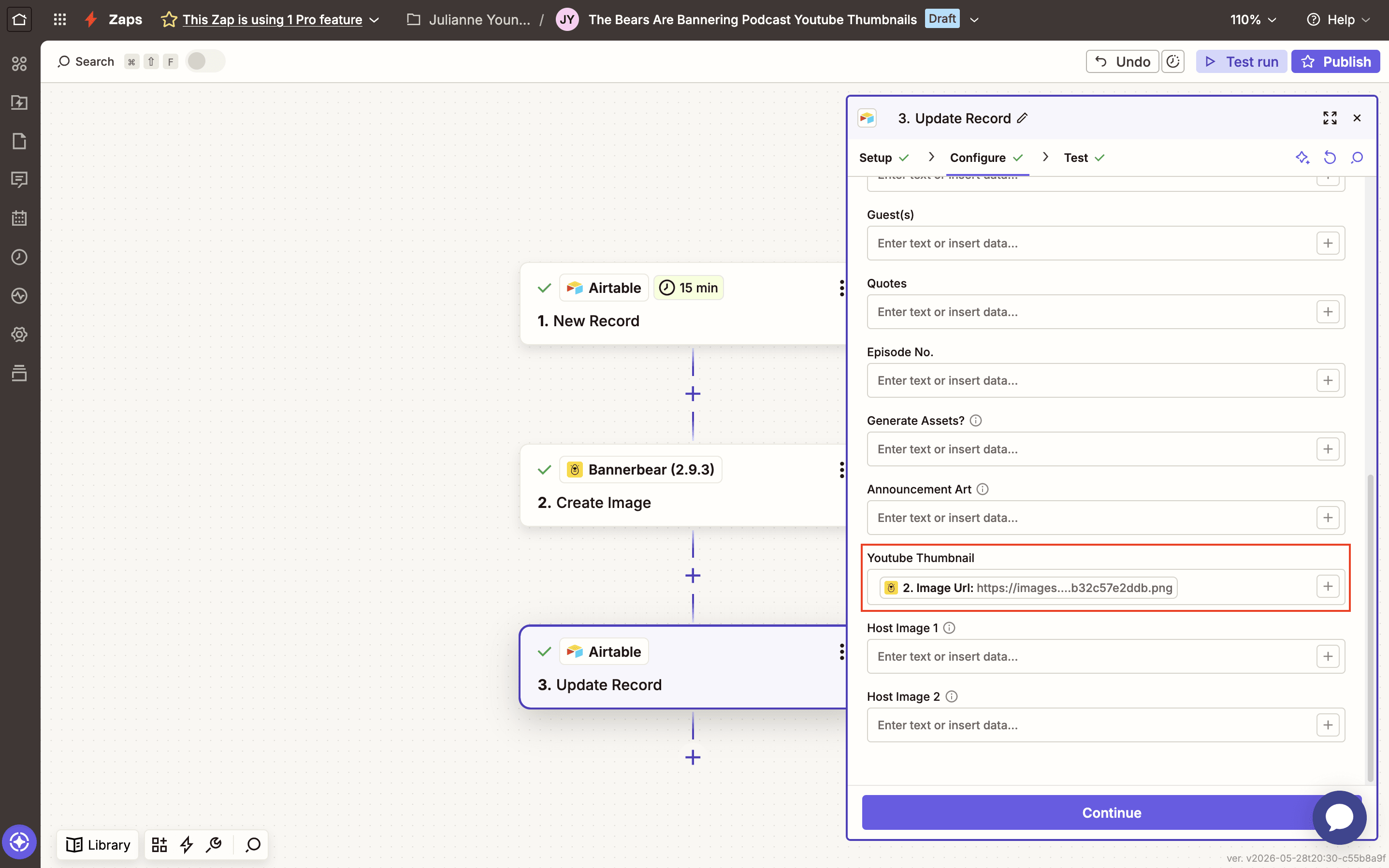
Configure the attachment by mapping the generated image output from the previous step into its corresponding Airtable field.
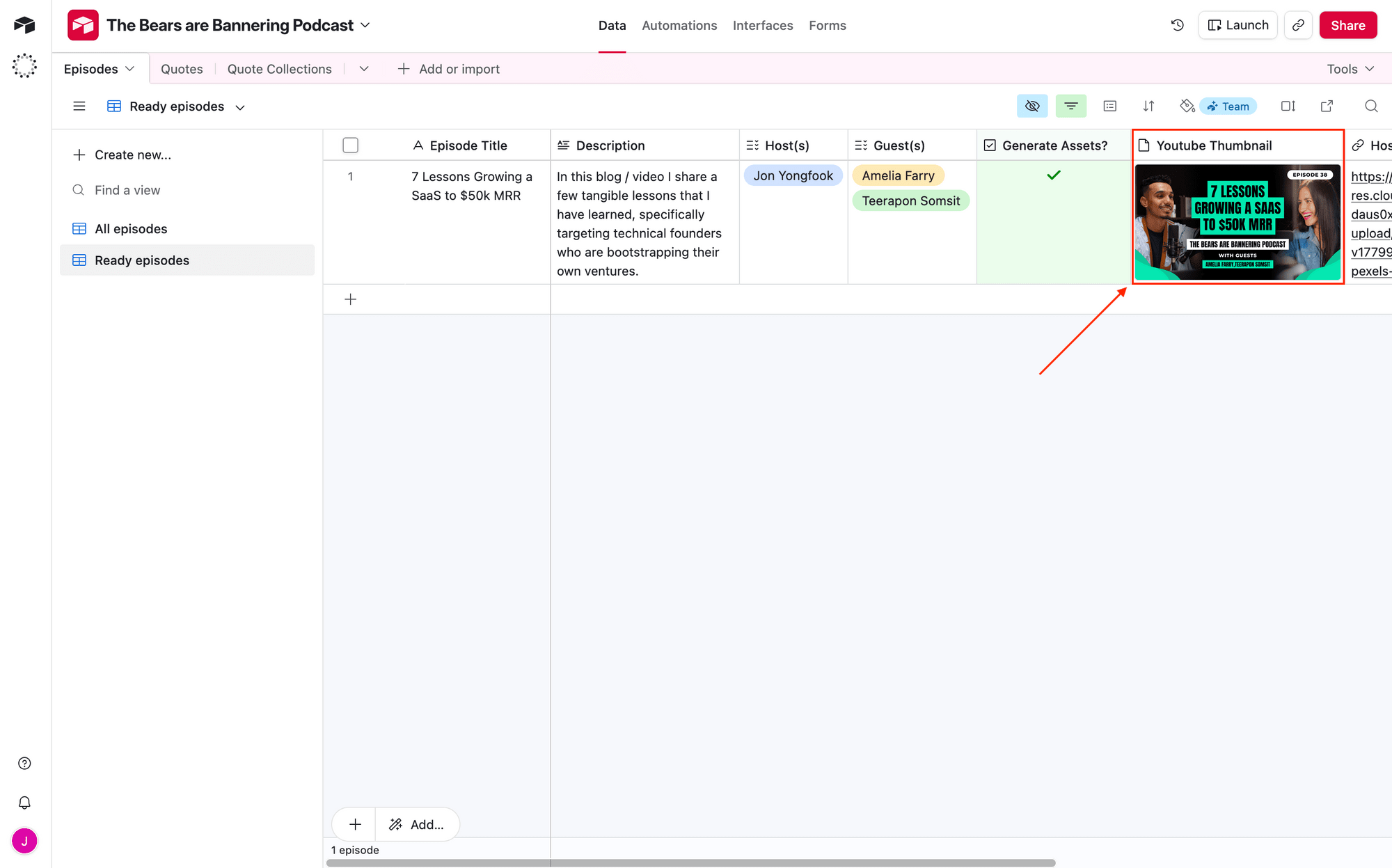
Test the action. You should see the image appear as an Airtable attachment.
Conclusion
With half an hour and a handful of nocode apps, your thumbnail production process is ready to go. Next time you upload, check the box. Your thumbnail generates while you're doing something else.
This is just the start. Once you've got thumbnails automated, the same workflow works for episode cover art, quote graphics, social media posts, and more! The infrastructure is already there—you're just swapping templates.
Looking for other ways to supercharge your video and podcast marketing efforts? Check out other related Bannerbear tutorials:
👉🏽 How to Design Impactful & Reusable Youtube Thumbnail Templates
👉🏽 How to Automatically Create New Podcast Episode Cover Art (withMake.com)
👉🏽 How to Set Up a Make Workflow for Generating Quote Graphics