If you run a blog or content-heavy website, here's something worth thinking about: visual content gets 94% more views than text-only content, and posts with images are 40 times more likely to be shared on social media than those without. This tells us that humans are more drawn to images than plain text.
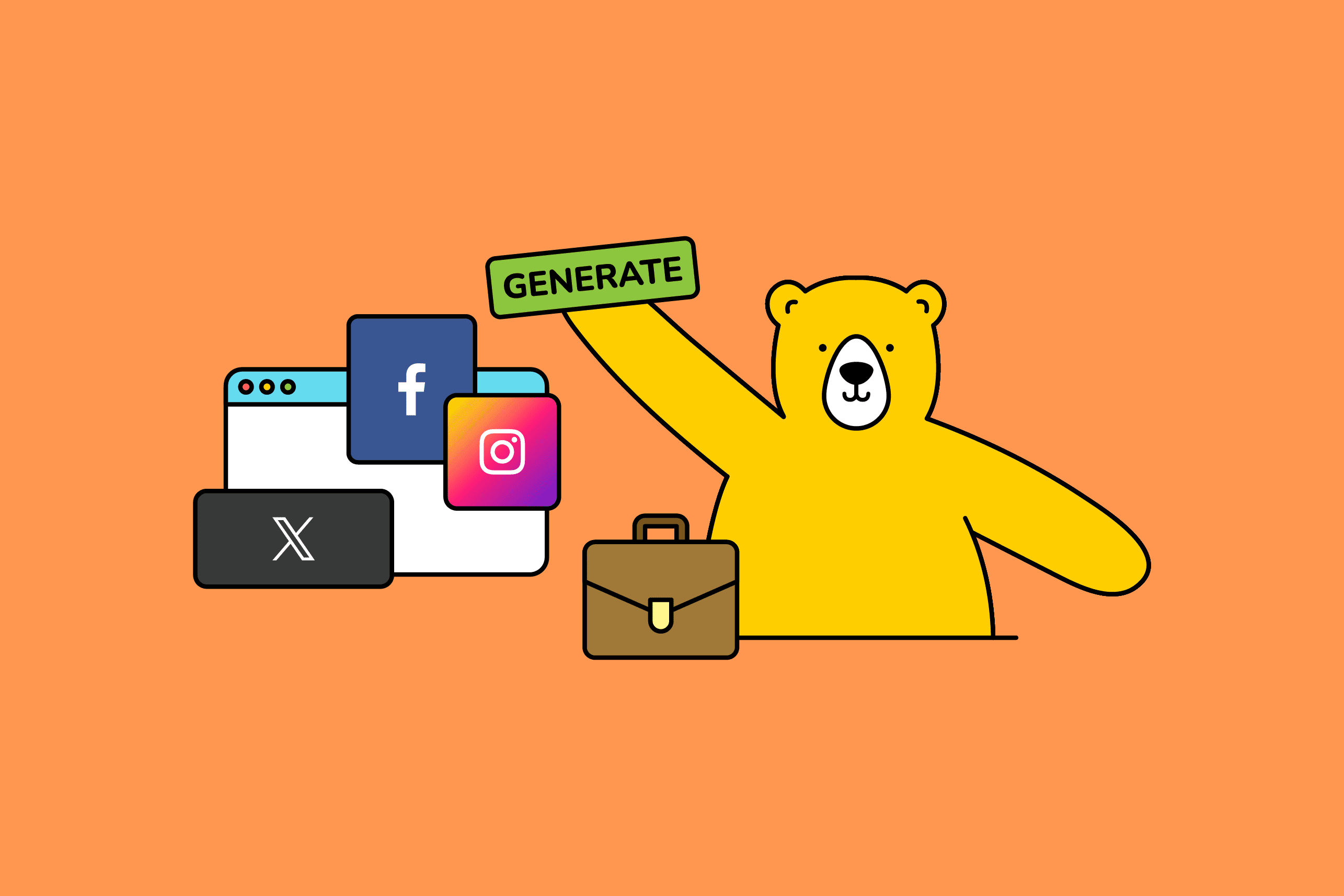
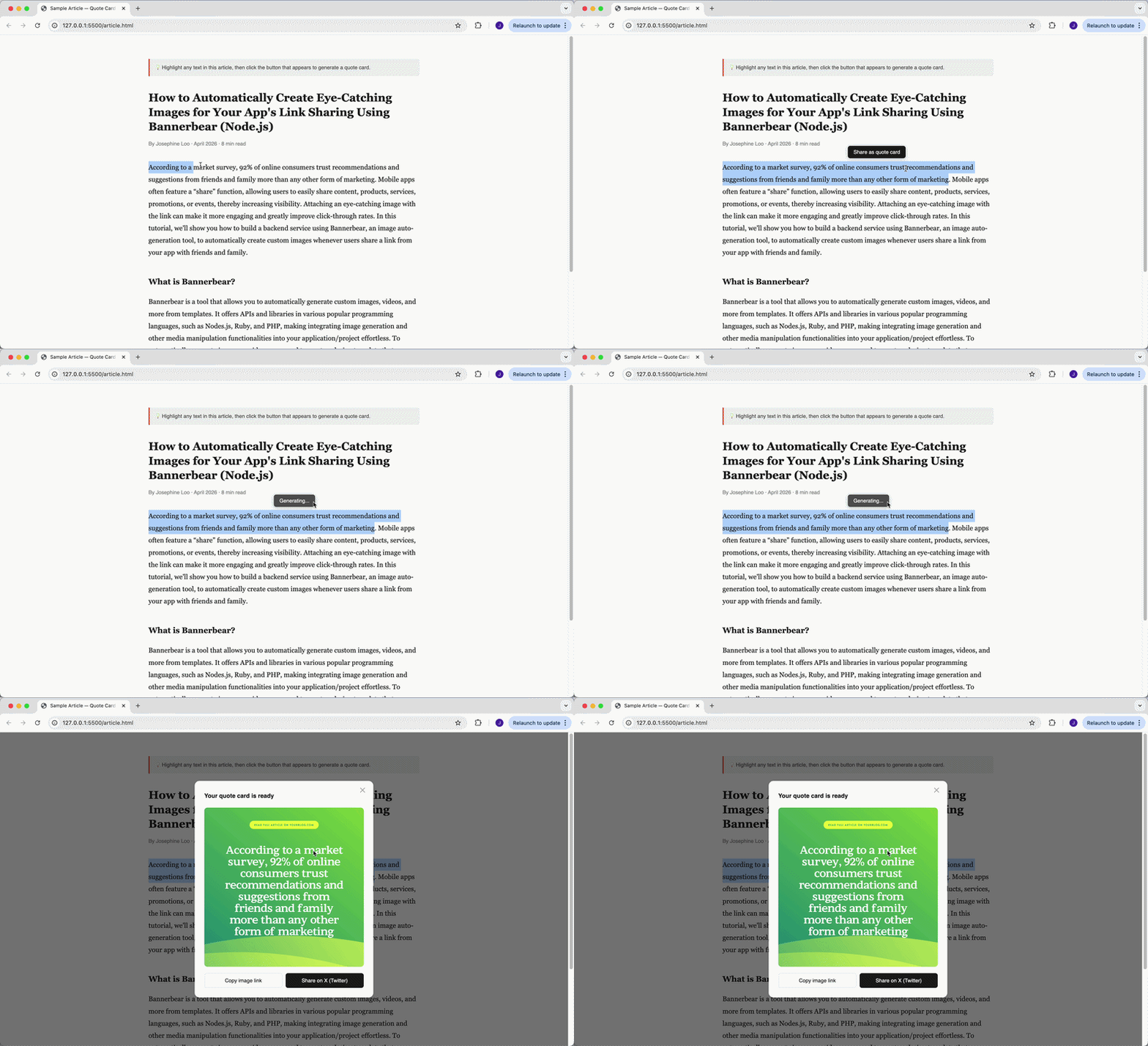
So, if you want people to share something on your website, like a snippet from an article, make it easy for them share it as an image. That's what we're going to build in this tutorial. We'll create a "Share" feature that uses the Bannerbear API to turn any highlighted passage into a polished, ready-to-share quote card image:
What is Bannerbear
Bannerbear is a tool that allows you to automatically generate custom images, videos, and more from templates. It offers APIs and libraries in various popular programming languages, such as Nodes.js, Ruby, and PHP, making integrating image generation and other media manipulation functionalities into your application/project effortless.
To generate images automatically, you need to create a design template that serves as a blueprint for creating the images in Bannerbear. A design template can consist of:
- Static objects - These remain the same in every generated image (e.g., a logo)
- Dynamic objects - These change based on data you provide (e.g., text, images)
Here’s an example of a Bannerbear design template:
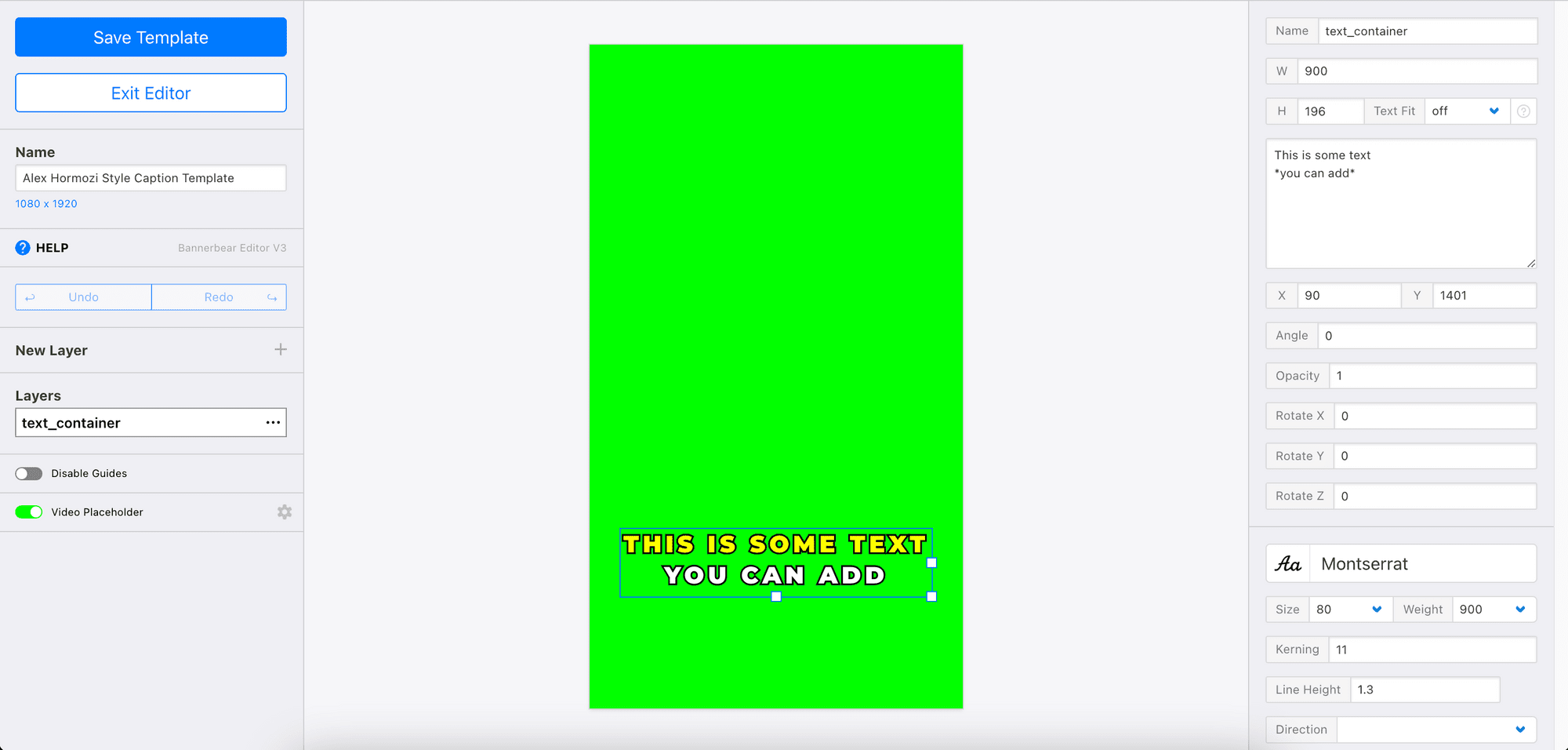
By passing different data to the API, you can alter the values of the dynamic objects and automatically create unique content based on a single template.
Pre-requisites
To follow along, you need to have these:
- Node.js installed (v18 or higher recommended)
- npm installed
- A Bannerbear account (get your free trial with 30 API credits here!)
🐻 Bear Tip: For reference, this tutorial uses Node.js v25.6.0 and npm 11.8.0. That said, it's not necessary to use the same versions as this tutorial.
How the Feature Works
Before diving into code, here's the big picture of what we're building:
- A reader highlights text on your blog post and clicks a "Share as Quote Card" button
- The selected text is sent to a backend endpoint
- The endpoint calls the Bannerbear API with the quote text and your blog's branding
- Bannerbear generates a styled quote card image and returns a URL
- The frontend opens a share dialog with the image URL displayed
How to Build a "Share" Feature That Auto-Generates Quote Cards Using Bannerbear
Step 1. Create Your Quote Card Template in Bannerbear
First, log in to your Bannerbear account and create a new project. Inside the project, you'll want to set up a quote card template. You can duplicate one from the Template Library or use the one below:
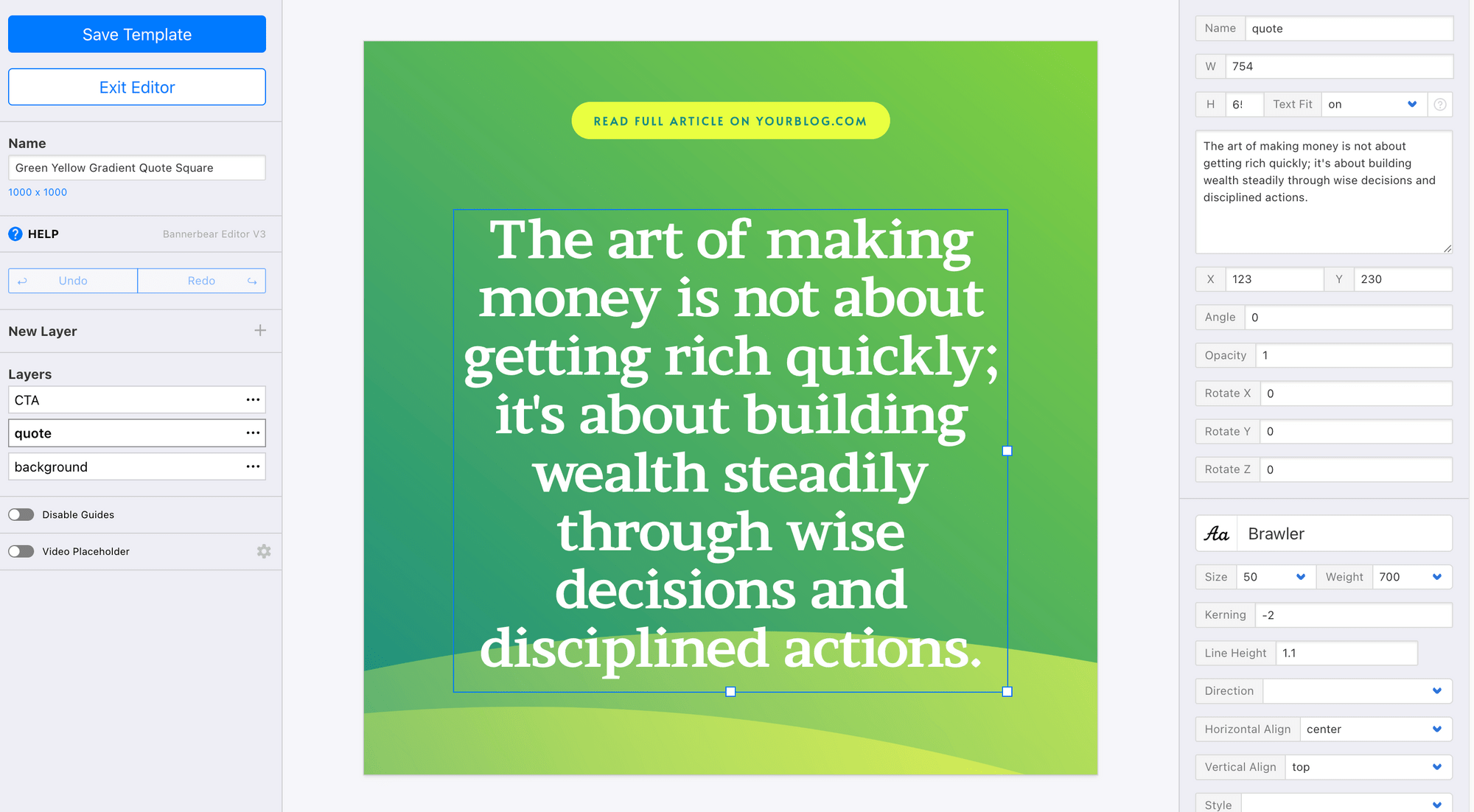
The template contains:
- A text layer (quote) for the quote body
- A text layer (CTA) for the blog name
- A background image (background)
Feel free to modify the template. Once you're happy with the design, save the template and grab two things from the project settings:
- Your Project API Key (under Settings/API Key)
- Your Template ID (click “…” on the top right corner of your template page)
Copy and save them somewhere safe. We’ll need it later.
Step 2. Set Up Your Node.js Project
Create a new folder for your project and navigate to it in the terminal:
mkdir quote-card-feature && cd quote-card-feature
npm init
Then, install the required packages:
npm install express bannerbear dotenv cors
Create a .env file in your project root to store the credentials you saved earlier:
BB_API_KEY=your_bannerbear_project_api_key
BB_TEMPLATE_ID=your_template_id
PORT=3000
Step 3. Build the Quote Card API Endpoint
Create a file called index.js and add the code below:
require('dotenv').config();
const express = require('express');
const cors = require('cors');
const { Bannerbear } = require('bannerbear');

const app = express();
app.use(cors());
app.use(express.json());

const bb = new Bannerbear(process.env.BB_API_KEY);
const TEMPLATE_ID = process.env.BB_TEMPLATE_ID;

// POST endpoint to generate a quote card
app.post('/generate-quote-card', async (req, res) => {
  const { quoteText, quoteSource } = req.body;

  try {
    // Request image generation from Bannerbear (synchronous mode)
    const image = await bb.create_image(
      TEMPLATE_ID,
      {
        modifications: [
          {
            name: 'quote', // Must match your template layer name
            text: quoteText,
          }
        ],
      },
      true // true = create images synchronously and return in the response
    );

    res.json({ imageUrl: image.image_url });

  } catch (error) {
    console.error('Bannerbear error:', error);
    res.status(500).json({ error: 'Failed to generate quote card' });
  }
});

app.listen(process.env.PORT, () => {
  console.log(`Server running on port ${process.env.PORT}`);
});
bb.create_image() is the Bannerbear Node.js method for generating an image. We pass in the Template ID and modifications array, where each object targets a named layer in your template and injects dynamic content. Finally, the endpoint returnsimage.image_url to the frontend, a publicly accessible URL of the generated PNG.
🐻 Bear Tip: By default, the Bannerbear API is asynchronous—it returns a
202 Acceptedimmediately and you poll or use webhooks to get the result. Passingtruetocreate_imagereturns the image instead of requiring you to poll it.
Step 4. Add the Frontend "Share" Button
For the client side, add the following HTML and JavaScript to your blog's article pages….
First, add this HTML to your article layout:
<!-- Floating share button — positioned via JS -->
<button id="share-quote-btn">Share as quote card</button>
<!-- Modal backdrop -->
<div id="modal-backdrop">
<div id="modal">
<button id="modal-close">✕</button>
<h3>Your quote card is ready</h3>
<!-- Bannerbear-generated image (shown when API returns a real URL) -->
<img id="card-img" alt="Generated quote card" />
<!-- Fallback CSS card (shown when no image URL is returned) -->
<div id="card-preview">
<div id="card-quote-mark">"</div>
<p id="card-text"></p>
<p id="card-source">yourblog.com</p>
</div>
<div class="modal-actions">
<button id="btn-copy">Copy image link</button>
<button class="btn-primary" id="btn-share">Share on X (Twitter)</button>
</div>
</div>
</div>
Then add this script:
const shareBtn = document.getElementById('share-quote-btn');
const backdrop = document.getElementById('modal-backdrop');
const modalClose = document.getElementById('modal-close');
const cardImg = document.getElementById('card-img');
const cardPreview = document.getElementById('card-preview');
const cardText = document.getElementById('card-text');
const btnCopy = document.getElementById('btn-copy');
const btnShare = document.getElementById('btn-share');

const API_ENDPOINT = 'http://localhost:3000/generate-quote-card';
const BLOG_URL = 'https://yourblog.com';

let currentQuote = '';

// Show the floating button whenever the user selects text
document.addEventListener('mouseup', (e) => {
  if (e.target.closest('#share-quote-btn') || e.target.closest('#modal-backdrop')) return;

  setTimeout(() => {
    const sel = window.getSelection();
    const text = sel ? sel.toString().trim() : '';

    if (text.length > 10) {
      const range = sel.getRangeAt(0);
      const rect = range.getBoundingClientRect();

      // Position the button just above the selected text
      shareBtn.style.top = (rect.top + window.scrollY - 44) + 'px';
      shareBtn.style.left = (rect.left + rect.width / 2 - shareBtn.offsetWidth / 2) + 'px';
      shareBtn.style.display = 'block';
      shareBtn.dataset.quote = text;
    } else {
      shareBtn.style.display = 'none';
    }
  }, 10);
});

// Hide the button when clicking elsewhere
document.addEventListener('mousedown', (e) => {
  if (!e.target.closest('#share-quote-btn') && !e.target.closest('#modal-backdrop')) {
    shareBtn.style.display = 'none';
  }
});

// Handle the share button click
shareBtn.addEventListener('click', async () => {
  currentQuote = shareBtn.dataset.quote || '';
  shareBtn.classList.add('loading');
  shareBtn.textContent = 'Generating...';
  shareBtn.disabled = true;

  try {
    const response = await fetch(API_ENDPOINT, {
      method: 'POST',
      headers: { 'Content-Type': 'application/json' },
      body: JSON.stringify({
        quoteText: currentQuote,
        quoteSource: document.title,
      }),
    });
    const data = await response.json();
    const imageUrl = data.imageUrl;

    // Show the image from Bannerbear if we got a URL; fall back to the CSS card
    if (imageUrl) {
      cardImg.src = imageUrl;
      cardImg.style.display = 'block';
      cardPreview.style.display = 'none';
    } else {
      const displayQuote = currentQuote.length > 180
        ? currentQuote.slice(0, 180) + '…'
        : currentQuote;
      cardText.textContent = displayQuote;
      cardImg.style.display = 'none';
      cardPreview.style.display = 'block';
    }

    shareBtn.style.display = 'none';
    backdrop.classList.add('open');

    // Wire up the share buttons with the real image URL
    btnShare.onclick = () => {
      const tweet = encodeURIComponent(`"${currentQuote}"\n\n${BLOG_URL}`);
      window.open(`https://twitter.com/intent/tweet?text=${tweet}`, '_blank');
    };

    btnCopy.onclick = () => {
      navigator.clipboard.writeText(imageUrl).then(() => {
        btnCopy.textContent = 'Copied!';
        setTimeout(() => { btnCopy.textContent = 'Copy image link'; }, 2000);
      });
    };

  } catch (err) {
    console.error('Error generating quote card:', err);
    alert('Something went wrong. Please try again!');
  } finally {
    shareBtn.classList.remove('loading');
    shareBtn.textContent = 'Share as quote card';
    shareBtn.disabled = false;
  }
});

// Close the modal
modalClose.addEventListener('click', () => backdrop.classList.remove('open'));
backdrop.addEventListener('click', (e) => {
  if (e.target === backdrop) backdrop.classList.remove('open');
});
The script listens for text selection, positions a floating button above the highlighted text, calls your backend on click, and shows the generated quote card in a modal. If no image URL comes back, it uses a CSS card as a fallback.
Step 5. Test It
Run the command below to start your local server:
node index.js
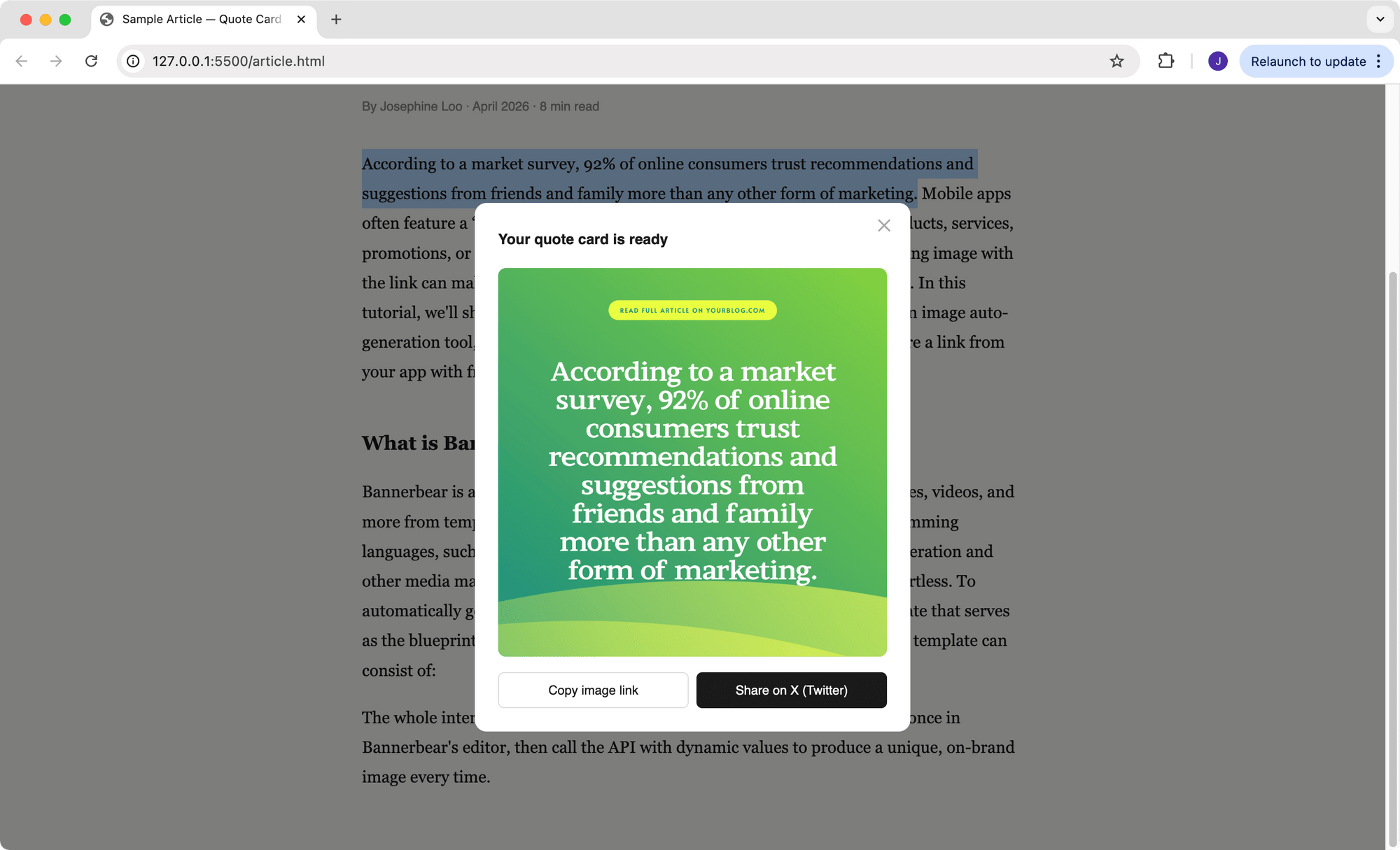
Then, open your blog page in a browser, highlight a sentence from any article, and click the "Share as Quote Card" button. Within a couple of seconds, you should see a share dialog pop up with the generated image:
🐻 Bear Tip: The full code is available on GitHub.
Bonus: A Sample Article Page to Test It
If you want to see the full thing in action before actually implementing it, here's a self-contained article.html file that includes a sample article, the floating share button, a quote card preview modal, and the real Bannerbear API call. Drop it alongside your running index.js server and open it in a browser.
<!DOCTYPE html>
<html lang="en">
<head>
<meta charset="UTF-8" />
<meta name="viewport" content="width=device-width, initial-scale=1.0" />
<title>Sample Article — Quote Card Demo</title>
<style>
/* Page layout */
body {
font-family: Georgia, serif;
max-width: 680px;
margin: 60px auto;
padding: 0 24px;
line-height: 1.8;
color: #1a1a1a;
background: #fafaf8;
}
h1 { font-size: 28px; line-height: 1.3; margin-bottom: 8px; }
.meta { font-size: 13px; color: #888; font-family: sans-serif; margin-bottom: 32px; }
h2 { font-size: 20px; margin-top: 40px; }
p { margin-bottom: 18px; font-size: 17px; }
/* Hint bar */
.hint {
background: #f0f0ee;
border-left: 3px solid #e85d2f;
padding: 10px 14px;
font-family: sans-serif;
font-size: 13px;
color: #555;
margin-bottom: 36px;
border-radius: 0 4px 4px 0;
}
/* Floating share button */
#share-quote-btn {
display: none;
position: absolute;
z-index: 100;
background: #1a1a1a;
color: #fff;
border: none;
padding: 8px 14px;
font-size: 13px;
font-family: sans-serif;
border-radius: 6px;
cursor: pointer;
white-space: nowrap;
box-shadow: 0 2px 10px rgba(0,0,0,0.2);
}
#share-quote-btn:hover { background: #333; }
/* Modal backdrop */
#modal-backdrop {
display: none;
position: fixed;
inset: 0;
background: rgba(0,0,0,0.5);
z-index: 200;
align-items: center;
justify-content: center;
}
#modal-backdrop.open { display: flex; }
/* Modal */
#modal {
background: #fff;
border-radius: 12px;
padding: 24px;
width: 400px;
max-width: 90vw;
font-family: sans-serif;
position: relative;
}
#modal h3 { font-size: 15px; margin: 0 0 16px; font-weight: 600; }
/* Bannerbear-generated image */
#card-img {
display: none;
width: 100%;
border-radius: 8px;
margin-bottom: 16px;
}
/* Fallback CSS card preview (shown when no image URL is returned) */
#card-preview {
background: #111;
border-radius: 8px;
padding: 28px 24px;
margin-bottom: 16px;
position: relative;
overflow: hidden;
}
#card-preview::before {
content: '';
position: absolute;
left: 0; top: 0; bottom: 0;
width: 4px;
background: #e85d2f;
}
#card-quote-mark {
font-size: 48px;
color: rgba(255,255,255,0.15);
font-family: Georgia, serif;
line-height: 1;
margin-bottom: 4px;
}
#card-text {
font-size: 15px;
line-height: 1.6;
color: #fff;
font-style: italic;
font-family: Georgia, serif;
margin: 0 0 14px;
}
#card-source {
font-size: 12px;
color: rgba(255,255,255,0.4);
font-family: sans-serif;
margin: 0;
}
/* Modal actions */
.modal-actions { display: flex; gap: 8px; }
.modal-actions button {
flex: 1;
padding: 10px;
border-radius: 6px;
font-size: 13px;
font-family: sans-serif;
cursor: pointer;
border: 1px solid #ddd;
background: #fff;
color: #1a1a1a;
}
.modal-actions button:hover { background: #f5f5f5; }
.modal-actions .btn-primary {
background: #1a1a1a;
color: #fff;
border-color: #1a1a1a;
}
.modal-actions .btn-primary:hover { background: #333; }
#modal-close {
position: absolute;
top: 12px; right: 14px;
background: none;
border: none;
font-size: 18px;
cursor: pointer;
color: #aaa;
}
/* Generating state */
#share-quote-btn.loading { background: #555; cursor: default; }
</style>
</head>
<body>
<p class="hint">
💡 Highlight any text in this article, then click the button that appears to generate a quote card.
</p>
<h1>How to Automatically Create Eye-Catching Images for Your App's Link Sharing Using Bannerbear (Node.js)</h1>
<p class="meta">By Josephine Loo · April 2026 · 8 min read</p>
<p>According to a market survey, 92% of online consumers trust recommendations and suggestions from friends and family more than any other form of marketing. Mobile apps often feature a “share” function, allowing users to easily share content, products, services, promotions, or events, thereby increasing visibility.
Attaching an eye-catching image with the link can make it more engaging and greatly improve click-through rates. In this tutorial, we'll show you how to build a backend service using Bannerbear, an image auto-generation tool, to automatically create custom images whenever users share a link from your app with friends and family.</p>
<h2>What is Bannerbear?</h2>
<p>Bannerbear is a tool that allows you to automatically generate custom images, videos, and more from templates. It offers APIs and libraries in various popular programming languages, such as Nodes.js, Ruby, and PHP, making integrating image generation and other media manipulation functionalities into your application/project effortless.
To automatically generate images or videos, you need to create a design template that serves as the blueprint for creating the images and videos in Bannerbear. A design template can consist of:</p>
<p>The whole interaction takes just a couple of seconds. Design your template once in Bannerbear's editor, then call the API with dynamic values to produce a unique, on-brand image every time.</p>
<!-- Floating share button — positioned absolutely via JS -->
<button id="share-quote-btn">Share as quote card</button>
<!-- Modal backdrop -->
<div id="modal-backdrop">
<div id="modal">
<button id="modal-close">✕</button>
<h3>Your quote card is ready</h3>
<!-- Bannerbear-generated image (shown when API returns a real URL) -->
<img id="card-img" alt="Generated quote card" />
<!-- Fallback CSS card (shown when no image URL is returned) -->
<div id="card-preview">
<div id="card-quote-mark">"</div>
<p id="card-text"></p>
<p id="card-source">yourblog.com</p>
</div>
<div class="modal-actions">
<button id="btn-copy">Copy image link</button>
<button class="btn-primary" id="btn-share">Share on X (Twitter)</button>
</div>
</div>
</div>
<script>
const shareBtn = document.getElementById('share-quote-btn');
const backdrop = document.getElementById('modal-backdrop');
const modalClose = document.getElementById('modal-close');
const cardImg = document.getElementById('card-img');
const cardPreview = document.getElementById('card-preview');
const cardText = document.getElementById('card-text');
const btnCopy = document.getElementById('btn-copy');
const btnShare = document.getElementById('btn-share');
// Replace with your real backend URL when going live
const API_ENDPOINT = 'http://localhost:3000/generate-quote-card';
const BLOG_URL = 'https://yourblog.com';
let currentQuote = '';
// Show the floating button whenever the user selects text
document.addEventListener('mouseup', (e) => {
if (e.target.closest('#share-quote-btn') || e.target.closest('#modal-backdrop')) return;
setTimeout(() => {
const sel = window.getSelection();
const text = sel ? sel.toString().trim() : '';
if (text.length > 10) {
const range = sel.getRangeAt(0);
const rect = range.getBoundingClientRect();
// Position the button just above the selected text
shareBtn.style.top = (rect.top + window.scrollY - 44) + 'px';
shareBtn.style.left = (rect.left + rect.width / 2 - shareBtn.offsetWidth / 2) + 'px';
shareBtn.style.display = 'block';
shareBtn.dataset.quote = text;
} else {
shareBtn.style.display = 'none';
}
}, 10);
});
// Hide the button when clicking elsewhere
document.addEventListener('mousedown', (e) => {
if (!e.target.closest('#share-quote-btn') && !e.target.closest('#modal-backdrop')) {
shareBtn.style.display = 'none';
}
});
// Handle the share button click
shareBtn.addEventListener('click', async () => {
currentQuote = shareBtn.dataset.quote || '';
shareBtn.classList.add('loading');
shareBtn.textContent = 'Generating...';
shareBtn.disabled = true;
try {
const response = await fetch(API_ENDPOINT, {
method: 'POST',
headers: { 'Content-Type': 'application/json' },
body: JSON.stringify({
quoteText: currentQuote,
quoteSource: document.title,
}),
});
const data = await response.json();
const imageUrl = data.imageUrl;
// Show the image from Bannerbear if we got a URL; fall back to the CSS card
if (imageUrl) {
cardImg.src = imageUrl;
cardImg.style.display = 'block';
cardPreview.style.display = 'none';
} else {
const displayQuote = currentQuote.length > 180
? currentQuote.slice(0, 180) + '…'
: currentQuote;
cardText.textContent = displayQuote;
cardImg.style.display = 'none';
cardPreview.style.display = 'block';
}
shareBtn.style.display = 'none';
backdrop.classList.add('open');
// Wire up the share buttons with the real image URL
btnShare.onclick = () => {
const tweet = encodeURIComponent(`"${currentQuote}"\n\n${BLOG_URL}`);
window.open(`https://twitter.com/intent/tweet?text=${tweet}`, '_blank');
};
btnCopy.onclick = () => {
navigator.clipboard.writeText(imageUrl).then(() => {
btnCopy.textContent = 'Copied!';
setTimeout(() => { btnCopy.textContent = 'Copy image link'; }, 2000);
});
};
} catch (err) {
console.error('Error generating quote card:', err);
alert('Something went wrong. Please try again!');
} finally {
shareBtn.classList.remove('loading');
shareBtn.textContent = 'Share as quote card';
shareBtn.disabled = false;
}
});
// Close the modal
modalClose.addEventListener('click', () => backdrop.classList.remove('open'));
backdrop.addEventListener('click', (e) => {
if (e.target === backdrop) backdrop.classList.remove('open');
});
</script>
</body>
</html>
🐻 Bear Tip: Update the
API_ENDPOINTconstant at the top of the script to point to your production URL when you deploy.
Conclusion
That’s it! You've successfully built a "Share" feature that turns any highlighted text on your blog into a ready-to-share, branded quote card image automatically. Instead of leaving readers to copy-paste the text, this feature creates a ready-made, branded image that's far more likely to get shared and noticed.
Here are some ideas to extend this further: add your blog post's featured image as the quote card background, support sharing to other platforms like LinkedIn and Instagram, or batch-generate quote cards in different dimensions (e.g., square crop for LinkedIn, 9:16 for Instagram stories).
If you want to generate quote cards in multiple dimensions at once, Bannerbear's Collections feature lets you do that in a single API call. Check out the Bannerbear docs for more details!