Graphics are meant to be quick, digestible looks at a topic. And when you’re designing one-off posters, adding a link might be straightforward—you control everything. You can use them to do things like:
- Provide additional information
- Lead to a sign-up form
- Navigate easily to related sites
- Prompt review submission
But when you’re automating graphic generation at scale, things change. You’re no longer just thinking about what link to add. There’s more to consider: consistency, testability, and whether your choice will work across dozens, hundreds, or even thousands of variations.
This guide will walk you through link types and best practices, then show you how to implement them in Bannerbear.
Understanding Your Link Options
When you're adding links to images, consider where it will be placed and how viewers will interact, because this shapes which link type makes sense.
1 - Text Links
Plaintext links work great on interactive sites like websites or social platforms. Viewers can easily click through if they want to see more. However, they don’t work well for printed graphics, where the friction of typing a link into a browser kills engagement.
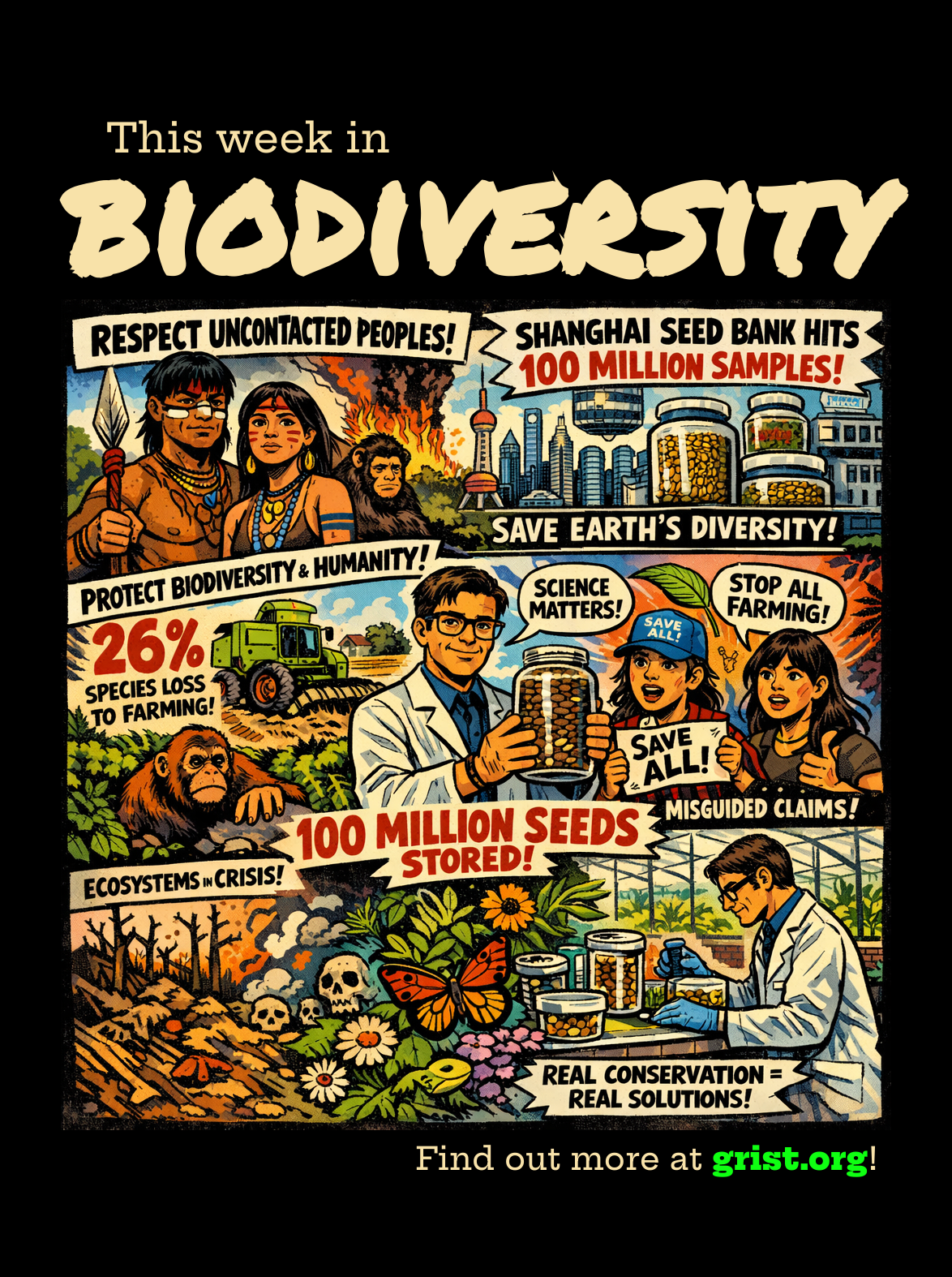
🤖 For automation : Text links are easy to template and update dynamically.
You’ve also got the option of whether to use full links or shortened links (eg. tinyurl or bitly). This comes with pros and cons: trimmed links are great when you have long, bulky params, but they can make your link less recognizable.
2 - Hyperlinks (Clickable Images)
Functional image links let viewers click directly on the image itself. They’re better suited for web than mobile, and work best on sites you control rather than social platforms, where images are often treated differently.
🤖 For automation : Hyperlinks require more setup. They aren’t automated in the image production step, but rather when the graphic is being published to your site or platform.
3 - QR Codes
QR codes are the most versatile—they work for both print and web. These bypass clicking or typing entirely; users just scan with their phone. That said, there’s a trade-off: they assume the viewer has a smartphone and knows how to scan.
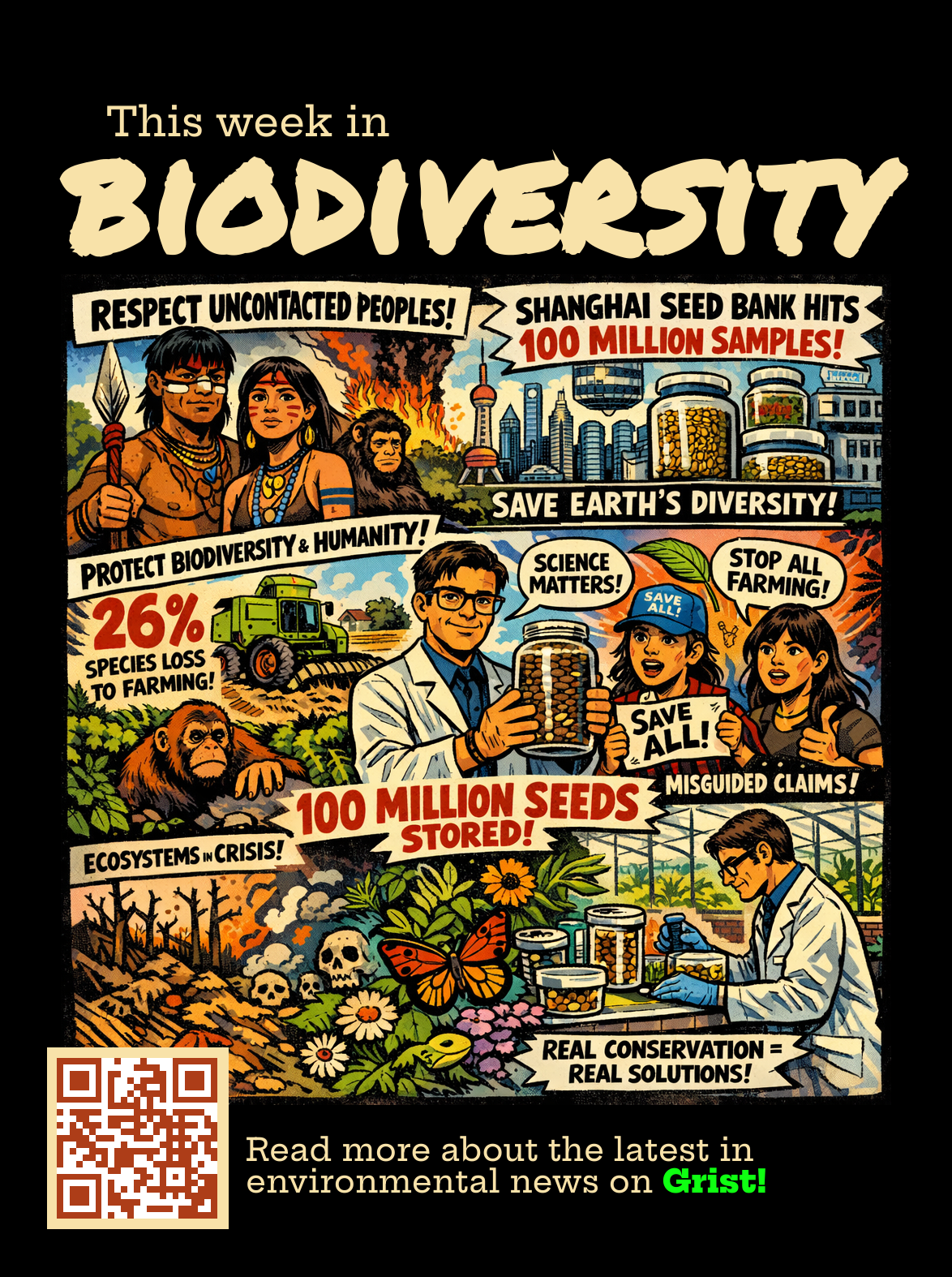
🤖 For automation : QR codes are easy to generate dynamically, and each graphic can have a unique code.
Best Practices for Adding Links to Graphics at Scale
So now that you know what type of links we’re working with, it’s time to move on to the big question: how do you actually design good links?
Here are some of our tips:
- Consider the medium. Will your graphics be mostly viewed on mobile devices, laptops, or print? Hyperlinks work on laptops but fall short on mobile. Text links work online, but they’re friction-heavy in print. QR codes work everywhere, but they require user action. When you’re automating, make this decision early—it determines your entire template.
- Understand the logical next step. Are viewers seeking more information, or being prompted to perform an action? Is the link critical to the experience, or a nice-to-have detail? This determines how prominent your link should be. When automating, this stays constant across all variations.
- Preserve visual hierarchy. Your graphic should be visually striking first. Links are functional, but not necessarily pretty. Keep them from dominating: frame QR codes, position them on the periphery, match colors to your design, and include brand elements. You can even add 🔗 emojis to text links to signal interactivity. At scale, these micro-decisions compound—consistency matters more.
- Include a CTA. A bare link or QR code leaves viewers guessing. Part of mindful link design is telling users why they should click. What’s the payoff? This CTA can be templated and reused as you generate at scale.
- Test your links. When you’re generating one graphic, one broken link is annoying. When you’re generating thousands, a systematic error can break them all. Test your links, QR scannability, and plaintext accuracy before taking your automation live. Check that nothing visually obscures the link, and that all input data is clean.
These best practices will greatly improve the chances that your links—whether in plain text, hyperlink, or QR form—are clean, clear, and appealing to access.
How to Add Links to Your Bannerbear Graphics
The good news: adding links to graphics at scale in Bannerbear works much like designing one-off graphics. The difference is volume—you're testing more, and you need to ensure your data pipeline is bulletproof.
Bannerbear supports two methods:
With Plain Text
Links can appear standalone or embedded in passages of text. Input them as regular text data.
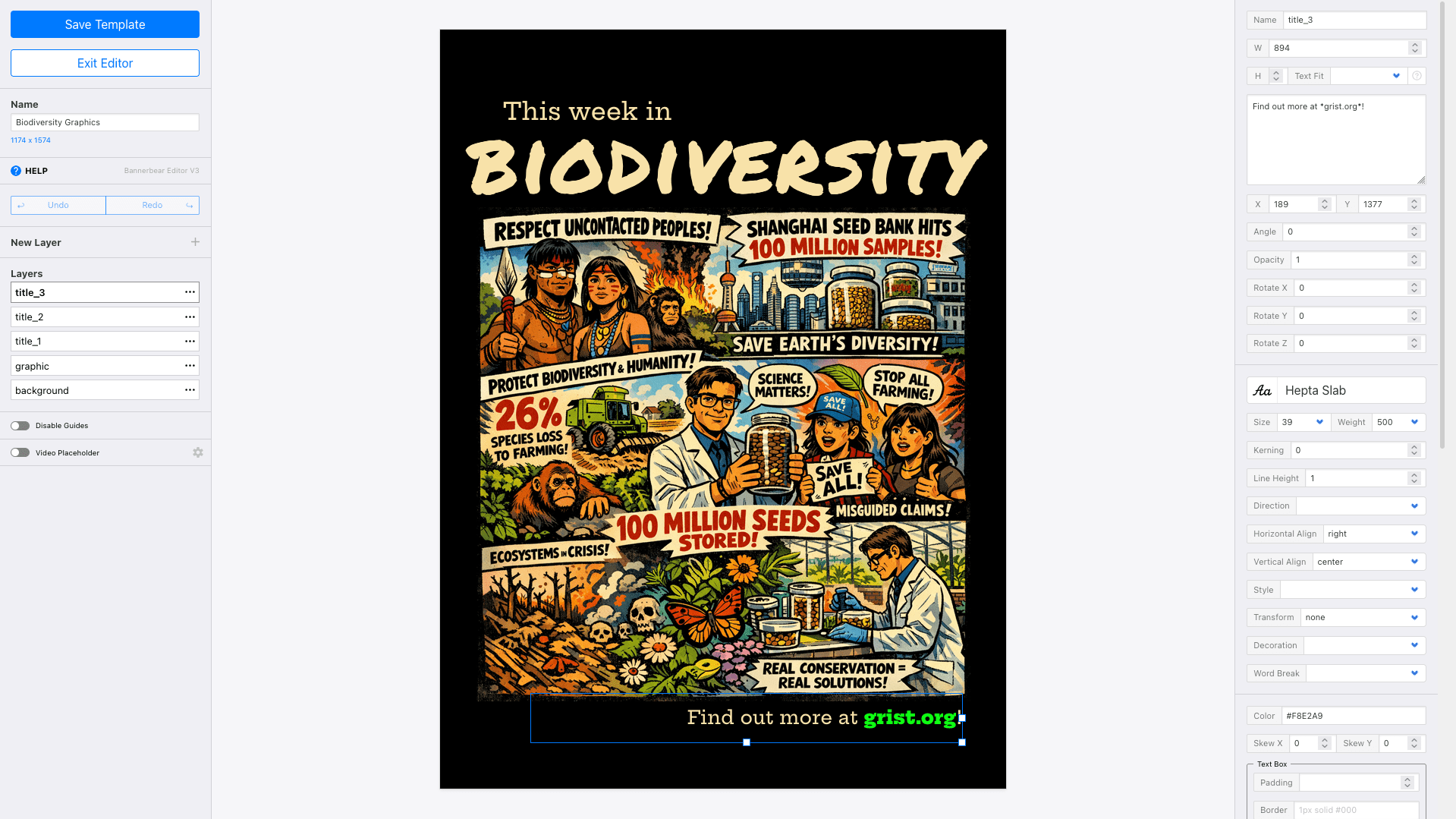
Bear Tip 🐻: Use secondary text styling to make your text links pop! Enclose your links in asterisks (
*yourlinkhere.com*), and Bannerbear automatically applies secondary styling—adjust font weight, color, or emphasis to draw the eye without overwhelming the design.
With QR Codes
QR codes store alphanumeric data. Add a QR code field to your template, then feed your link as input data. Each graphic can have a unique, dynamically-generated code.
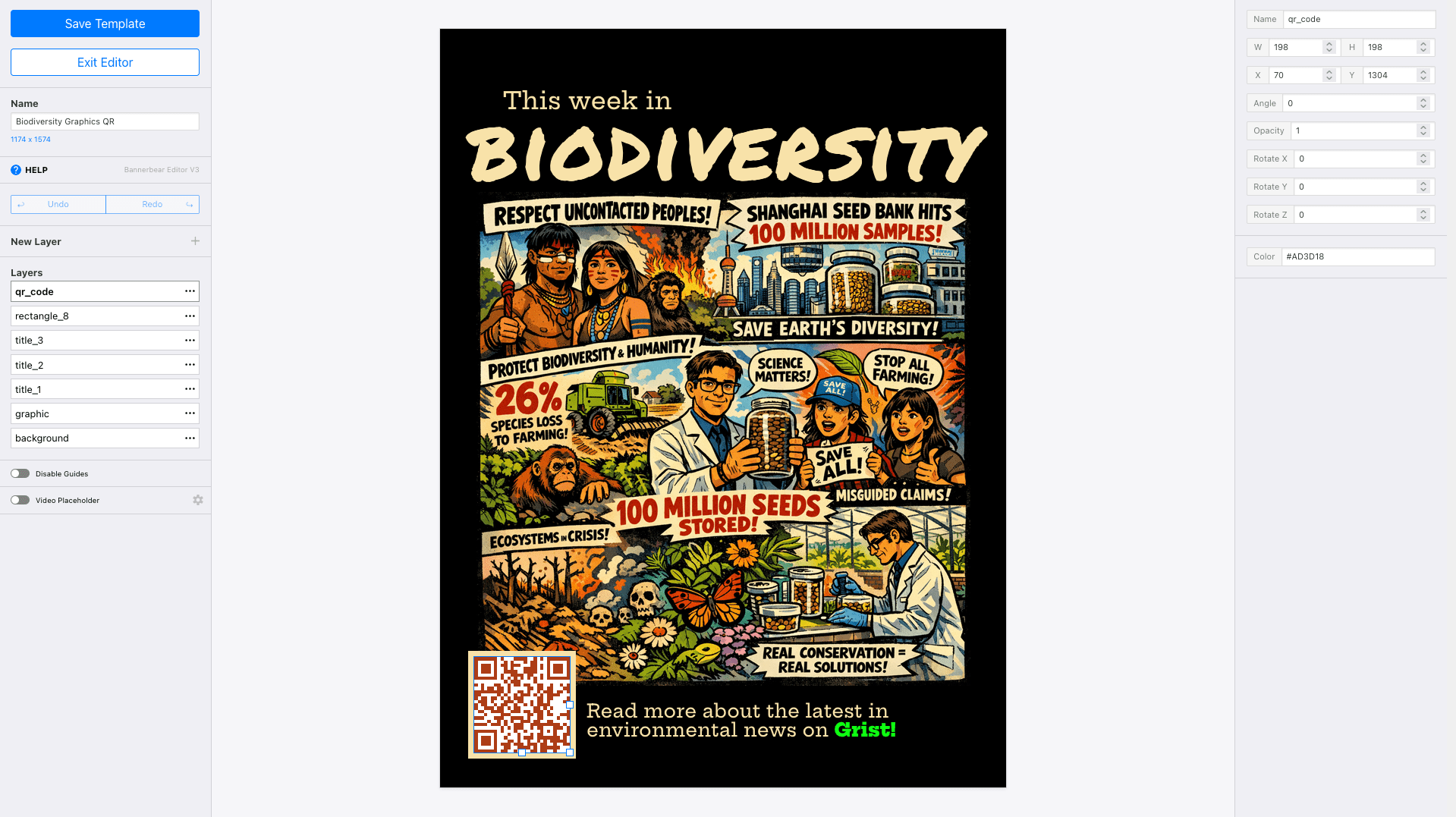
Both methods work with static links (same across all graphics) and dynamic links (unique per image).
Conclusion
Links in graphics aren't complicated—but they're easy to get wrong at scale. The key is deciding early: start with the medium, then link type, then implementation. Once you've settled on these choices, consistency becomes your friend. Bannerbear handles the backend. Your job is thinking through the logic, then letting automation do the heavy lifting.
Whether you're adding plain text links or QR codes, test before you ship. Remember: one broken link across a thousand graphics is one too many!