Weekly roundup posts are a staple for publishers. A “Top 5 News This Week” carousel gives followers a quick way to catch up, and it gives your best stories a second round of attention after they've dropped off the homepage.
However, someone has to make it every week. Picking the stories needs an editor's judgement, but the rest is busywork: copying headlines, finding photos and exporting seven slides.
In this tutorial, we'll automate the busywork with a Bannerbear workflow and the Bannerbear MCP server. You choose the five stories, and Claude opens each article, pulls out the headline and image and runs the workflow, which returns a seven-slide carousel ready to post on Instagram or LinkedIn. Then we'll save the prompt as a slash command, so each week you only need to update a list of links and run /weekly-carousel.
Let's get started!
What We're Building
The carousel has seven 1080×1350 slides:
- Slide 1 (cover): “Top 5 AI News This Week” with a collage of the first three story images
- Slides 2–6 (stories): one slide per story, with the story image as a full-bleed background, the headline on a frosted card and a page counter
- Slide 7 (CTA): a follow prompt with your site URL
Note: The example stories in this tutorial are from TechCrunch's AI section, and are used for demonstration only. All articles and images belong to their respective owners.
Here's the cover, story slides and the CTA from a run using five AI stories from TechCrunch:
Cover

Story Slides
Slide 1

Slide 2

Slide 3

Slide 4

Slide 5

CTA

Getting Started
To follow this tutorial, you will need:
- A Bannerbear account (sign up for a free trial here)
- Claude Code with the Bannerbear MCP server connected
- The URLs of five articles you want to feature. Each one needs a featured image in its
og:imagemeta tag (most CMSs add them automatically).
🐻 Bear Tip: If you haven't connected the Bannerbear MCP server yet, follow How to Set Up Bannerbear MCP in Claude Code first.
How to Automate a Weekly “Top 5 News” Carousel with Claude Code and Bannerbear MCP
Step 1. Add the Image Templates
Add these three image templates to your Bannerbear project:
- Blue White Gradient Modern News Cover for slide 1
- Blue White Gradient Modern News Headline for slides 2–6
- Blue White Gradient Modern News CTA for slide 7
A few parts of the design are fixed elements that you don’t change every week, like the logo in each template and the text in the CTA slide. You can open each template in the Bannerbear editor and update them.
Step 2. Create the Workflow
The workflow chains the three templates together and fills them with your stories. You can duplicate the finished Weekly Top 5 News Carousel workflow into your project, but let's walk through how it's put together so you can adjust it or build your own.
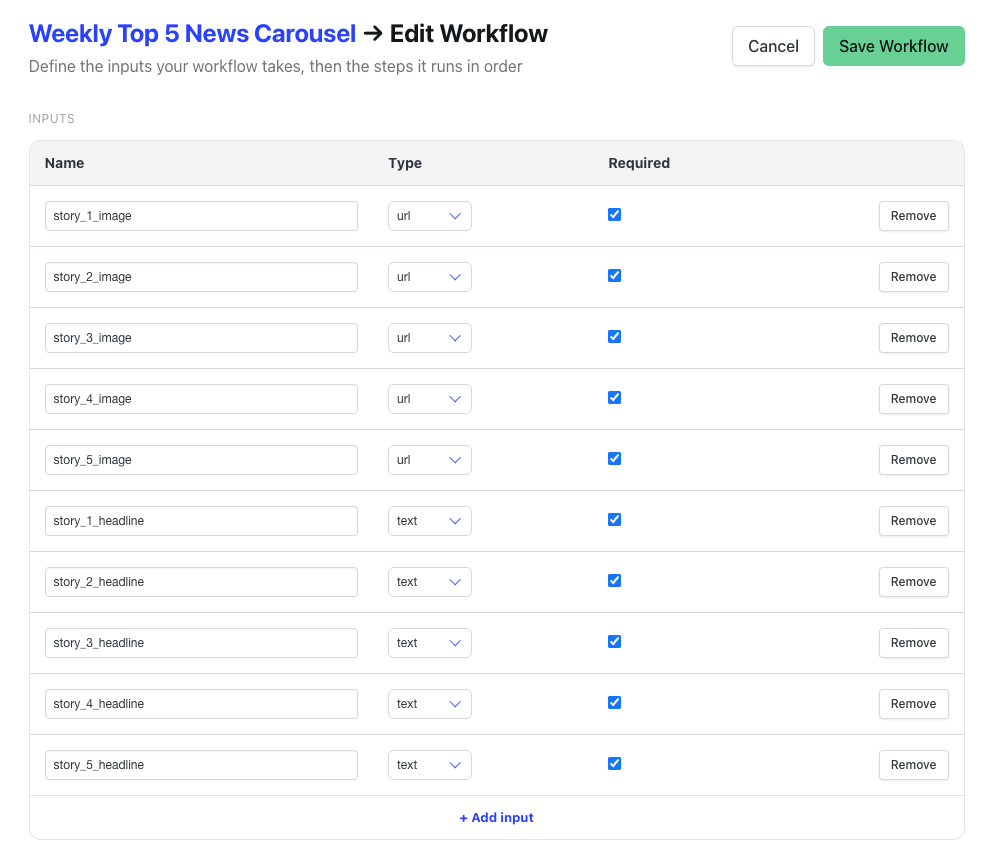
Add the Inputs
Create a new workflow named Weekly Top 5 News Carousel and add 10 inputs (a headline and an image URL for each story):
Add the Cover Step
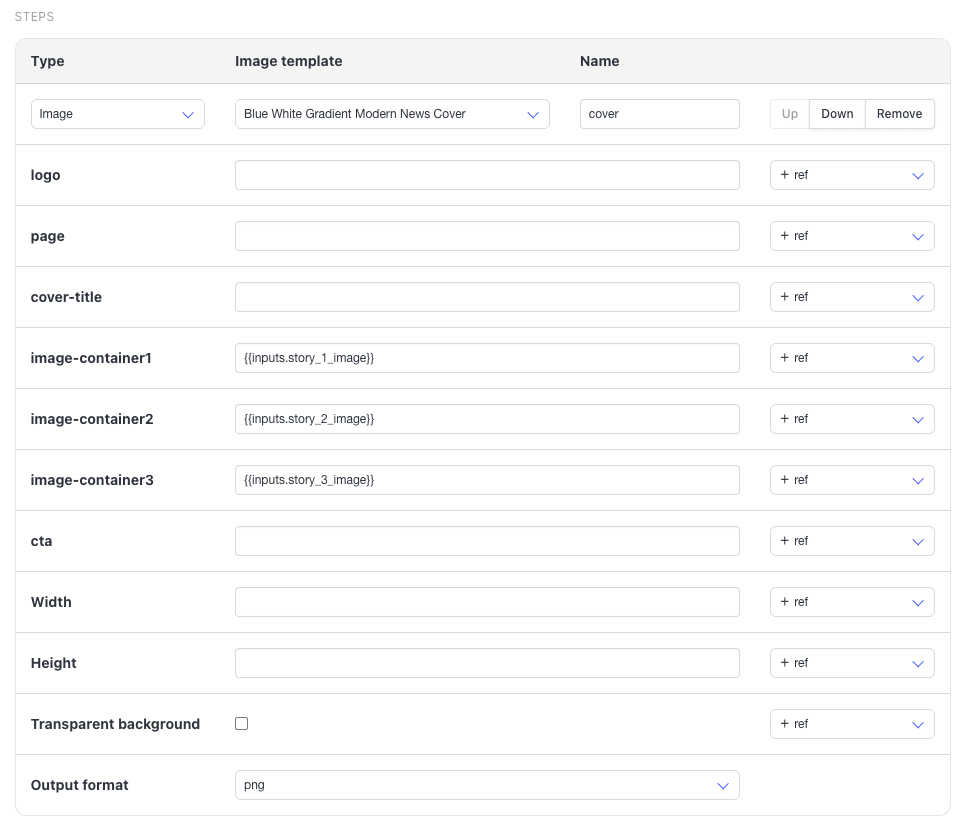
Add an image step named cover that uses the Blue White Gradient Modern News Cover template. Set the three photo layers in the collage to the first three story images:
Add the Five Story Steps
Add an image step named story_1 that uses the Blue White Gradient Modern News Headline template, and set these layers:
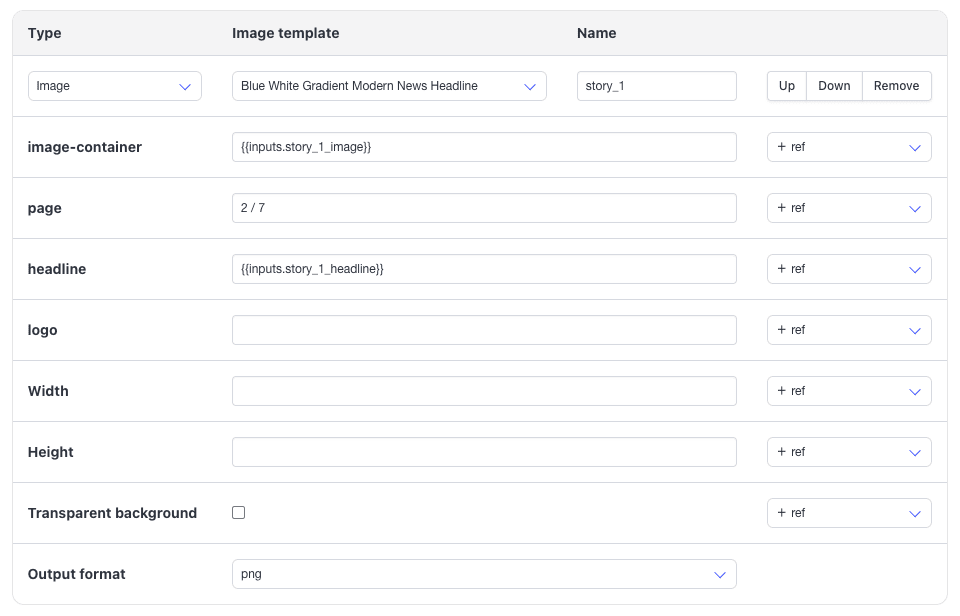
Then add story_2 to story_5 the same way, changing the input number and the page counter each time (3 / 7 for story_2, up to 6 / 7 for story_5). Since the counter is fixed in each step, the slides come out numbered correctly without any extra input.
Add the CTA Step
Finish with an image step named cta that uses the Blue White Gradient Modern News CTA template. It doesn't need any inputs, since its text stays the same every week.
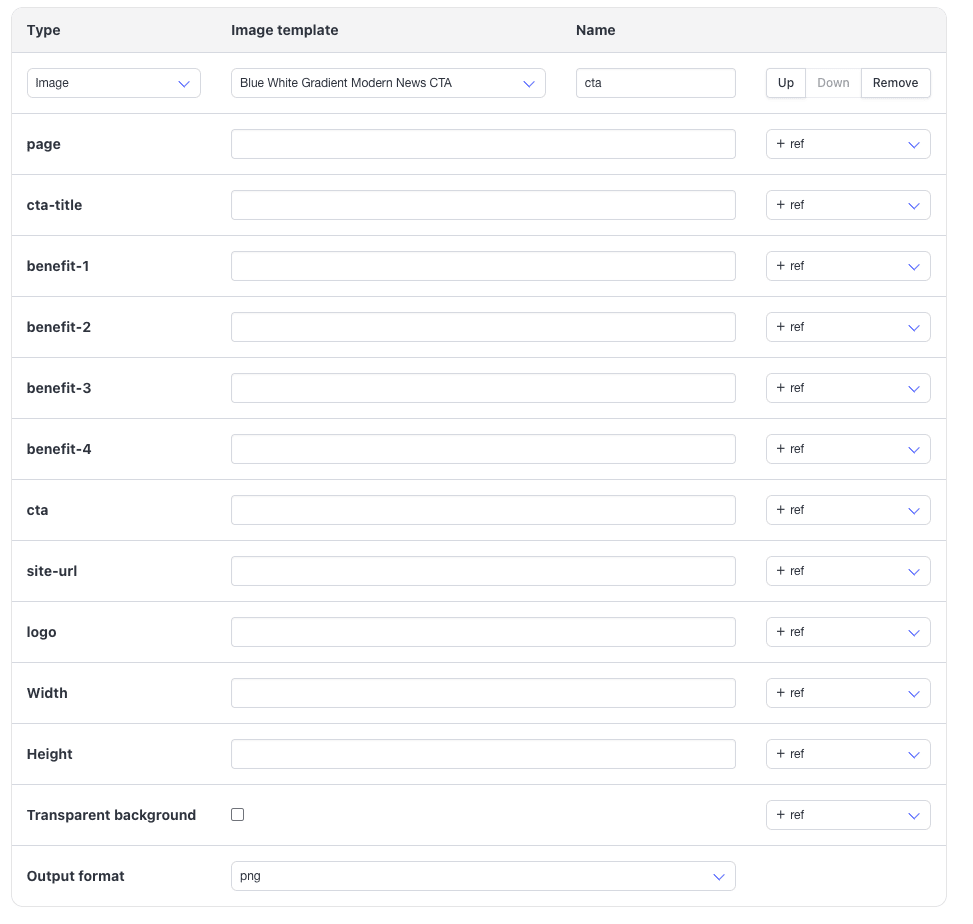
When the workflow runs, the seven steps render in order (cover, story_1 to story_5 and cta), and the run returns one PNG per step.
🐻 Bear Tip: You can also ask Claude to build the workflow for you through MCP, for example: “Create a Bannerbear workflow called Weekly Top 5 News Carousel using my three Blue White Gradient Modern News templates, with a headline and an image URL input for each of five stories.”
Step 3. Generate This Week's Carousel
Start Claude Code and give it this prompt with your five article URLs, in the order you want them to appear:
Here are this week's top 5 stories, in the order they should appear in the carousel:

1. https://techcrunch.com/2026/11/16/cybersecurity-ai-startup-corma-reaches-1b-valuation-in-about-3-months/
2. https://techcrunch.com/2026/11/16/fbi-says-artex-ai-open-source-hacking-tool-used-to-breach-networks-in-under-three-hours/
3. https://techcrunch.com/2026/11/16/openai-will-embed-apollo-researchers-to-investigate-ai-subversion/
4. https://techcrunch.com/2026/11/16/audible-turns-to-ai-to-help-users-discover-audiobooks/
5. https://techcrunch.com/2026/11/12/united-airlines-blocks-ai-agents-from-booking-flights-citing-cybersecurity-risks/

For each story:
- Open the article and take its headline. If it's longer than 70 characters, shorten
  it without changing its meaning.
- Use the article's featured image from its og:image meta tag.

Then run the "Weekly Top 5 News Carousel" Bannerbear workflow, with the first story
as story_1. Show me the 7 slide URLs in order when it's done.
Claude will open each article, pull out its headline and featured image and then look up your workflow and run it with the inputs filled in. Once the results are returned, you can download them in that order and upload them as a carousel post.
Step 4. Turn the Prompt into a Slash Command
The stories change every week but the instructions don't, so let's keep them in separate files. Create stories.txt in your project folder with one article URL per line, in carousel order:
https://techcrunch.com/2026/11/16/cybersecurity-ai-startup-corma-reaches-1b-valuation-in-about-3-months/
https://techcrunch.com/2026/11/16/fbi-says-artex-ai-open-source-hacking-tool-used-to-breach-networks-in-under-three-hours/
https://techcrunch.com/2026/11/16/openai-will-embed-apollo-researchers-to-investigate-ai-subversion/
https://techcrunch.com/2026/11/16/audible-turns-to-ai-to-help-users-discover-audiobooks/
https://techcrunch.com/2026/11/12/united-airlines-blocks-ai-agents-from-booking-flights-citing-cybersecurity-risks/
This is the only file your editor needs to touch each week. Next, save the prompt as a Claude Code slash command, so you can run it each week with one short command.
Create .claude/commands/weekly-carousel.md in your project folder and paste in the prompt below. We'll also ask Claude to write the results to a file and draft a caption while it's at it:
Read stories.txt. It lists this week's top 5 stories, one URL per line, in the order
they should appear in the carousel. If it doesn't contain exactly 5 URLs, don't run
the workflow. Write the problem to output/<today's date as YYYY-MM-DD>.md and stop.

For each story:
- Open the article and take its headline. If it's longer than 70 characters, shorten
  it without changing its meaning.
- Use the article's featured image from its og:image meta tag.

Then run the "Weekly Top 5 News Carousel" Bannerbear workflow, with the first story
as story_1.

When it's done, save a file to output/<today's date as YYYY-MM-DD>.md containing:
- the 7 slide URLs in order (cover, story_1 to story_5, cta)
- a caption for Instagram and LinkedIn, under 150 words, that lists the 5 stories
  with a link to each
Now, each week, you can update stories.txt, and trigger the workflow using the /weekly-carousel command in Claude Code:
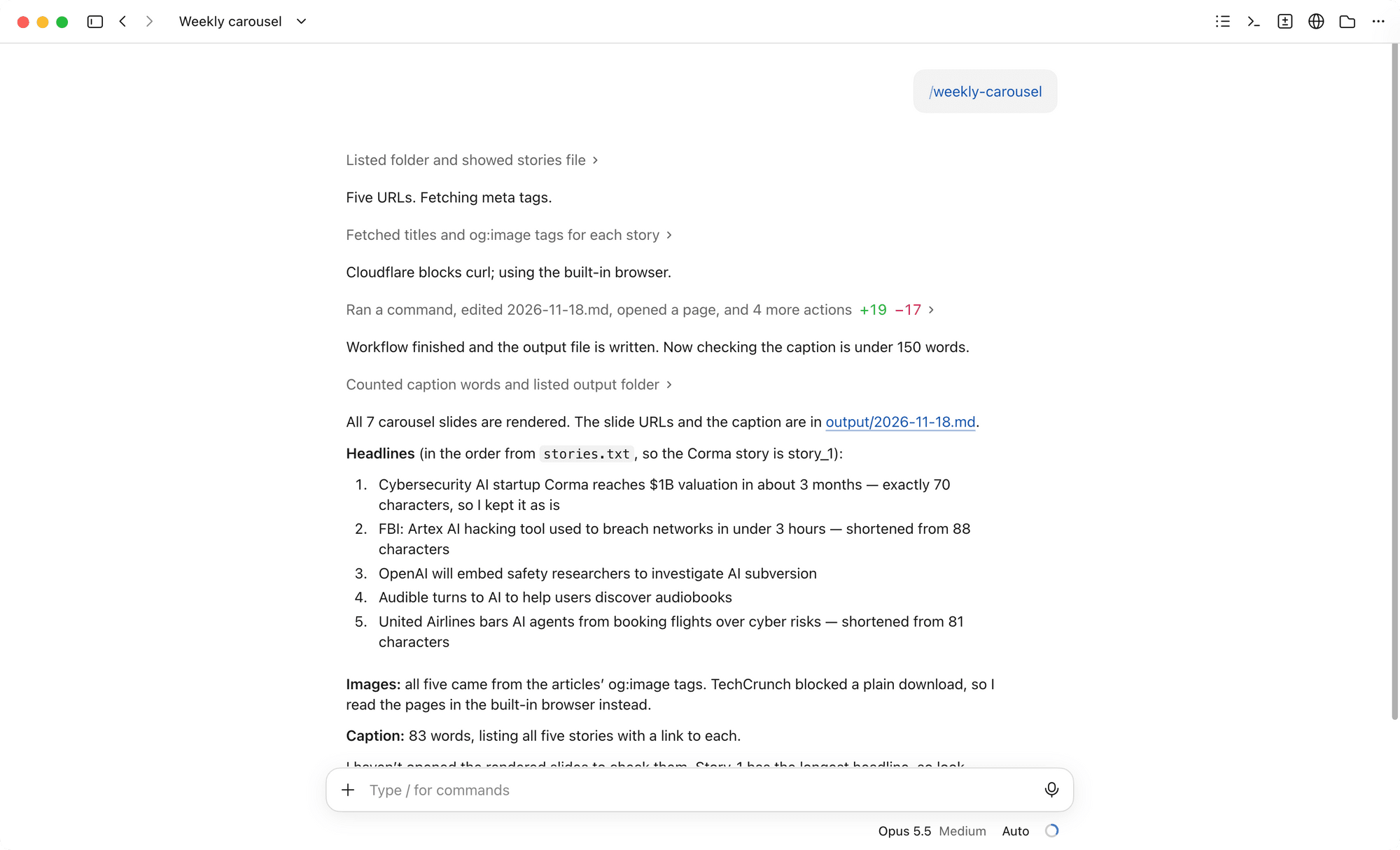
Claude reads stories.txt, runs the workflow and saves the slide URLs and caption to the output folder. The command takes its name from the file, so weekly-carousel.md becomes /weekly-carousel.
🐻 Bear Tip: The workflow also works without MCP. If you'd rather trigger it from your CMS or your own code, you can start the same workflow with a request to the Bannerbear API and pass the 10 inputs as JSON. See the API reference for the details.
Customizing the Workflow
Once the basic version works, here are a few ways to adapt it:
- Let Claude pick the stories: Replace
stories.txtin the prompt with your RSS feed URL and ask Claude to choose the five most recent stories from the past seven days. This suits weeks when nobody has time to curate. - Rank by popularity: If your analytics tool has an MCP server or API, ask Claude to pick the five most-read stories of the week instead.
- Different topics or brands: Duplicate the three templates, restyle them and point a second copy of the workflow at them. A newsroom could run one carousel per section, each with its own list of stories.
- More or fewer stories: Add or remove story steps and inputs in the workflow editor, then update the page counters to match the new total.
Conclusion
That's it! You now have a carousel that builds itself from a list of links. Just pick the stories, Claude fills in the inputs and the Bannerbear workflow renders all seven slides in one run.
The same setup works for other recurring content too, like a monthly “Best of” roundup, a weekly product launch digest or a newsletter header.
If you'd like to see more workflows driven by MCP, check out How to Auto-Trim Podcast Highlights with AI and Bannerbear Workflows and How to Repurpose Blog Posts into TikToks, Reels and Shorts Automatically with AI and Bannerbear. For another carousel built from scratch, see How to Generate Product Detail Social Carousels From Shopify.