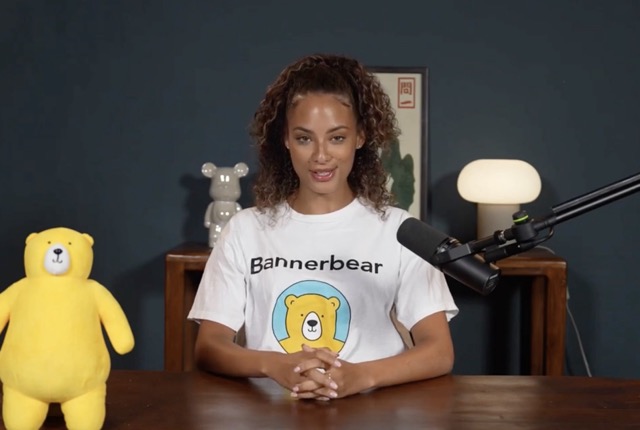
Learn how to trim videos using FFmpeg with three different methods — from simple duration cuts to end-of-file clipping. Whether you're building a video tool or automating video processing from the command line, this tutorial has you covered.
What you'll learn:
• Method 1 — The trim filter: Trim by duration, start time, end time, or a specific segment
• Method 2 — The -ss option: Input vs. output seeking, and when to use each for speed and accuracy
• Method 3 — The -sseof option: Trim from the end of a video — perfect for clipping outros
• Bonus: How to merge trimmed clips into one polished video using the Bannerbear Video Generation API FFmpeg is free and works on Linux, macOS, and Windows — making it ideal for developers building video processing into their apps or workflows.
🔔 Subscribe for more developer tool tutorials 💬 Which method did you find most useful? Let us know in the comments!
Video Transcription
[00:00:00] Hey everyone, welcome back. If you're building a video editing tool or you want to automate trimming videos straight from the command line, you've come to the right place. Today, we're going to walk through how to trim a video using FFmpeg. We'll cover three different methods using the trim filter, the -ss seeking option, and the -sseof option.
At the end of this video, I'll also show you how Bannerbear's video generation API can take things even further. Let's get started. The first method we'll look at is FFmpeg's built-in trim filter. It gives you grained control and lets you trim by duration, start time, end time, or a combination of all three.
We'll use this sample input video for all our examples today.
[00:01:00] To trim a video to a specific duration starting from the beginning, use this command: the -vf trim equals duration equals three part applies the trim filter and sets it to three seconds. And one thing to note, when you use a filter like this, FFmpeg re-encodes the video.
That means you can't use -c copy to skip re-encoding. But you can still copy the audio stream with -c:a copy to save some processing time. You can also use the end parameter instead of the duration parameter. This trims the video, so it ends at a three-second mark and gives you the same result. If you want to cut from a specific start point, use the start parameter.
Notice we added the set PTS parameter. This resets the video
[00:02:00] timestamps so your output starts at zero instead of jumping straight to the three-second mark, which could cause black screens at the beginning. Now that you've learned about how to trim a video using the start and end parameters, you can combine them to cut out a specific segment.
For example, this command extracts seconds three through six. You can also use the shorthand notation. It gives you the same result. The second method uses FFmpeg's seeking option, -ss. This is probably the most commonly used approach for trimming, and it comes in two ways: input seeking and output seeking.
With input seeking, you put -ss before the input file. FFmpeg jumps straight to that point before processing, which makes it faster, especially for larger files.
[00:03:00] This command starts from the three-second mark and keeps everything to the end. To limit the duration of the output, add -t followed by the number of seconds.
This trims three seconds starting from the three-second mark. Alternatively, you can use -to to indicate the ending timestamp. The command below trims the video from the three-second mark to the six second. On the other hand, output seeking puts -ss after the input file. The key difference is that FFmpeg processes the entire video from the start before the seek point, so it's less efficient for large files.
The result is the same, and the -t and -to options work here too, but input seeking is generally the better choice when you need a faster process. The third method, using the
[00:04:00] -sseof option, is a bit more niche, but it can be useful if you need to clip outros or if you just want to end a recording without scrubbing through the whole file.
It lets you trim from the end of the video rather than the beginning. -sseof works just like -ss, but it takes a negative value that tells FFmpeg how many seconds from the end of the video you want to start. For example, this grabs the last two seconds of the video. You can also use the hours, minutes, seconds timestamp format One more thing before we wrap up.
If you need to stitch trim clips together into one final video, there's a tool called Bannerbear that makes that really easy. It's a video generation API, so instead of wrestling with more
[00:05:00] FFmpeg commands, you just send it in an API request, and it handles the merging for you. Here's an example of how a request looks in JavaScript.
You can pass in videos of different formats, plus images and audio files. Bannerbear handles the conversion and stitches everything into a single MP4 output. You can even apply a transition effect, like a fade between clips. And that's a wrap. Today, we've covered three ways to trim videos with FFmpeg: the trim filter, the -ss option, and the -sseof option.
If you need to merge your trimmed clips into one polished video using Bannerbear, the sign-up link is in the description. It's a great complement to FFmpeg, and it's free to start. Thanks for watching, and I'll see you in the next video.
https://youtu.be/jCJxgMjJ0xw?si=923Q2i4KErPwrFP5
Need to edit a video now?
Bannerbear has a suite of free online video tools that run FFmpeg right in your browser, no install, no upload, no watermark. Trim, resize, convert, subtitle, watermark and merge your videos in a few clicks.
Browse the Free Video Tools