Posting highlight clips of your podcast as short-form videos like Instagram Reels, TikTok and YouTube Shorts is one of the main ways new listeners discover your podcast, and subtitles let people watch them on mute.
However, subtitles in one language only reach part of your audience. Listeners who don't understand that language will likely scroll right past.
In this tutorial, we'll build a Bannerbear workflow that turns a podcast highlight into a vertical clip with bilingual subtitles, styled using the Pink Indigo Colorful Fun Subtitles template. Each line shows up in two languages at once, for example, English in large text with a Chinese translation in smaller text underneath, so the same clip can reach different audiences at the same time.
Here’s how the result will look:
🐻 Bear Tip: Bannerbear doesn't translate text on its own, so we'll create the workflow in the Bannerbear dashboard, then use an AI agent to create transcripts in different languages and run the workflow from there.
What Is a Bannerbear Workflow
Bannerbear is a tool that lets you automatically generate images, animations and videos from templates. Besides rendering templates, it has a set of video tools (e.g., trim, resize, overlay and subtitles) that you can chain together into a multi-step workflow. In a workflow, you declare the inputs and link the steps together, so each step can use the output of an earlier one.
Bannerbear offers an MCP server, an API and libraries for popular programming languages such as Node.js, Ruby and PHP, so you can easily add image and video generation features to your application or project.
How the Workflow Works
Our setup has three parts:
- Animation template (for subtitles) - we'll use the Pink Indigo Colorful Fun Subtitles animation template for the subtitle style. Before each workflow run, the AI agent rewrites it so that every transcript line becomes two text layers—a large one for the original words and a smaller one for the translation, both timed to the transcript.
- Workflow - resizes your highlight clip to 1080×1920 so it fills a vertical screen, renders the subtitle template with a transparent background, and overlays the subtitles on top of the clip.
- AI agent - generates your SRT transcripts, updates the subtitle animation template, and runs the workflow.
Each run produces one clip with one language pair, such as English with Chinese underneath.
🐻 Bear Tip: For a different language pair, ask the AI agent to translate the SRT, update the subtitle template and run the workflow again with the new pair.
Pre-requisites
To follow this tutorial, you will need:
- A Bannerbear account (the free trial comes with 30 API credits)
- An AI agent that runs on your machine and supports MCP, such as Claude Code or Cursor
- A short highlight clip from your podcast (a direct video URL to an MP4 or MOV file, not a YouTube page link)
Generating SRT Files for The Video Using Whisper
Whisper is a free, open-source speech-to-text model from OpenAI. It can transcribe your video into an SRT file, with start and end times for each line.
Ask your AI agent to transcribe the video and translate it into a second language:
Transcribe @highlight.mov into an English SRT and translate it into another Chinese SRT, with 1.5-3.5 seconds for each line and make sure they're synced.
The AI agent installs FFmpeg and Whisper if they're missing, runs the transcription and saves them as SRT files.
🐻 Bear Tip: 1.5 to 3.5 seconds per line is the optimal subtitle display time for short-form videos.
Creating the Workflow in the Bannerbear Dashboard
You only need to set up the template and the workflow once. After that, every new clip goes through MCP.
Note: If you’d like to skip the setup, you can duplicate the workflow to your Bannerbear account and start running it right away.
Step 1. Add the Subtitle Animation Template to Your Project
Open the Pink Indigo Colorful Fun Subtitles template and add it to your project. It comes with a single text layer named title that shows one line of text for 1.5 seconds.
Template preview

That's all it needs for now. You don't have to edit anything in it, because the AI agent will replace its layers with timed subtitles before every run.
Step 2. Create the Workflow
Select Workflows on the left side panel and click Create Workflow:
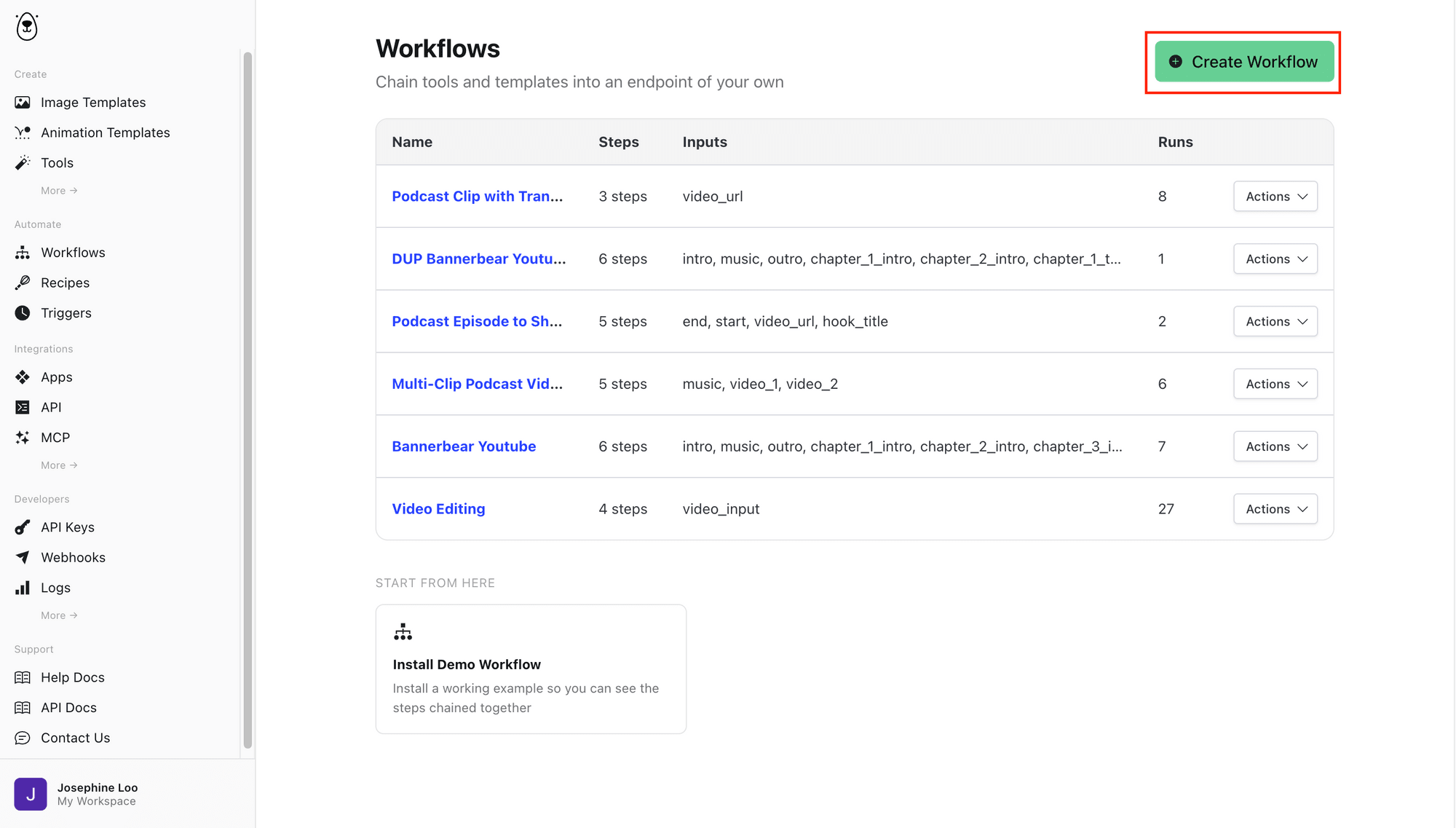
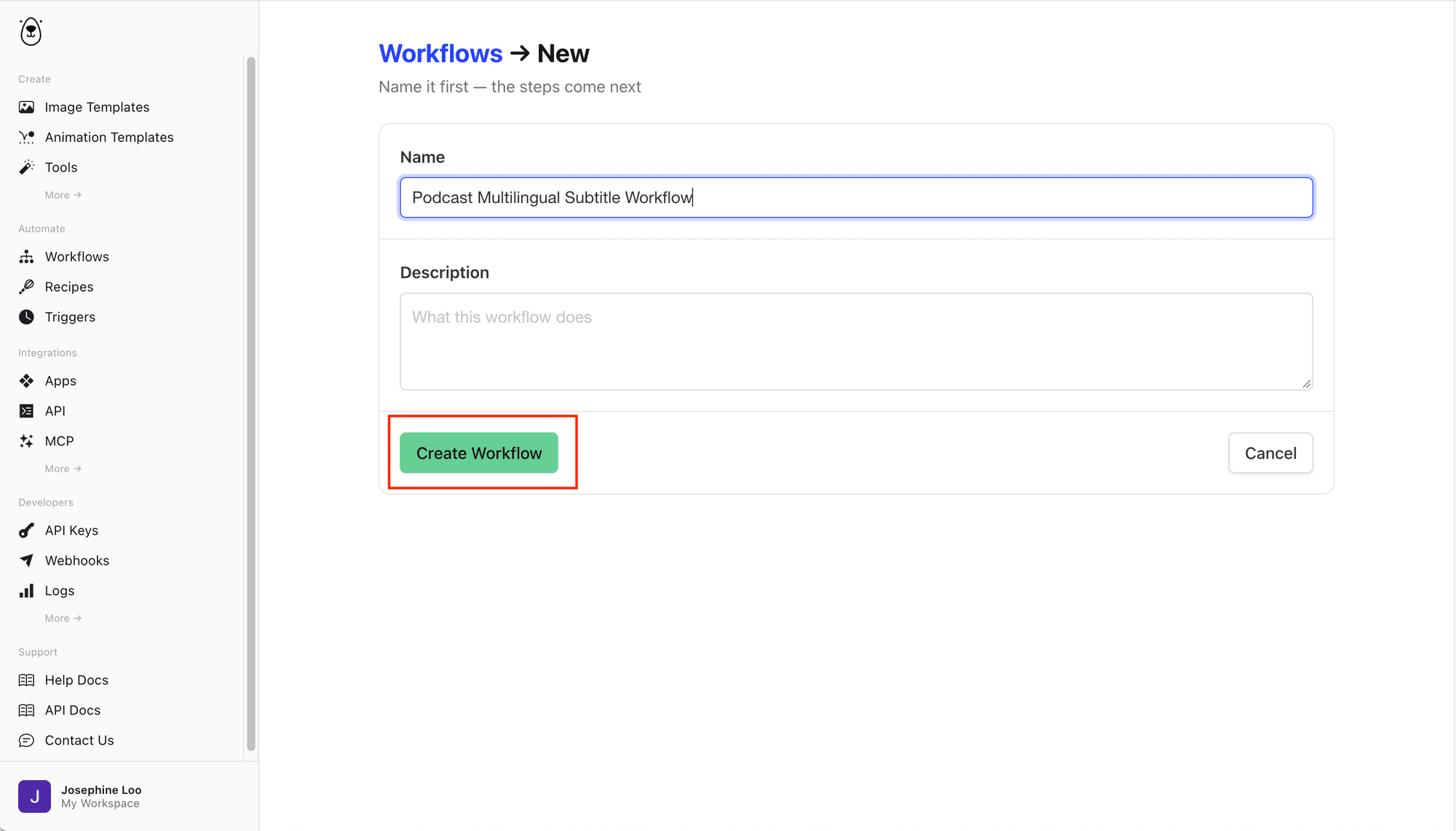
Name it Podcast Multilingual Subtitle Workflow and click Create Workflow again to save it:
Step 3. Add the Input
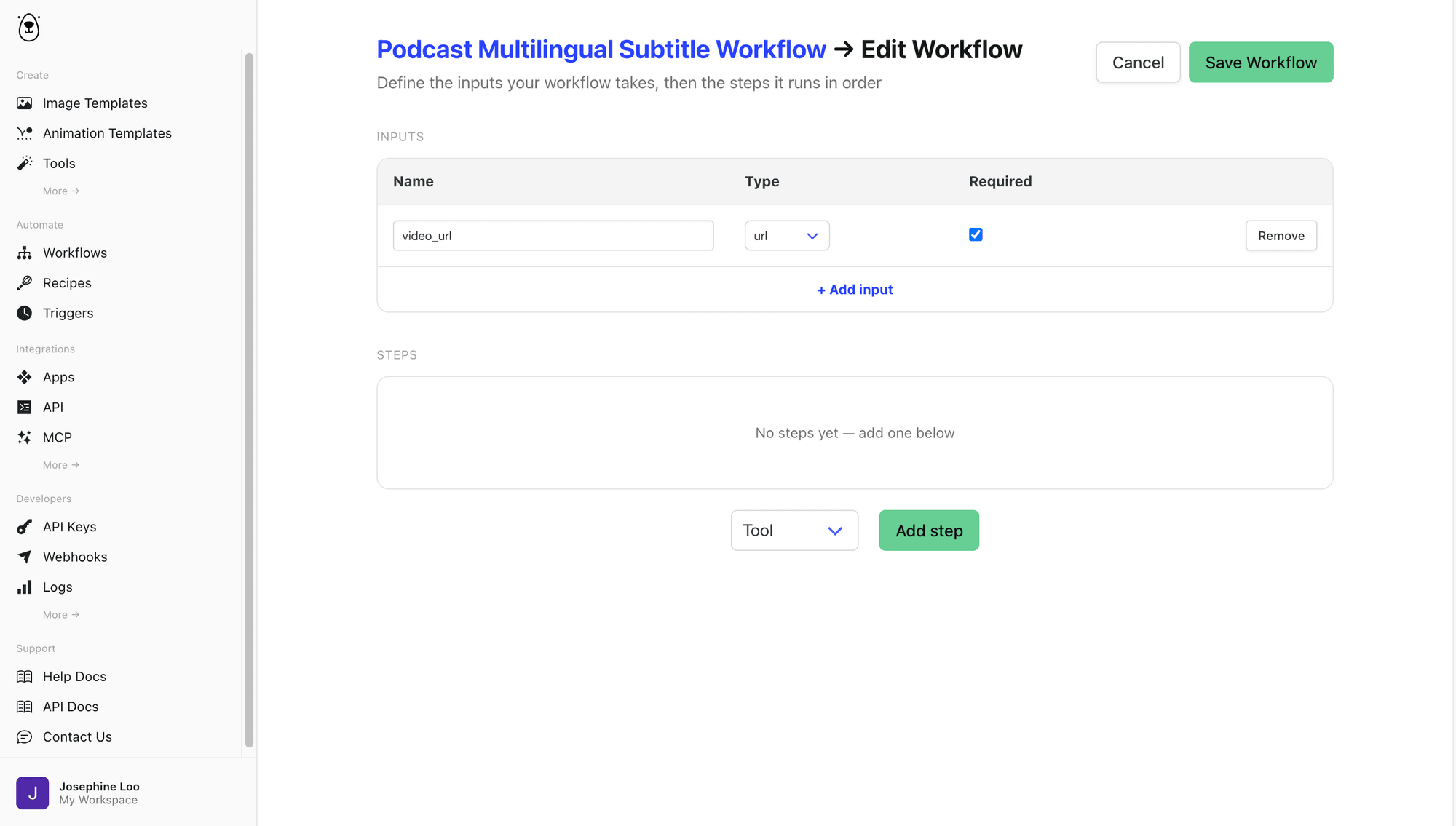
Inputs are the values you give the workflow each time it runs. This workflow only needs one: the highlight clip.
Click + Add Input , name it video_url, set its type to url and make it required:
Step 4. Resize the Clip to 9:16
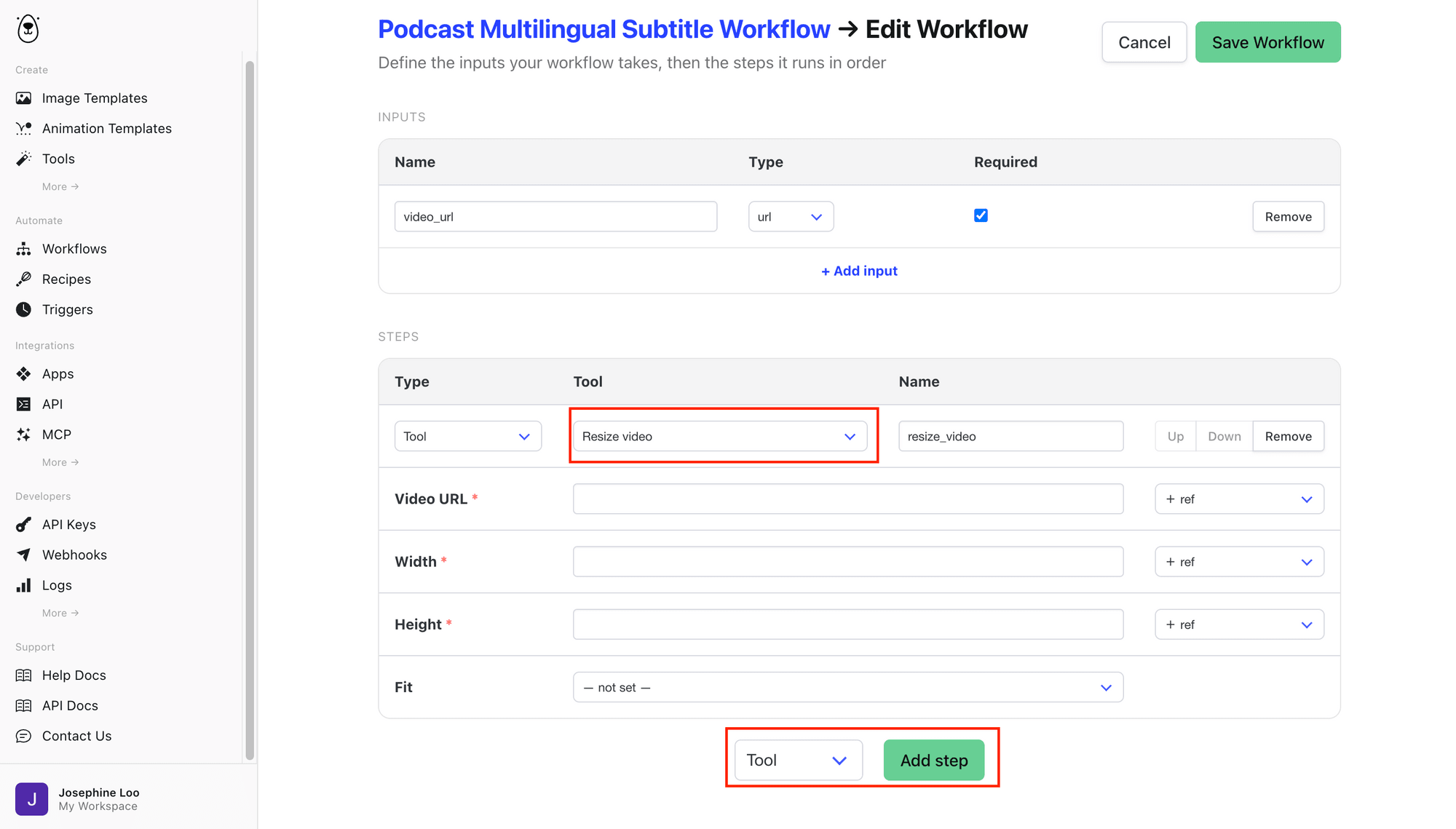
Add a Tool step and select Resize video :
Use the + ref drop-down menu to set Video URL to video_url, then set Width to 1080 and Height to 1920. Leave Fit not set:
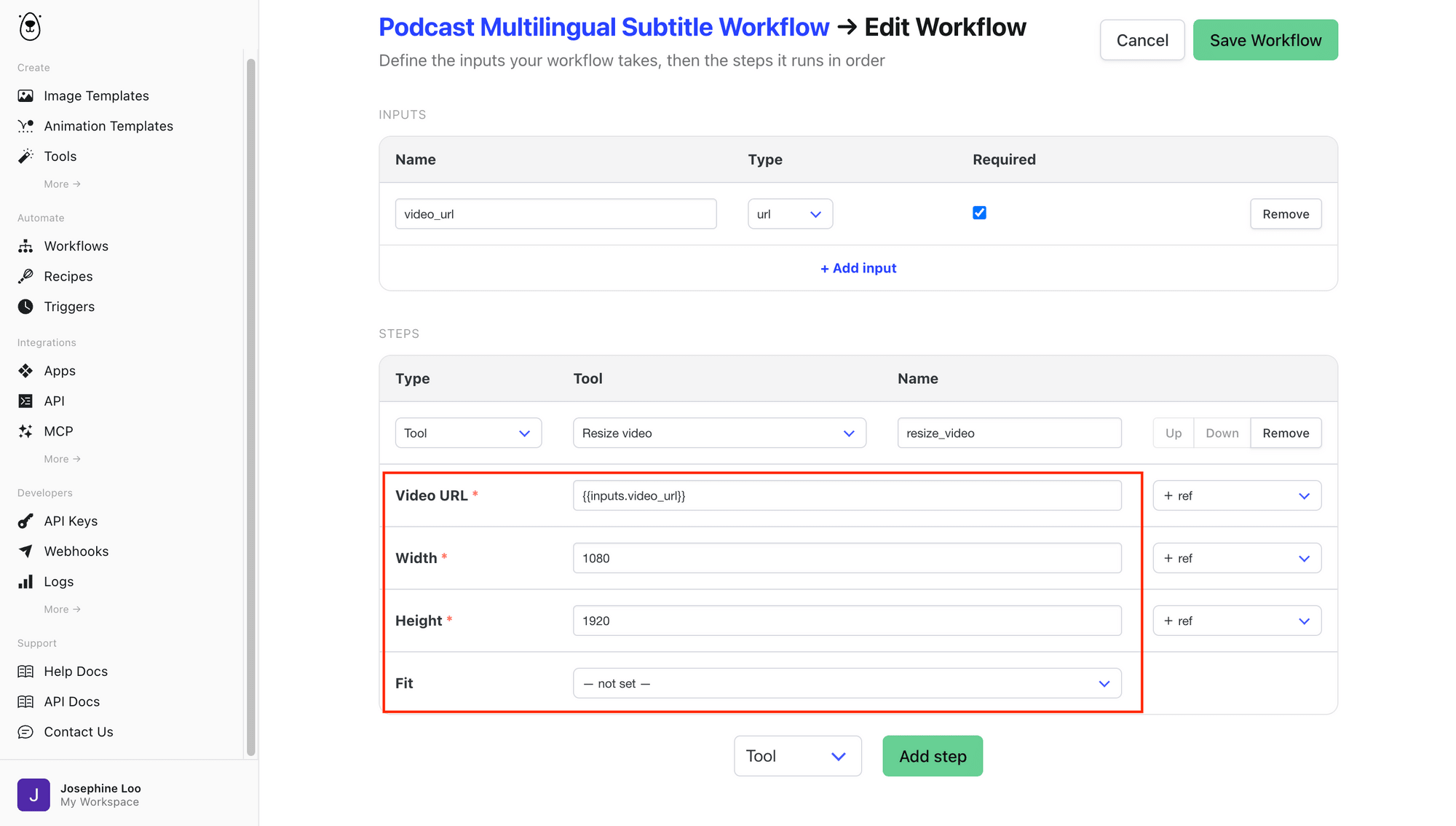
🐻 Bear Tip: With Fit not set, the video covers the whole 1080×1920 frame.
Step 5. Render the Subtitles
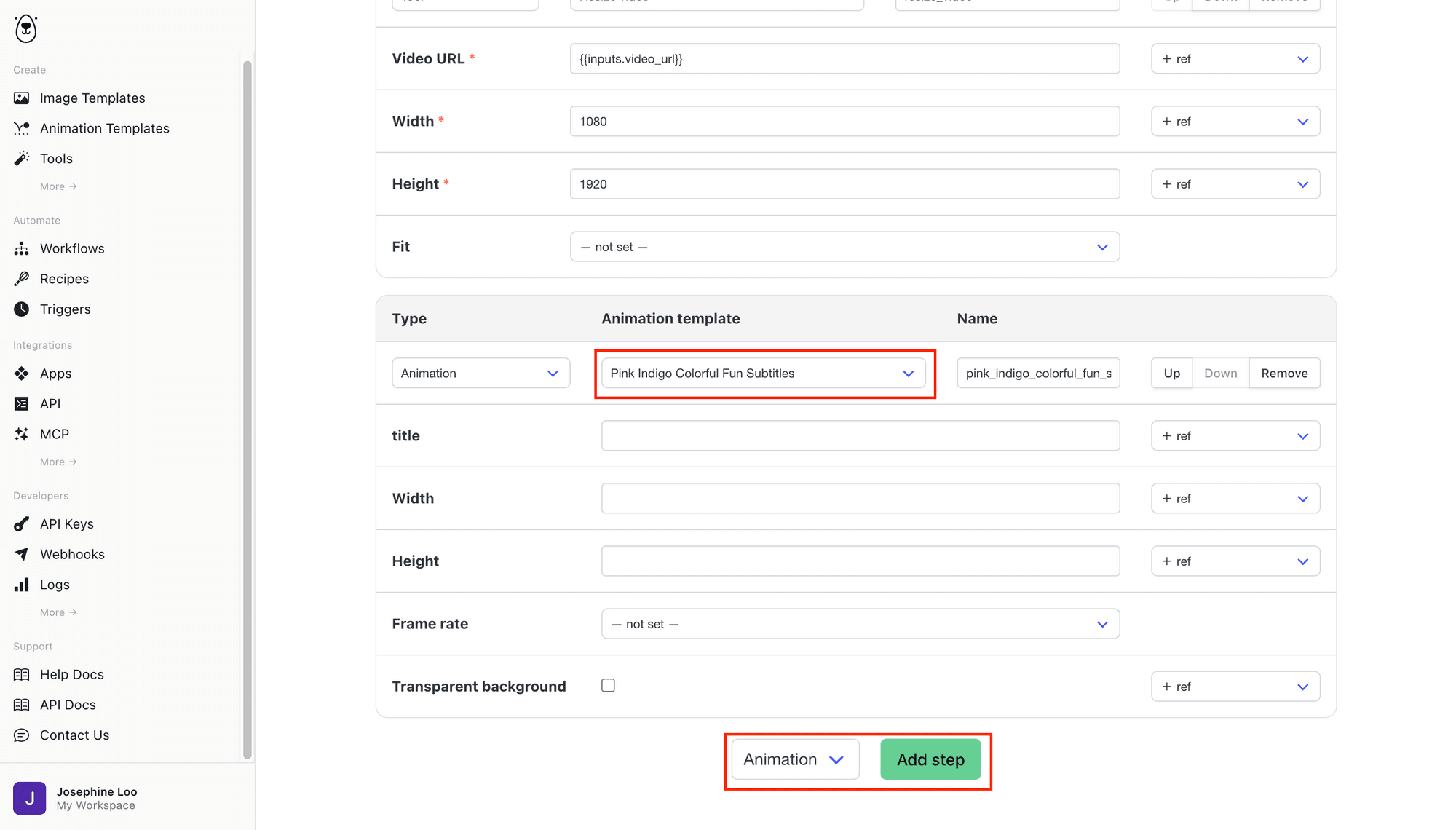
Add an Animation step and pick the Pink Indigo Colorful Fun Subtitles template you added earlier from the drop-down:
Tick the Transparent background check-box:
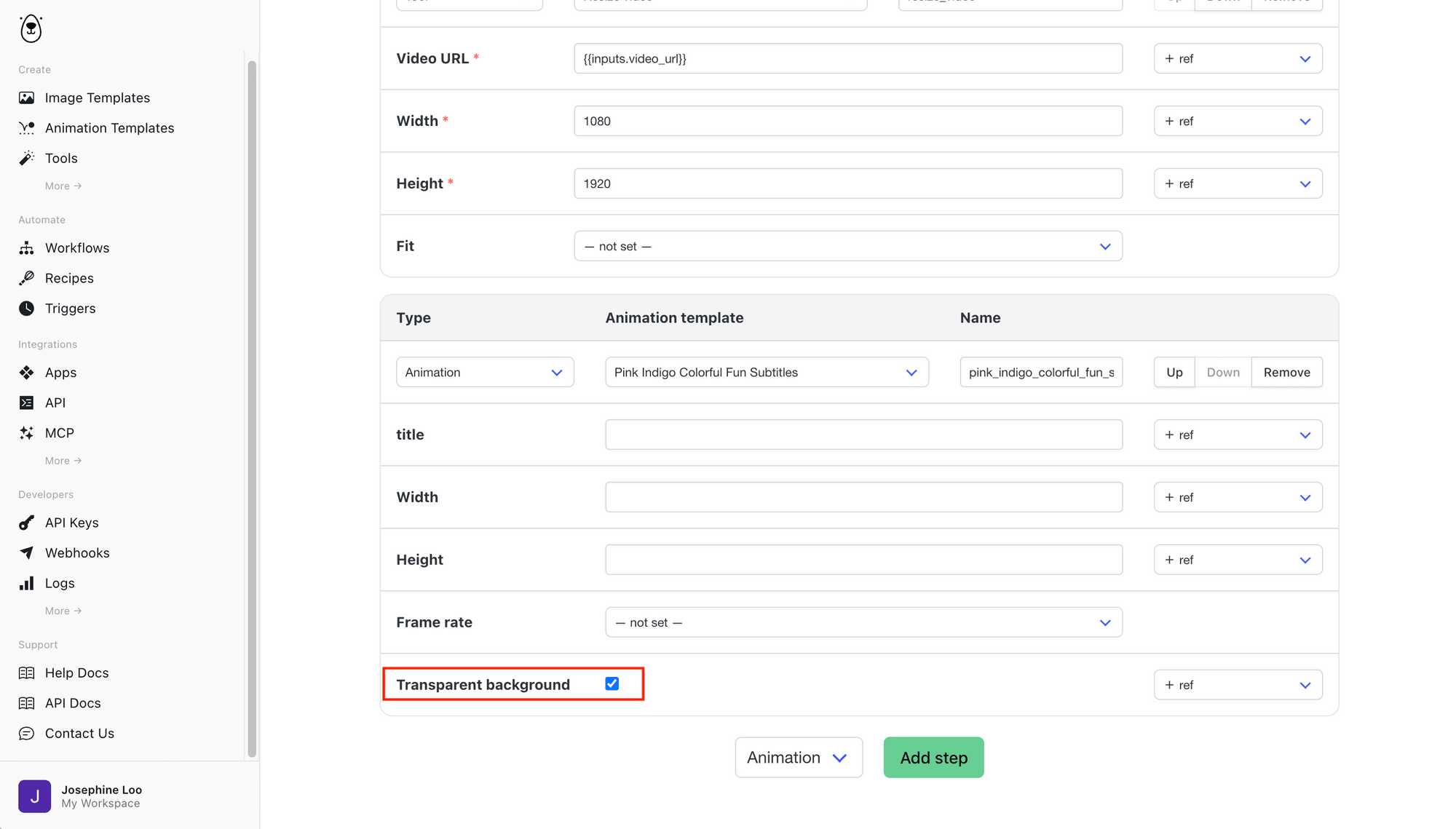
With a transparent background, the animation renders as a MOV file that contains only the subtitles, so we can lay it over the video in the next step.
Step 6. Overlay the Subtitles on the Clip
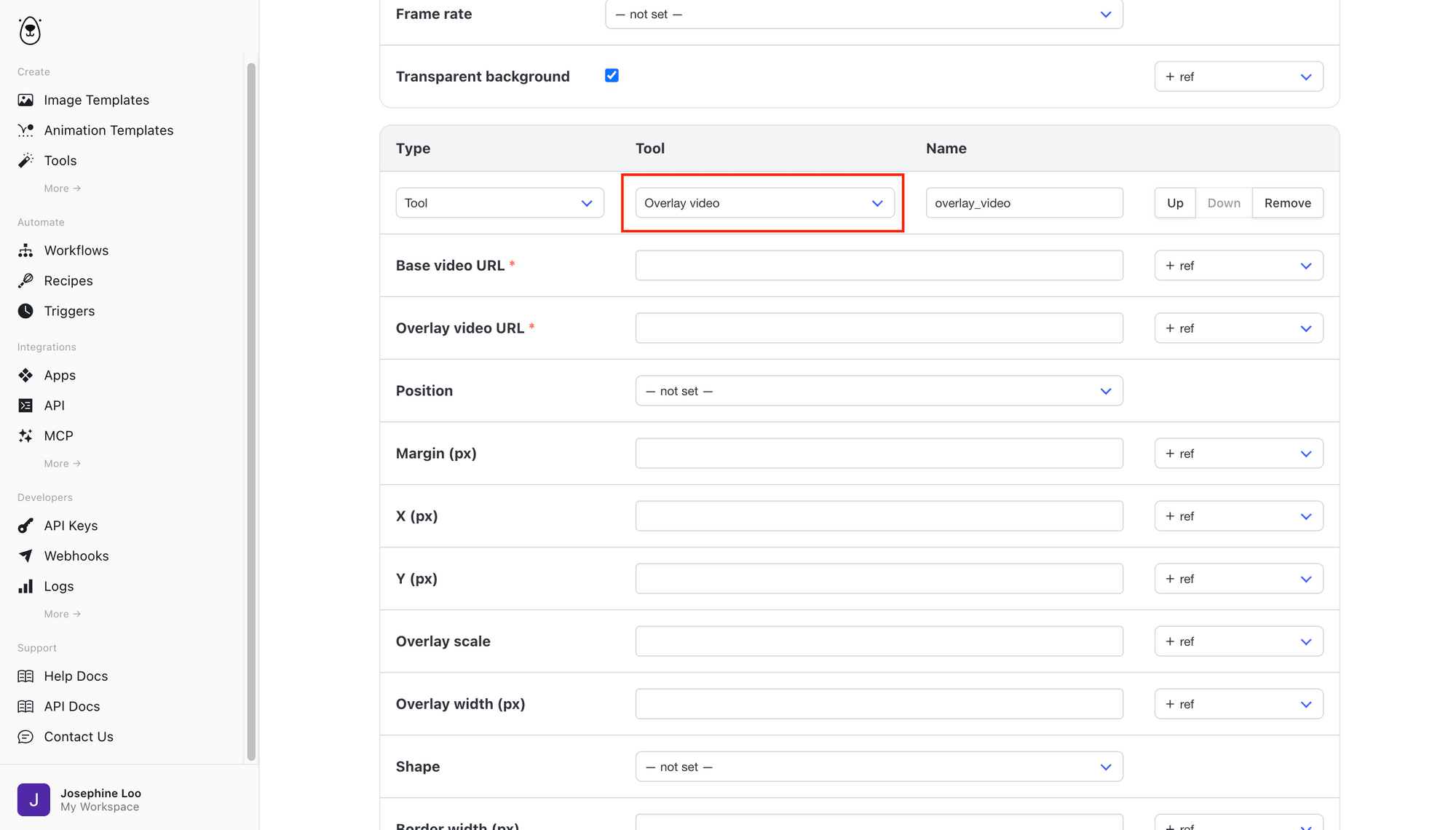
Add a Tool step and select Overlay video:
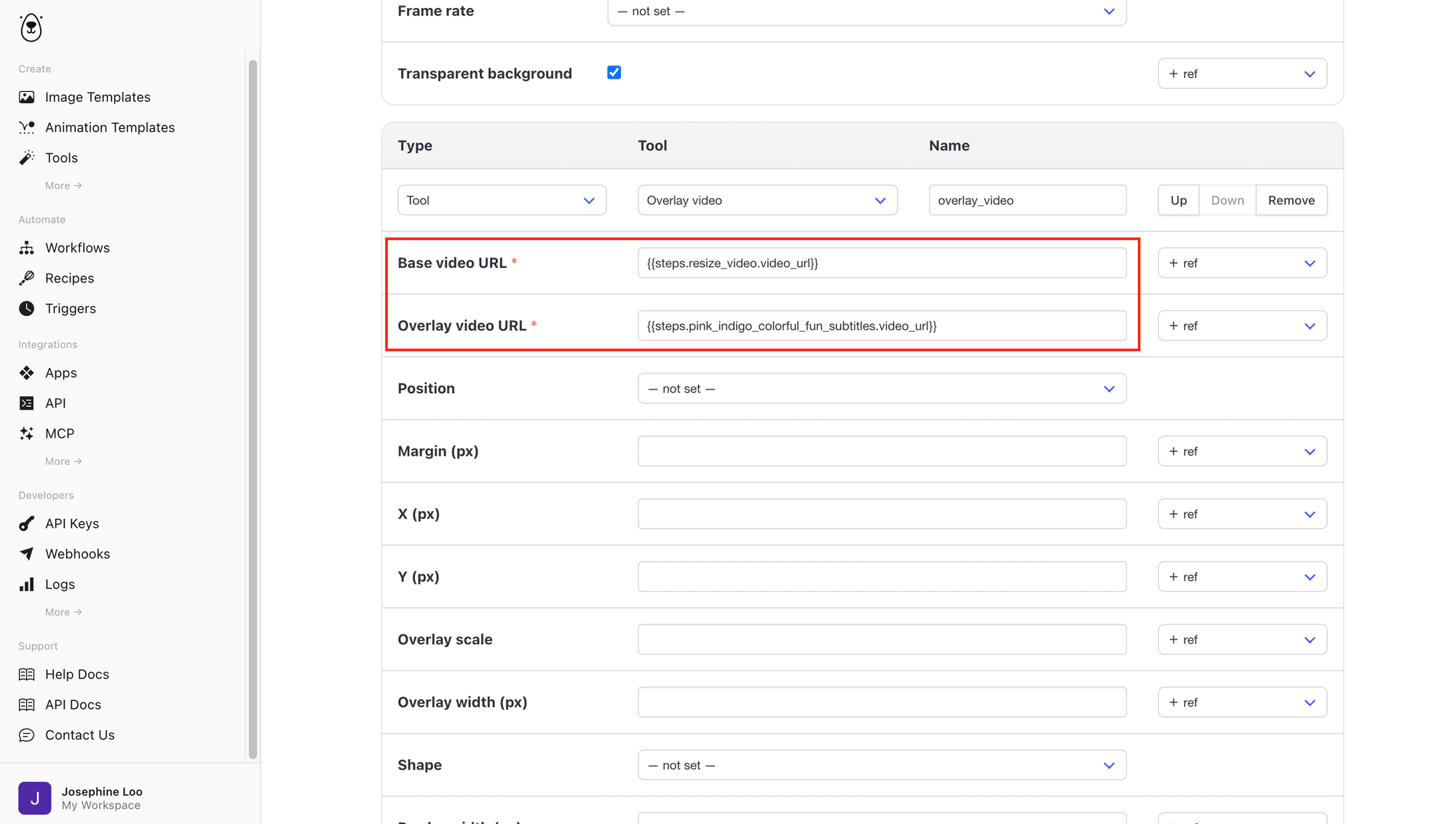
From + ref , set the base video to the output of the Resize video step and the overlay video to the output of the Animation step:
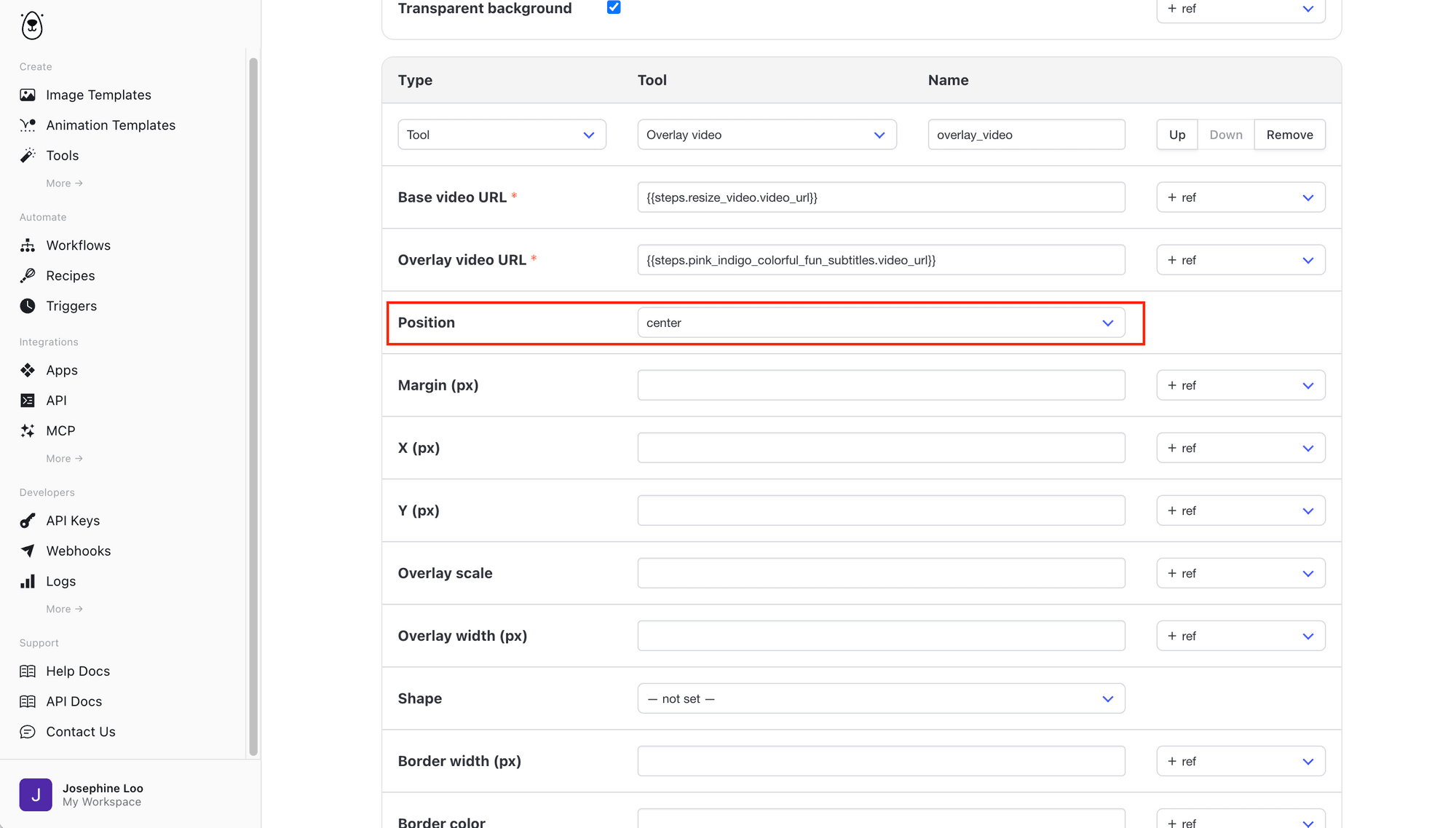
Then, set Position to center:
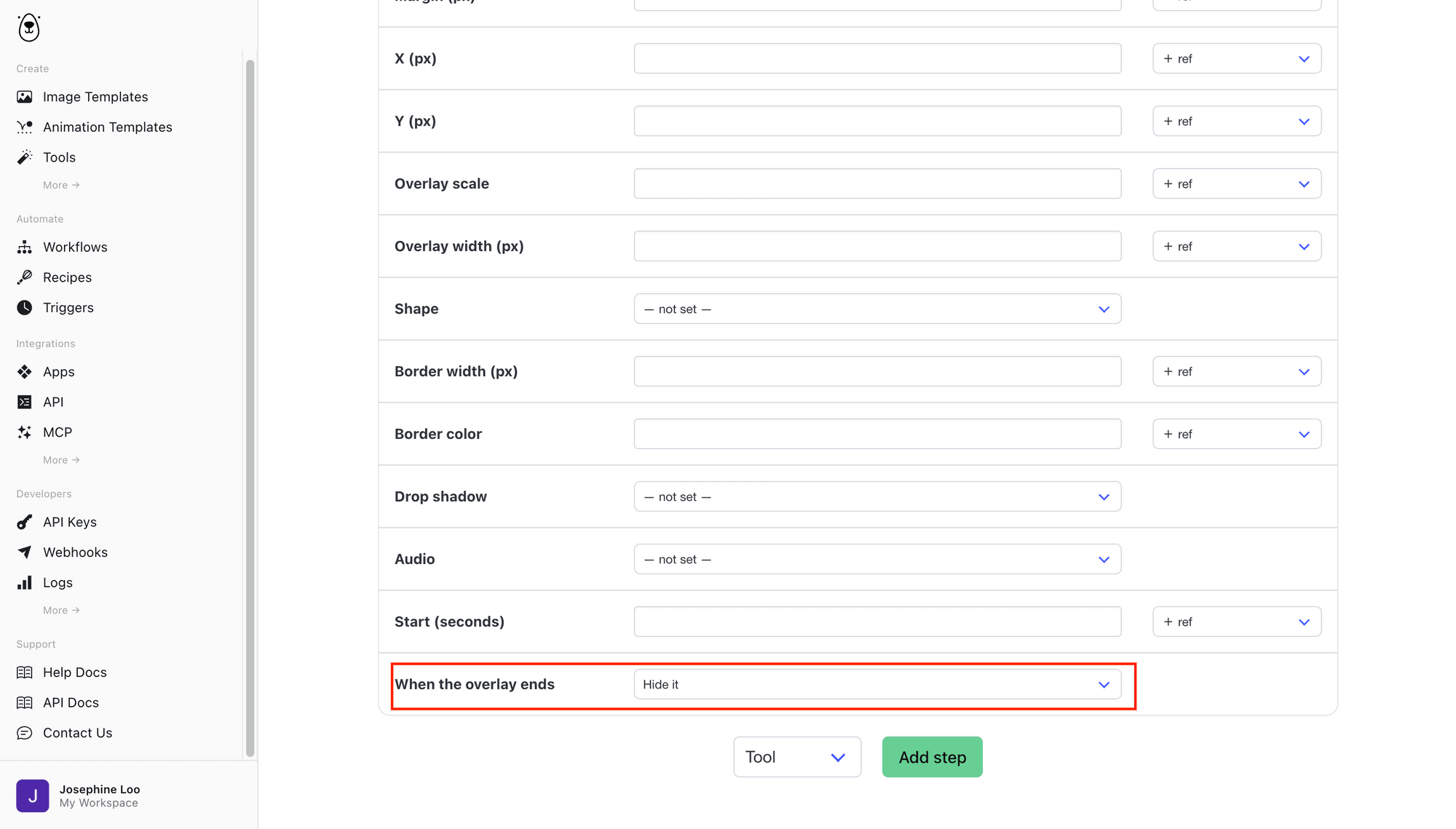
Set When the overlay ends to Hide it so the subtitles disappear once the last line has played:
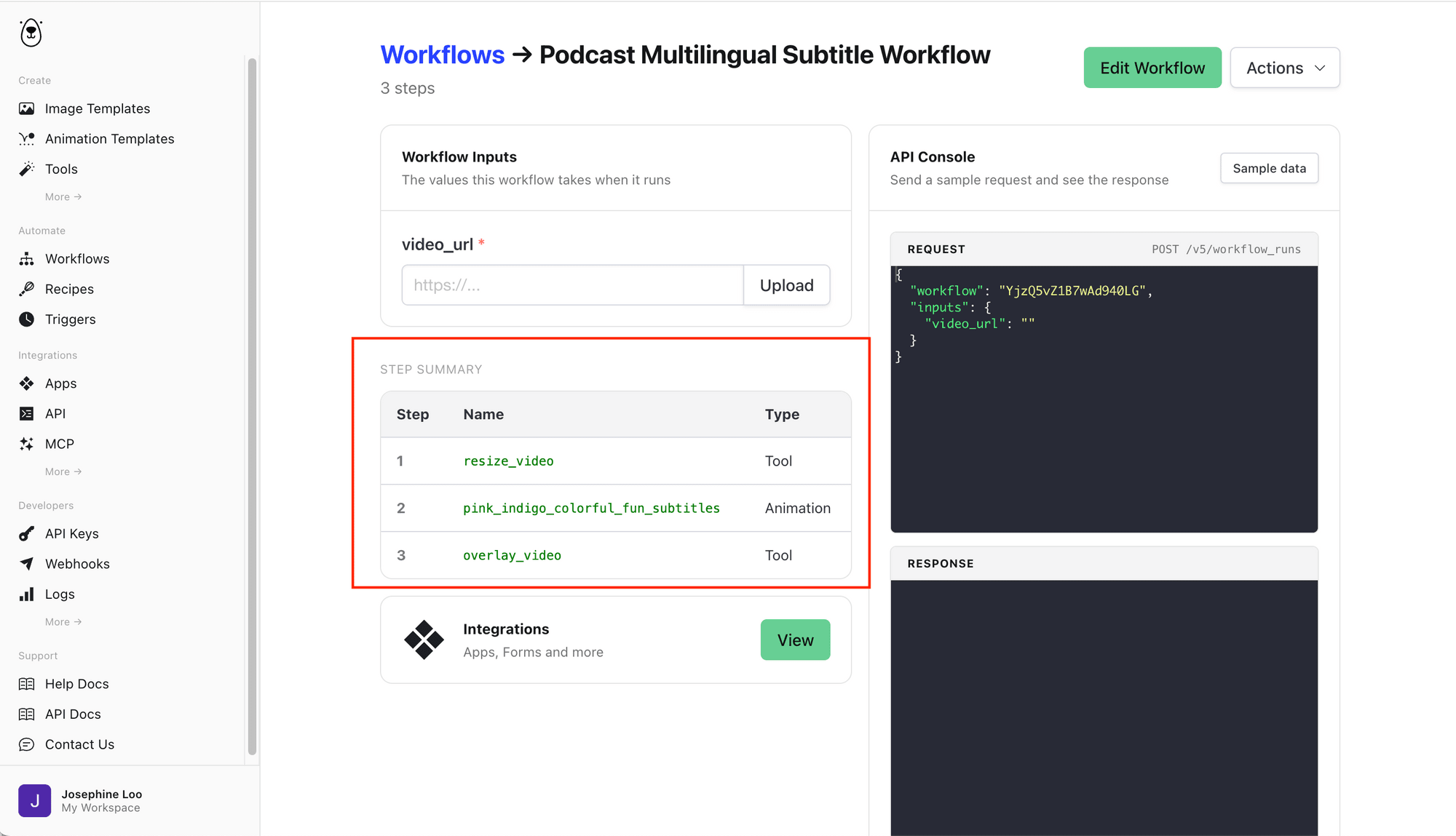
Your workflow should now have these steps:
Running the Workflow with MCP
Now that the workflow is ready, let's hand the runs to the AI agent.
Step 1. Connect the Bannerbear MCP server
If you haven't added the Bannerbear MCP server yet, follow one of these guides:
- How to Set Up Bannerbear MCP in Claude Code
- How to Set Up Bannerbear MCP in Codex
- How to Set Up Bannerbear MCP in OpenClaw
- API Reference - MCP Server
Step 2. Ask the AI Agent to Update the Template and Run the Workflow
With the SRT files in your AI agent's working directory, send this prompt with your own clip's URL:
Use highlight.srt and highlight.zh.srt in this folder to build a bilingual subtitled clip for <your_video_url>, with English as the main subtitle and Simplified Chinese underneath:
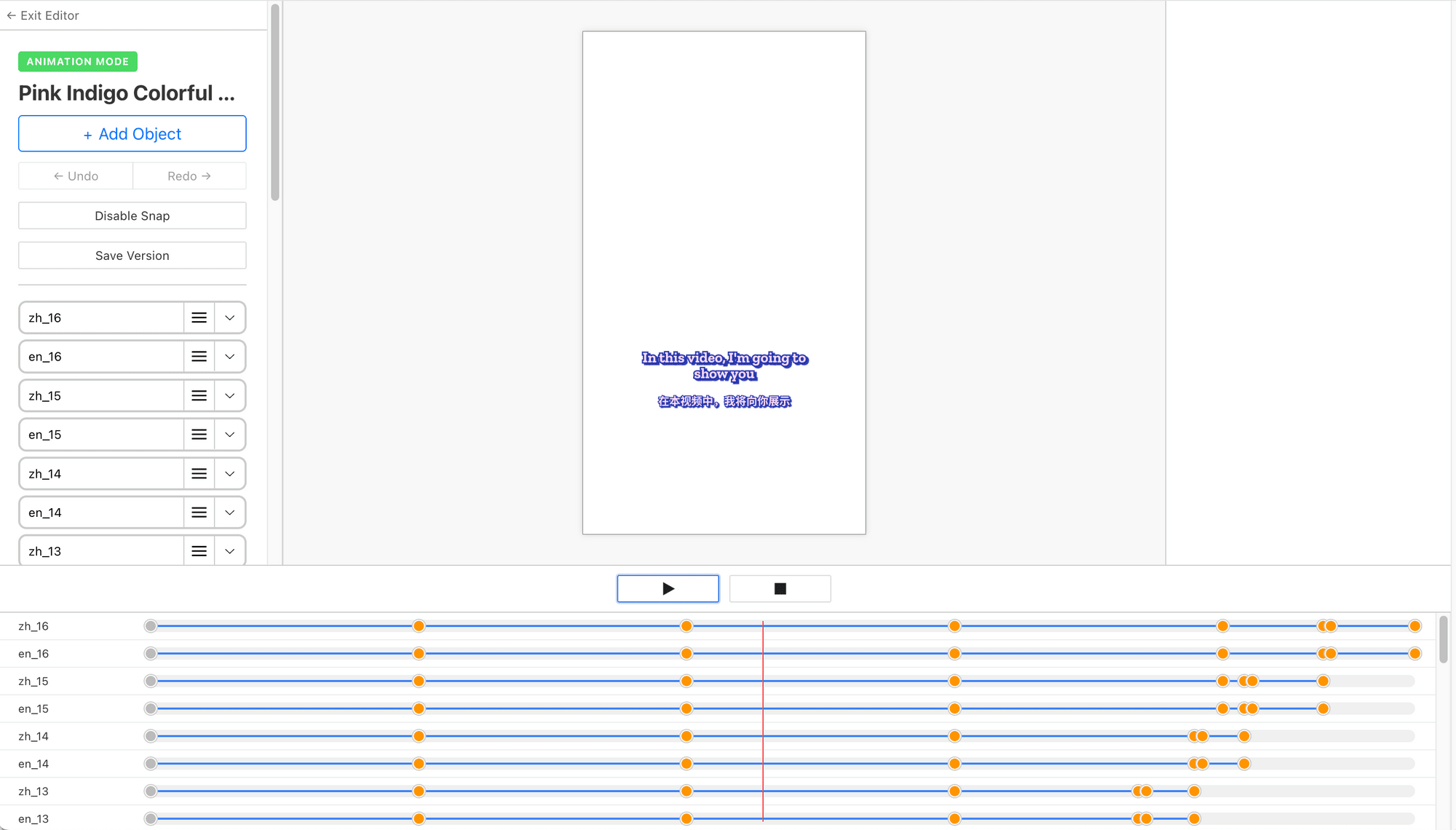
  - Replace the layers of my Pink Indigo Colorful Fun Subtitles template with two text layers per line, both using the template's original colors, outline and shadow, with text-fit set to off:
    - English: Zilla Slab, size 56, weight 800, at left 160, top 1200, 760 wide and 150 tall.
    - Chinese: Noto Sans SC, size 42, weight 700, outline width 6, shadow 5px 4px 1px, at left 160, top 1360, 760 wide and 100 tall.
  - Give both layers of a line exactly the same keyframes: hidden until the line starts, fade in over 300 ms with the PopIn text effect, hold until the line ends, then hide. Split any wait longer than 10,000 ms into several keyframes.
  - Run the "Podcast Multilingual Subtitle Workflow" workflow with the video URL and give me the final video link.
The AI agent calls get_animation_template to read the template's style, upsert_animation_template to write the subtitles into it, and then run_workflow.
The subtitle animation template now looks like this, with two text layers and added keyframes for each line:
The animation is then rendered and overlayed on top of your highlight video. When the workflow run finishes, the AI agent should reply with the output of the Video Overlay step, which is the final clip with bilingual subtitles:
Step 3. Repeat for Other Language Pairs
Each run makes one language pair. If you need another pair, ask for it once the first run is done:
Now make the same clip with English on top and Spanish underneath. Use Zilla Slab for both and keep the same font sizes.
The AI agent rewrites the template with the new pair and runs the workflow again.
🐻 Bear Tip: Every run uses and updates the same subtitle template, so run them one after another to make sure each clip gets the right subtitles.
Conclusion
That's it! You now have a Bannerbear workflow that turns a podcast highlight into a vertical clip with bilingual subtitles.
Since the translation happens in the AI agent and the rendering happens in Bannerbear, the setup is easy to extend. You can use it for other videos, add an animated intro or a hook title before the overlay, or restyle the subtitle template with your preferred colors and fonts.
If you'd rather run this from your own code or integrate it into your project, everything the AI agent does here is also available through the API. Check out the API reference for more details!