Among so many AI tools out there, OpenClaw is a little different. It's an open-source local AI assistant that runs on your machine and connects to messaging channels like WhatsApp, Telegram, and Discord. That means you can message it the way you'd message a person, from wherever you already are, without installing another app.
That said, like most AI tools, it supports MCP. This lets OpenClaw communicate with third-party services to perform higher-level tasks, such as generating an image, updating a spreadsheet, or checking a calendar, all through your messaging app.
In this article, we'll walk through how to set up the Bannerbear MCP server in OpenClaw, and run your first request from the terminal and WhatsApp:
Let's get into it!
What is Bannerbear?
Bannerbear is a tool that allows you to automatically generate custom images, videos, and more from templates. A design template can consist of:
- Static objects - These remain the same in every generated image (e.g., a company logo)
- Dynamic objects - These change based on data you provide (e.g., text, images)
Here’s an example:
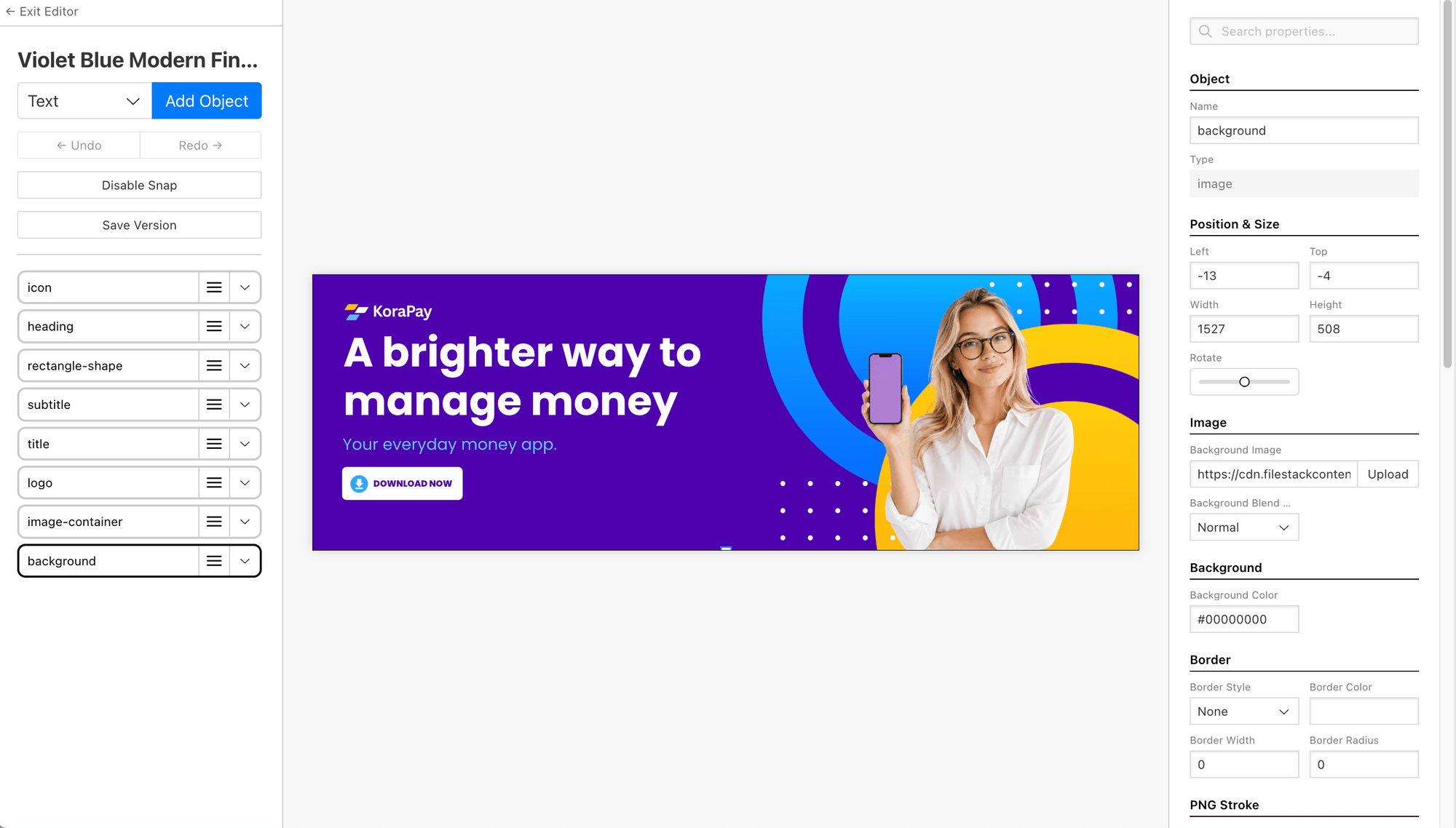
Bannerbear offers APIs and libraries in various popular programming languages, including Node.js, Ruby, and PHP, to make integrating image generation and other media manipulation functionalities into your application/project effortless.
And with the Bannerbear MCP, you can now generate images directly using text prompts within your AI assistant or coding agent like Claude Code, Codex, and OpenClaw, instead of going through raw HTTP requests.
What Can You Do with Bannerbear MCP?
In short, the Bannerbear MCP lets you chat with Bannerbear to generate images from templates. Instead of looking up endpoints or writing a script, just ask your AI assistant in plain English, and it figures out which tools to call.
For example, you can ask things like:
- "Which template is suitable for Instagram?"
- "Generate an image from this template using this text."
- "Pass data from this CSV to Bannerbear using the batch feature."
Your AI assistant should handle everything from pulling the template details, validating your layers, to calling the right endpoint, and you just need to wait for the result to be returned.
Getting Started
To follow this tutorial, you will need to have these installed:
- OpenClaw installed and running on your machine
- Node.js (since the MCP server runs via
npx) - A Bannerbear account (sign up for free here!)
Setting Up Bannerbear MCP in OpenClaw
Step 1. Get Your Bannerbear API Key
Log in to your Bannerbear dashboard and go to Developers → API Keys. Create a new API key or grab your existing one, and make sure that the correct permission is set to access your templates.
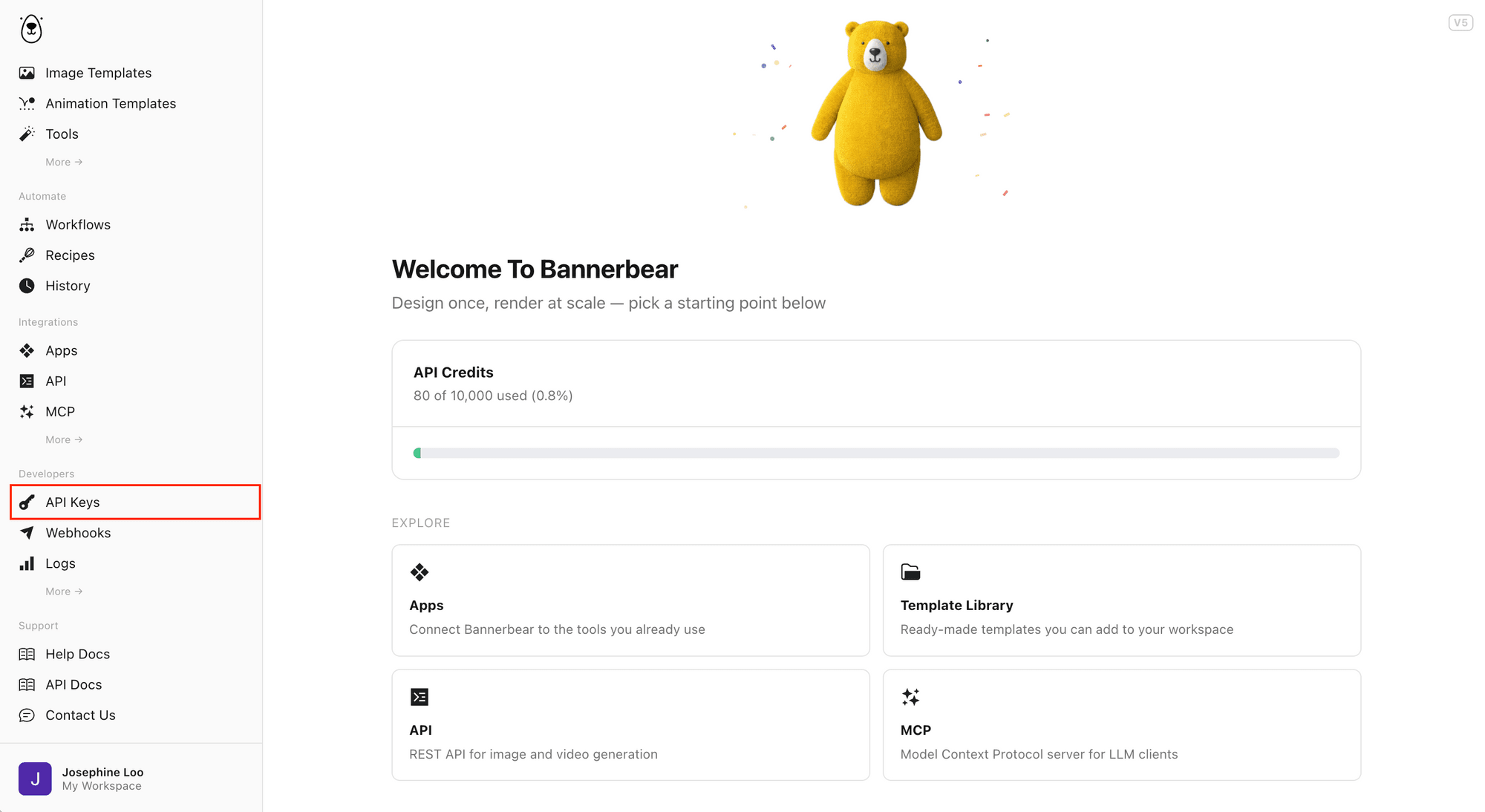
Copy it somewhere safe. We'll use it in the next step.
🐻 Bear Tip: Your API key should start with
bb_ak_v5_.
Step 2. Add Bannerbear MCP to OpenClaw
There are two ways to add the Bannerbear MCP to OpenClaw—using the remote server URL, or running the server locally via npx.
In your terminal, run this command with your Bannerbear API key…
Option 1: Using the Remote Server URL
openclaw mcp add bannerbear --url https://mcp.bannerbear.com --transport streamable-http --header Authorization="Bearer your_api_key"
Option 2: Run the Server Locally via npx
openclaw mcp add bannerbear --command npx --arg -y --arg @bannerbear/mcp --env BANNERBEAR_API_KEY=your_api_key
You can also reference your API key from an environment variable instead of typing it straight into the command. First, export it in your terminal:
export BANNERBEAR_API_KEY=your_api_key
Then, pass it through by reference:
openclaw mcp add bannerbear --url https://mcp.bannerbear.com --transport streamable-http --header Authorization="Bearer ${BANNERBEAR_API_KEY}"
or
openclaw mcp add bannerbear --command npx --arg -y --arg @bannerbear/mcp --env BANNERBEAR_API_KEY=$BANNERBEAR_API_KEY
This keeps the actual key out of your shell history.
🐻 Bear Tip: As a good practice, store the key in a
.envfile instead and reference it from your config.
Step 3. Start OpenClaw and Verify the Connection
Start (or restart) your OpenClaw and ask it to do something simple to confirm that the Bannerbear MCP is connected, like “What Bannerbear tool you have access to?”
OpenClaw should respond with a list of tools like generate_image, get_image, get_template, etc.:
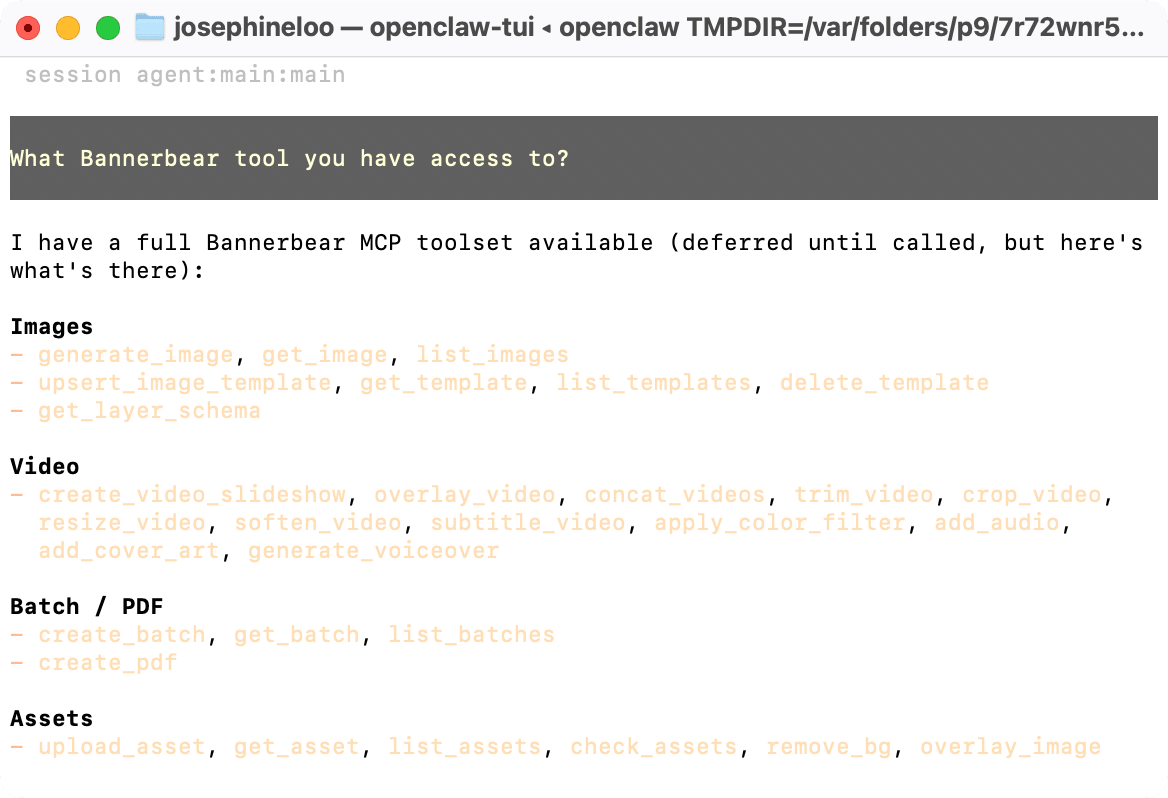
If it doesn't recognize the tools, double-check your configuration and restart OpenClaw.
Step 4. Make Your First Request
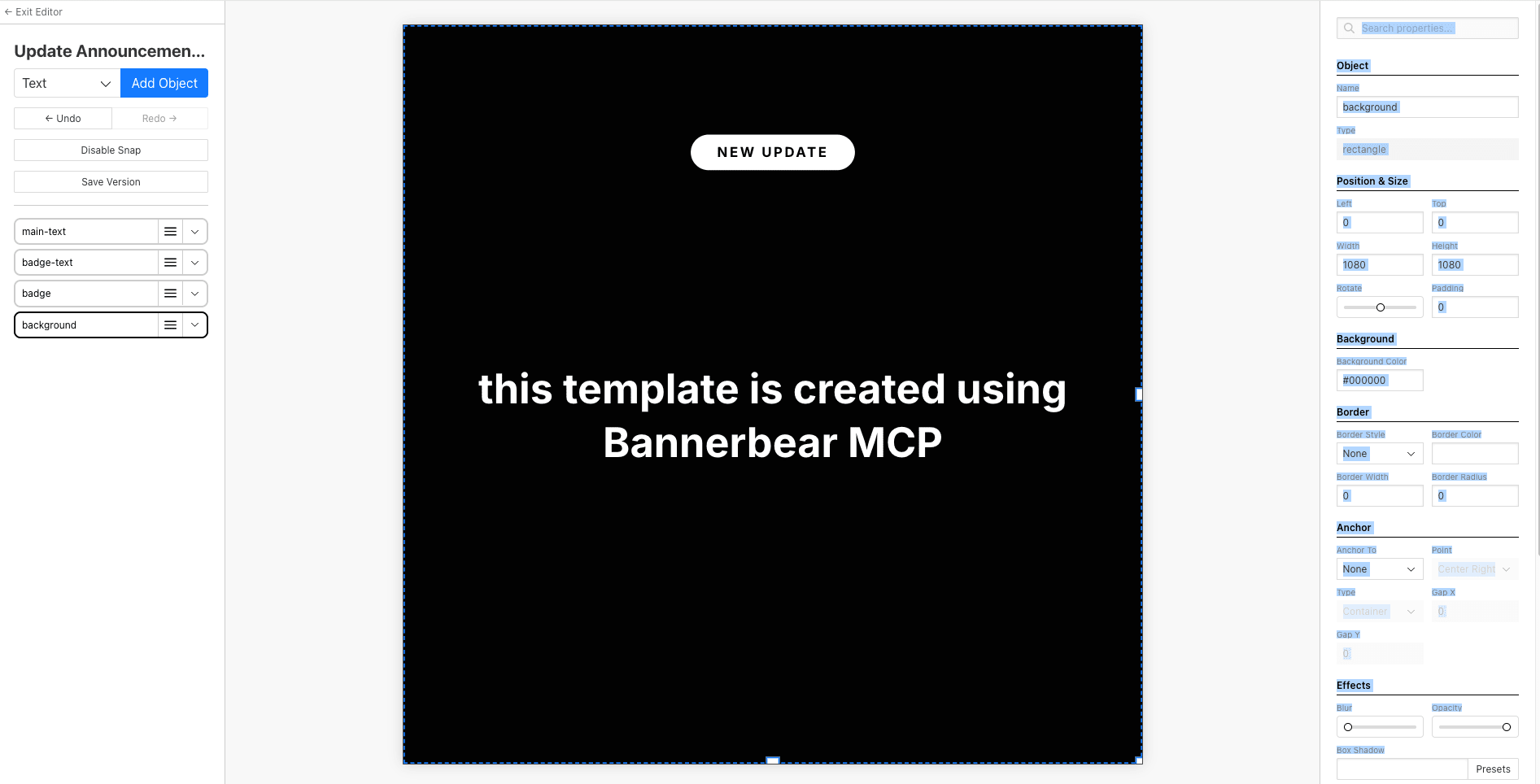
Most things you do from your Bannerbear dashboard, you can do directly from OpenClaw. For example, you can ask it to generate a new template:
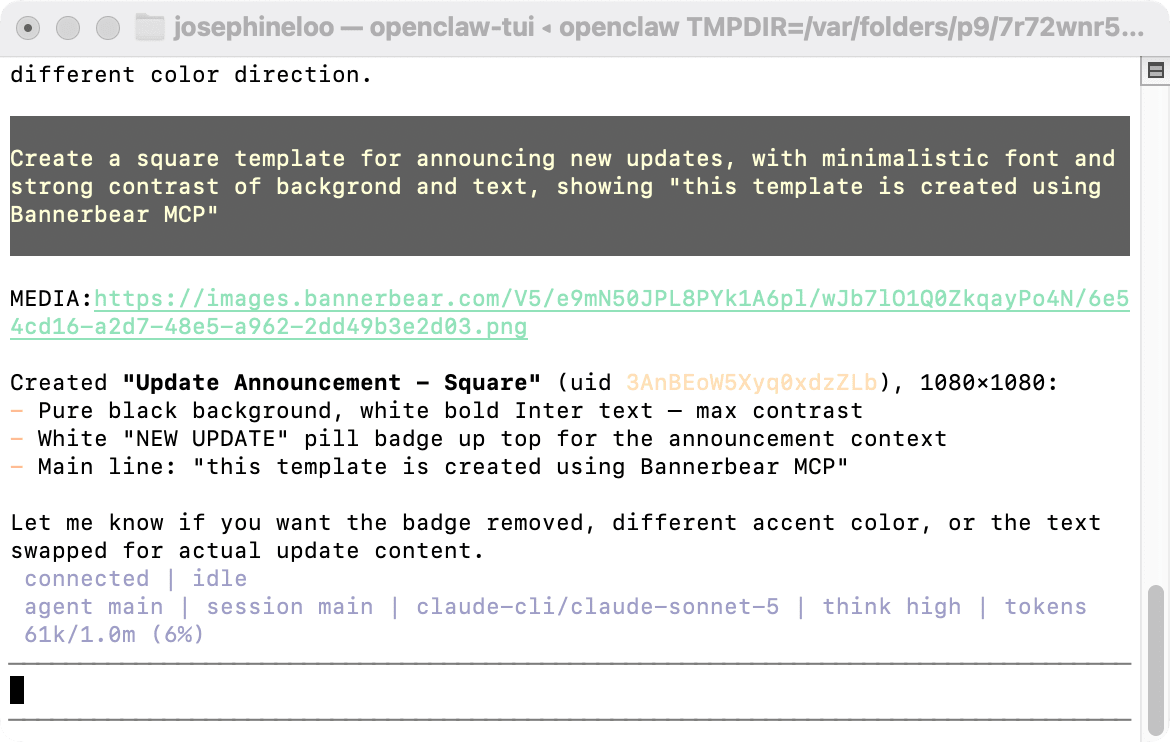
And this is the template created, opened from the Bannerbear dashboard:
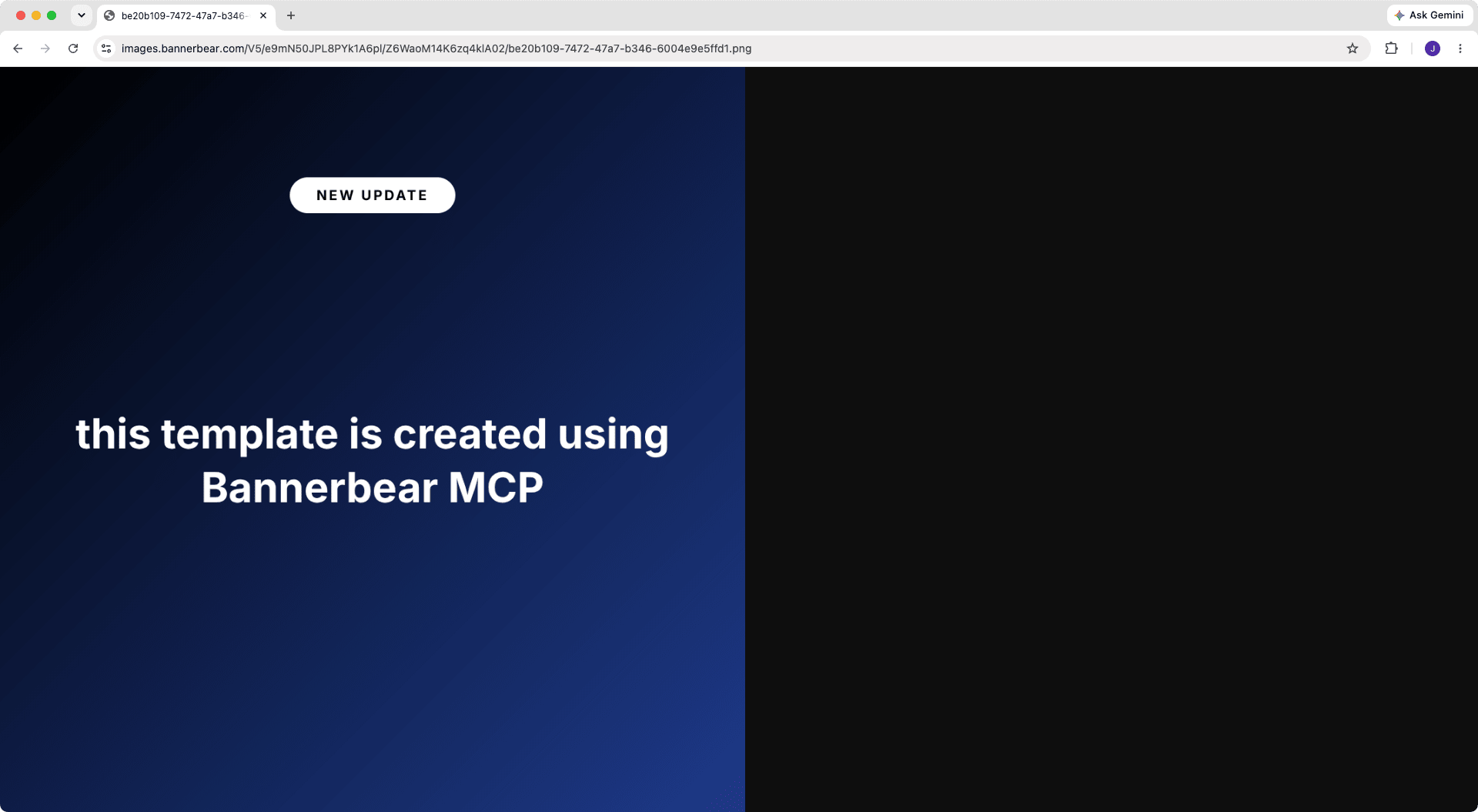
You can also do other things, like modifying the template or generating a new image:
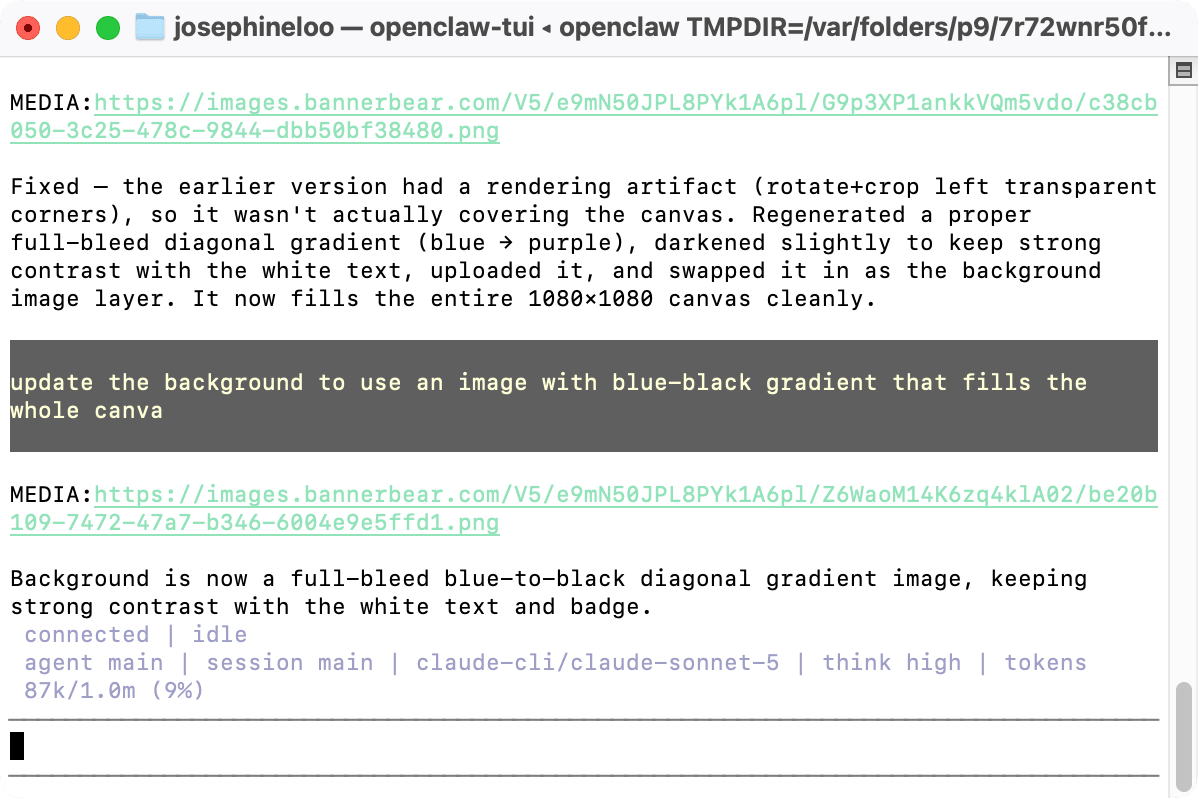
OpenClaw will call the appropriate tool provided by the Bannerbear MCP and return the result:
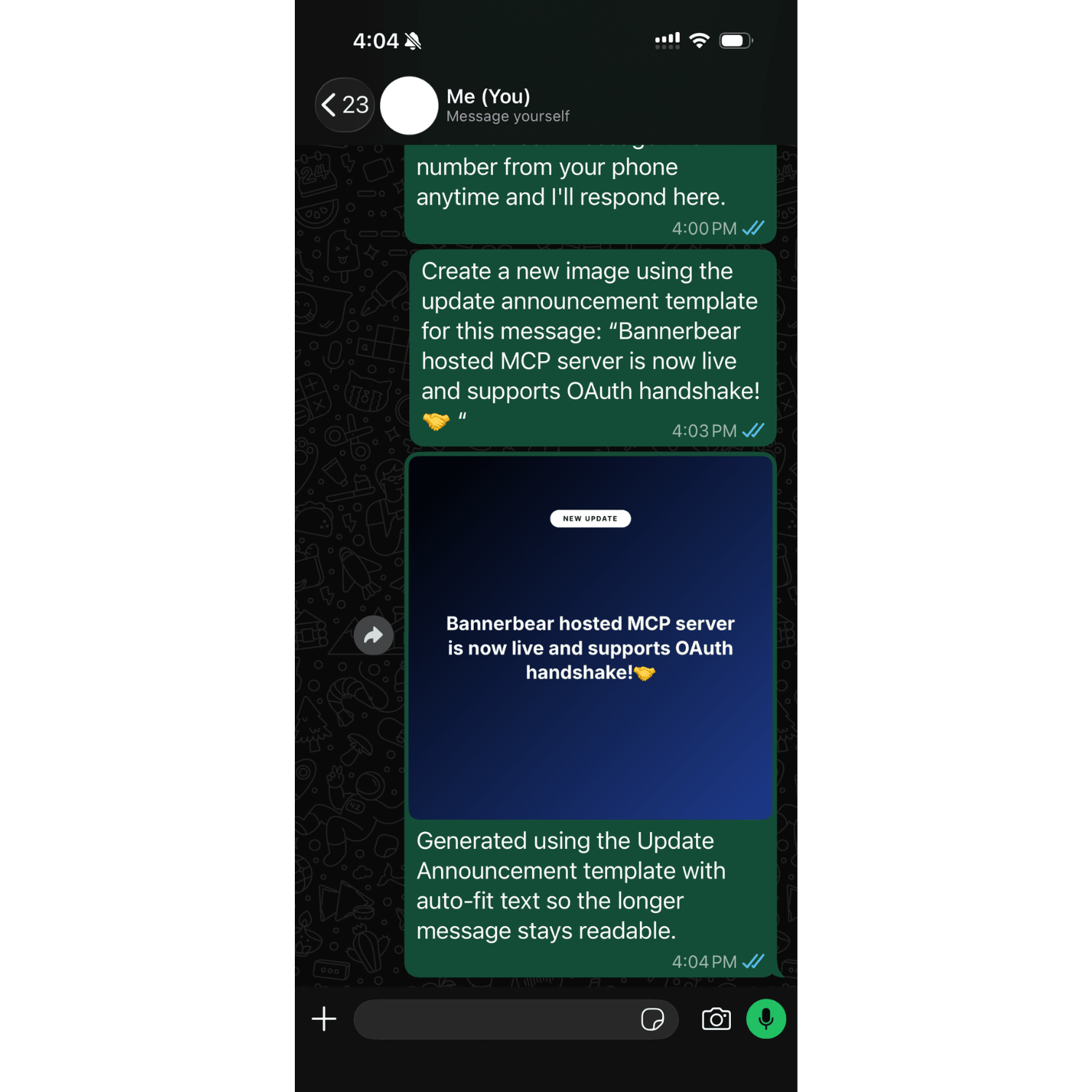
And here’s how it would look if you connected your OpenClaw to WhatsApp and made an image generation request from there:
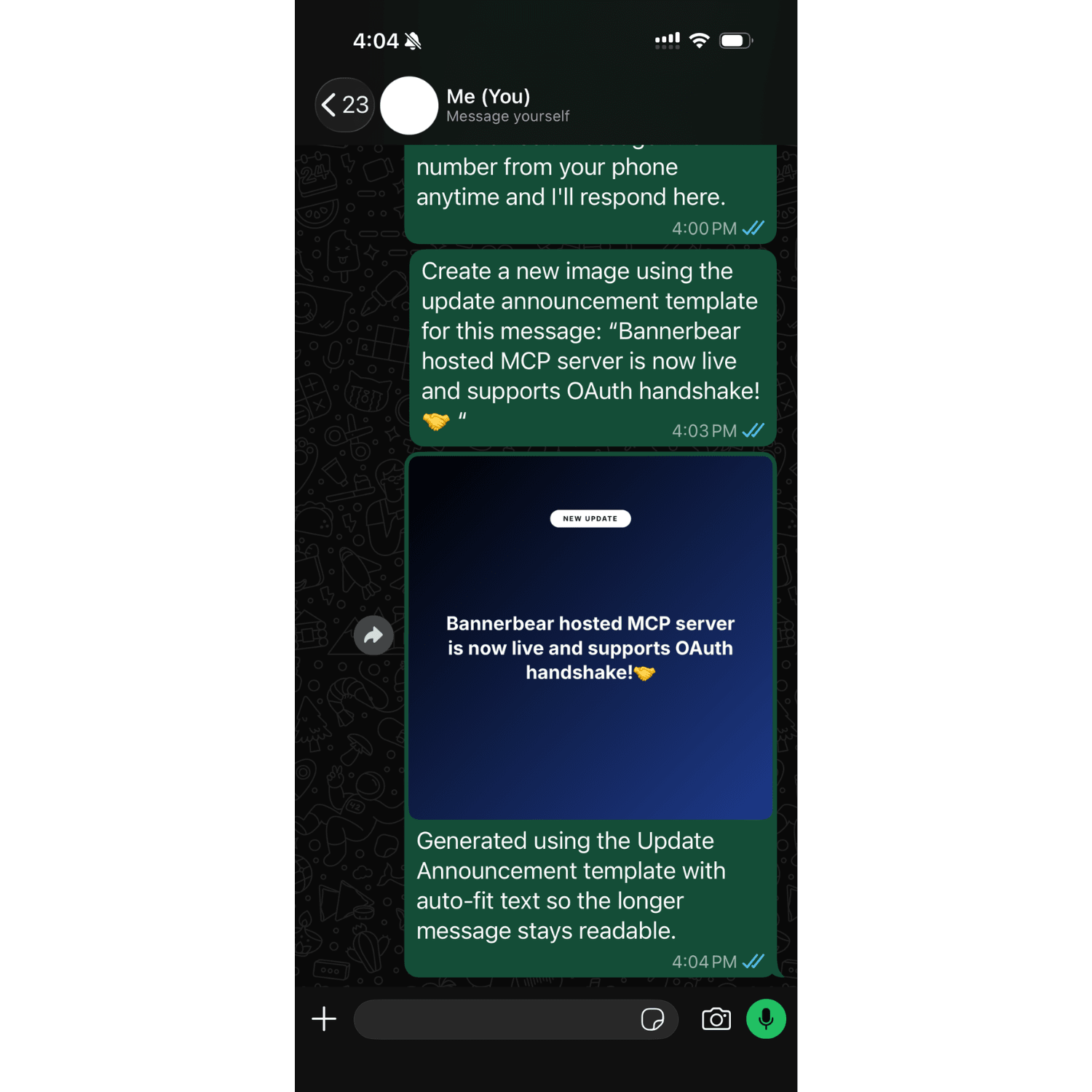
All you have to do is give instructions on what you want in plain English!
More Bannerbear MCP Examples in OpenClaw
Besides the examples above, there are more things you can do with Bannerbear MCP in your OpenClaw. Here are a few more prompts to try:
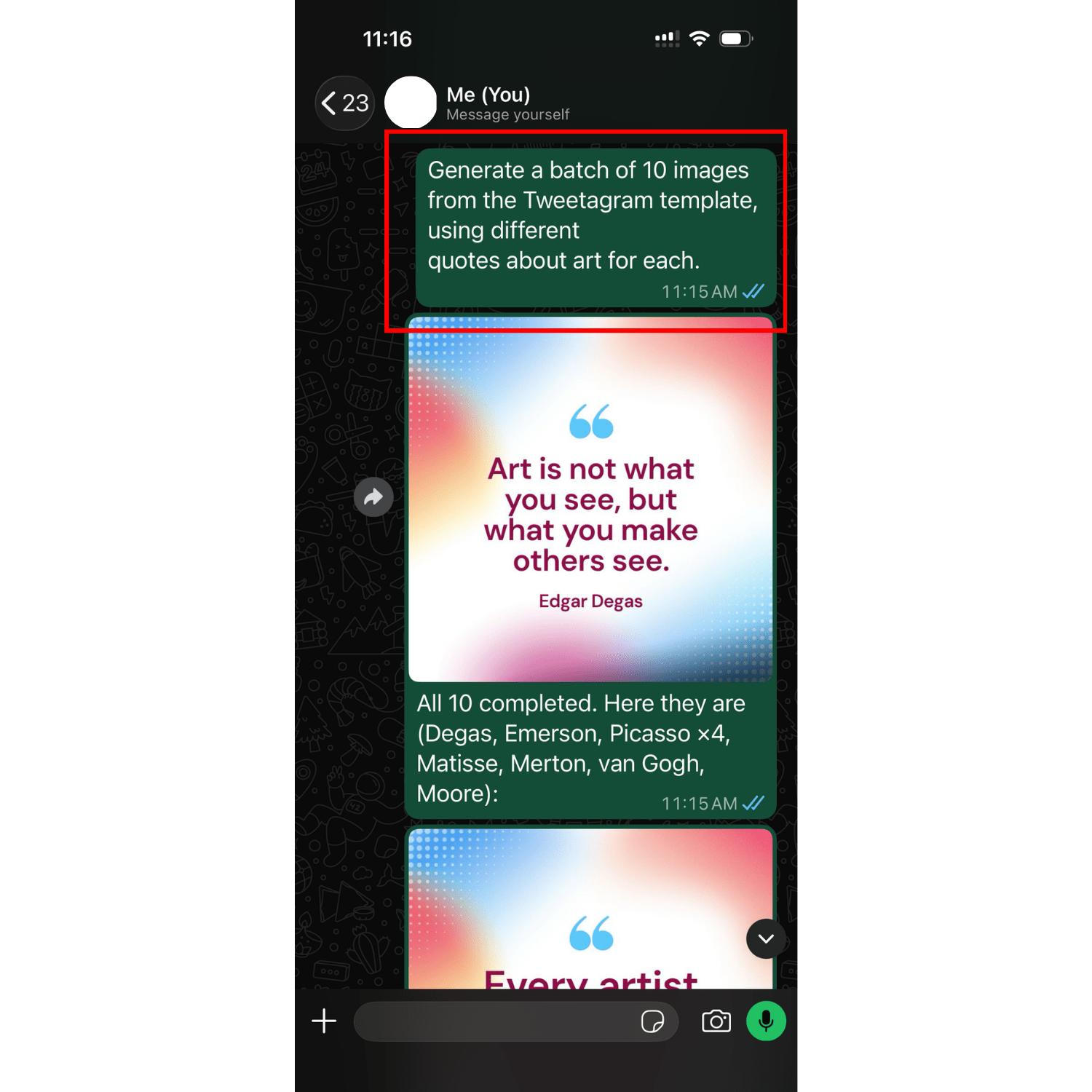
Generate a Batch of Images
Generate a batch of 10 images from the Tweetagram template, using different
quotes about art for each.
OpenClaw will find the template, build the batch payload, and hand it off to create_batch. All 10 variations will get generated in one go instead of 10 separate requests:
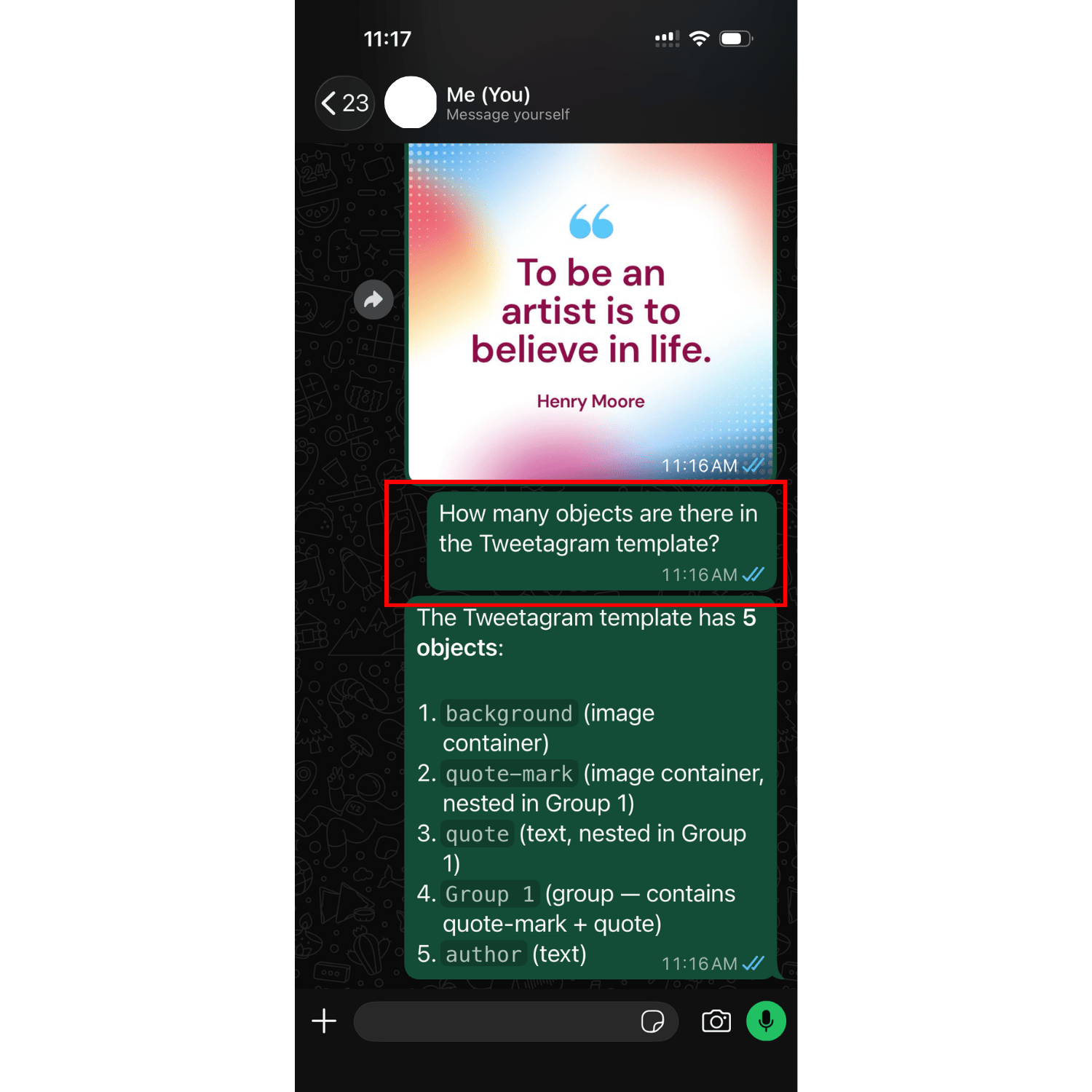
Check a Template's Details
How many objects are there in the Tweetagram template?
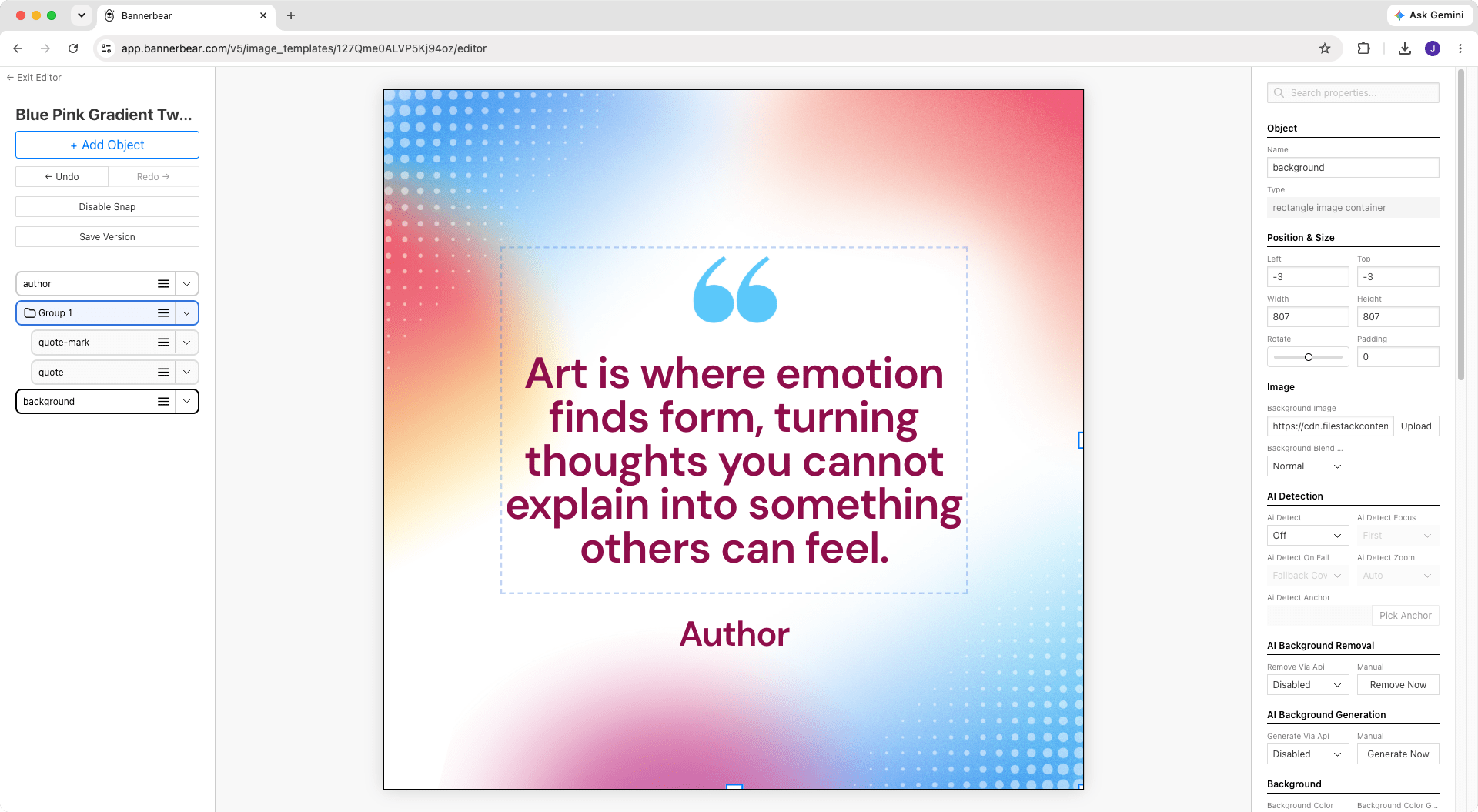
OpenClaw will fetch the template's config with get_template and return the answer to your query:
Here’s the template opened in the template editor, for comparison:
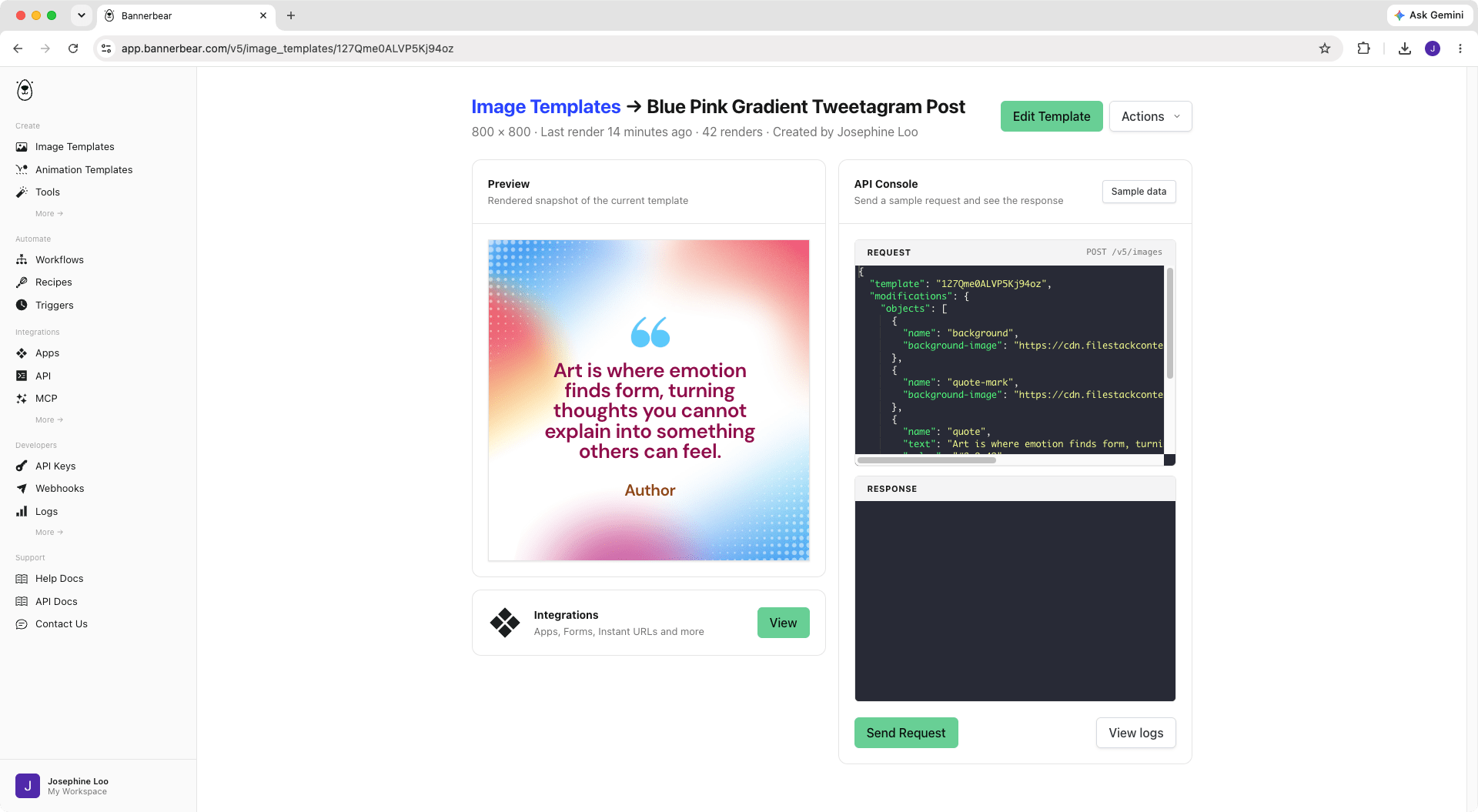
Edit a Template
On my Tweetagram template, change the color of the “author” object to brown and return a preview of it
OpenClaw will pull the current config with get_template, updates the template following your request, and sends the full config back through upsert_image_template:
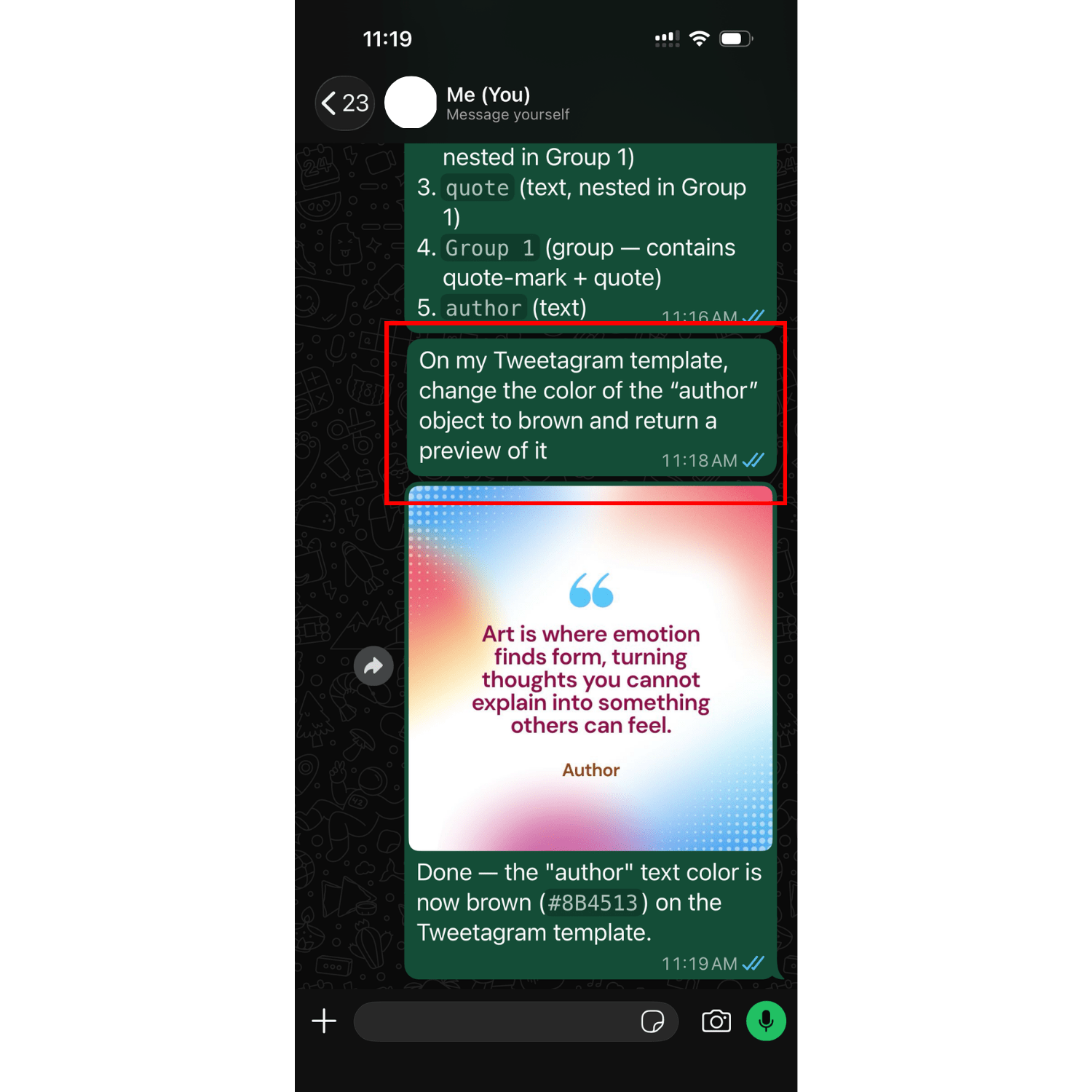
Without touching the template editor at all, the template gets updated:
List Recent Generations
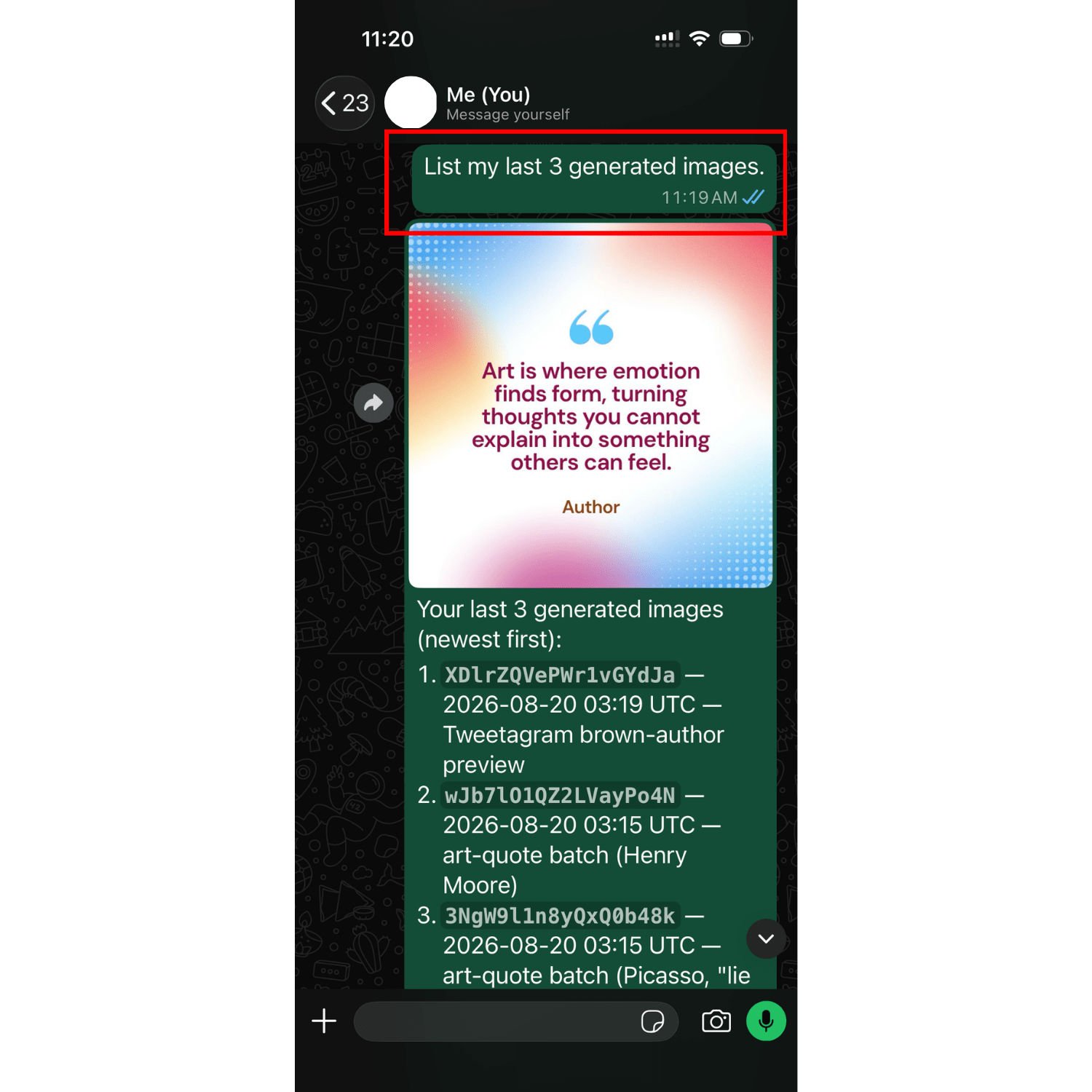
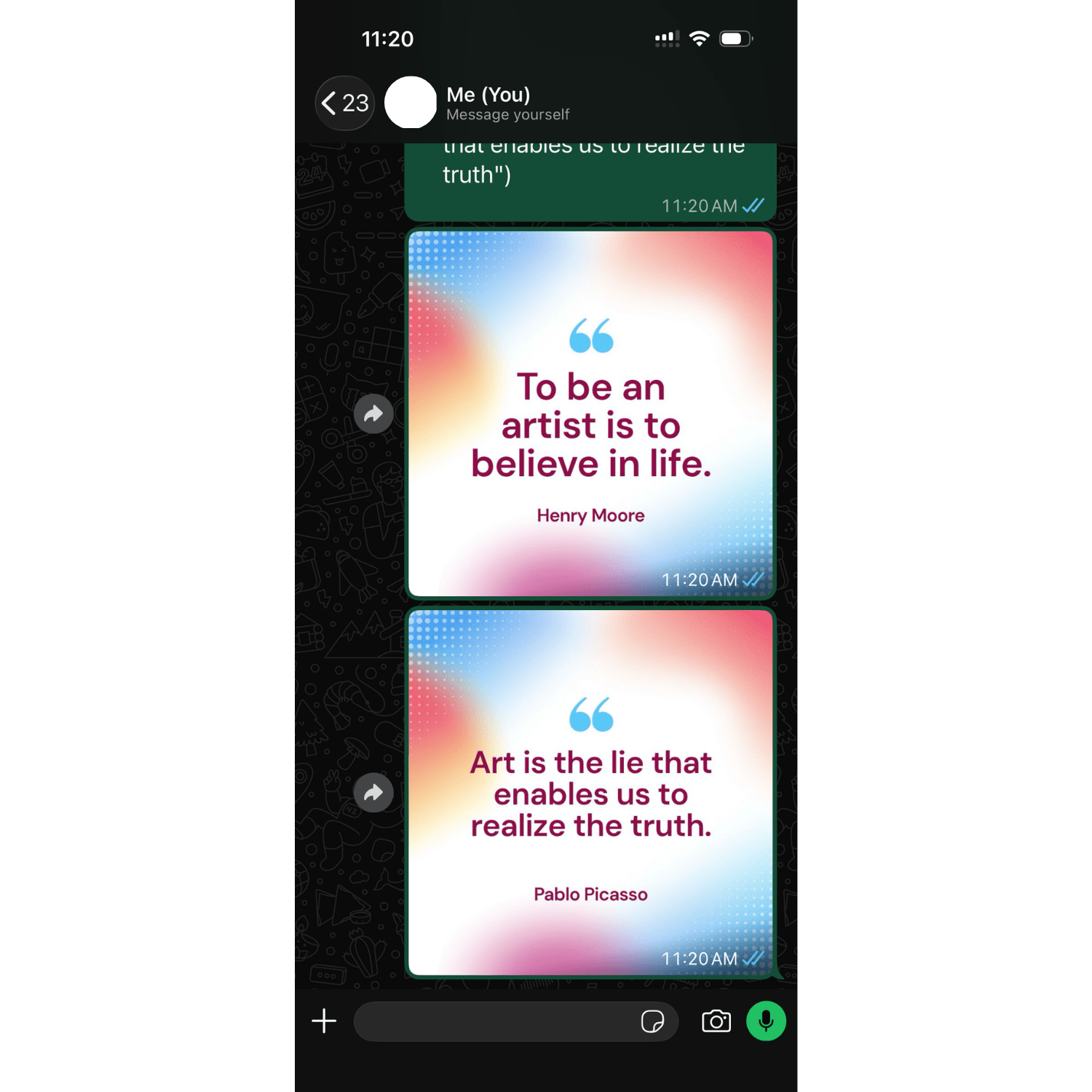
List my last 3 generated images.
OpenClaw will call list_media and return the last 3 generated images, with the newest being the first:
Run a Workflow
Run my "video editing" workflow with this video: https://bannerbeartutorial.s3.ap-southeast-1.amazonaws.com/workflow+sample+video.mp4
OpenClaw will look up the specific workflow with list_workflows, then trigger it with run_workflow:
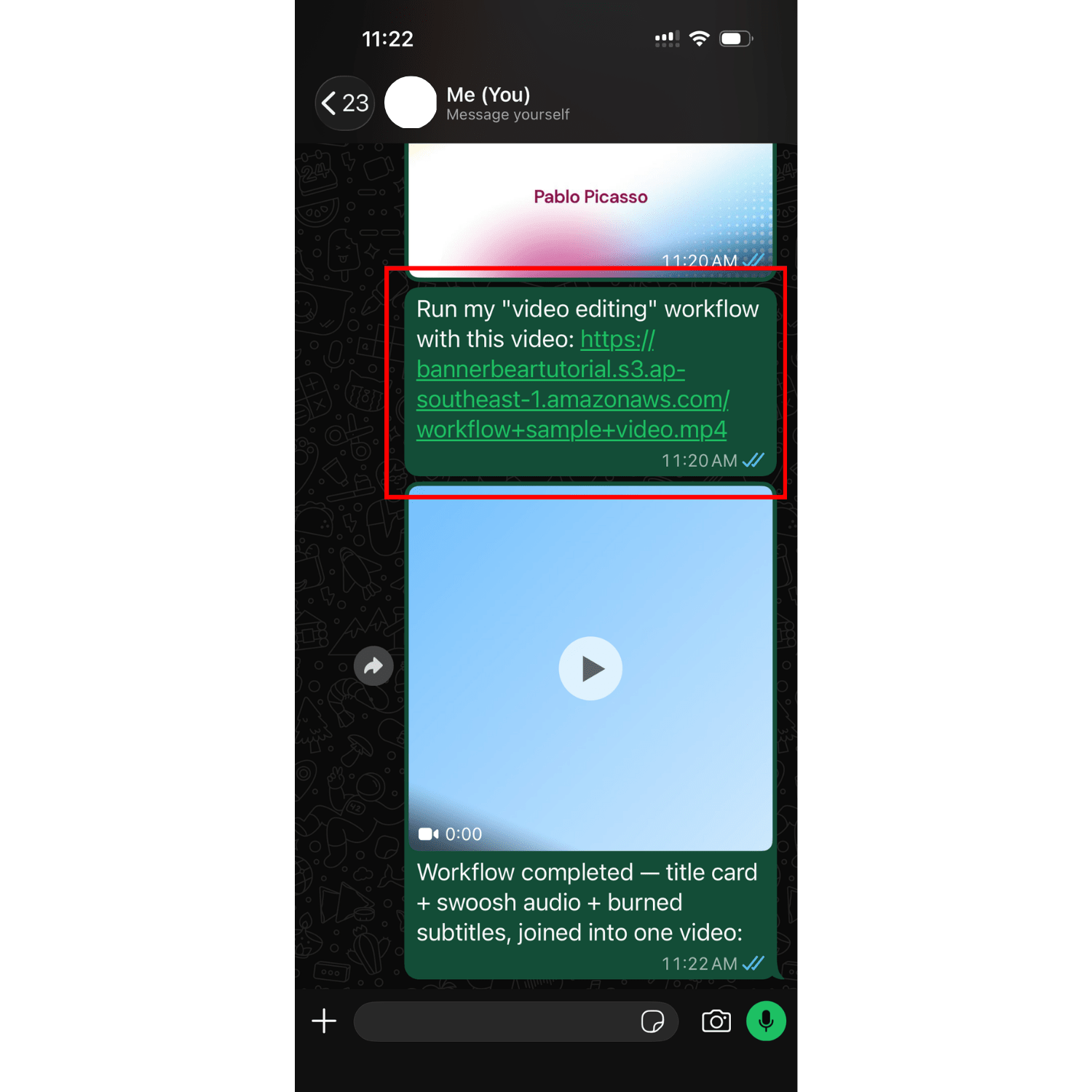
🐻 Bear Tip: Workflows let you chain multiple steps—tools, image and animation renders into a single automation.
Conclusion
You've now got Bannerbear MCP set up in OpenClaw! You can ask OpenClaw to generate branded social graphics, product mockups, or any other image on demand, or have it build out new templates for you conversationally, like how we did in this tutorial.
If you're setting up MCP servers in other AI tools, check out these guides too: