
How to Set Up a Make Workflow for Generating Quote Graphics
Contents
Quote graphics are everywhere—on social feeds, in Slack channels, and across email newsletters. They're shareable, visually consistent, and easy to digest. The problem is they're tedious to make by hand. If you’re designing every graphic, exporting it, and uploading it manually, it won’t take very long until you’re ready to call it quits.
But what if you could automate it?
In this tutorial, you'll set up an automated workflow that fetches a quote, transforms it into a designed graphic using a template, and sends it anywhere you want—all without writing a single line of code.
The entire setup takes about 15 minutes and uses just three tools: Bannerbear (to generate the graphics), Make (to orchestrate the workflow), and a data source like ZenQuotes (to supply the quotes). Once it's running, you'll have quote graphics generating and distributing on a schedule.
No backend knowledge required. Just point, click, and automate.
Why Use Templates for Quote Graphics
Quote graphics seem simple, but that’s exactly what makes them excellent candidates for automation. Every quote has the same data structure: text, author, maybe an image or source. This consistency means you can use a single template and swap in variables—no redesign needed.
Since you don’t have to reinvent the design each time, you can generate hundreds of graphics with zero creative overhead. That frees you to focus on sourcing good content and doing higher stakes work instead of wrestling with design tools. And since the visual style stays consistent, your brand becomes more recognizable.
This same approach works for user reviews, testimonials, microblogging posts, or anything else with a repeating structure.
Template + data + automation = scaled content with minimal effort.
What You Will Create
Quotes—whether they’re for inspiration, social proof, or short-form sharing—are a great way to give your audience bite-sized pieces of information to read and share. And because they benefit so much from consistency, they can easily be automated with the help of nocode tools.
The tools we’ll be using to create unique quote graphics without code are:
- Bannerbear : To design templates and generate unique quote graphics
- Make : To build automated workflows with multiple apps
- ZenQuotes (or data source of your choice): To retrieve inspirational quotes
You can use any quote source you’d like—static database, newsletter, or API. We’ll discuss a few options in the next section.
By the end of the tutorial, you should be able to automatically create quote graphics that can be posted on Instagram, Discord, Slack, or any distribution channel of your choice.

Let’s get started!
3 Steps to Generating Quote Graphics with Bannerbear
Ready to take your quote graphic production process to the next level? Follow these steps:
Step 1 - Source Your Quotes
When automating quote graphics, your first decision is choosing where your quotes come from. Here are some possible approaches, each with its own trade-offs:
Static databases like Airtable or Google Sheets give you complete control over which quotes you feature. You can review entries and trigger graphic generation in batches whenever you're ready. This approach works well if you're curating quotes carefully or want to tie them to specific campaigns.
- PROS: More control over quotes, easy to store generated graphics in a structured format
- CONS: More manual work required
APIs like ZenQuotes offer the opposite trade-off: minimal manual work, maximum scale. You make a single request to pull quotes automatically, and your workflow generates graphics on whatever schedule you set. You can fetch one random quote, search by keyword, filter by author, or pull multiple quotes at once.
- PROS: Easy to scale, most streamlined workflow
- CONS: Slightly more complex setup, reliance on another service
Email newsletters occupy a middle ground. Services like WisdomQuotes send you a daily quote via email, which you can then parse and turn into graphics. You don't have to hunt for quotes or think much about curation—they arrive in your inbox ready to go.
- PROS: Minimal curation needed, quotes arrive ready to use
- CONS: Extra setup steps to connect email to Make, reliance on another service
For this tutorial, we'll use ZenQuotes's API to keep the setup simple and the workflow fully automated. We'll fetch a single random quote using their /random endpoint: https://zenquotes.io/api/random. If you want to explore other options—searching by keyword, fetching multiple quotes, or filtering by author—ZenQuotes's documentation makes those variations easy to implement.
Step 2 - Create a Bannerbear Template
Log into your Bannerbear account (or sign up for a free trial account if you don’t have one—no credit card required! 🥳), create a new template, and navigate to the editor.

Add as many text and object layers as you’d like on your template. These can be modified via API to create a new, unique image every time.
Some objects you might include in a basic quote template are:
- Quote text
- Author name
- Background image
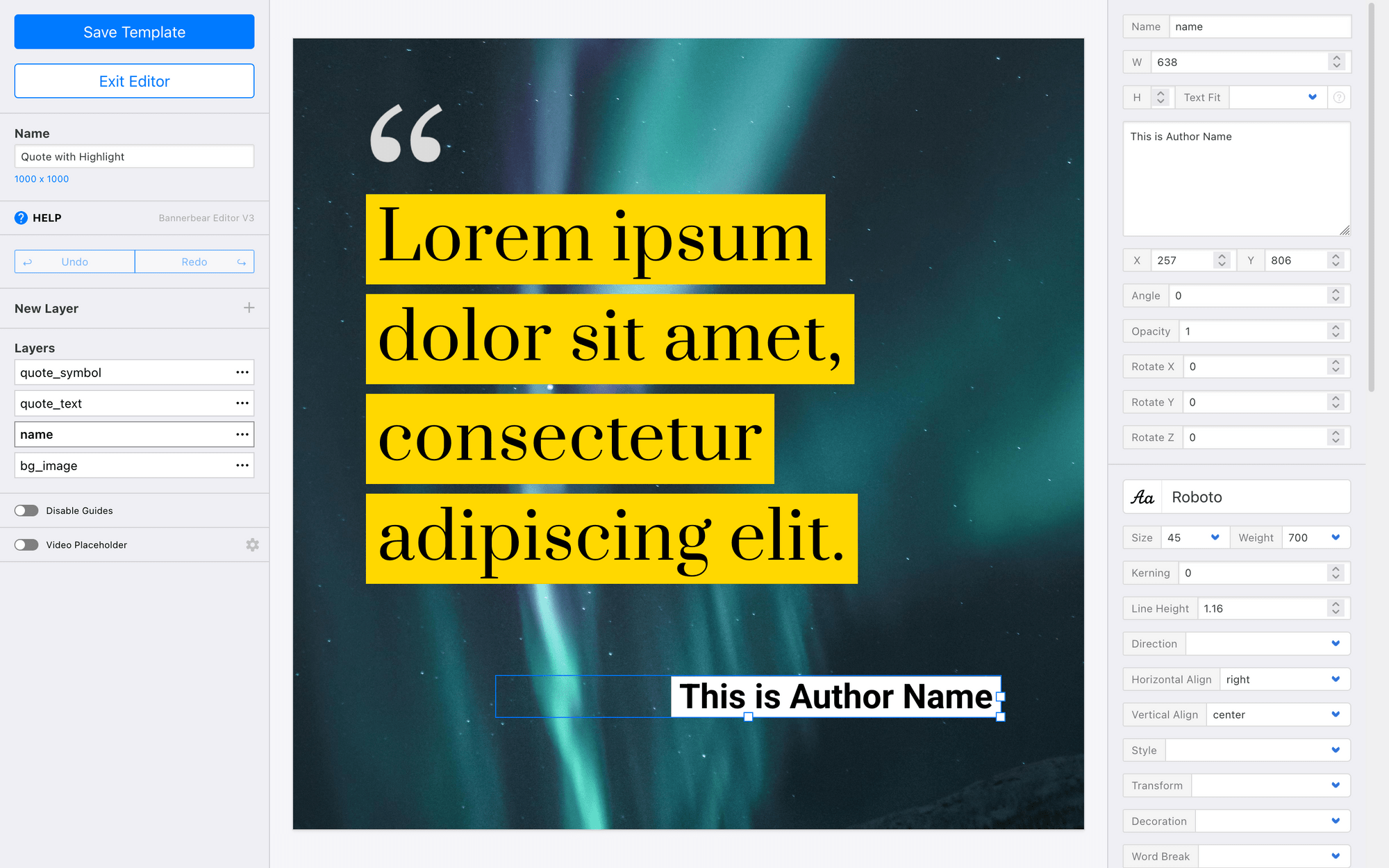
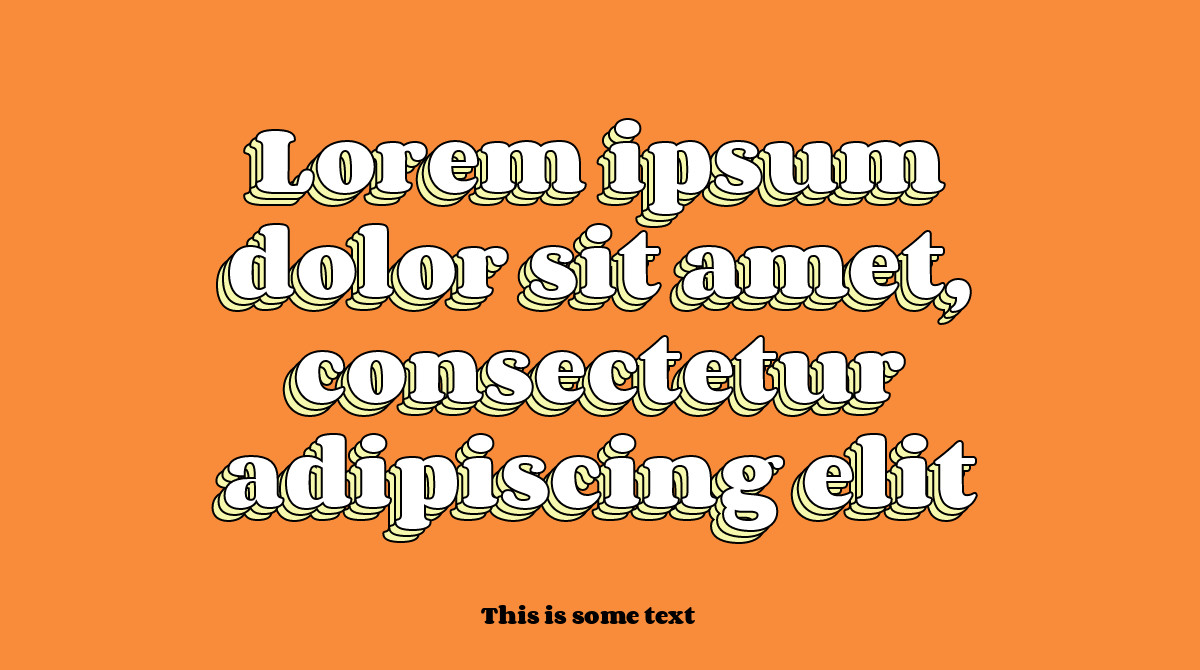
We also have a few basic quote templates you can use to get started.
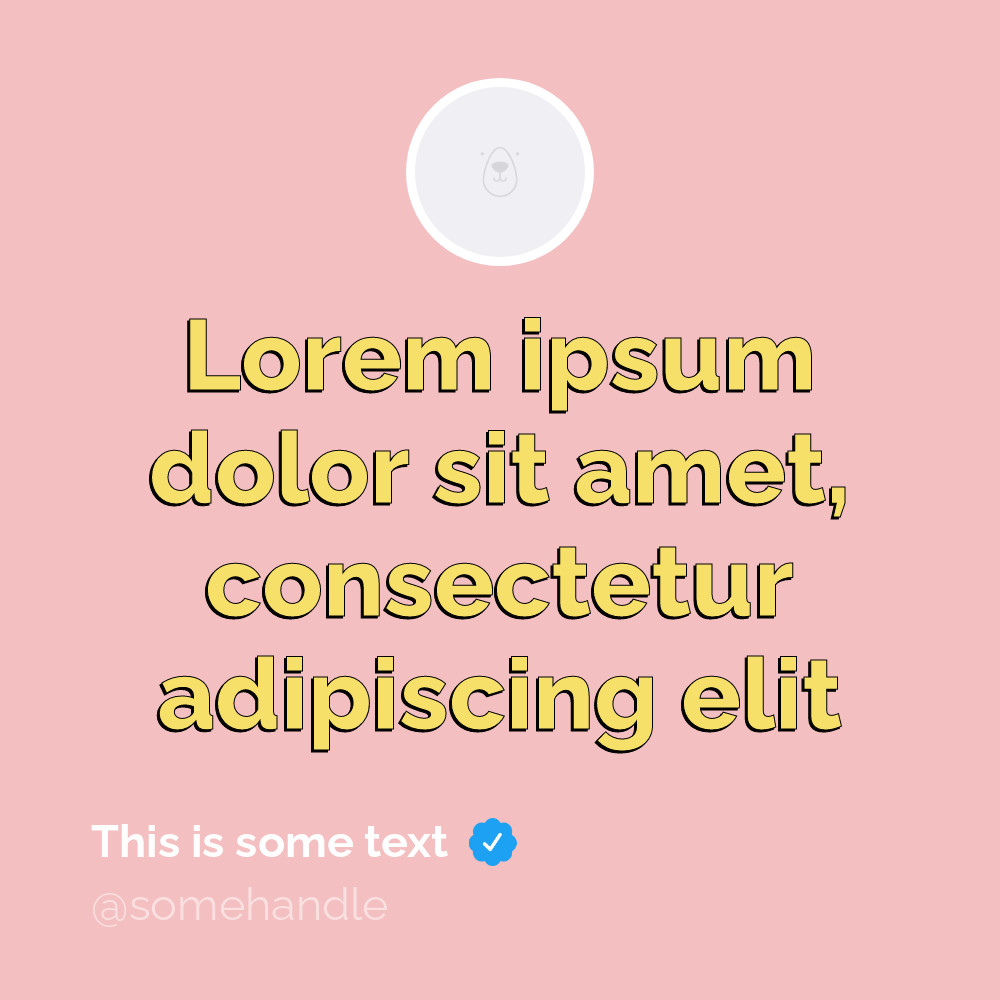
If you’re pulling quotes from microblogging platforms like X or Threads, you might also want to add handles and avatars.

If you’re creating user reviews, you might also add star ratings, platform, and more.

And if you’re working with quotes pulled from longer form content like a video or podcast, you can also add handles, links, and logos.
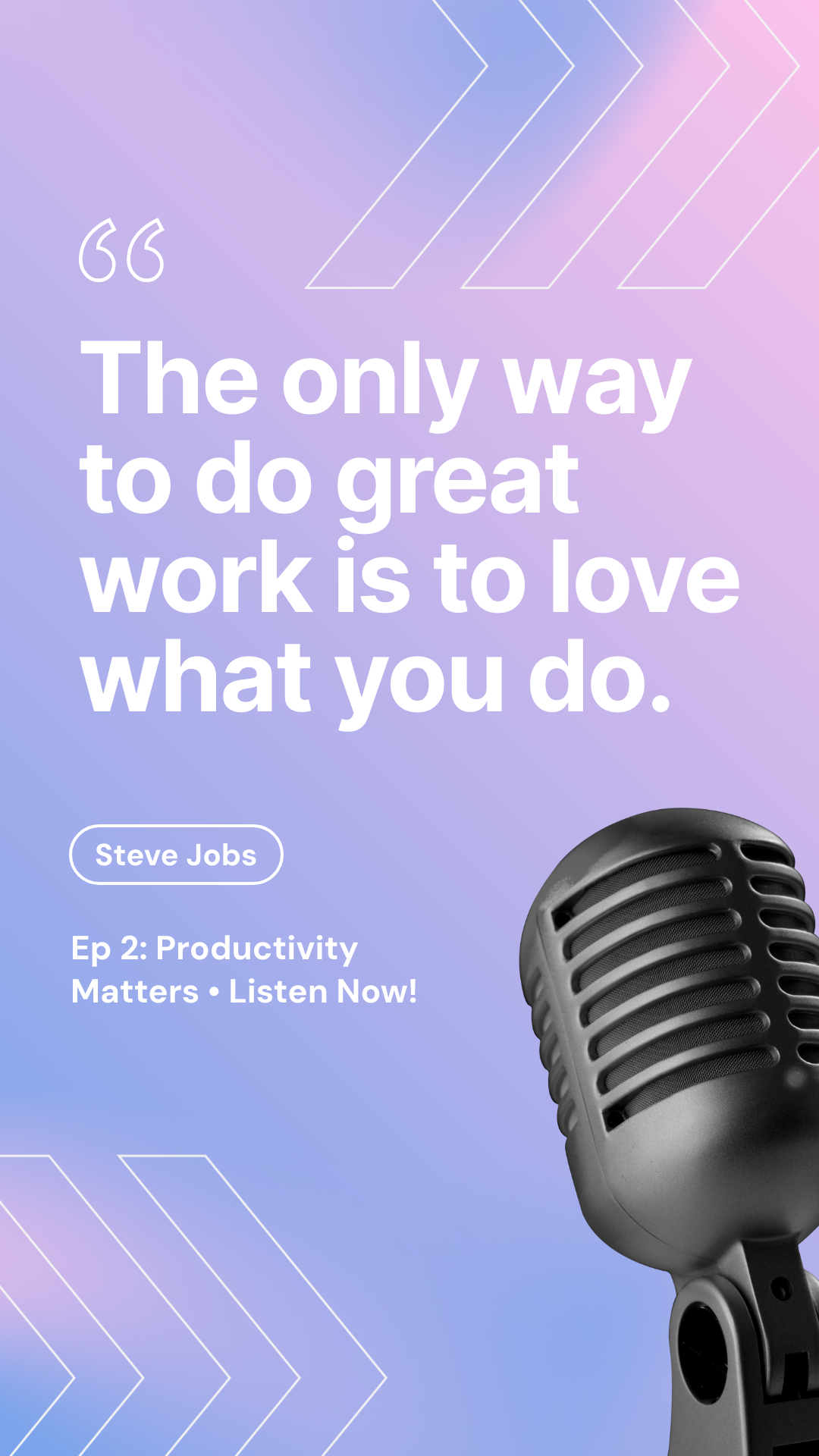
You can make it as simple or as complex as you’d like!
Once you’re happy with your design, click Save Template.
Bear Tip 🐻: Make your template even more versatile by automatically adding a relevant image from Pexels!
Step 3 - Set Up a Your Make Scenario
A Make workflow can retrieve a quote from ZenQuotes, generate a graphic from your Bannerbear template, then send it wherever you want it to go—a social media post, messaging channel, or storage. Let’s set up a skeleton scenario that you can then add onto however you’d like.
Log into your Make.com account, and create a new scenario.
You should now be on the scenario editor where you can add new modules, move them around, set a schedule, and more.
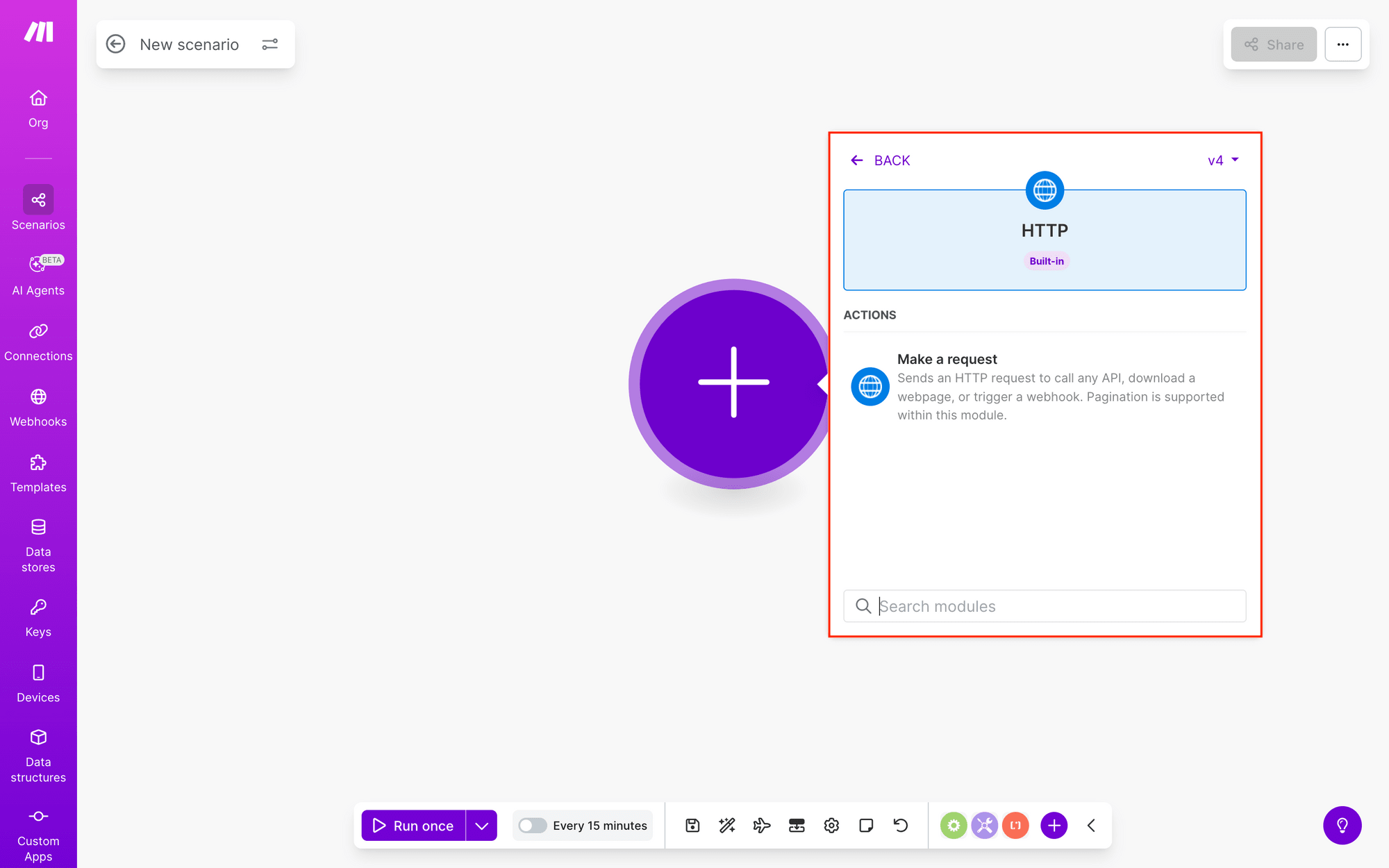
Add an HTTP module with the Make a Request action.
Choose No authentication as the authentication type, and insert the link to the ZenQuotes API endpoint:https://zenquotes.io/api/random.
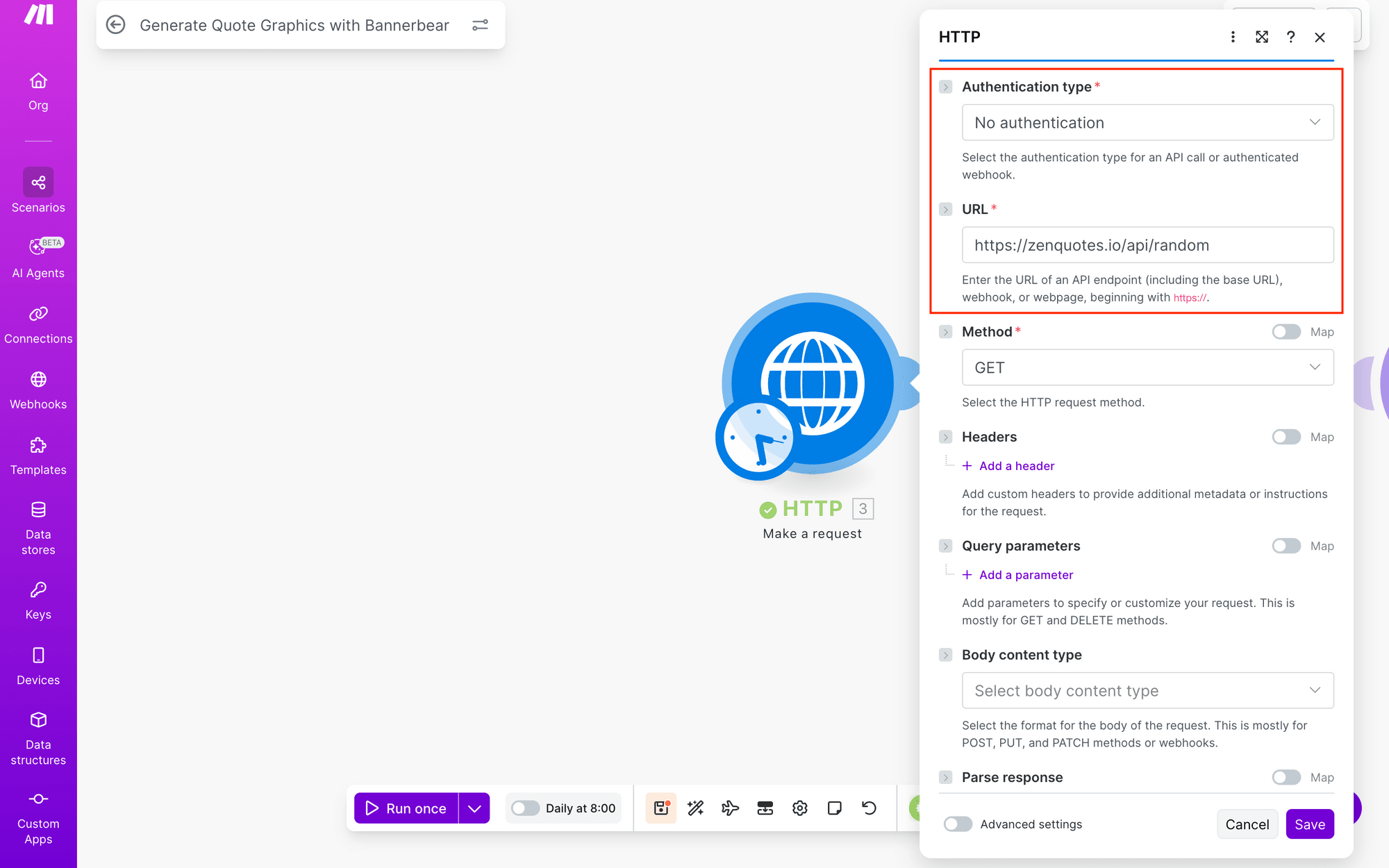
You can also add any authentication, query parameters, or API keys if needed.
Click Save.
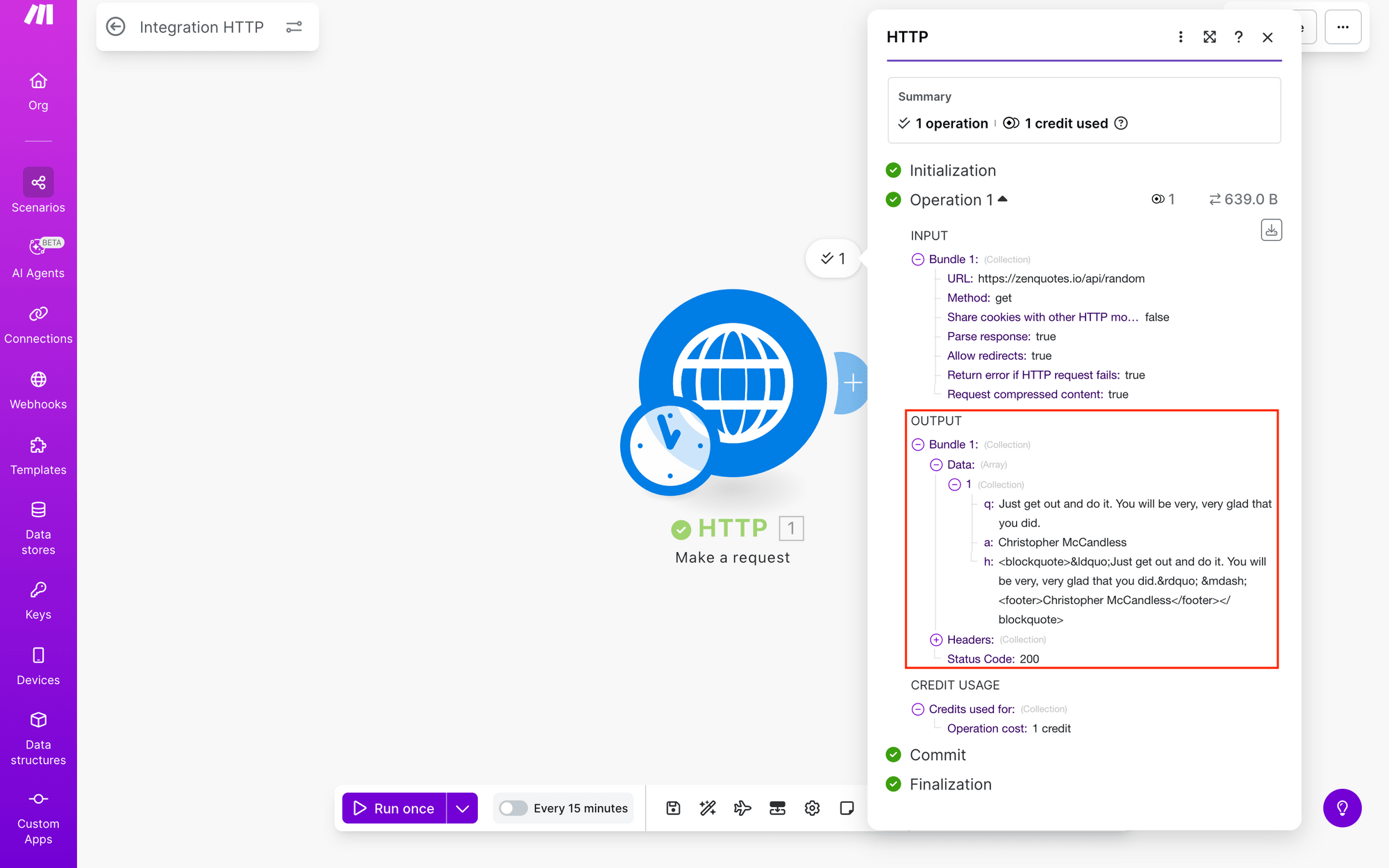
Run the scenario once to ensure Make is able to fetch a quote. You should be able to see it in the Output section.
Now, add a Bannerbear module with a Create an Image action.

You may have to connect your Bannerbear account using the API key in your project’s Settings menu.
Once connected, select the correct template UID, and set up modifications for the dynamic layers on your template.
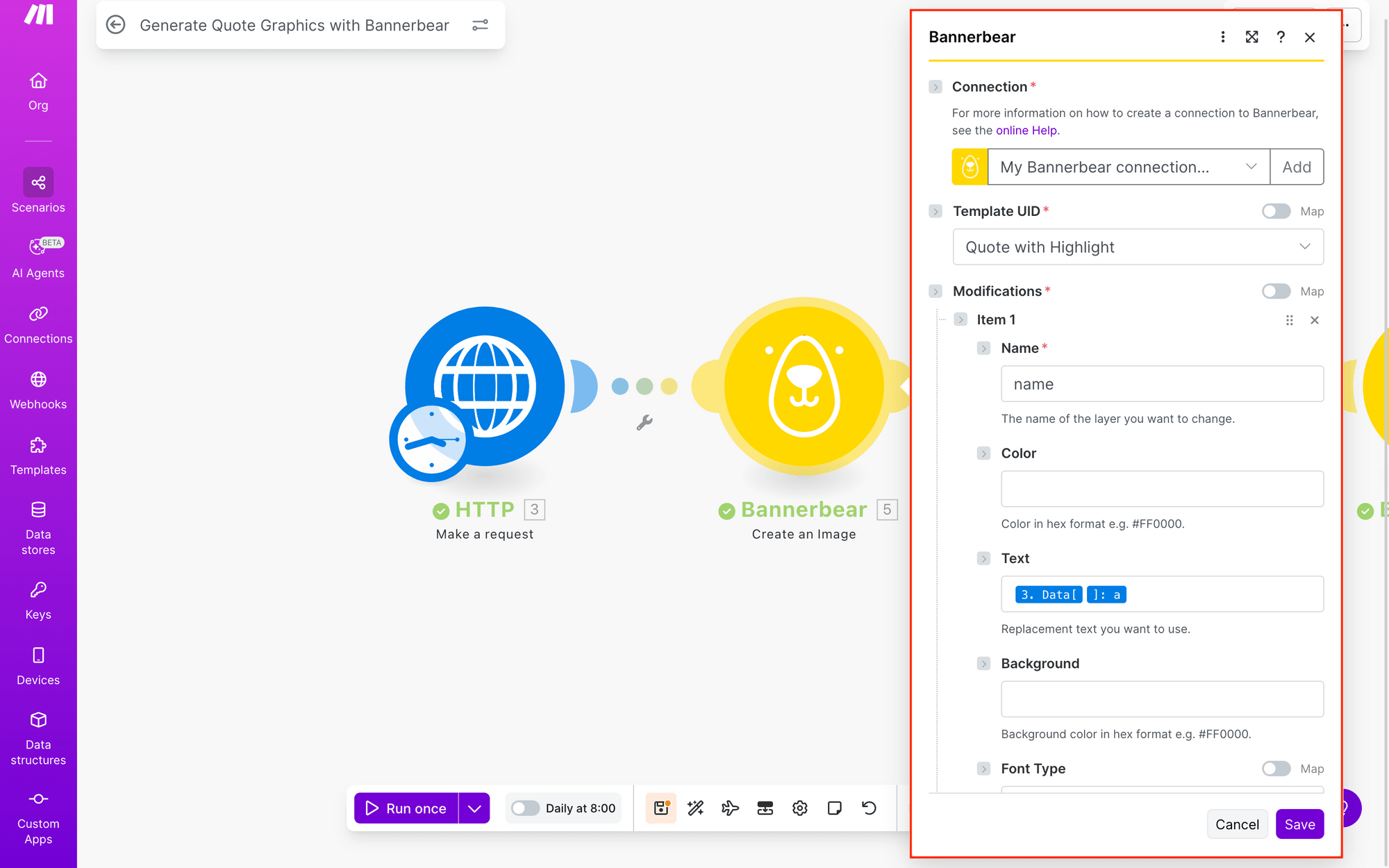
Click Save.
Bear Tip 🐻: Learn more about setting up your first Bannerbear scenario on Make.com in this guide!
At this point, running the scenario will fetch a quote, then generate an image. However, because Make’s response time is so quick, we are not always able to get an image URL in return. Adding a short delay will help with this.
Add a Tools module with a Sleep action, then insert a 10-second delay.
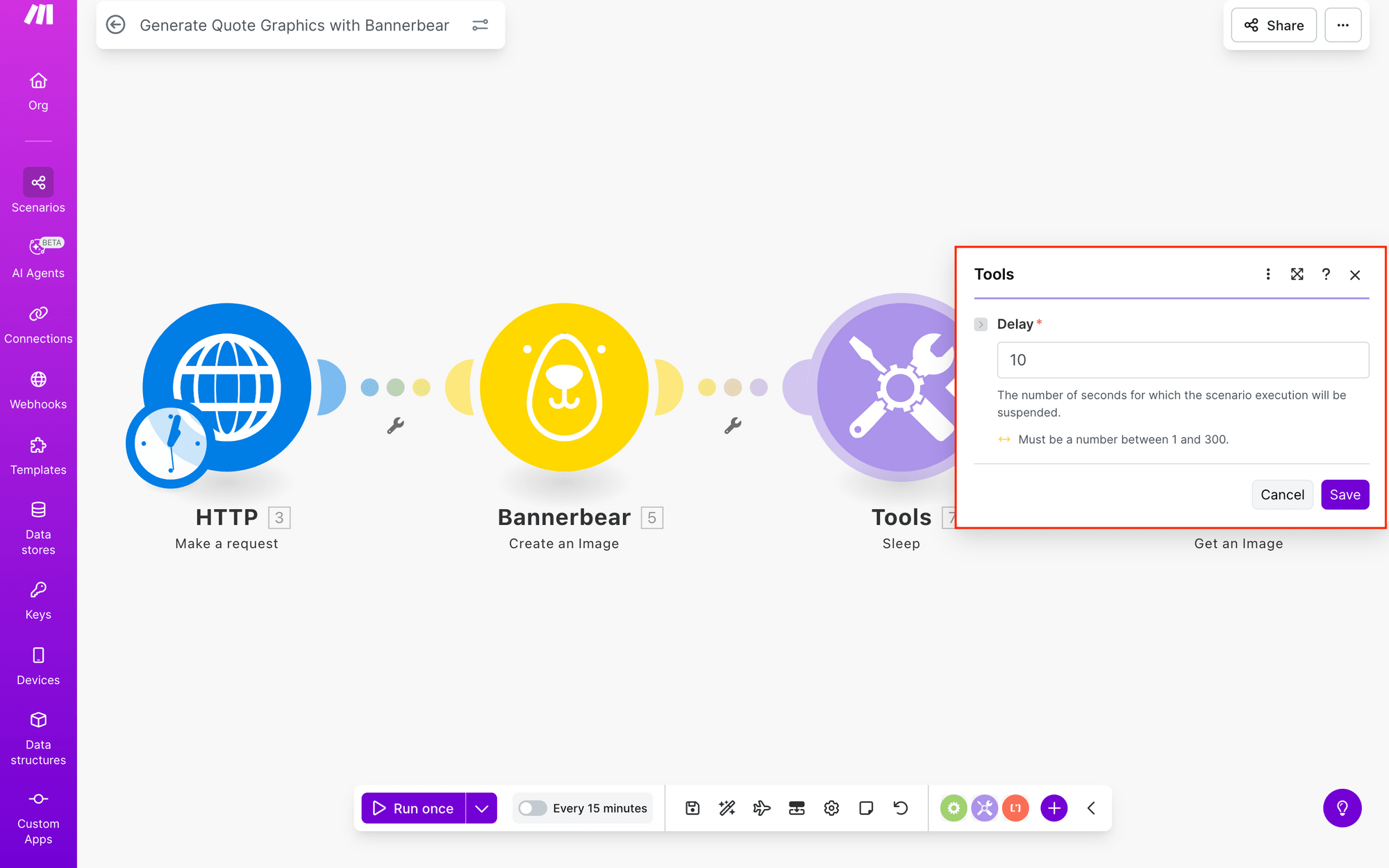
Click Save.
The last module in this skeleton scenario will pull the final generated image link from Bannerbear so that you can distribute or store it as needed.
Add a Bannerbear module with a Get an Image action.
Select the same connection, then map the image UID from your second module.
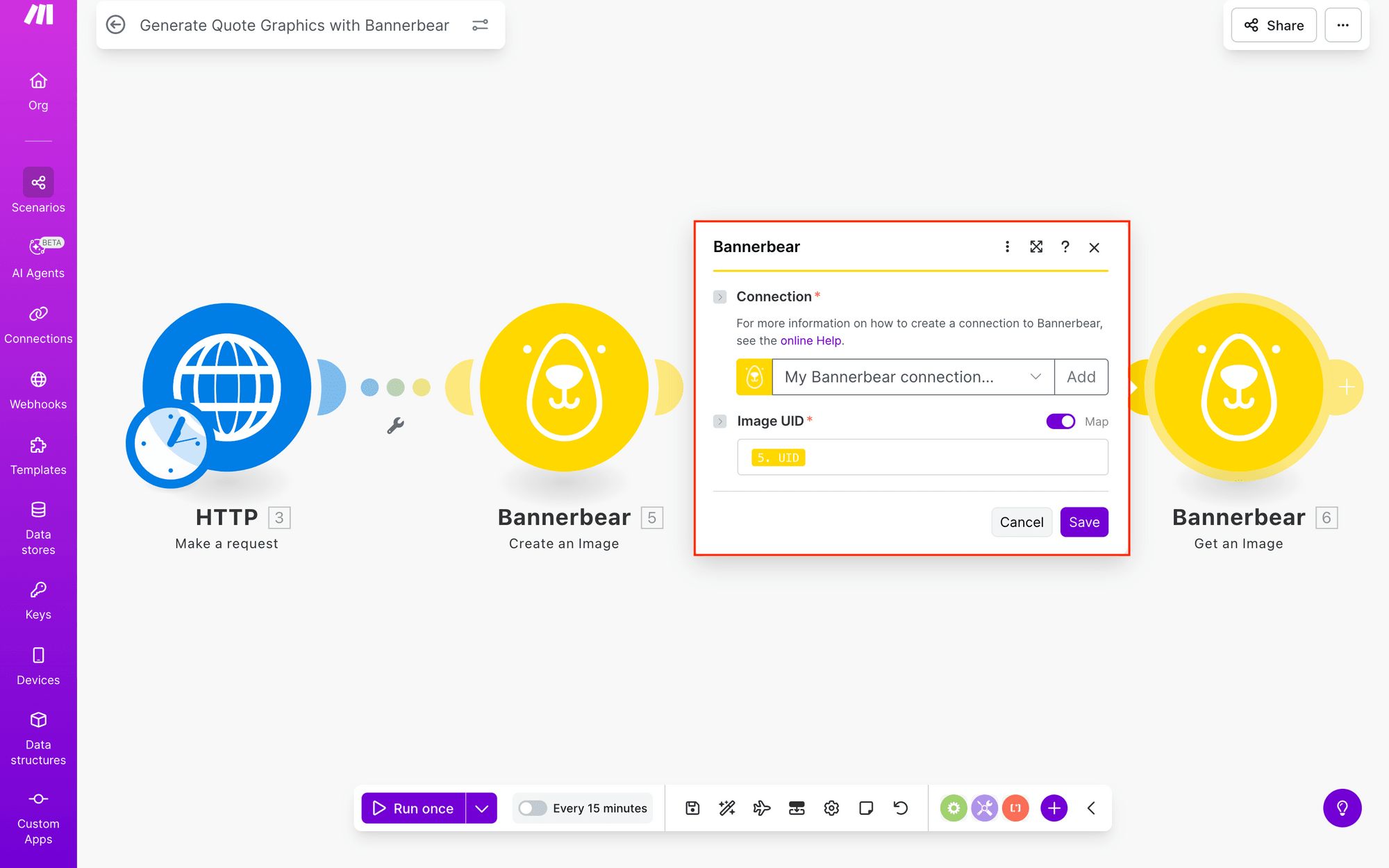
Click Save.
Run the scenario again. You should find that the delay ensures the image is ready by the time the image link is grabbed, making it easy for you to find.
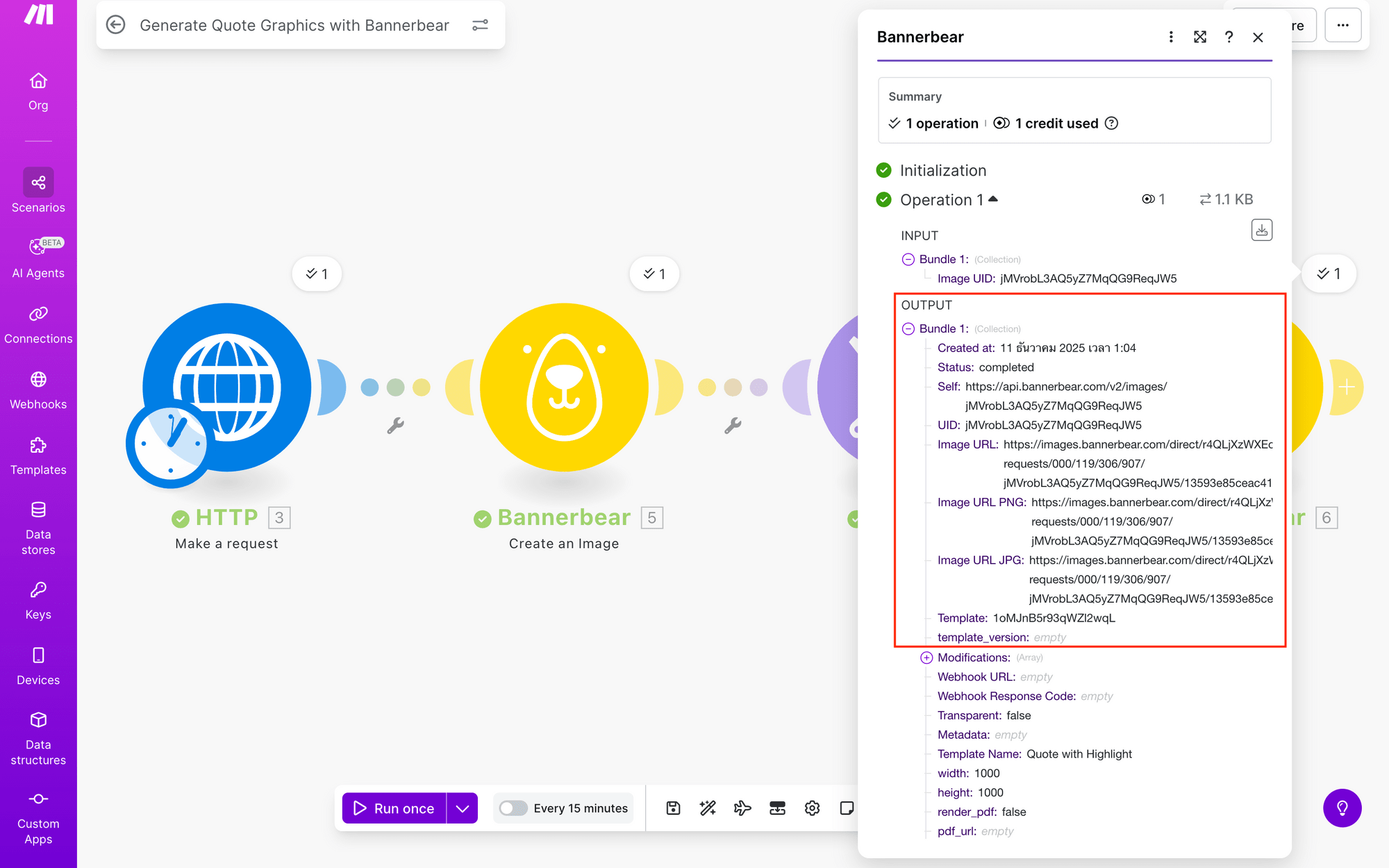
Finish off your scenario by changing the schedule settings to fit your needs.
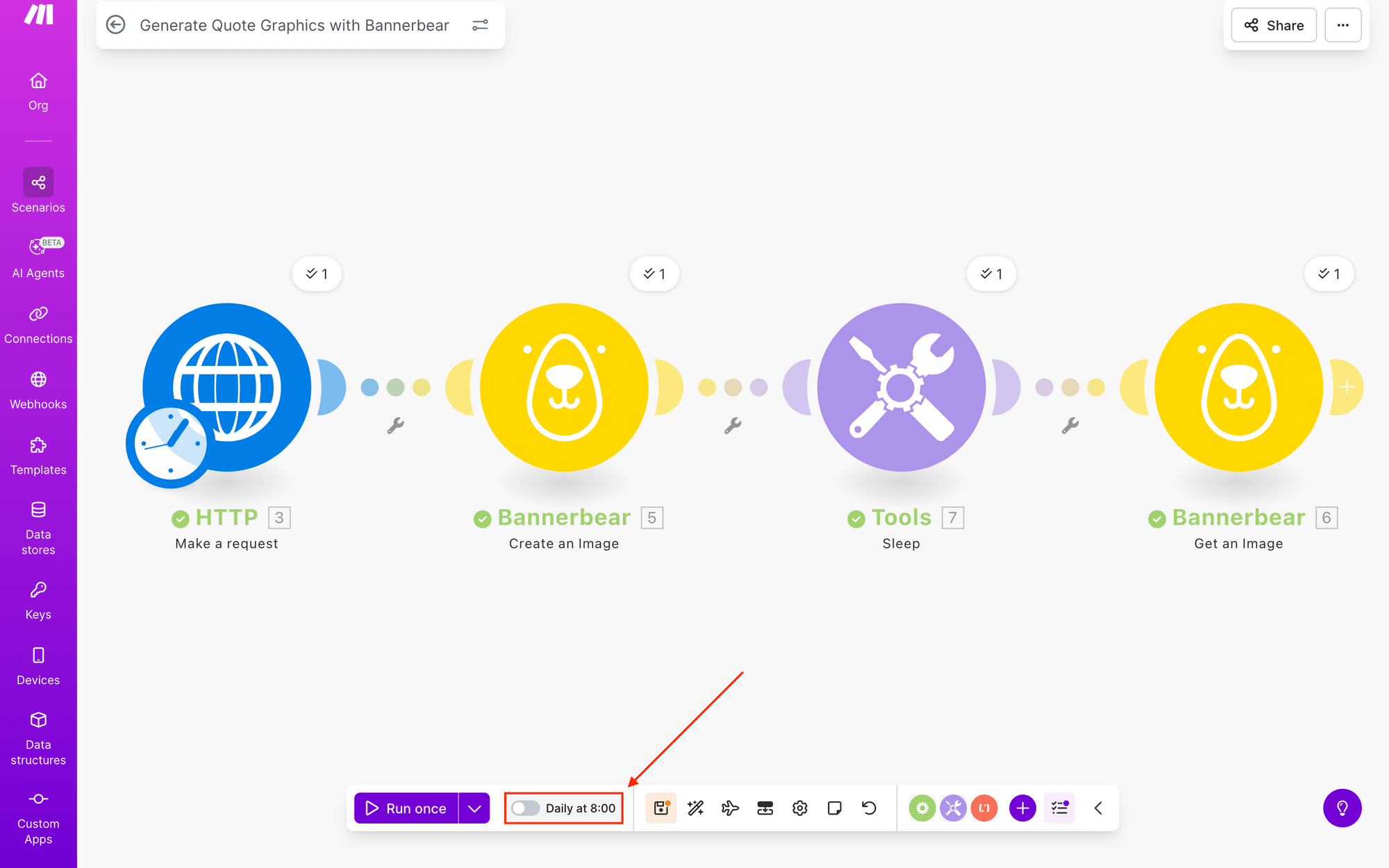
You can also add onto it by:
- Saving links to an Airtable database
- Publishing directly to a Discord channel
- Sending updates via a Telegram bot
- Adding to a newsletter draft
The sky is the limit!

Conclusion
Good automated workflows should transform tedious manual work into seamless, scalable processes—and quote graphics are a great use case. Once you have a foundation in place, you can take it in whichever direction you want: try different quote sources, experiment with new template designs, or pipe your graphics into any distribution channel you can imagine.
And if you would like to find more creative ways to modify your quote graphic templates, check out these blog posts:
👉 Adding Shapes to Your Bannerbear Templates (+ Free SVGs!)
👉 5 Subtle, Minimal Text Background Ideas (+ Free Bannerbear Templates!)