
How to Automatically Create New Podcast Episode Cover Art (with Make.com)
Contents
Podcast cover art matters more than most creators realize. It's often the first visual impression a potential listener gets, and on platforms crowded with thousands of shows, it can be the difference between a click and a scroll.
Most podcast distribution platforms—Spotify, Apple Podcasts, YouTube, Amazon Music—default to using the same cover art for every episode. But custom episode artwork can make an impact on how your show performs: it catches eyes on crowded feeds, reinforces your brand, and makes each episode feel distinct and intentional.
The catch: designing dozens of unique covers can be exhausting. Whether you're doing it yourself or hiring a designer as each episode releases, the manual work compounds quickly.
There's a better way. Create one beautiful template—either by designing it yourself or working with a professional—then automate the rest. Each episode's cover generates in seconds, with dynamic elements (titles, guest names, episode numbers, and even images) automatically populated. That way, you get unique thumbnails as soon as each episode is planned.
In this guide, you'll learn the entire workflow using no-code tools: Bannerbear for template creation and image generation, Make.com for automation logic, and Airtable as your data hub. By the end, you'll have a system that creates professional episode art on demand.
What You Will Create
This workflow lets you generate unique cover art on-demand, with a built-in human confirmation step—so you maintain control and only create assets when you're ready. Using an Airtable checkbox to trigger generation keeps your process efficient and intentional.
The tools you’ll need to set up an automated thumbnail generation process are:
- Airtable: To store podcast episode data and generated cover art
- Bannerbear: To design cover art templates and generate them at scale
- Make.com: To trigger actions in different programs based on a predesigned scenario
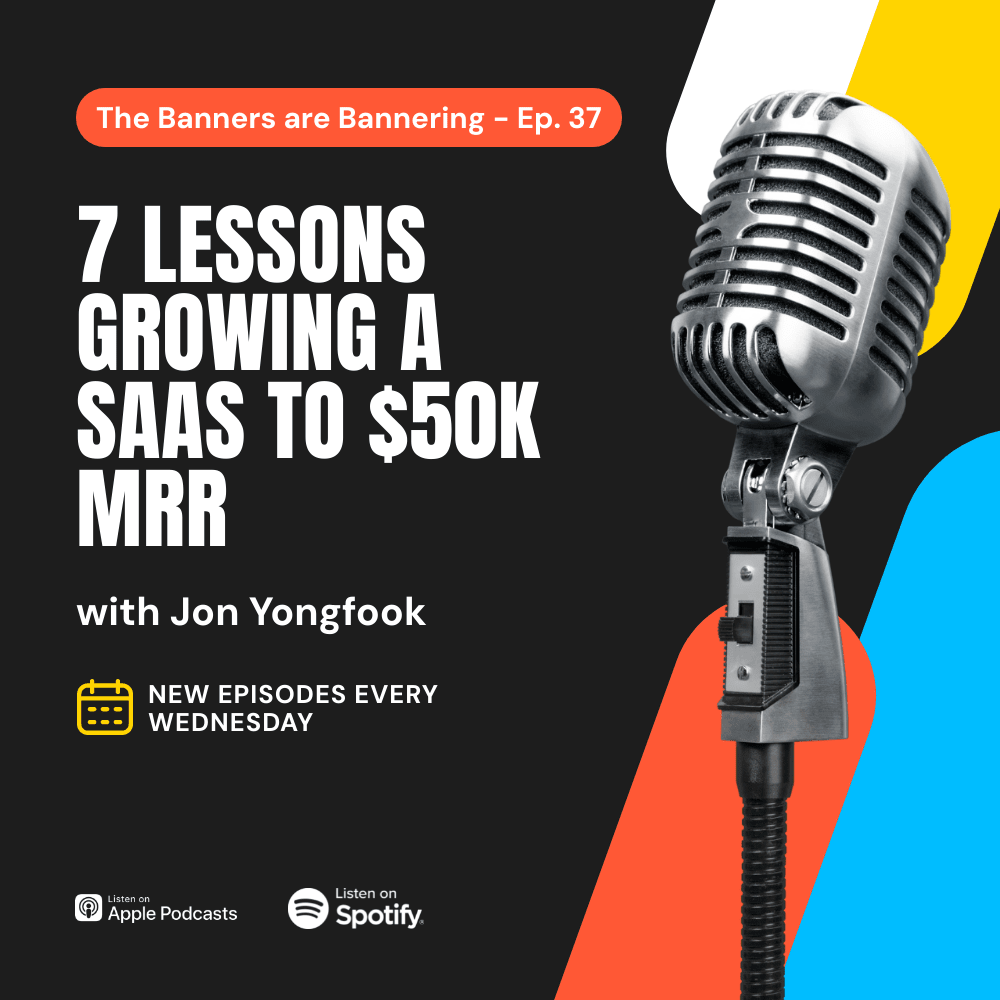
By the end of the tutorial, you should be able to generate cover art as each episode is planned:
Let’s get started!
How to Design an Automated Podcast Episode Cover Art Workflow
Now that there’s a clear look at our end destination, let’s walk you through setting up your automated cover art system from start to finish. You'll design a flexible Bannerbear template that serves as your creative foundation, organize your episode data in Airtable, and connect everything through Make to create a seamless workflow.
Step 1 - Design a Bannerbear Template
Bannerbear’s template editor allows you to design an invite that resonates with your creative vision. It even has sharing capabilities so you can share the project with a designer and leverage their skills.
Log into your Bannerbear account (or create a free account if you don’t have one yet—no credit card required! 🥳), and create a new project.
You can start from scratch with custom dimensions and unique elements. Alternatively, start with one of our pre-designed templates:



Add and modify fields until you're happy with your design, then click Save Template.
Step 2 - Prepare Your Airtable Base
If you already use Airtable for podcast management, preparing it for cover art generation will be simple. Log into your account, and create or select the base you’ll be using.
For this workflow, you’ll need the following fields:
- Episode Title (single line text)
- Generate Cover Art? (checkbox)
- Cover Art (URL)
- Last Modified (last modified time)
You can also include fields for any additional details you might want to include in your cover art, such as host names, guest names, supplementary media, and more.
We’ll use the checkbox and last modified fields to trigger cover art generation once the data is ready. Set up the last modified field to track when edits are made to the checkbox field.
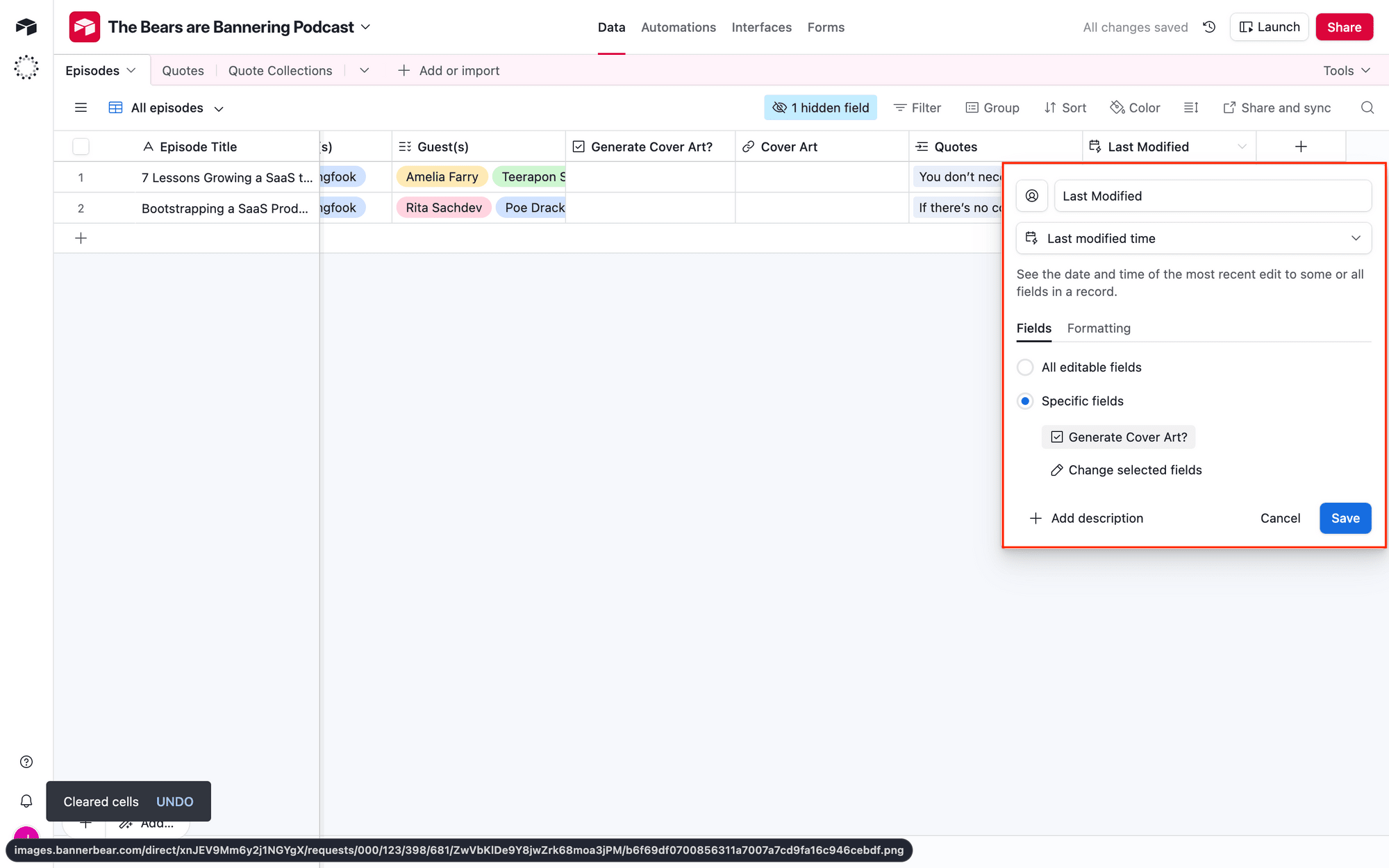
Since the Airtable module we’ll be using is triggered by the last modified field, this ensures cover art is only generated after there has been a manual confirmation step.
Your database will look something like this:
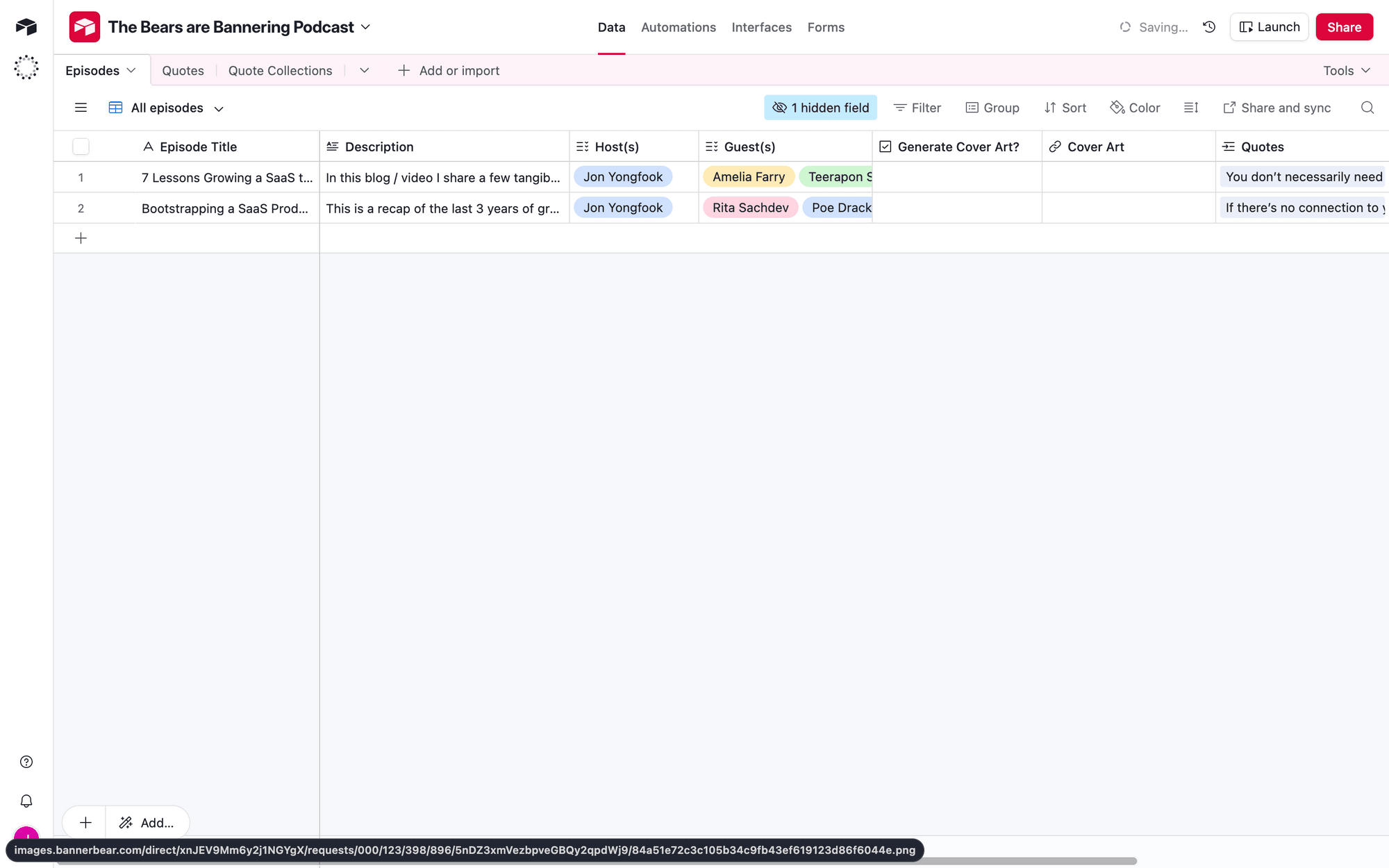
Make sure you have at least one record with the box checked and the last modified field populated to ensure there’s sample data for your Make scenario test.
Step 3 - Set Up a Make Scenario
A single Make scenario can watch Airtable records as they’re updated, trigger Bannerbear image generation, then pick up the output URL to store in the database.
Log into your Make account, create a new scenario, and then set up the following modules:
Module #1: Airtable - Watch Records
We’ll use an Airtable module with a Watch Records action to monitor your table, triggering the automation once a record is ready for cover art generation.
Add the module to your scenario. If you haven’t connected your Airtable account yet, you will be prompted to do so.
Select the correct base and table. Choose Last Modified as your trigger field, and Episode as your label field. Limit the returned records to 1.
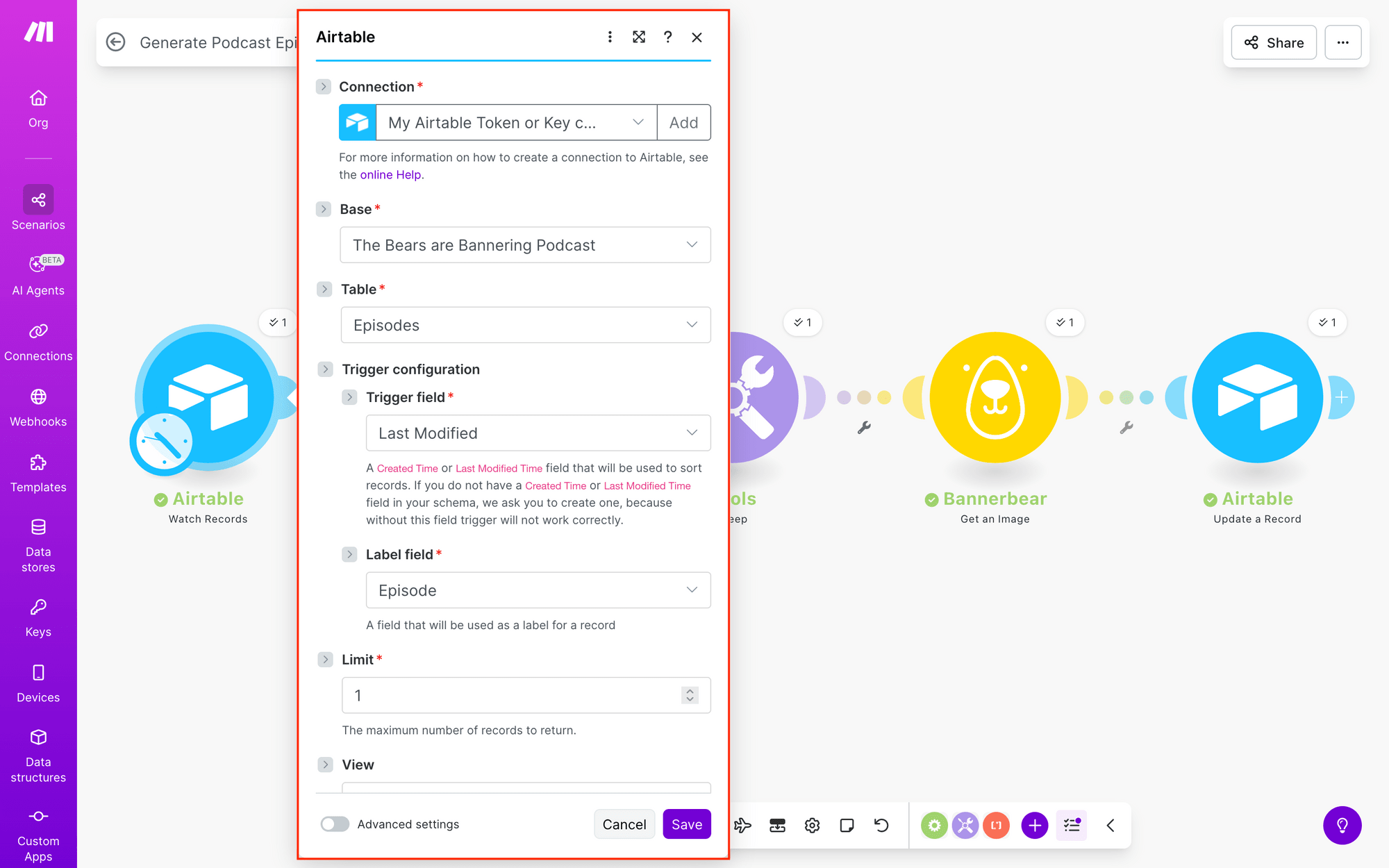
Click Save , then right-click on the module to run it to ensure Make is able to find a record matching your requirements.
Module #2: Bannerbear - Create an Image
Now, a Bannerbear module with a Create an Image action will send episode data to your template.
Add the module to your scenario. You’ll have to connect your Bannerbear account using the API key in your project’s Settings / API Key menu.
Once connected, select the correct template UID, and set up modifications for the dynamic layers on your template.
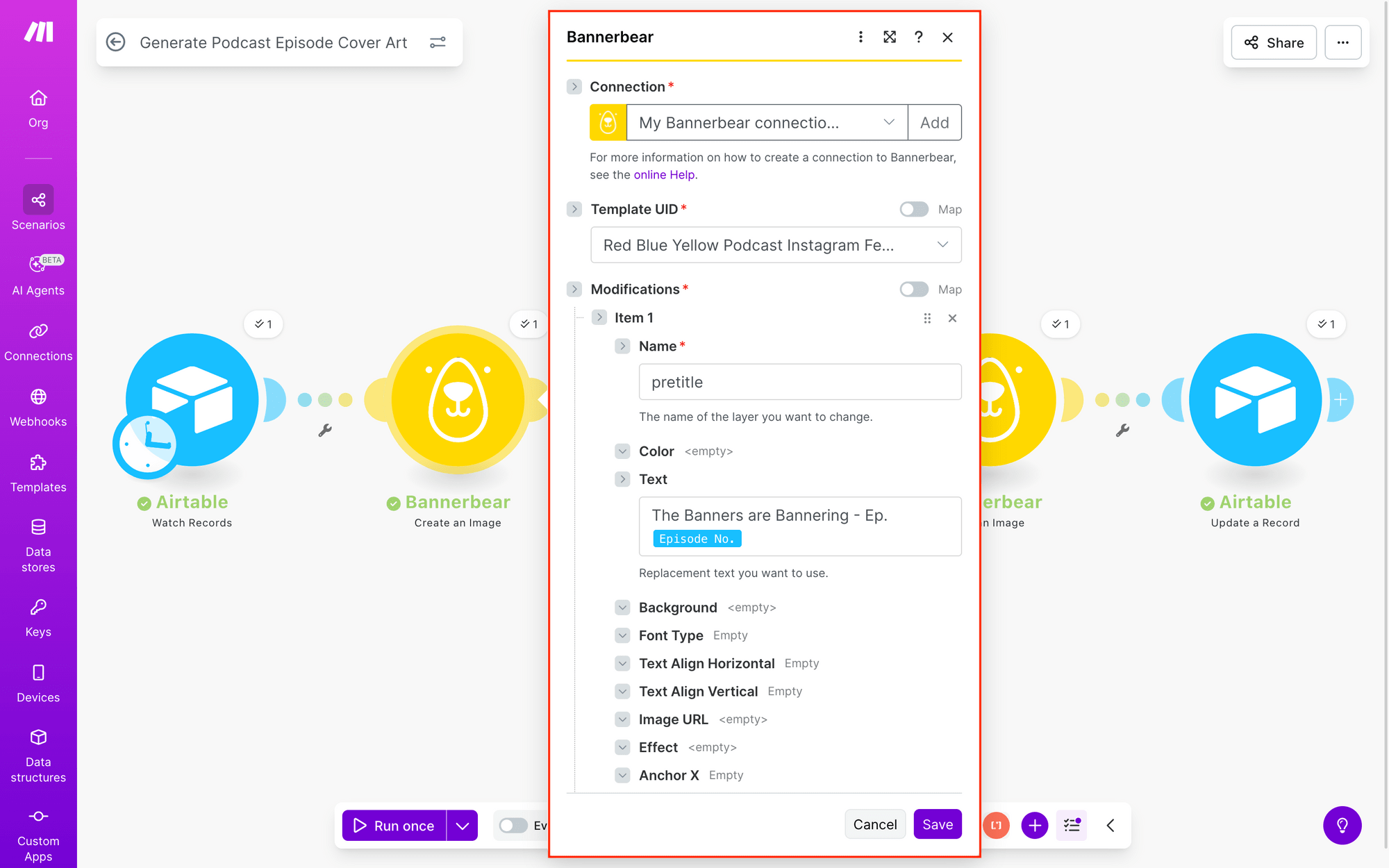
In the Metadata field, add a dynamic link to the Airtable ID. This will make it possible for the correct record to be located later on.
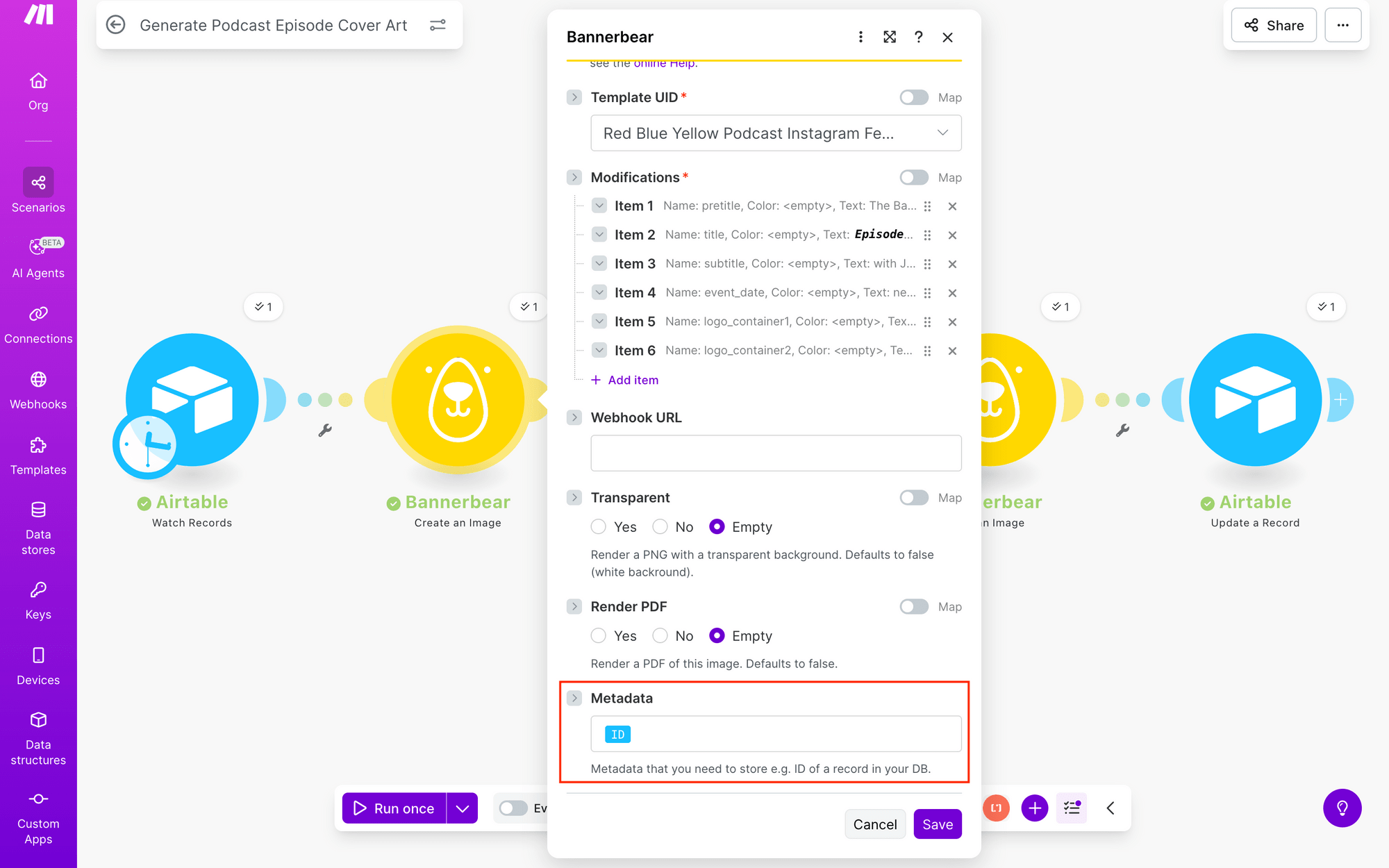
Click Save , and run the module to ensure Bannerbear generates an image.
Module #3: Tools - Sleep
At this point, running the scenario will fetch episode data, then generate cover art. However, because Make’s response time is so quick, we are not always able to get an image URL instantaneously. Adding a short delay will help with this.
Add a Tools module with a Sleep action, then insert a 5-second delay.
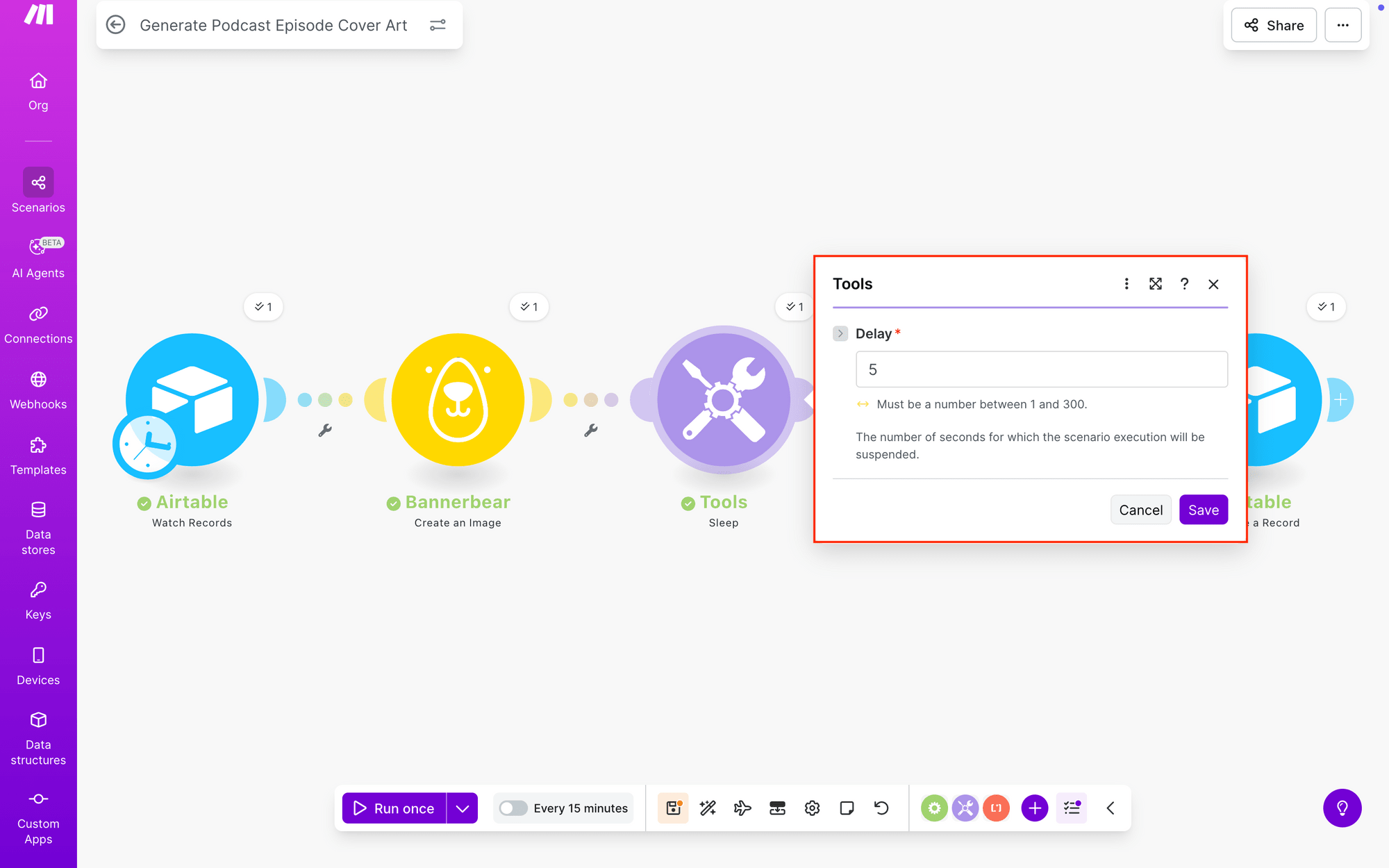
Click Save.
Module #4: Bannerbear - Get an Image
The image should now have had time to render, so let’s fetch the link with a Bannerbear module and Get an Image action.
Add the module to your scenario. Set it up by mapping the UID from the Bannerbear image generation step in Module #2 to the Image UID field.
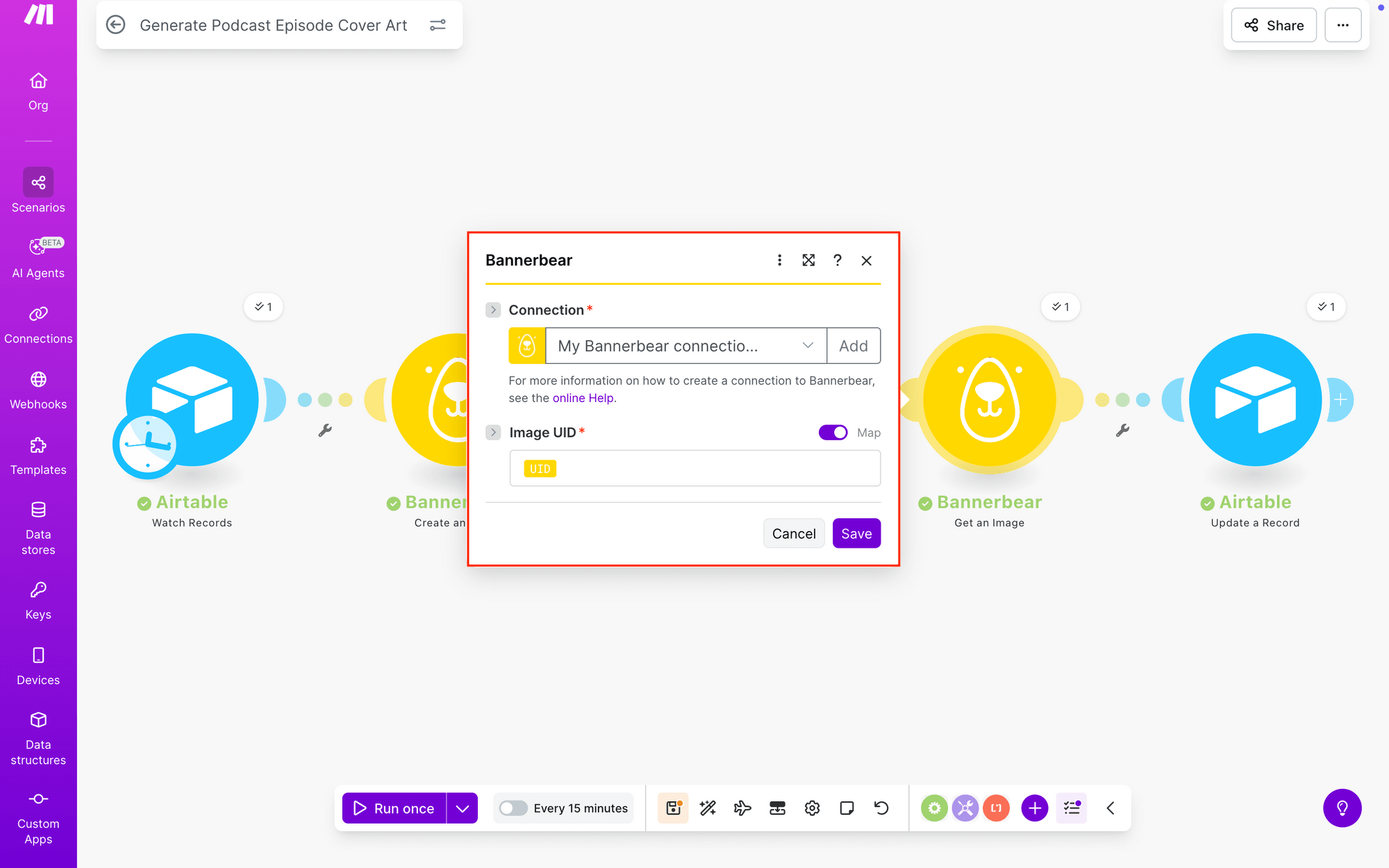
Save , and run the module to ensure you are able to retrieve a link.
Bear Tip 🐻: Clicking the checkbox bubble on the top-right of a module will let you see the output data.
Module #5: Airtable - Update a Record
The final step of this scenario will send the link back to Airtable for storage.
Add an Airtable module with an Update a Record action to your workflow.
Select your base and table, then map the generated image metadata to the Record ID field.
Insert a link to the generated image URL in the Cover Art field.
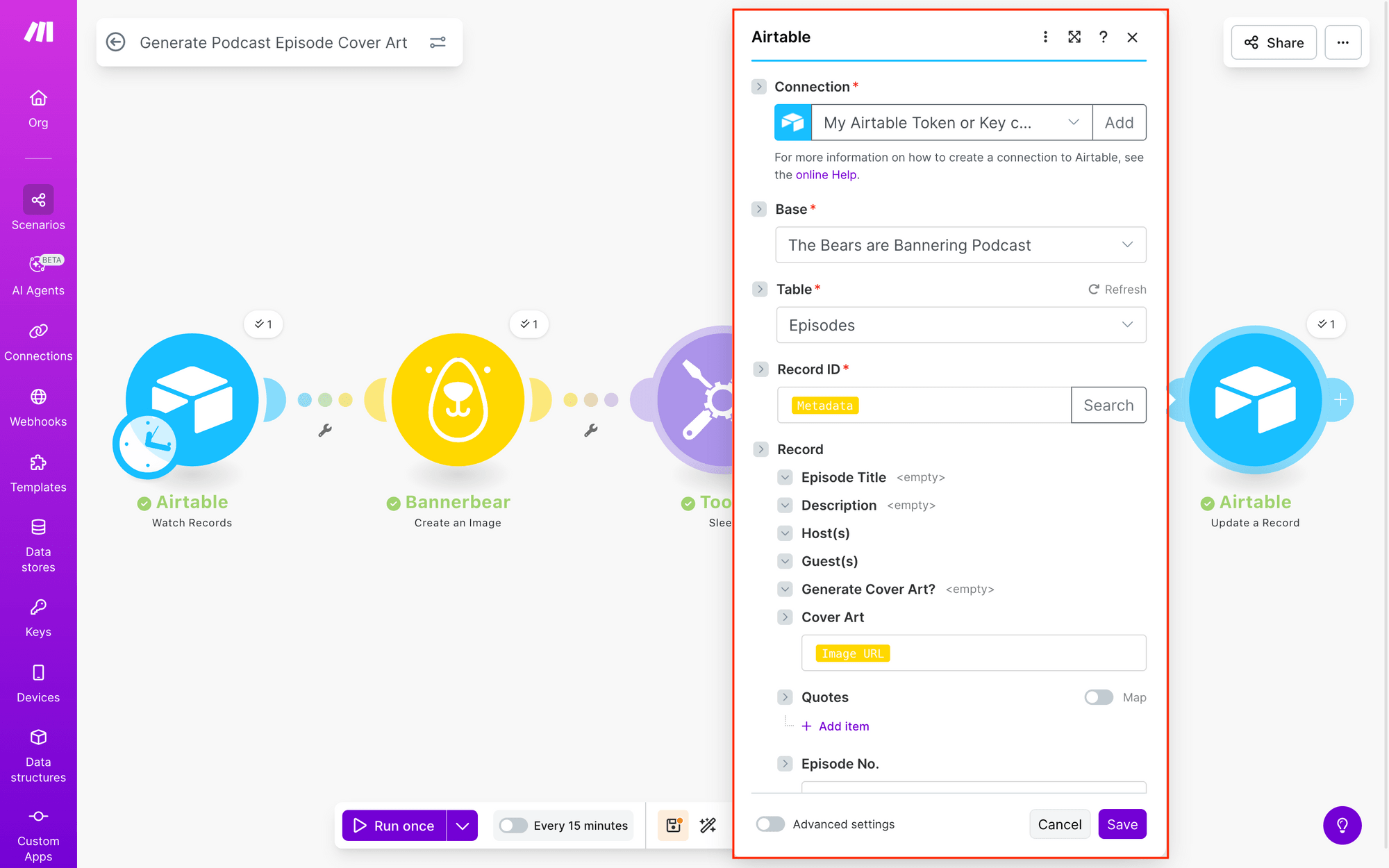
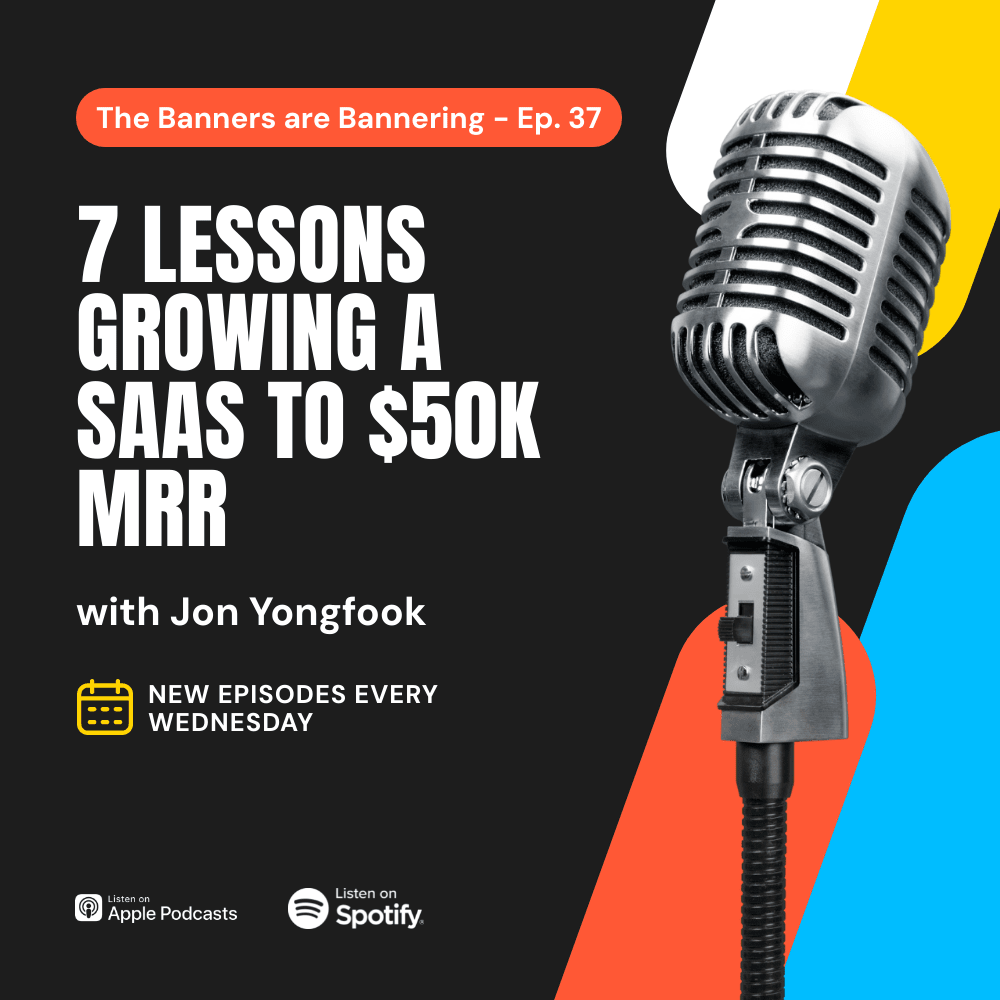
Running this module should send the link back to your Airtable base for storage. When you click the link, you should be able to view your podcast cover art:
Once you’re happy with your scenario, select a frequency at which you’d like Make to check Airtable for changes. Toggle the scenario on. The entire scenario will look something like this:
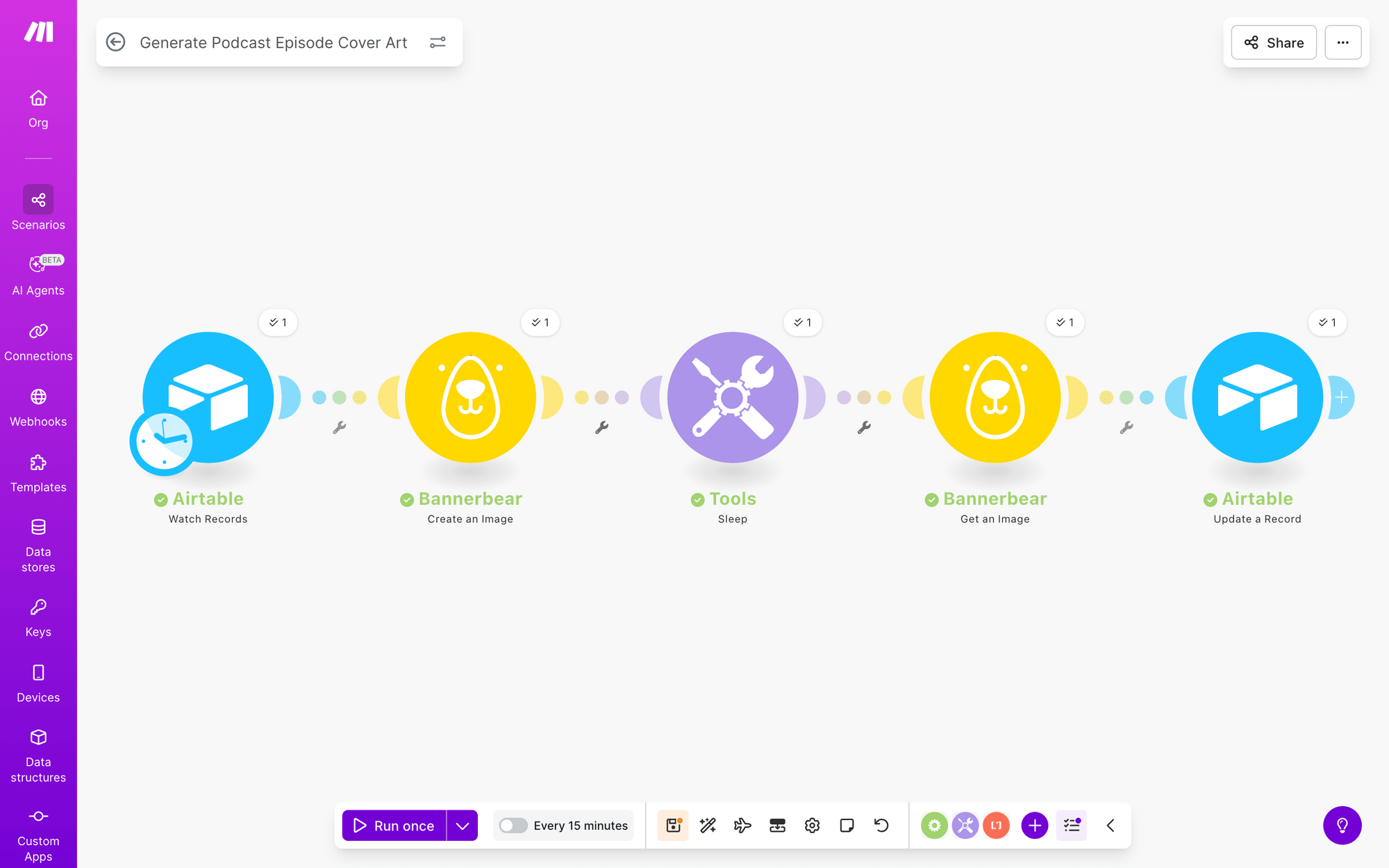
Now, whenever you click a checkbox on your Airtable base, cover art should automatically be generated and stored on your table, ready for episode release!
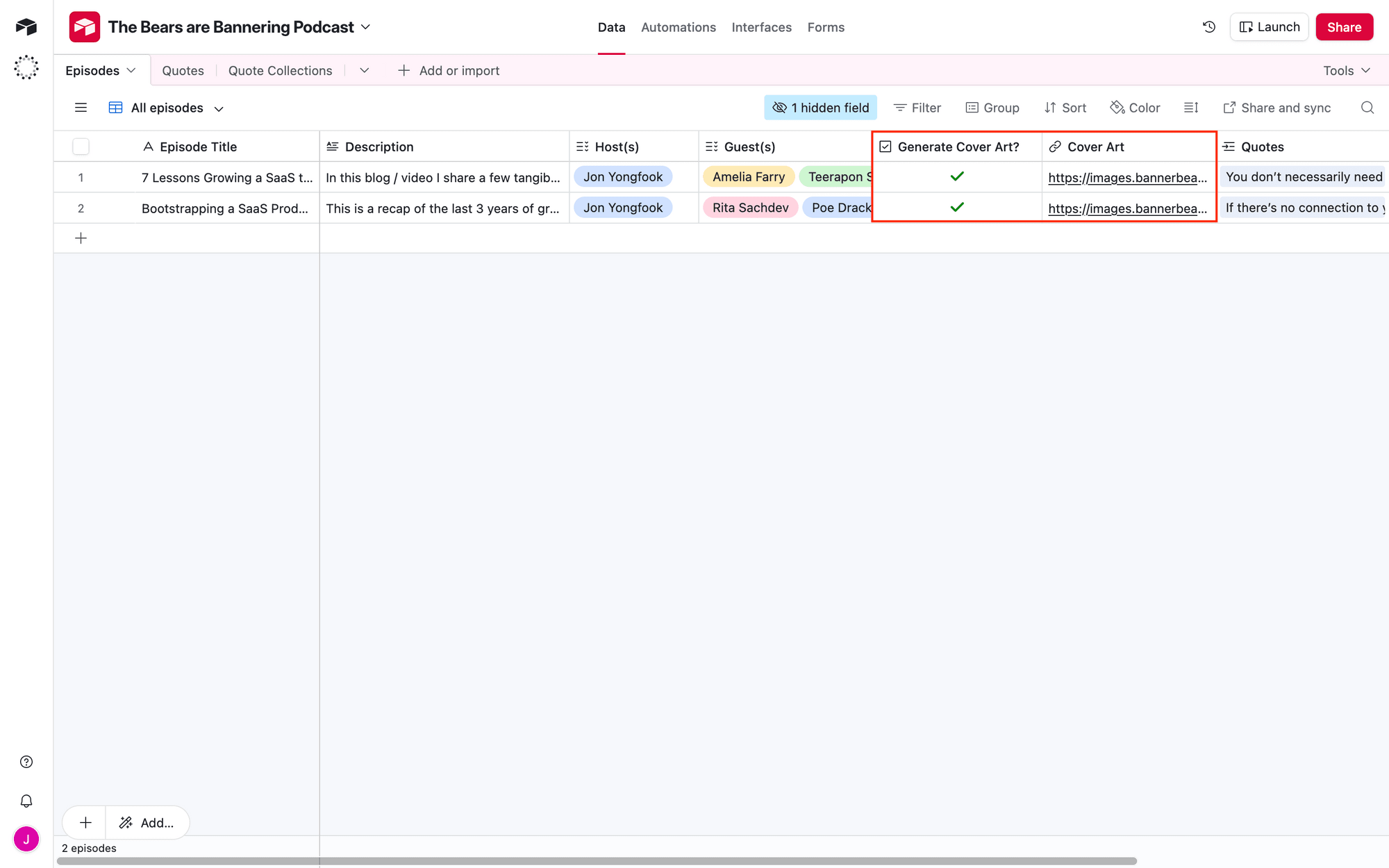
Bear Tip 🐻: Made some changes to your episode? Simply update the input data, then uncheck and recheck the checkbox to generate another cover image!
Conclusion
You now have a fully automated system for generating podcast cover art—minimal design skills required, and virtually no manual work per episode beyond clicking a checkbox. By connecting Airtable, Bannerbear, and Make, you've built a workflow that scales with your show.
The best part? Once it's set up, it works in the background. Update your episode details, check a box, and professional cover art appears in seconds. You maintain creative control through the checkbox trigger, while automation handles the heavy lifting.
Whether you're releasing one episode a week or multiple per day, this system grows with you. And if your design needs change down the road, simply update your Bannerbear template—every future cover will reflect the new look instantly!