To add voiceovers, just use the Add or Replace Audio or the Generate Voiceover tools. Otherwise, use workflows to add audio tracks over videos, replace existing audio, or generate text-to-speech audio and chain them with other Bannerbear operations.
Inputs
Create a Workflow and use the + Add Input button to declare your inputs. These are the parameters that you'll supply to the API when you run your workflow.
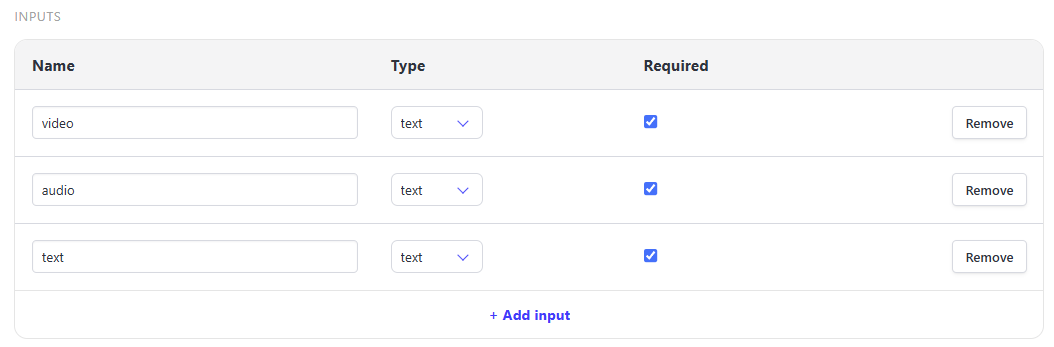
Each Inputs has:
- name - used as references in your steps and API requests
- type - the type of input you're supplying
texturlnumberboolean(true/false)
- required - determines whether a run must supply this input
Add or Replace Audio
🐻 Bear Tip: If you already have an existing audio file, go with this option.
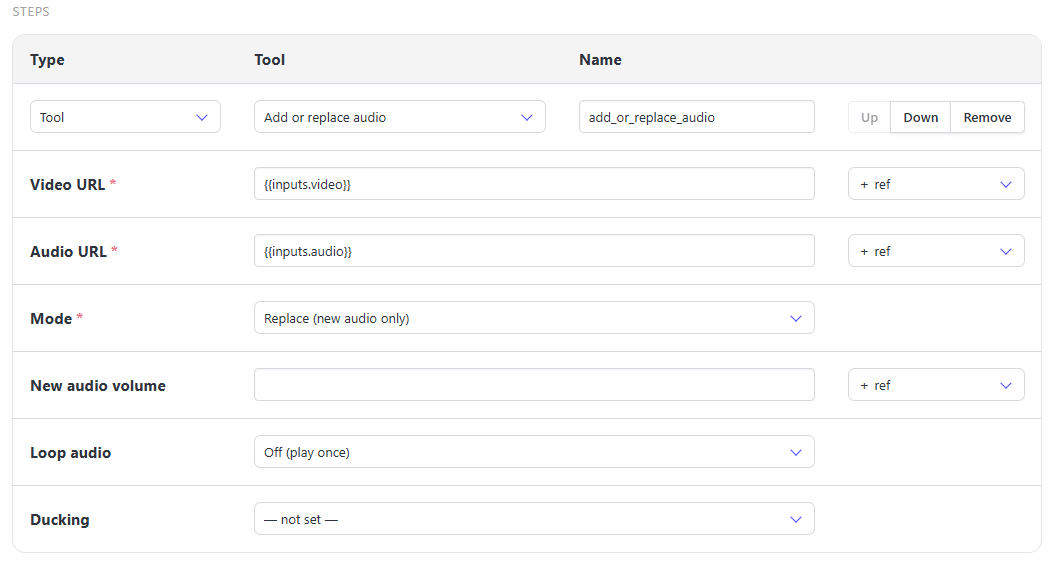
Add a Tool step and select Add or replace audio from the list. Use the + ref drop-menu to add your inputs to their corresponding fields.
Generate TTS Voiceover
🐻 Bear Tip: If you'd like to generate a text-to-speech audio, go with this option
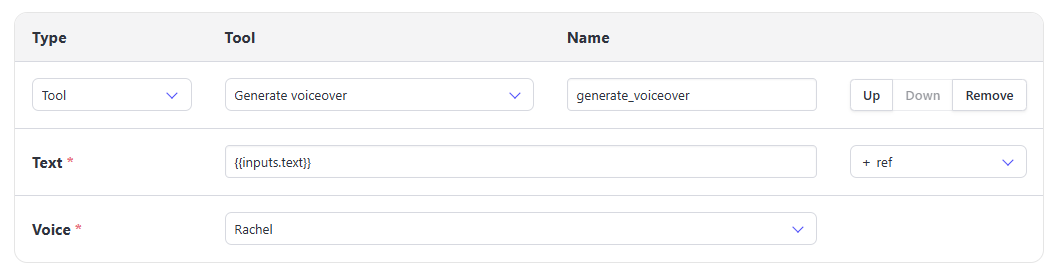
Add a Tool step and select Generate Voiceover from the list. Use the + ref drop-menu to add the appropriate inputs. Pick the voice you prefer from the Voice field.
API Workflow Run
Send a POST request to the /v5/workflow_runs endpoint, along with your workflow UID and your inputs.
var data = {
  "workflow": "VymBYa7gMjW6JQ2njM",
  "inputs": {
    "audio": "audio_file.mp3",
    "video": "https://www.bannerbear.com/video/webcam_example.mov"
  }
}
fetch('https://api.bannerbear.com/v5/workflow_runs', {
  method: 'POST',
  body: JSON.stringify(data),
  headers: {
    'Content-Type' : 'application/json',
    'Authorization' : `Bearer ${API_KEY}`
  }
})
🐻 Bear Tip: Workflows can be created via the API as well. See Create a Workflow for more.