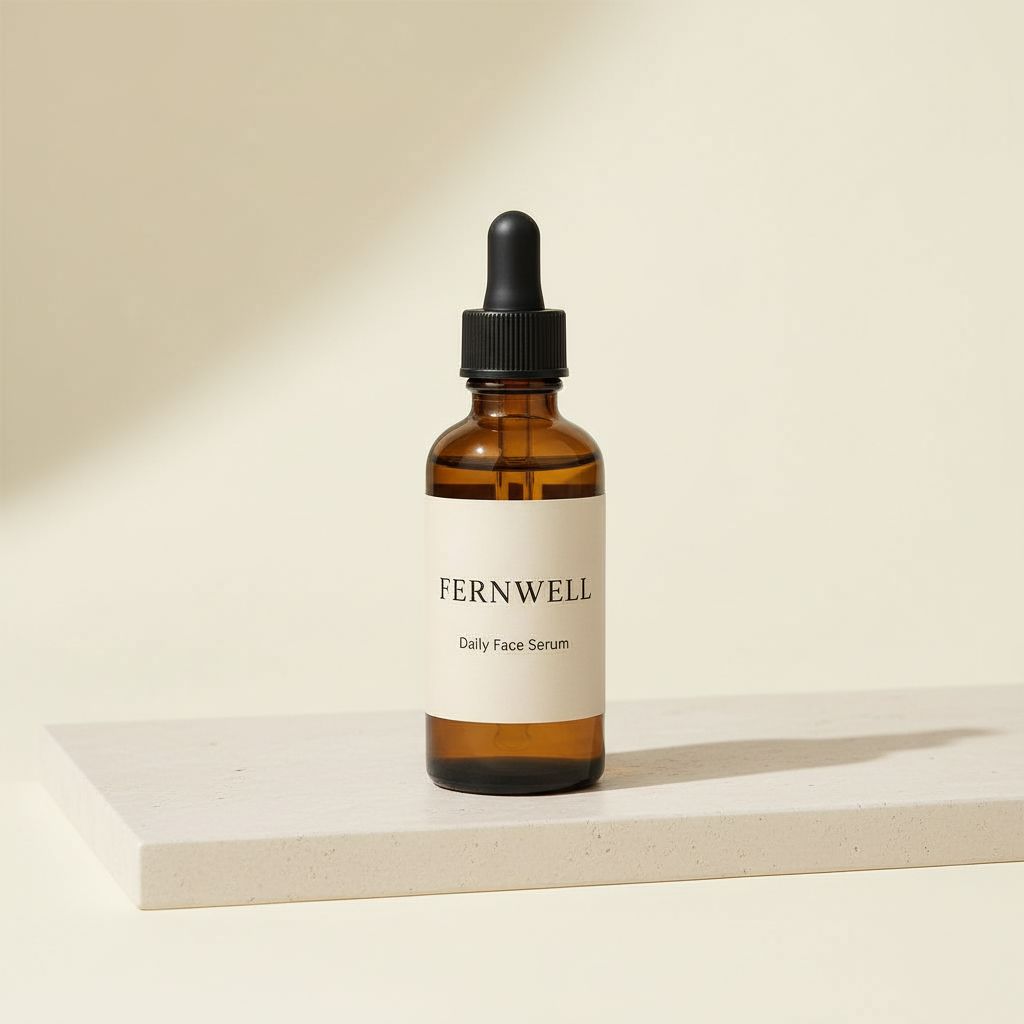
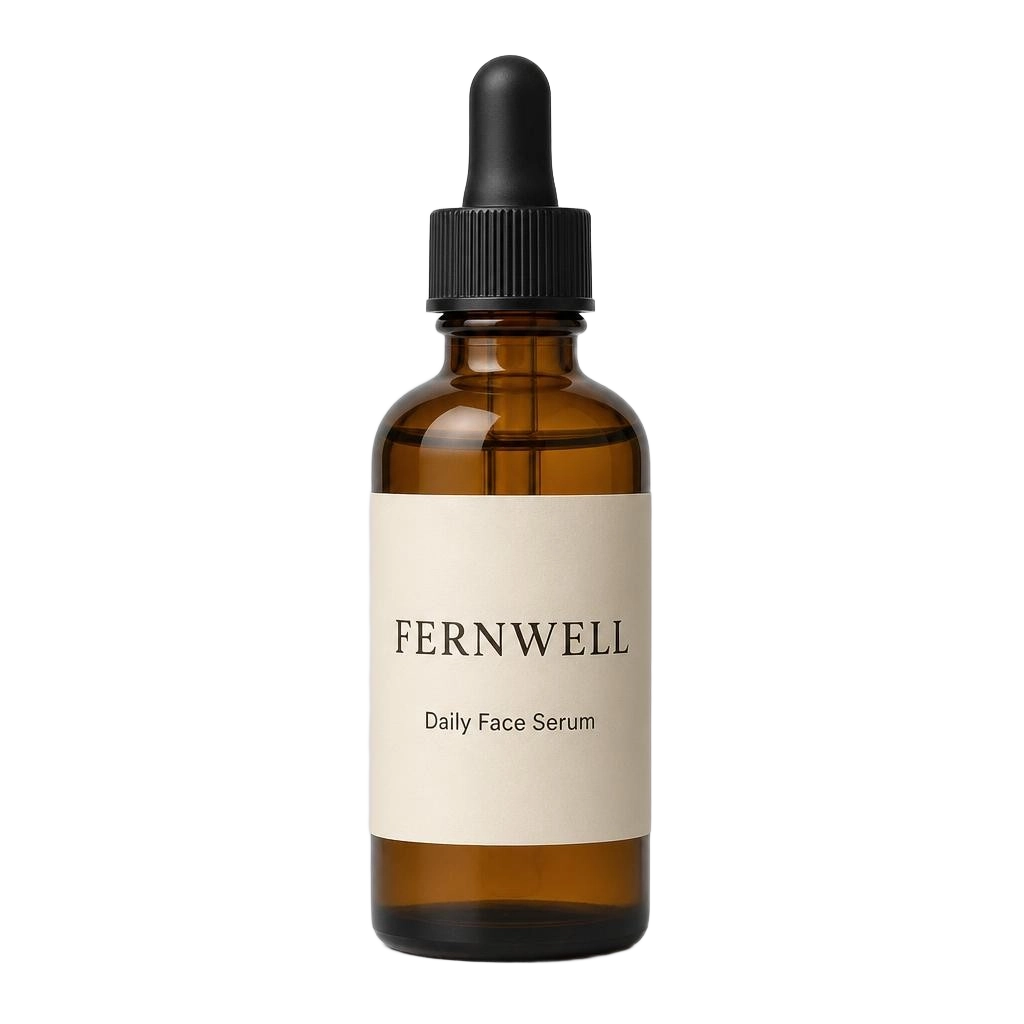
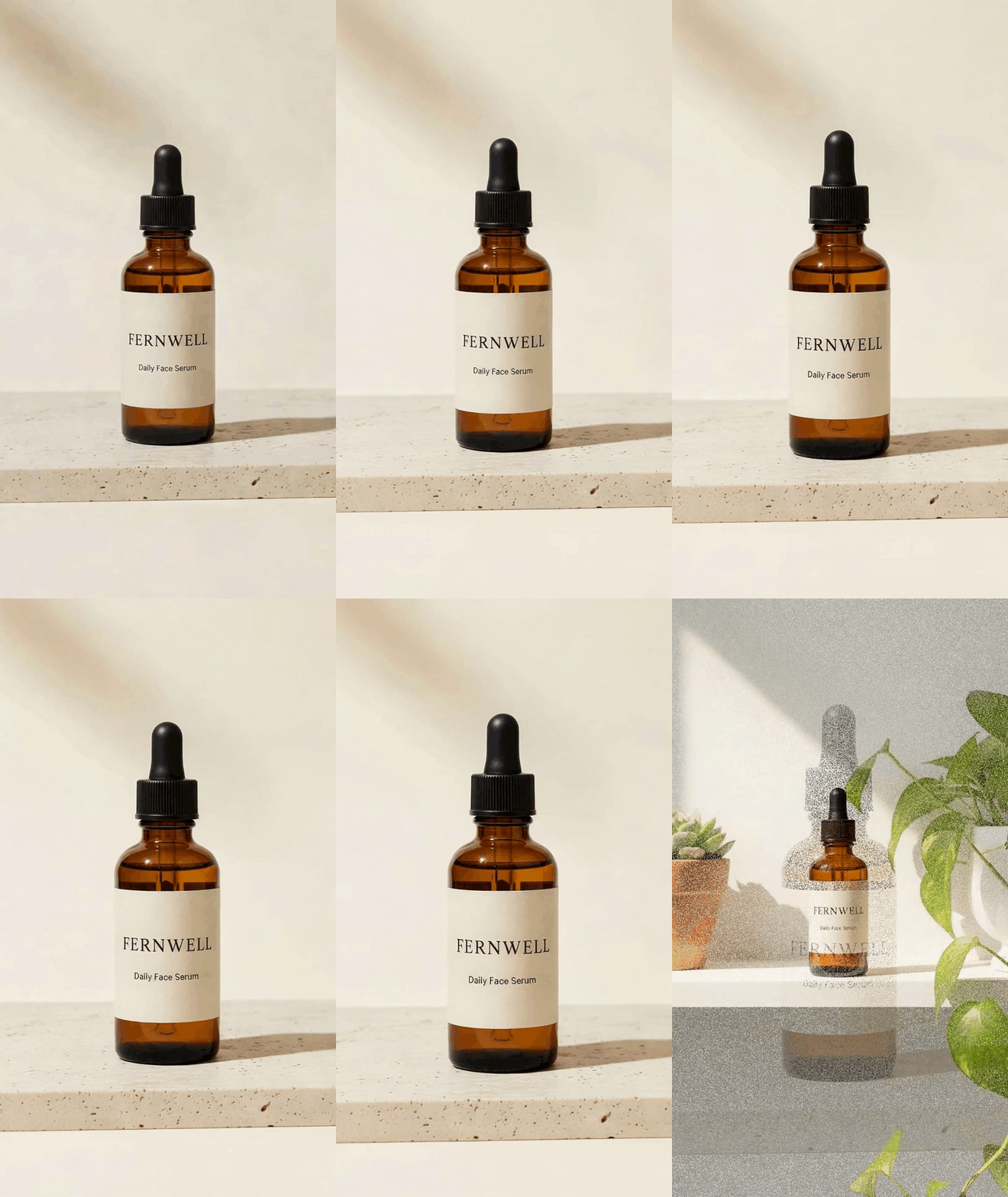
Localize a Product Launch into Three Languages

Give one product photo and get narrated videos, captions, social cards and web banners in three languages, with local prices
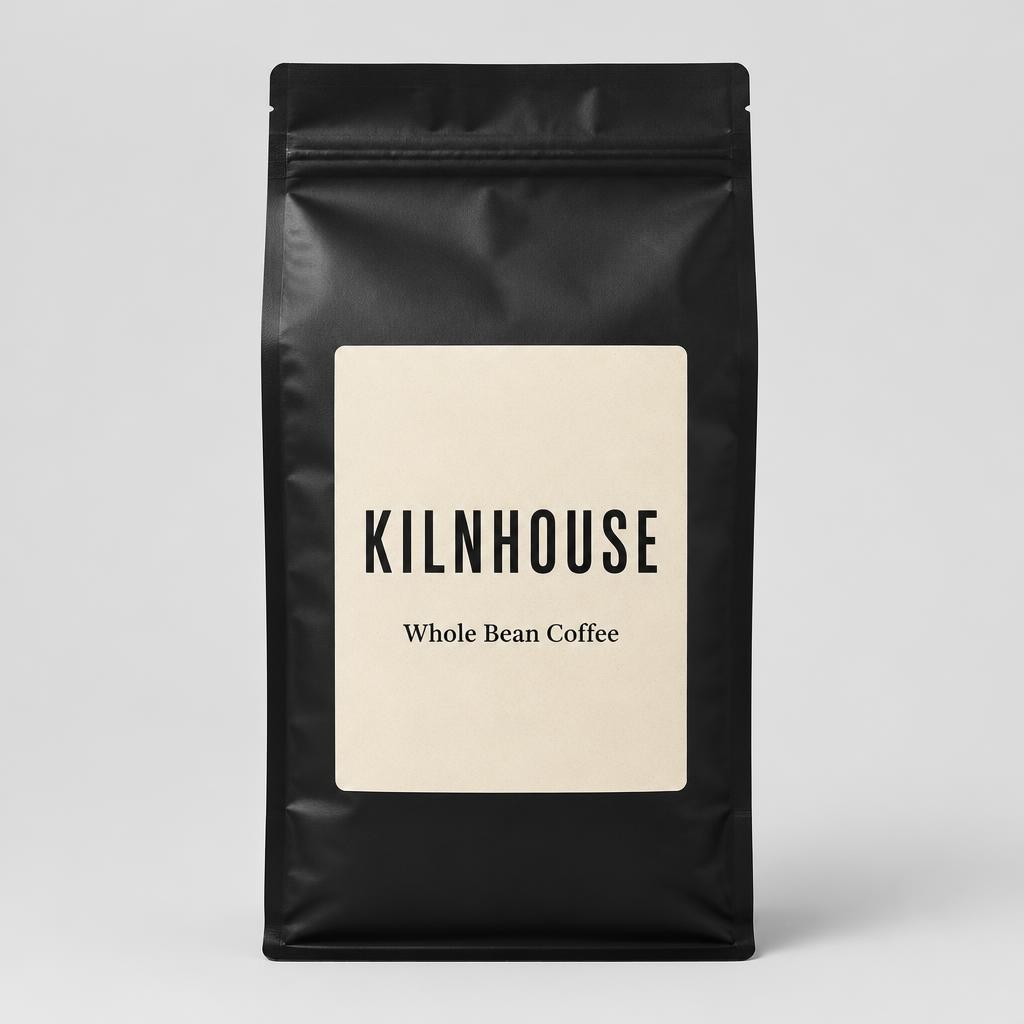
Remove Background
Generate AI Image
Generate Voiceover
Create Narrated Slideshow
Product Launch Card
Try This Workflow Free

What Does This Workflow Do?

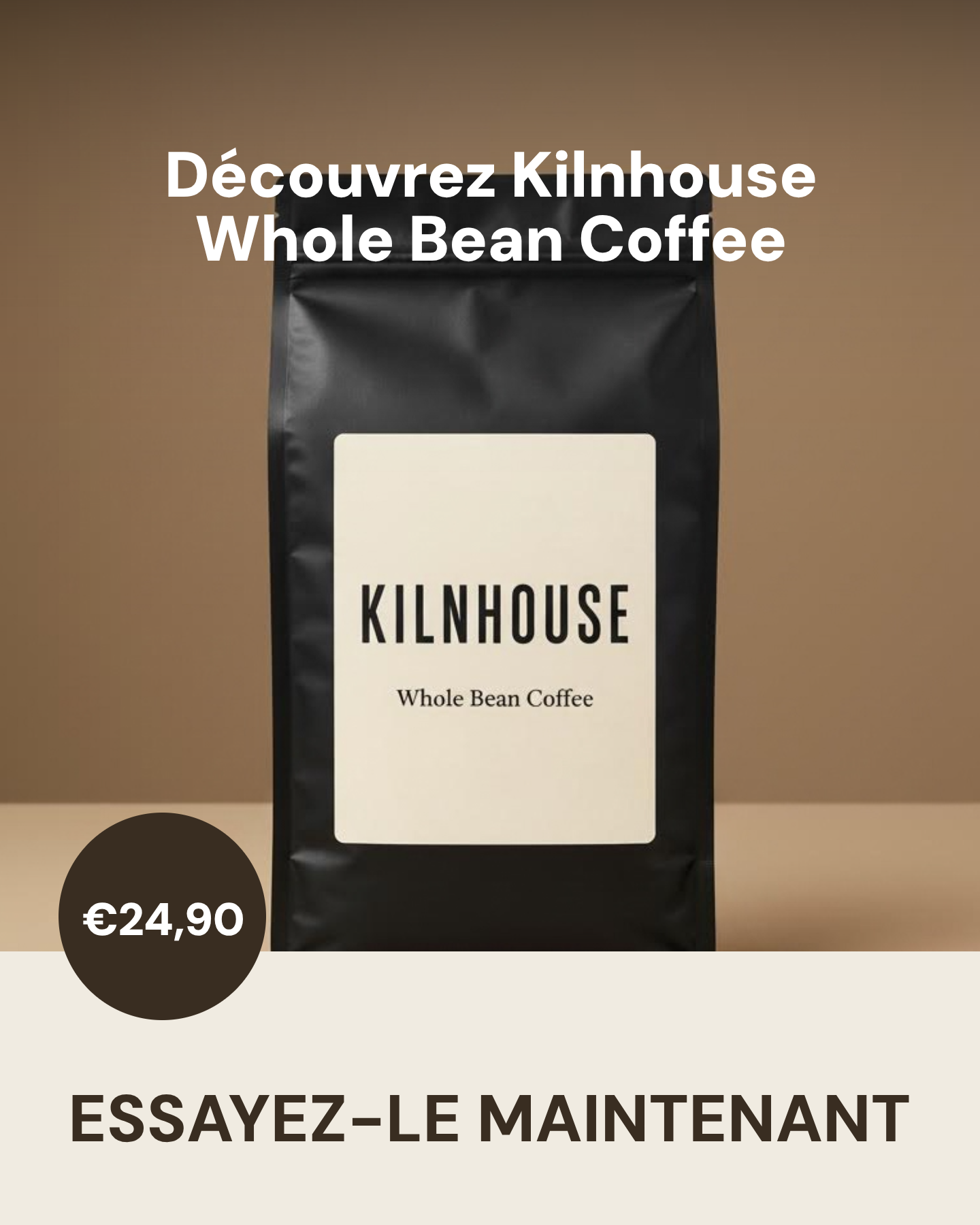
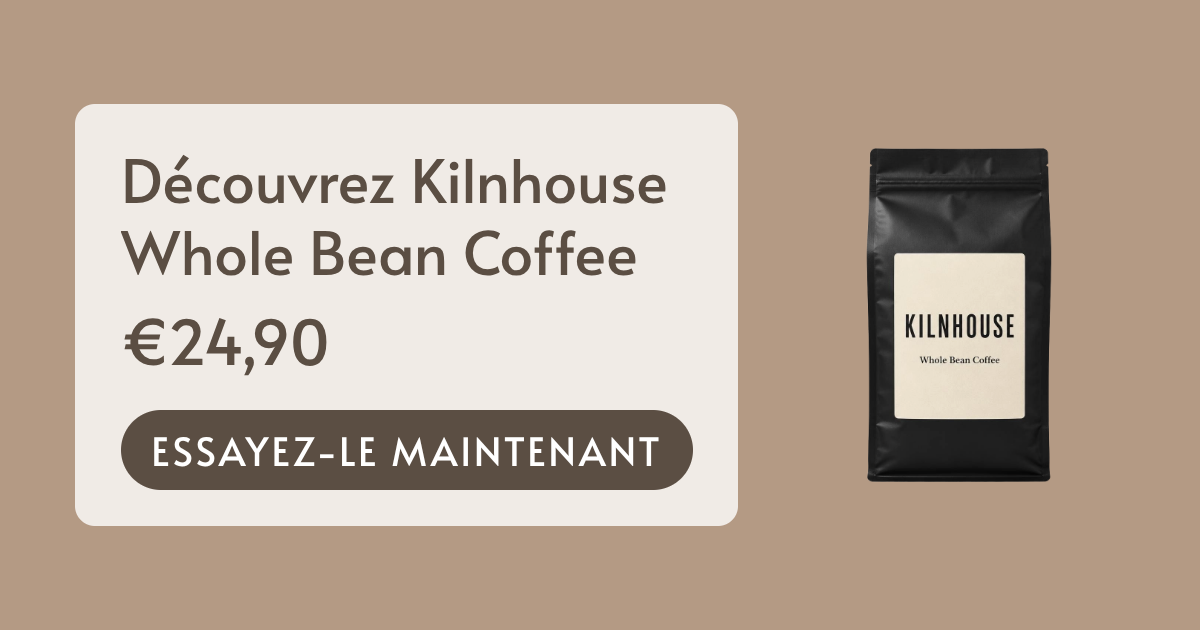
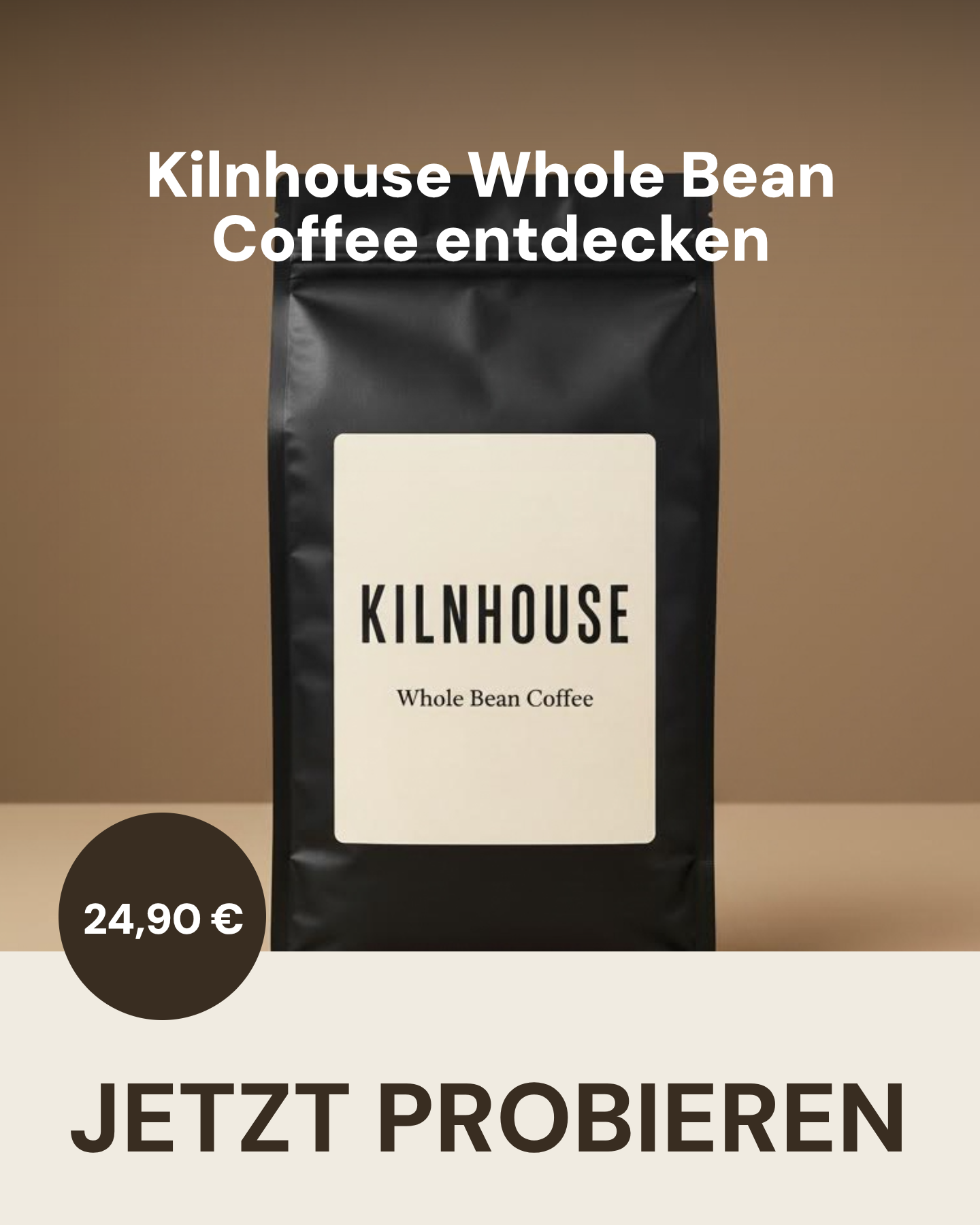
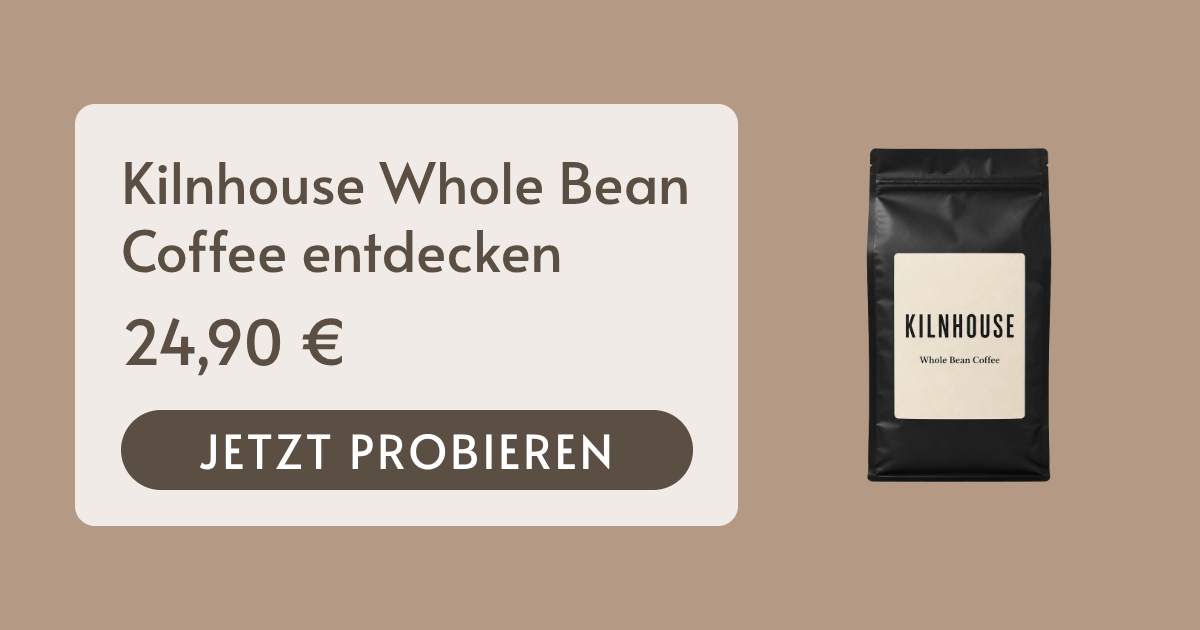
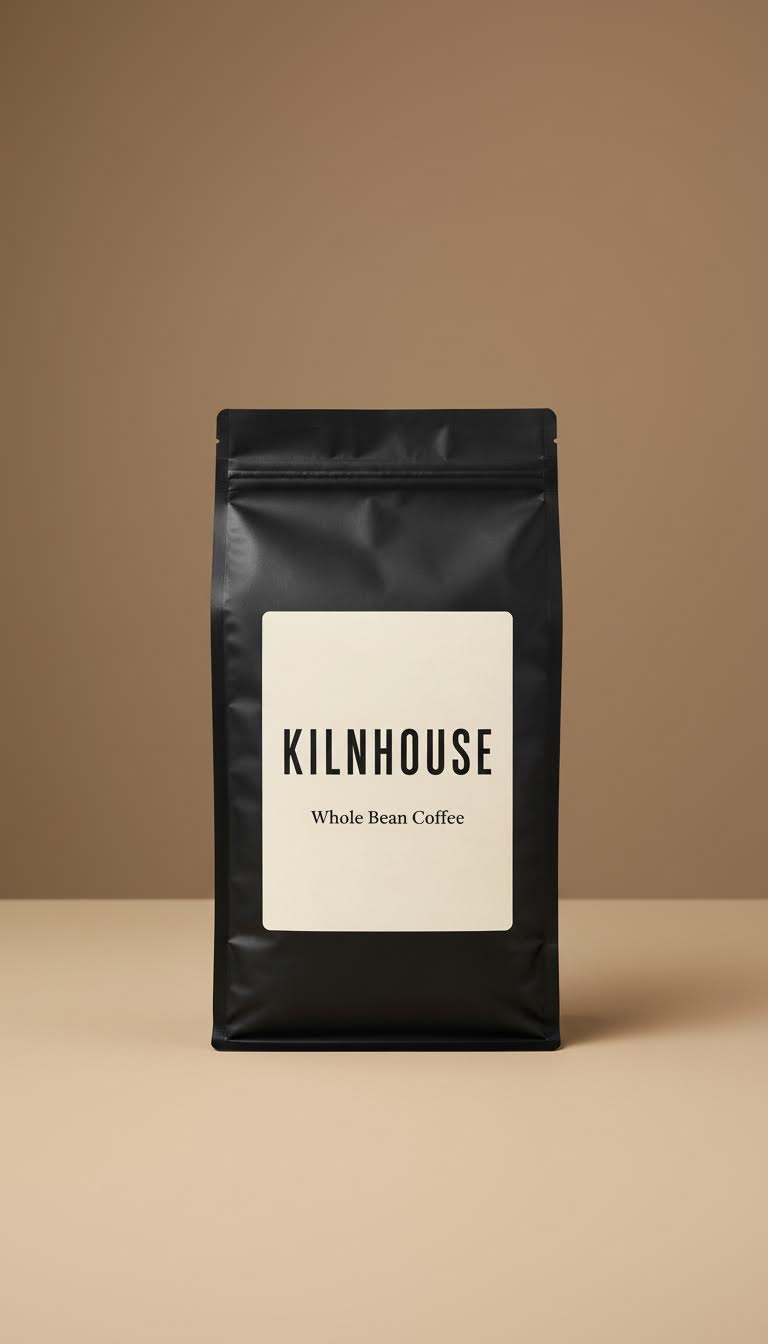
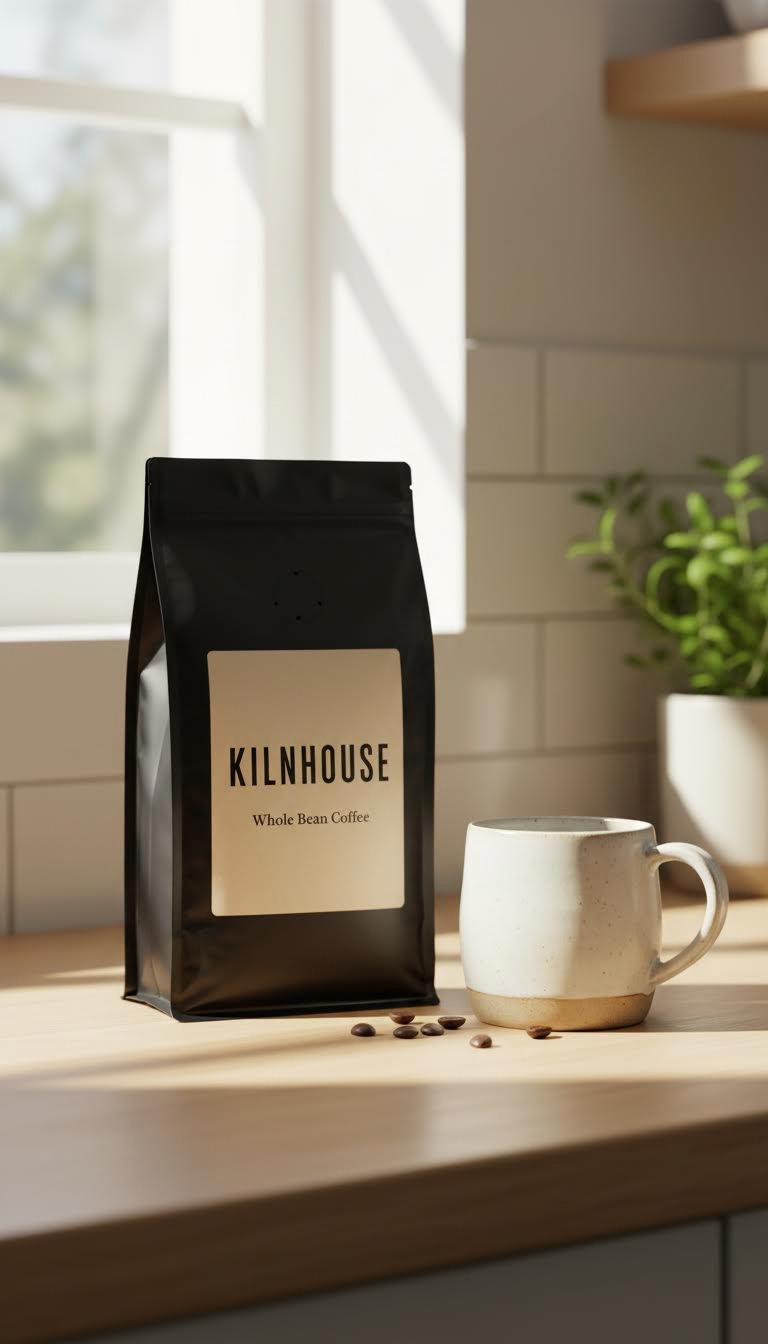
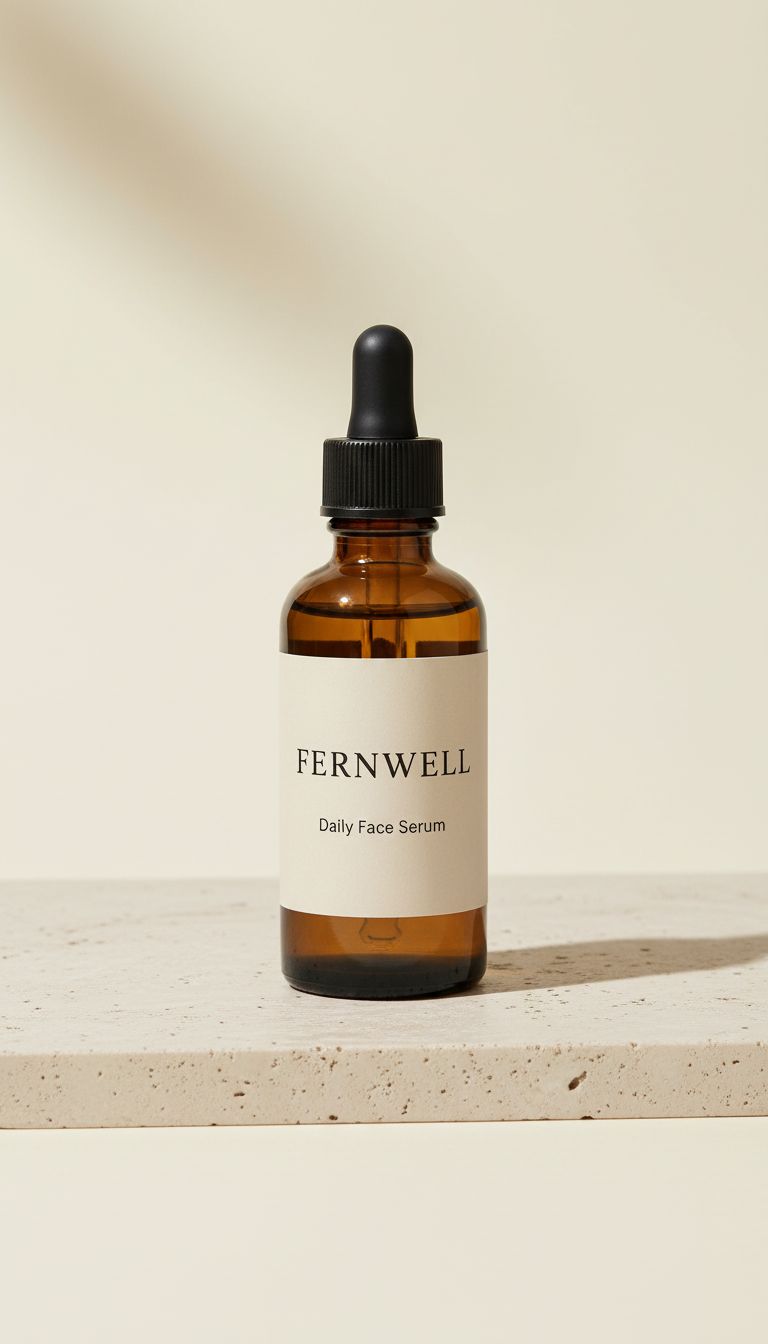
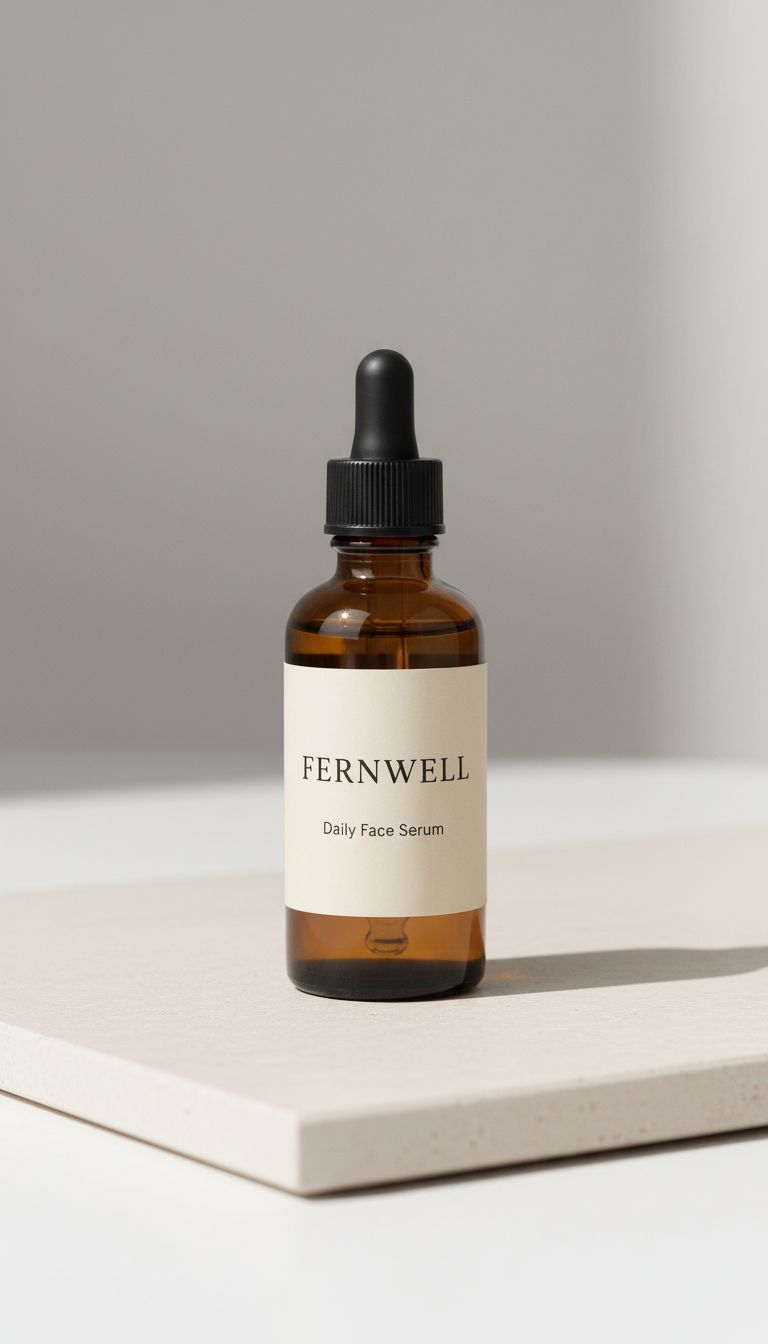
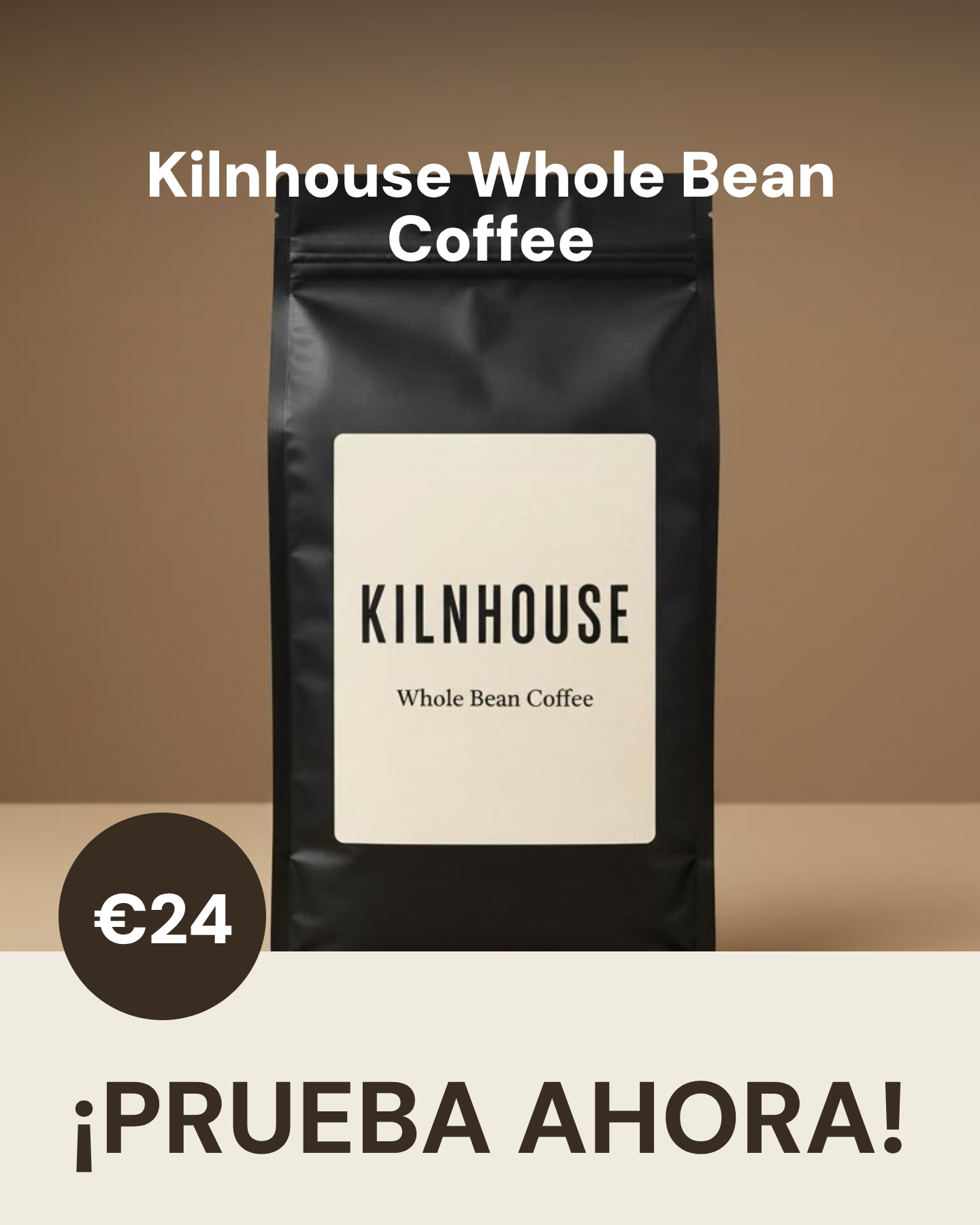
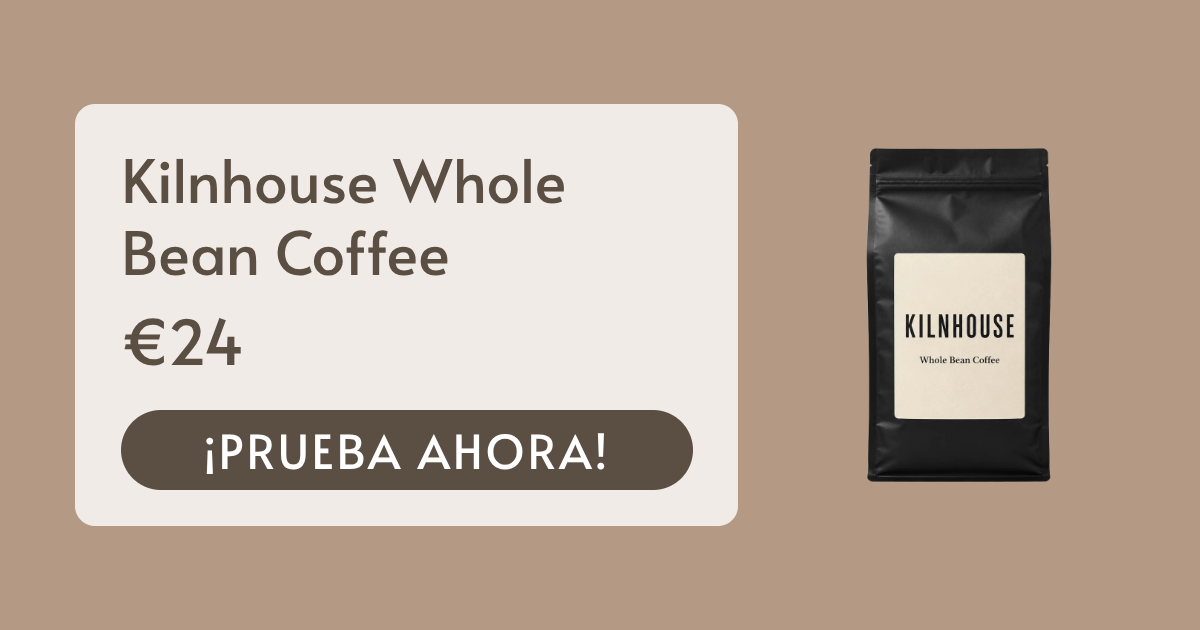
This workflow turns one product photo into a launch for three markets. You give it the photo, the product name and facts, and a language and a price for each market. It makes a narrated vertical video, a social card and a web banner in each language, with the local price.

  • Three narrated videos (1080x1920): one for each language, with a voiceover, captions, an animated headline, call to action and price, and music under the voice.
  • Three social cards (1440x1800): a 4:5 card for the Instagram feed, one for each language and price.
  • Three web banners (1200x630): an Open Graph banner with a transparent cut-out of your product, one for each language and price.
  • Three sets of copy: a headline, a call to action and an Instagram caption in each language.
  • Three AI scenes and one cut-out: the scenes and the cut-out are shared by all three markets.

You choose the languages, the prices, the backdrop and the setting. The photo and the facts stay the same for each market.

Customize Your Templates

Every template in this workflow is yours to edit. Add your own logo, change the colors and fonts, move the layers or change the dimensions. Your next run uses the new design.

Install this Workflow

Multiple Ways to Run

Run this workflow yourself in the app, or start it from your own code, your other apps or an AI assistant.

In the App

Install the workflow, fill in its inputs in your dashboard and run it. You can also share a form so that other people can run it.

By API

Send the workflow uid and its inputs to one endpoint. The run continues in the background and returns the finished files.

From Zapier

Start a run when something happens in another app, such as a new row in a sheet or a new form entry.

From an AI Assistant

Connect Claude or Cursor to the Bannerbear MCP server, and then ask it to run the workflow with your data.

Add / Edit Steps

This workflow is a starting point. Add, remove or reorder steps to make it do more. Each Bannerbear tool can be a step, with over 25 tools on offer.

See All Tools

  • Generate AI Video
  • Generate AI Image
  • Generate Voiceover
  • Generate Music
  • Auto Subtitles
  • Find Moments
  • Remove Background
  • Generate Text
  • Extract Article
  • Trim Video
  • Join Videos
  • Resize Video
  • Crop Video
  • Overlay Video
  • Add Image Overlay
  • Add or Replace Audio
  • Add Cover Art
  • Create Video Slideshow
  • Create Narrated Slideshow
  • Apply Color Filter
  • Soften Video
  • Create GIF Preview
  • Video Thumbnails
  • Create Multi-Page PDF
  • Flatten PDF for Print
  • PDF to Image
  • Render Spreadsheet
  • Lay Out Print Sheet

Questions About This Workflow

The common questions about this workflow, and their answers

Which languages can I use?

You type the name of each language, such as Spanish, French or German. The sample uses Latin-script languages only. The fonts in the templates are made for Latin letters, so test a language with another script before you use it.

Which parts use AI?

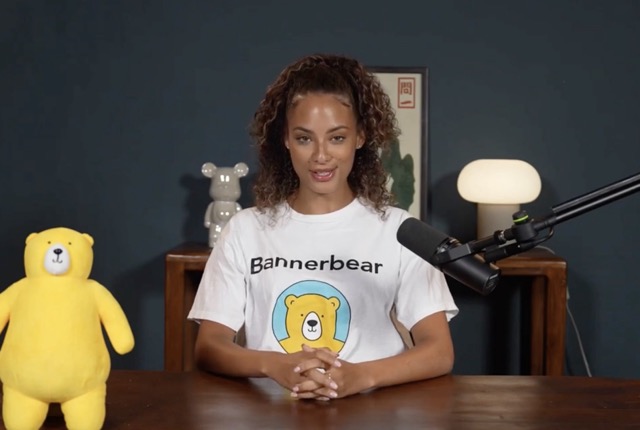
AI writes the headline, call to action, caption and voiceover script. AI makes the three scenes, the voice and the music. The cut-out also uses AI. The templates, the captions and the prices are not AI. You type the prices, and the workflow does not translate them.

How does the workflow keep the copy true to my product?

The prompts tell the AI to restate only the product name and the facts that you give, with no praise and no added claim. The AI can still make a mistake. The script has no numbers, so the voice does not say a price. The price shows on screen only. Check each text, or a back-translation of it, before you publish.

How long is each video?

Each video is as long as its voiceover. The script has 28 words or fewer, so the video is short. The music is lower than the voice.

How much does one run cost?

The example run on this page used 83 API credits and 21.1 AI credits. The cost of a run can change with your input, for example the length of a video or the number of rows in a spreadsheet. There is no charge for the workflow itself.

Can this workflow run without me?

Yes. You do not have to open the app to run it. You can start it from your own code with the API, from a Zap in Zapier, or from an AI assistant that is connected to the Bannerbear MCP server. Each run takes your data and gives you the finished files.

Can I change the workflow after I install it?

Yes. The install gives you your own copy of the workflow and of its templates. You can change the templates, such as the colors, fonts and logo, and you can change the steps of the workflow.

How do I know when a run is finished?

A run is not instant, so the API answers at once, and the run continues in the background. Ask for the run to see its status. The status is queued, running, completed or failed. When the run is completed, it lists its outputs.

What is a workflow?

A sequence of steps that runs as one thing. Each step is an image render, an animation render, or a tool — and a step can use the output of an earlier step as its input.

How do I pass data into a workflow?

Define its inputs, then supply them when you run it. Steps reference those inputs the same way they reference each other’s outputs.

How do I run a workflow from the API?

POST to the workflow’s run endpoint with its inputs. The run is queued and reports progress as each step completes.

Can I run the same workflow with different data?

That is the point of inputs. Define the parts that change — a headline, an image URL, a name — and supply them per run.

Can I see what a run is doing?

Yes. Each run records every step, its inputs, its outputs and how long it took, so a failure points at the step that caused it rather than the whole workflow.

What happens if a step fails?

The run stops there and the failure is recorded against that step, with the outputs of the steps that already succeeded still available.

How long can a workflow take?

As long as its steps need — video work is not instant, and a workflow with several video steps takes minutes rather than seconds. Use the run’s progress or a webhook rather than holding a request open.

What happens when I install a published workflow?

The workflow and its bundled templates are copied into your workspace, and the steps are rewritten to point at your copies rather than the originals.

How many workflows can I have?

Three on a trial. They are counted per workspace.

How is a workflow different from an integration?

A workflow decides what gets made. An integration decides what triggers it and where the result goes. They are often used together.

More Workflow Recipes

Other ready-made workflows you can install

Turn One Product Photo into AI Scenes and Video Ads

Cut out a product photo, place it in AI scenes, animate them and get narrated ads in three sizes

View Workflow →

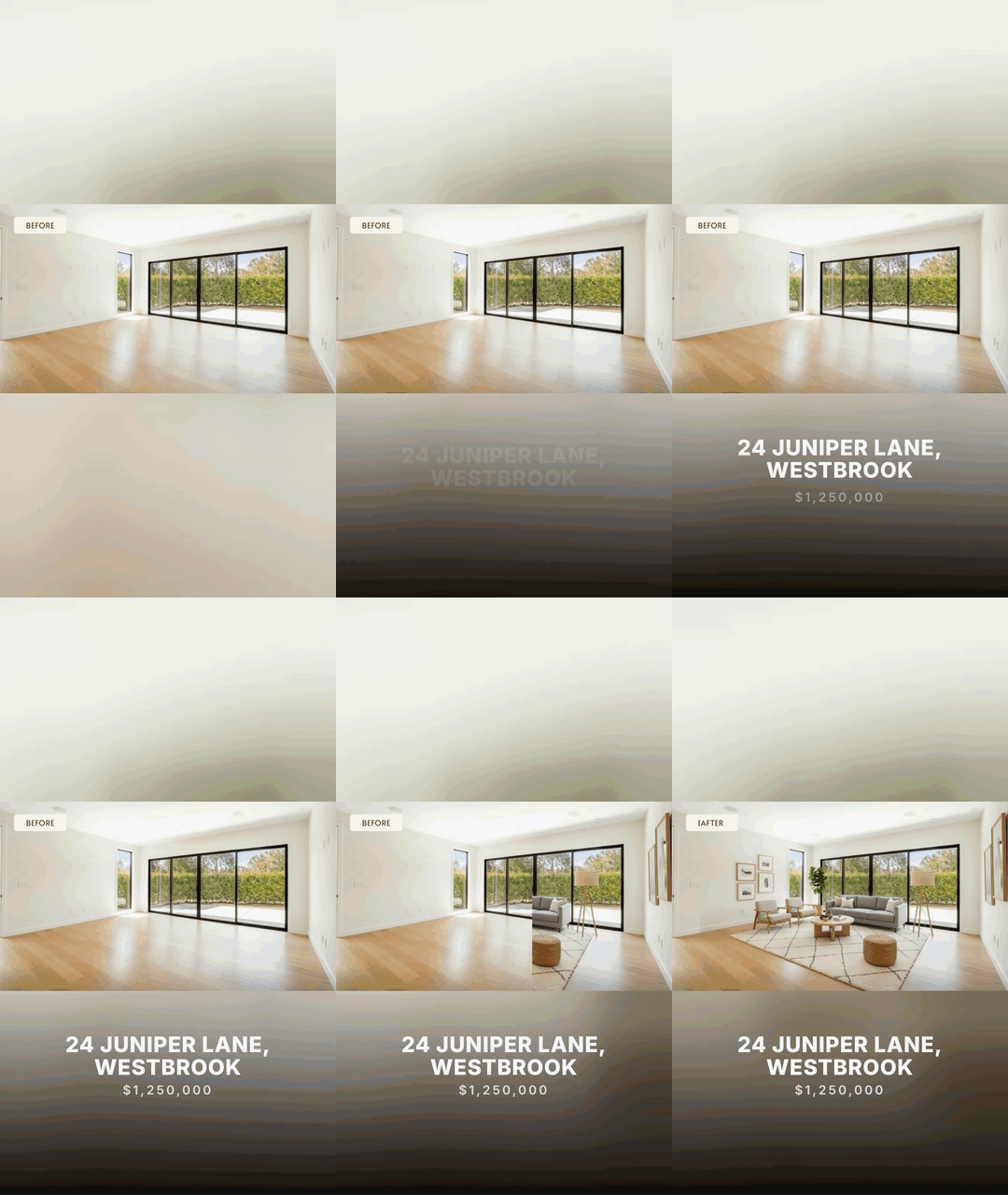
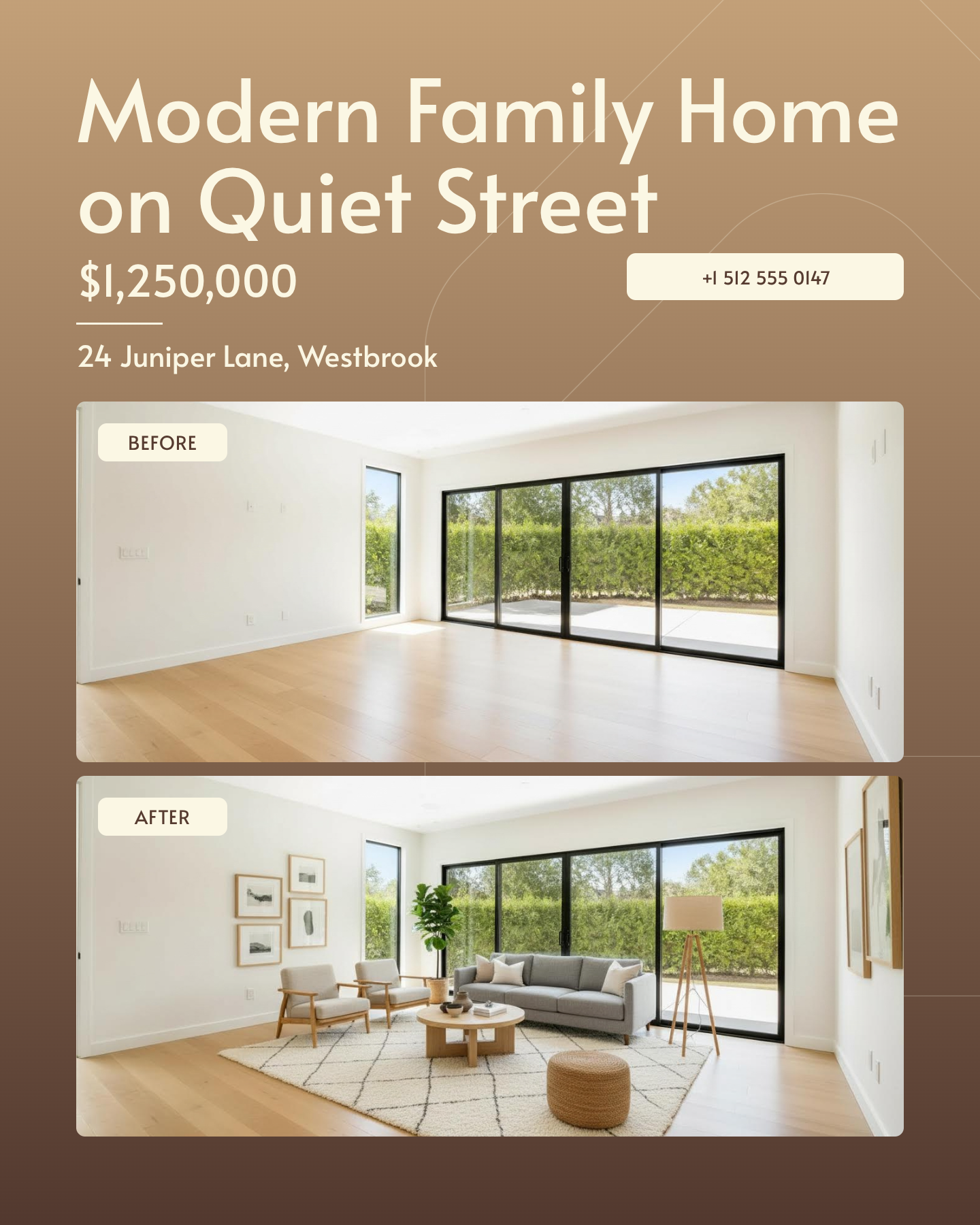
Turn Empty Room Photos into Staged Reveal Videos

Give photos of empty rooms and get AI staged images, before and after videos, a social card and a seller brochure

View Workflow →

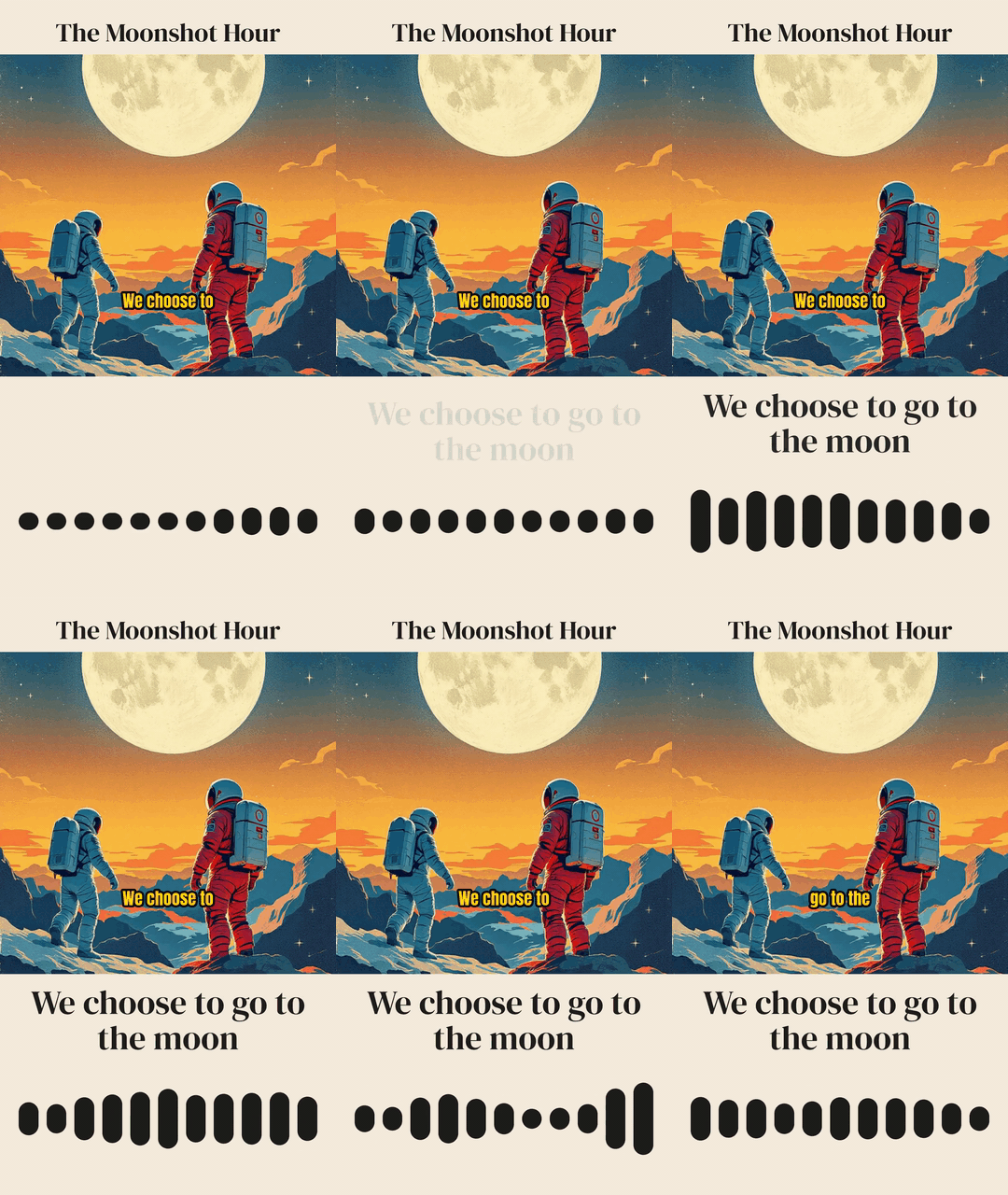
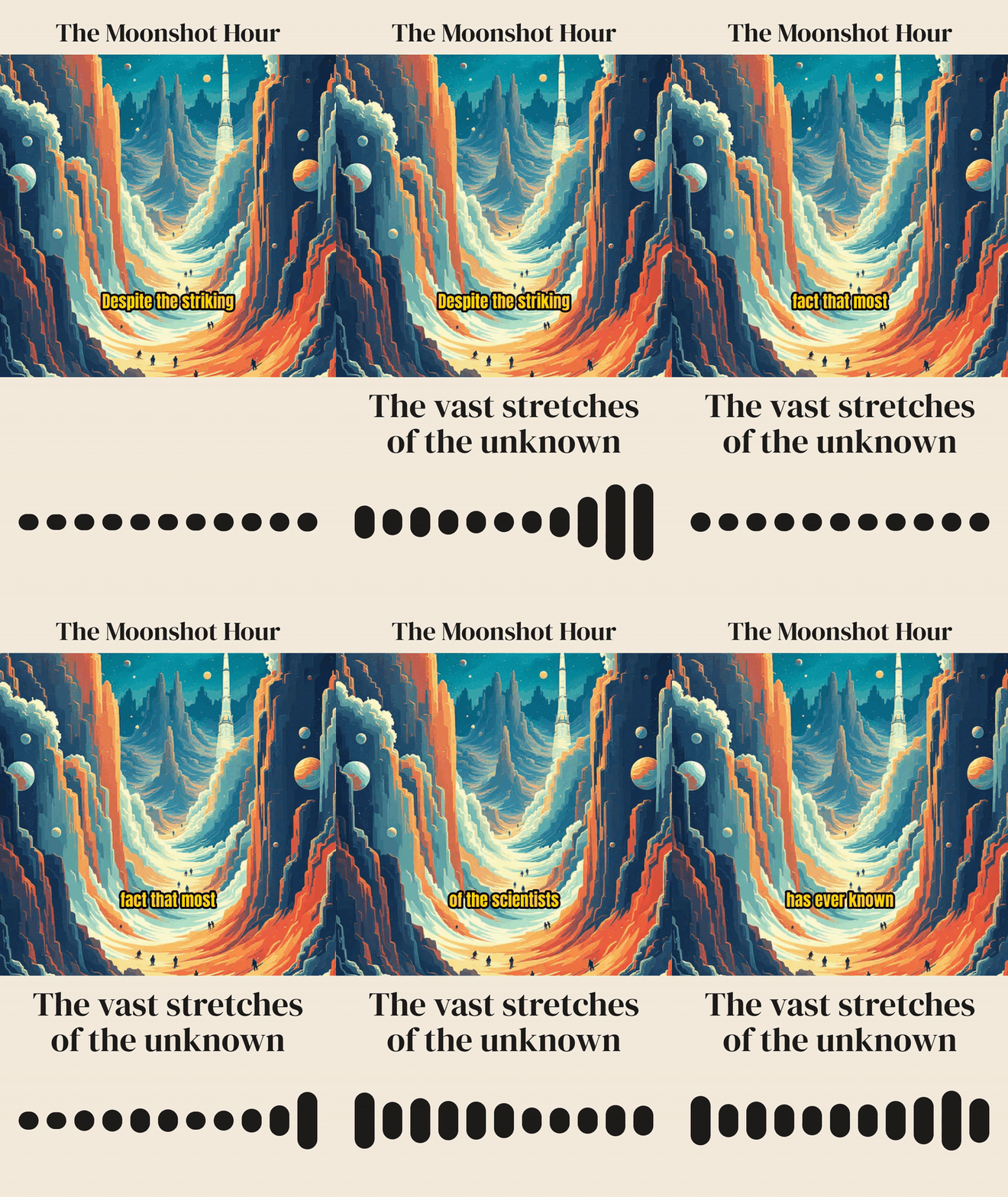
Turn an Audio Podcast into Illustrated Audiogram Clips

Give one audio file and get AI-chosen waveform clips with illustrated art and captions, and show notes

View Workflow →

Start a Free Trial

Start a free trial with 30 API credits, no credit card required

Resize Video
Add Intro Animation
Add Subtitles

Get Started for Free