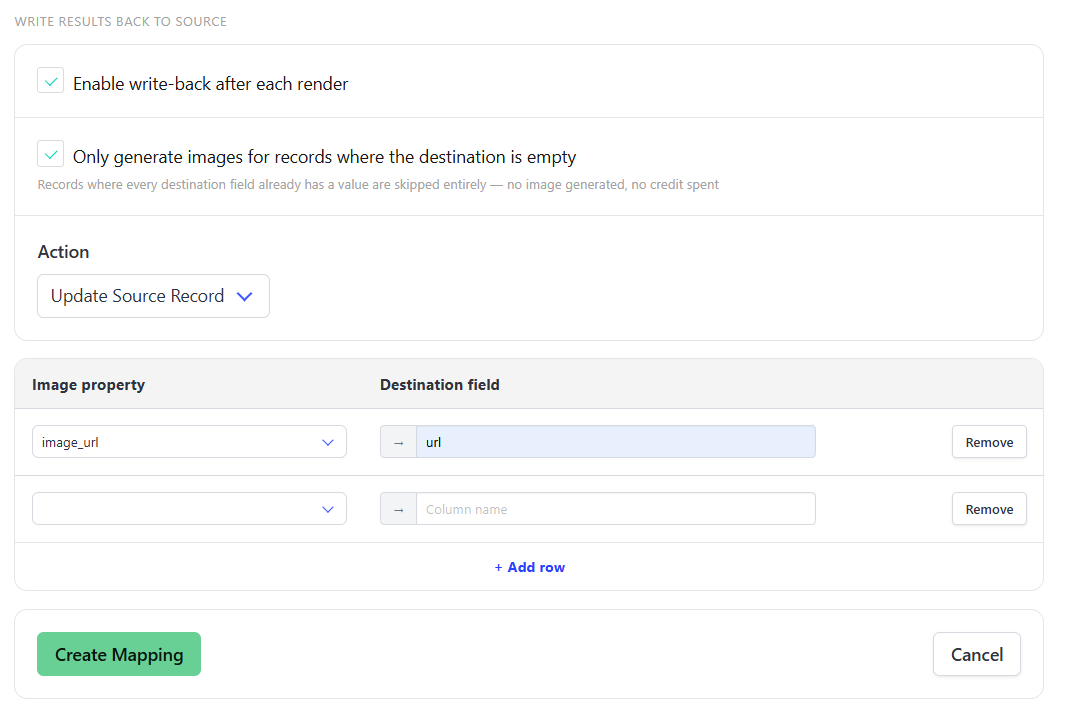
- On the left panel, click Apps
On Your Connected Apps, select the Airtable base
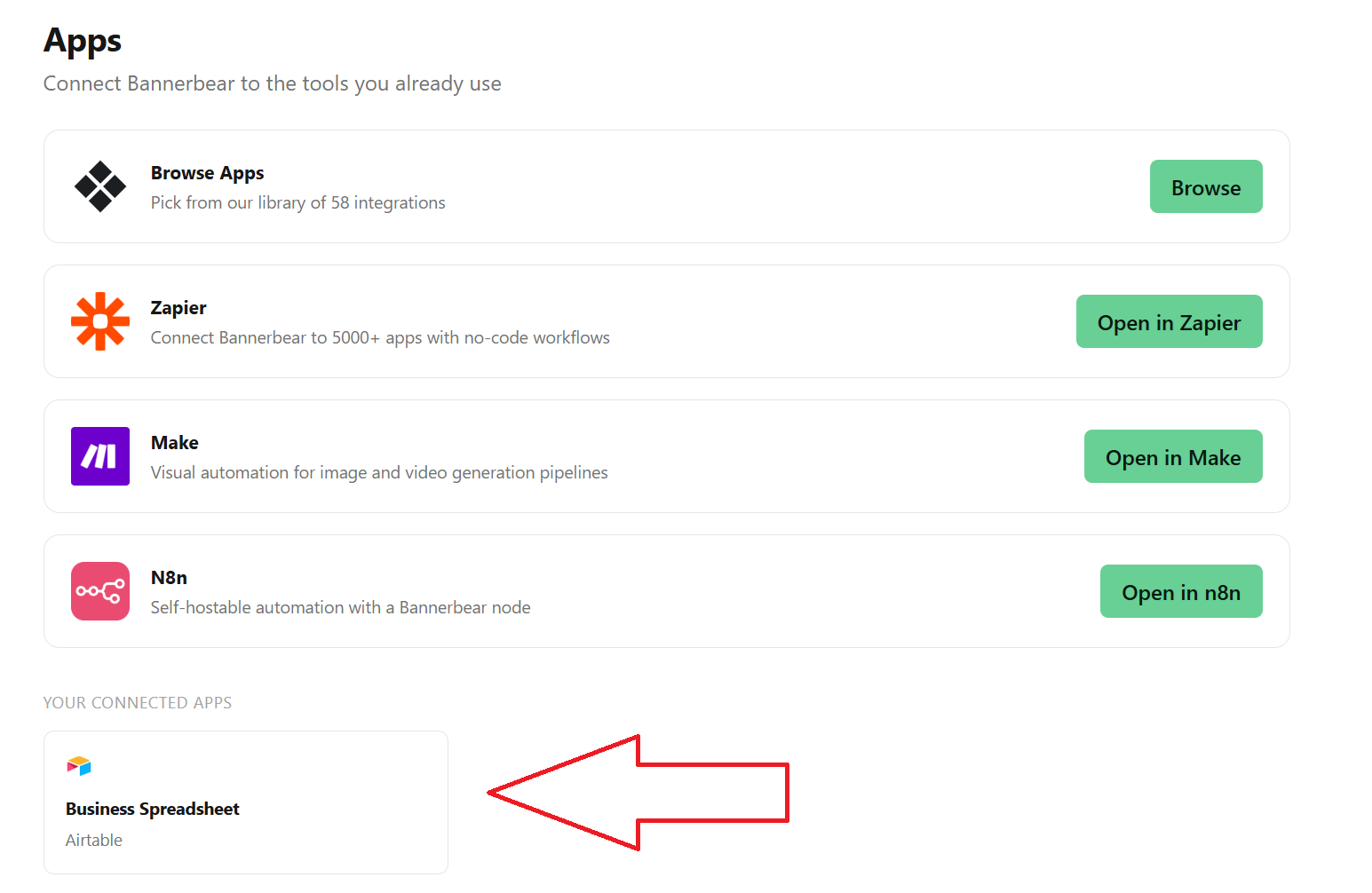
Click Add Mapping
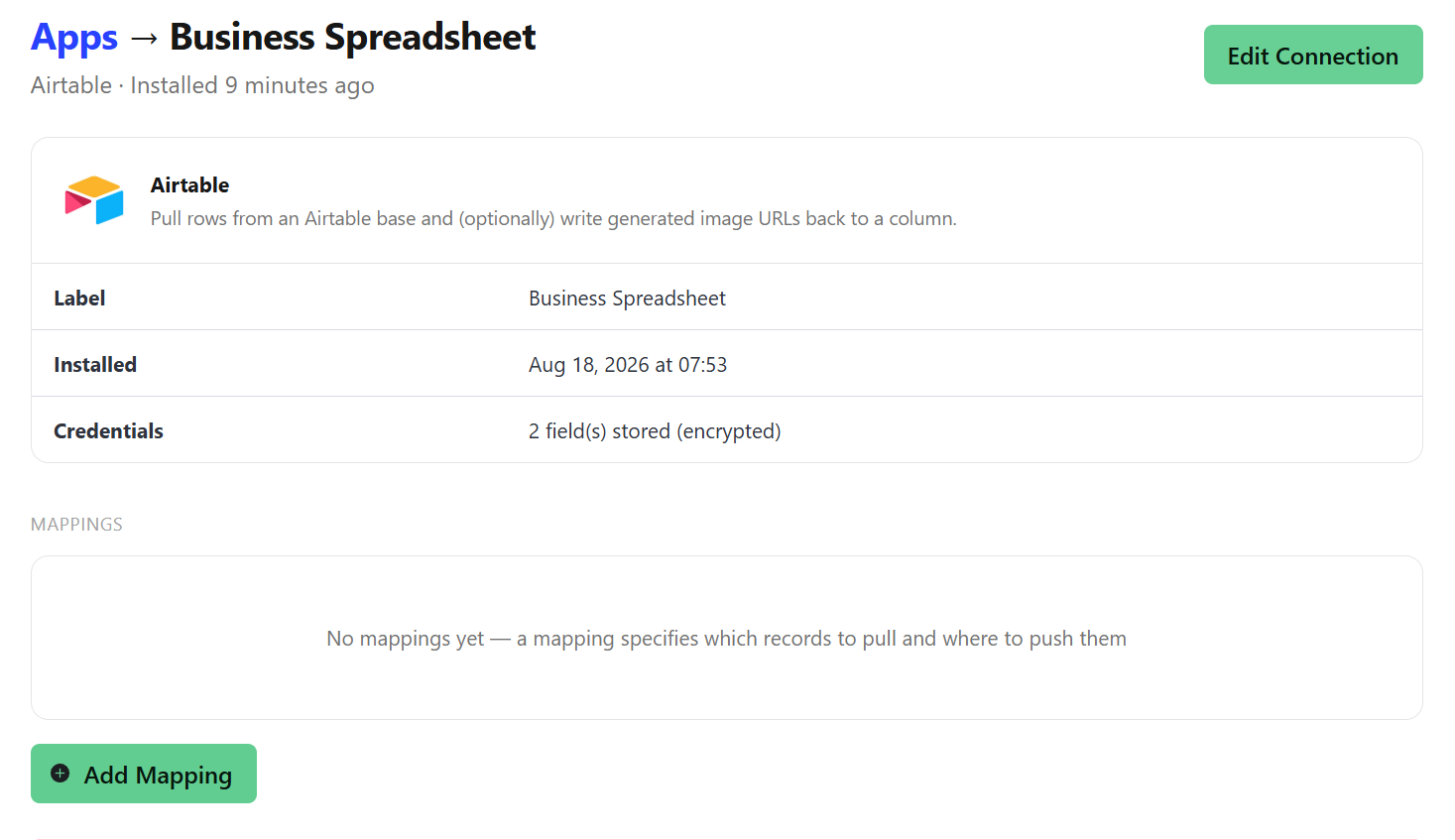
- Set your preferred Mapping name, Table Name or Table ID
Select a Template for mapping
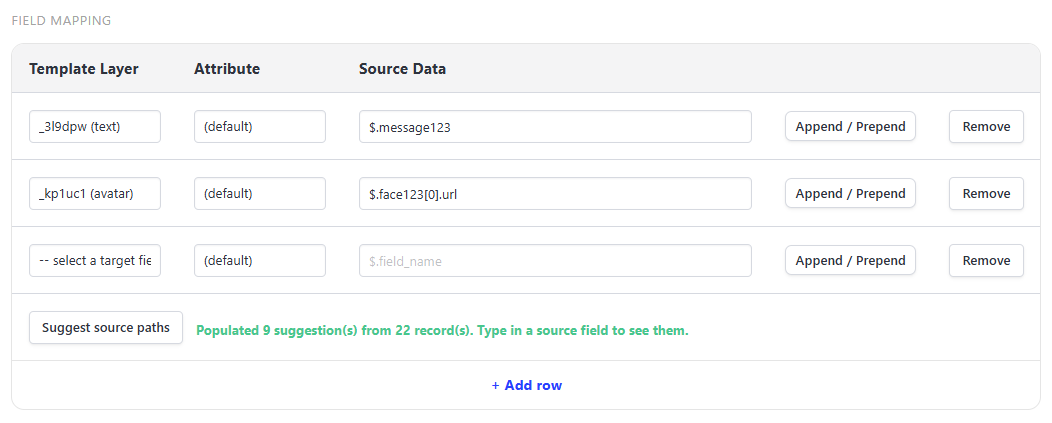
Under Field Mapping, match the Template Layer to a corresponding Source Data (your Airtable records as inputs)
- Hit Create Mapping
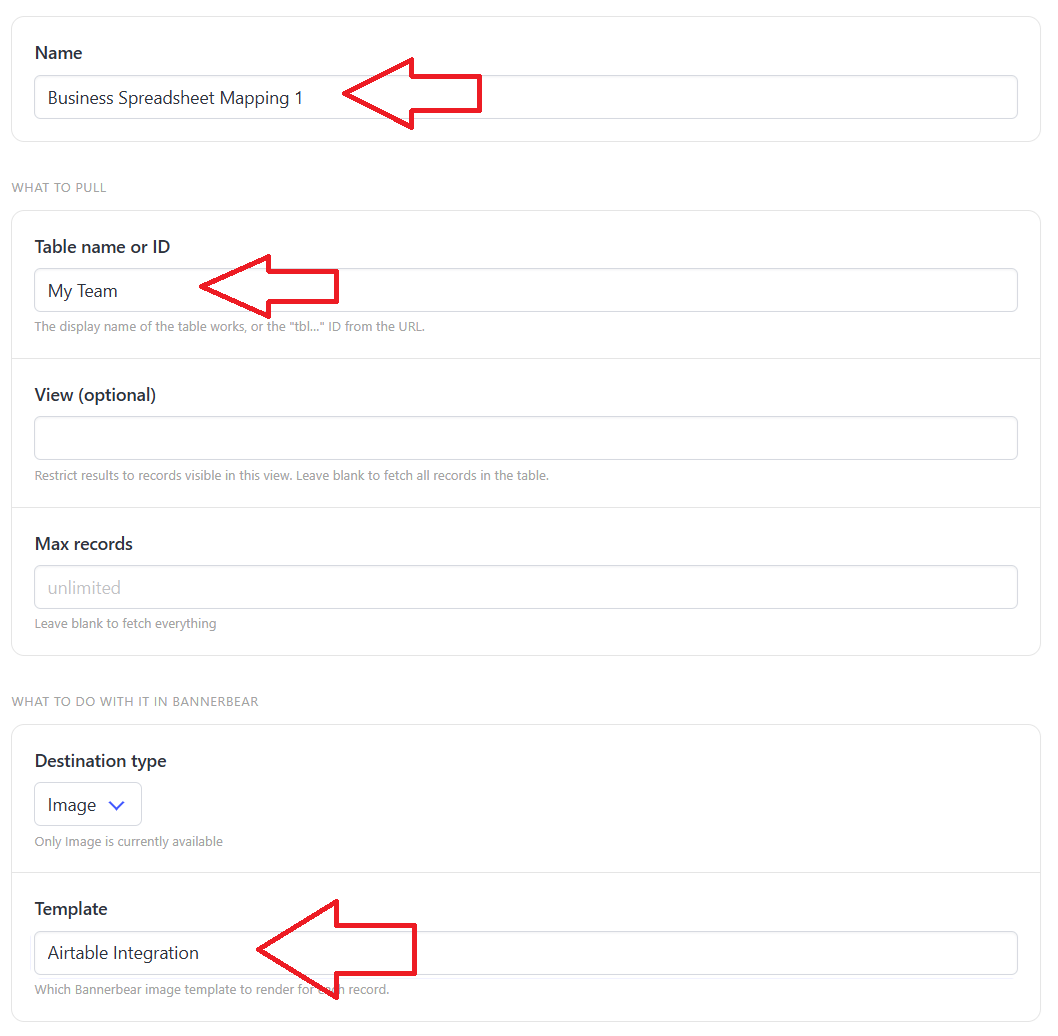
You could also set the mapping to write back the outputs to your Airtable base. Simply tick the "Enable write-back after each render" box, and set the Image property (output) to your preferred Destination field (column).