Use AI to automatically crop subjects from a photo. Can be enabled from within the Template Editor, then flagged as "ai-background-remove": "enabled" in your API requests.
Enable In Editor
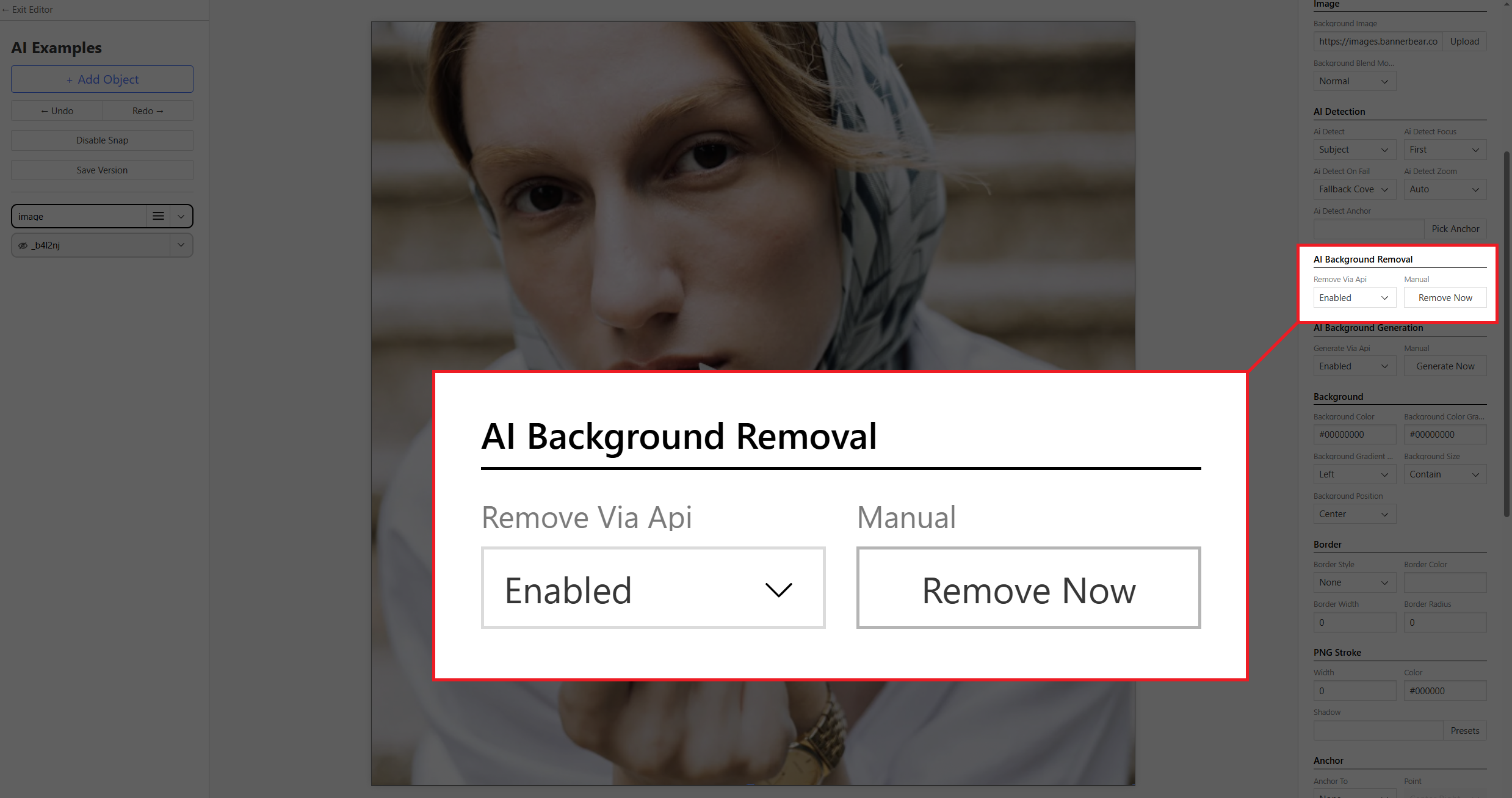
- Add a Rectangle / Circle Image Container (doesn't work with static image)
- Find the AI Background Removal section on the right
- Select Enabled from the drop-down menu
Flag in API Request
We'll need to include the flag "ai-background-remove": "enabled" in the requests to let the API know we want to trigger the background removal.
{
  "template": "ax9mYepjJgDpg8bAnB",
  "modifications": {
    "objects": [
      {
        "name": "image",
        "background-image": "https://cdn.filestackcontent.com/05RUcWeQJqm3EAf4jTH5",
        "ai-background-remove": "enabled"
      }
    ]
  }
}

Note: AI Background Removal works best when there's a clear subject, otherwise, your results may be undesirable.