
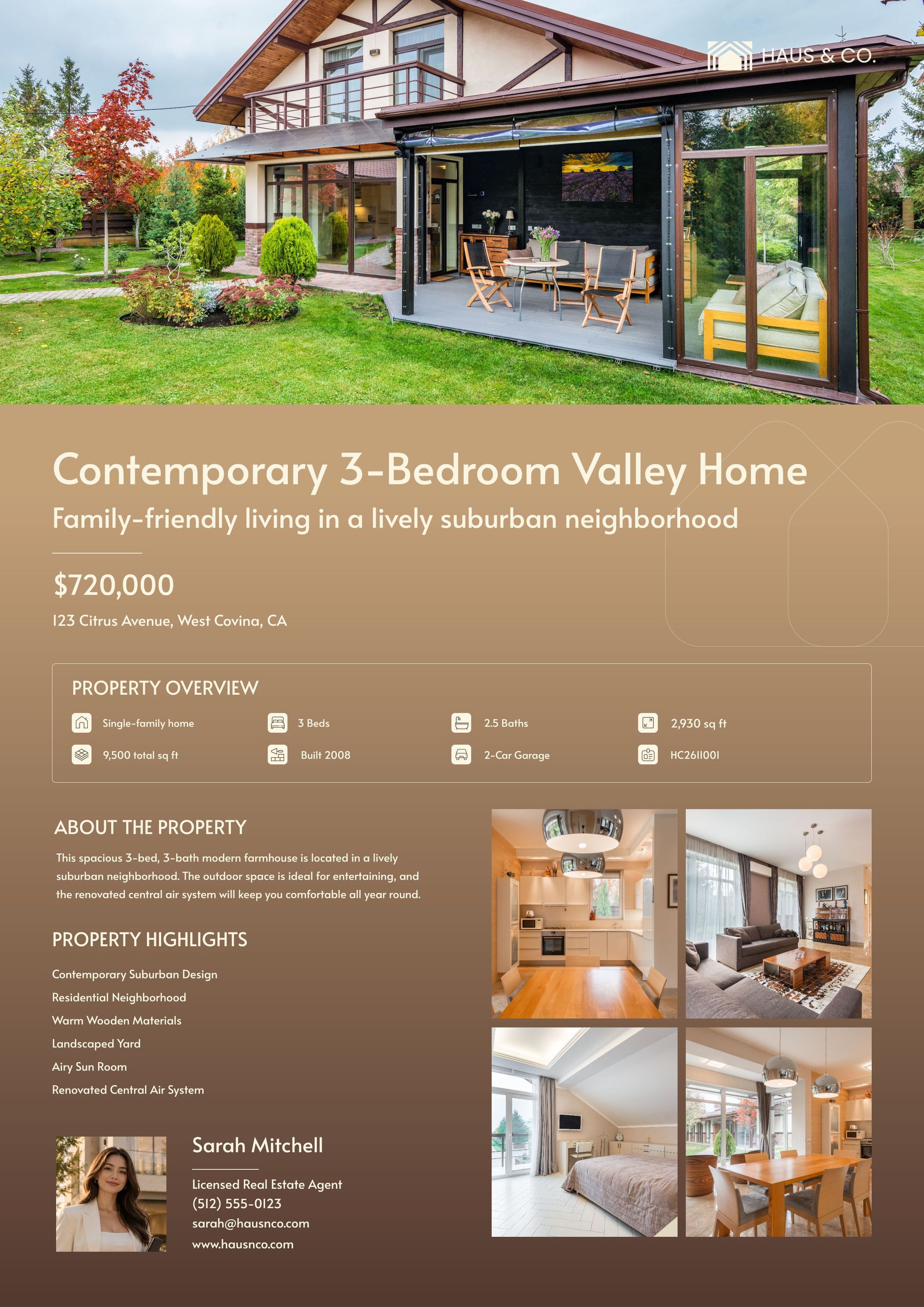
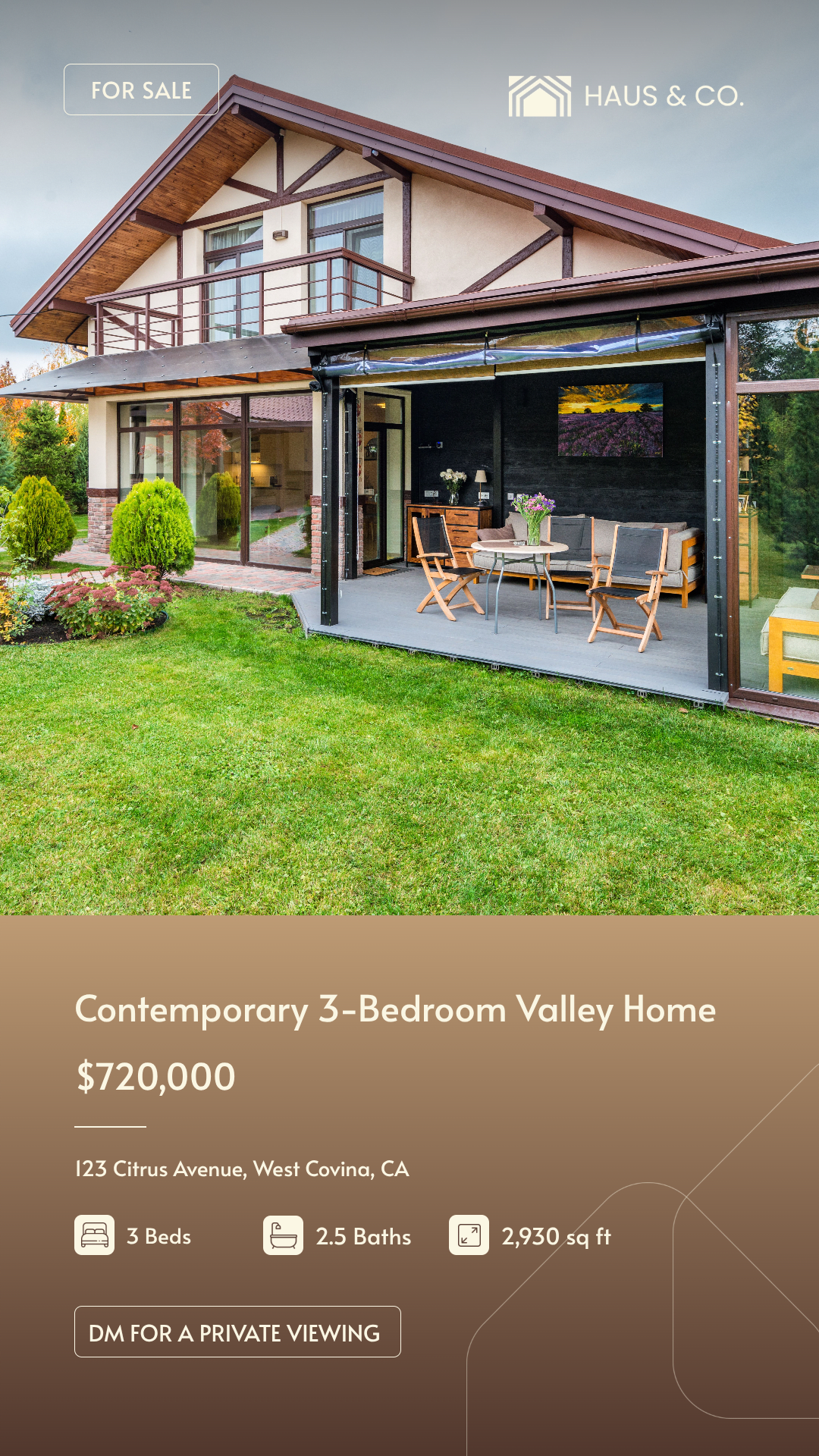
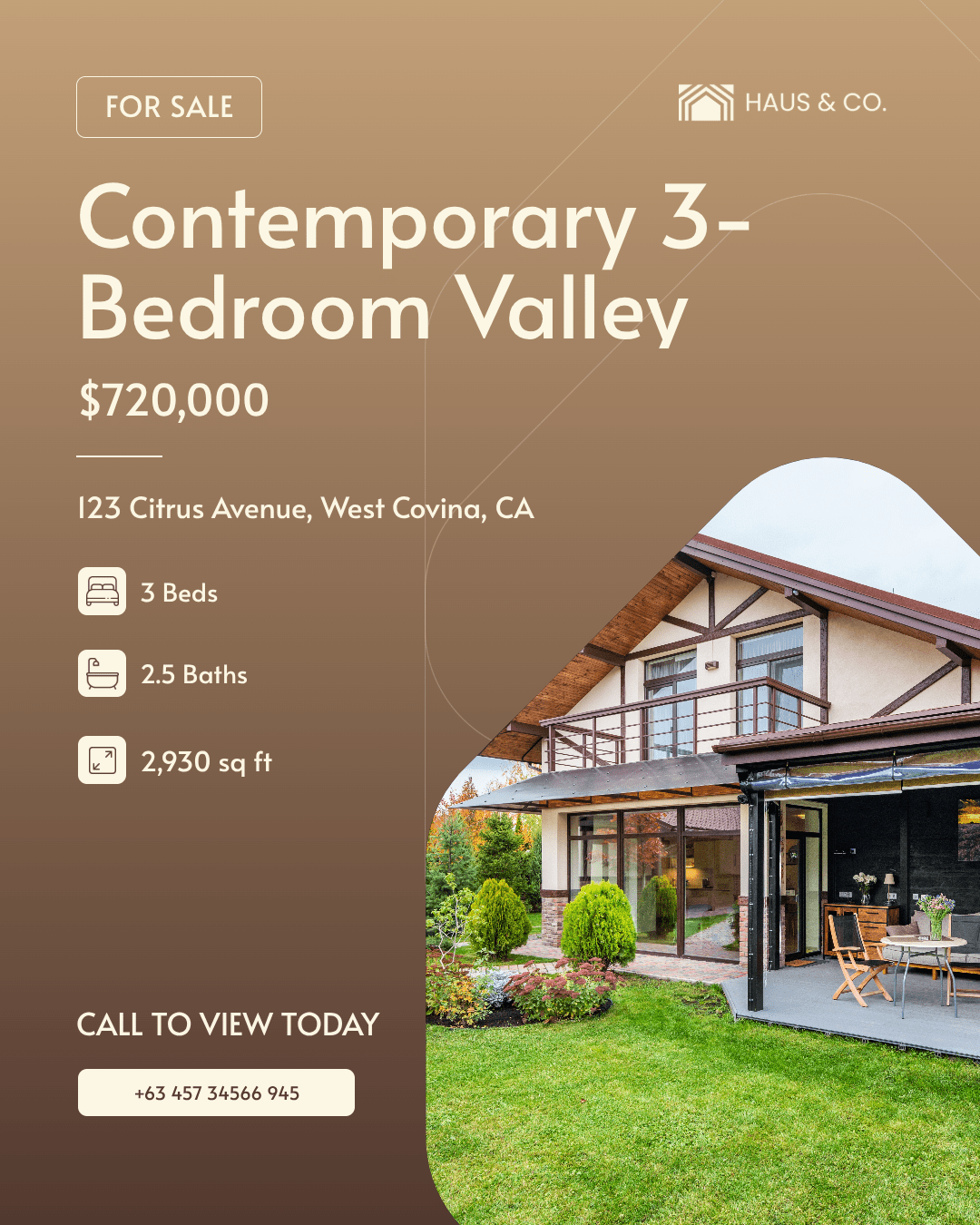
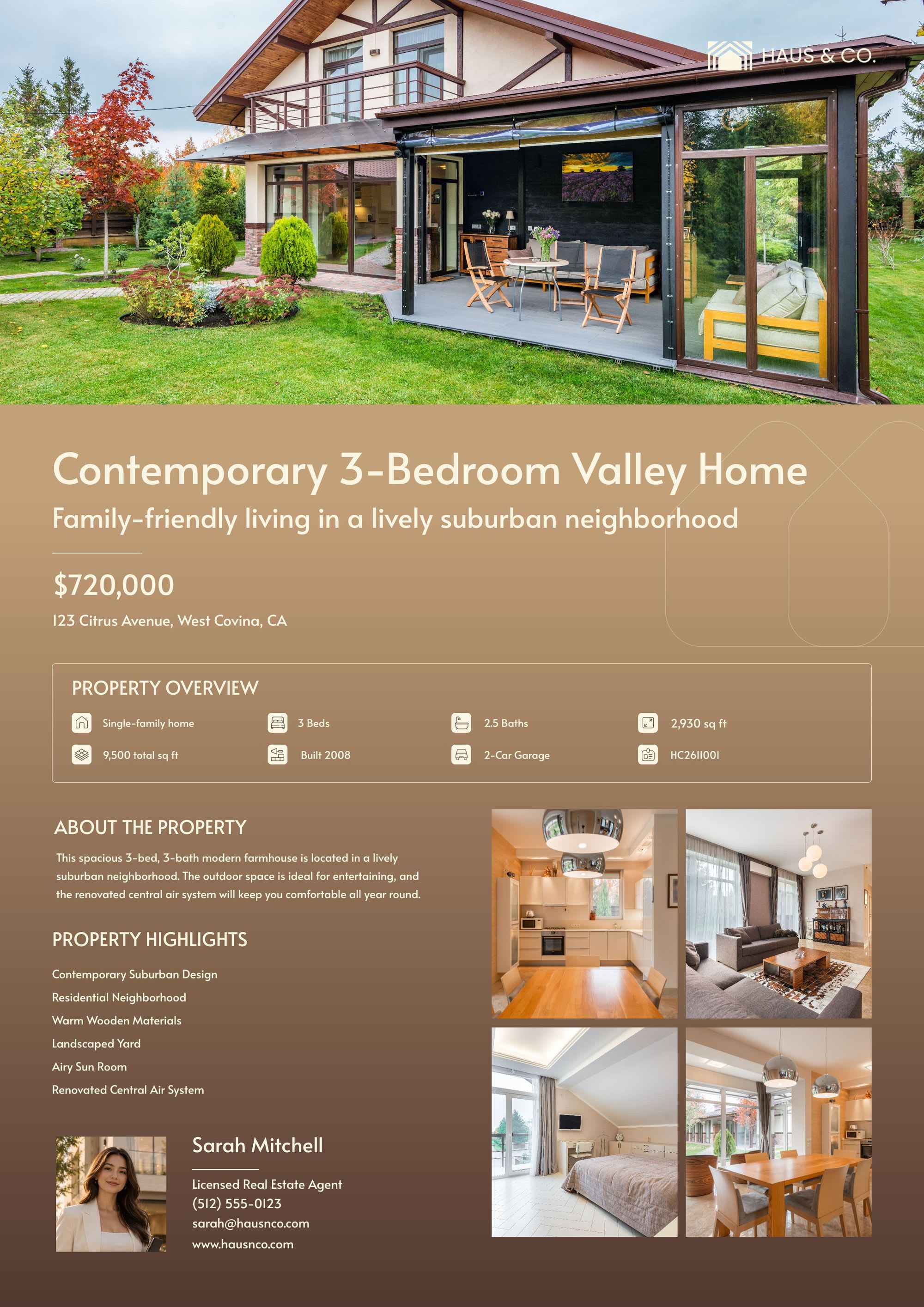
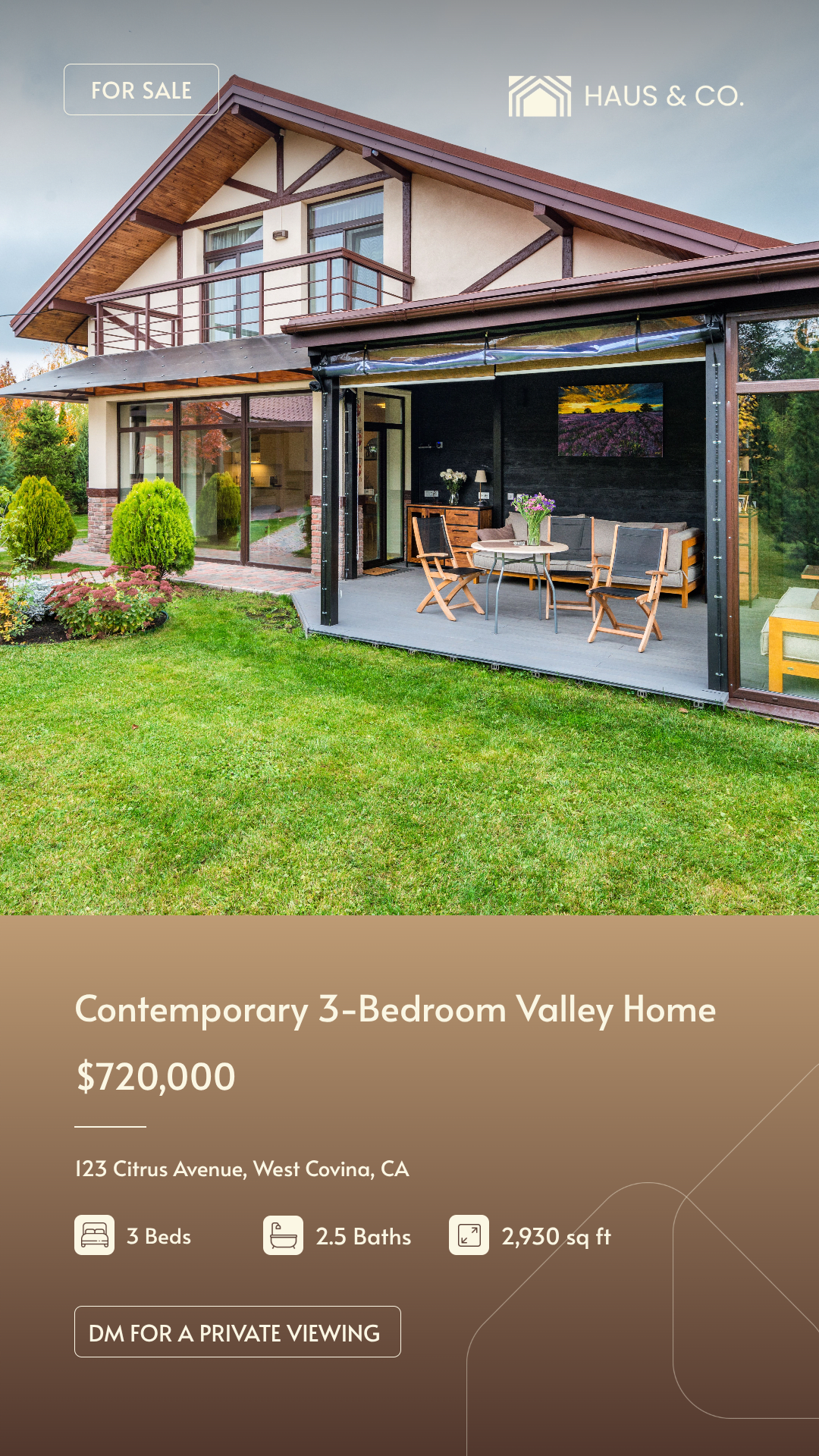
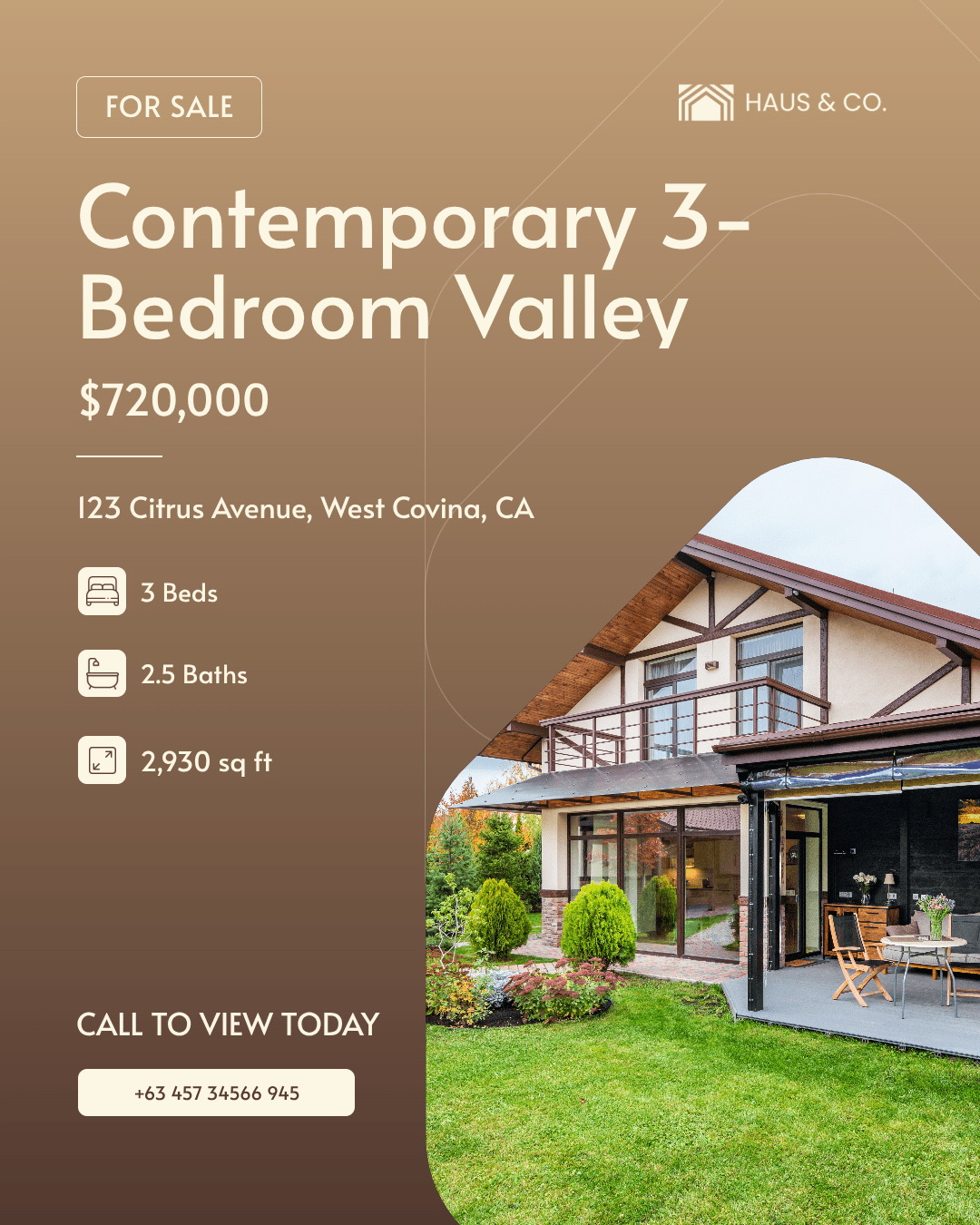
Every time you add a new property to the roster, it means another set of listing materials. A flyer, a digital poster, a vertical for social. Usually, that means hours spent on manual work—reformatting templates, resizing images, reinserting data into each template, and double-checking to get it right.
What if instead, you could just check a box in your database? Click generate, and within seconds, you’ve got a complete set of listing materials ready to publish across every channel.
What You Will Create
The complete setup is fairly simple. Your listing data lives in the database—property details, photos, and all. Your design templates live in Bannerbear, customized to your real estate brand and always editable. Zapier watches for the trigger. And when it’s fired, everything connects to generate a new set of materials, saved back to your database in moments.
The tools you will need to set this up (without code!) are:
- Airtable : To store listing data and trigger image generation
- Bannerbear : To design listing templates and generate at scale
- Zapier : To connect programs and trigger generation actions
This automation is built to scale. Whether you’ve got one new listing or two dozen, the workflow handles it the same way. By the end of this tutorial, you’ll have an automated system that produces a complete set of marketing materials every time you need it:
Let’s build.
How to Automate Real Estate Listings at Scale
Setting up a workflow that brings these nocode tools together takes just an afternoon, and saves you from ever manually designing an entire set of listing materials ever again.
Follow these steps to learn how to use Bannerbear for real estate to turn the repetitive admin work into a single click.
1 - Customize an Airtable Database
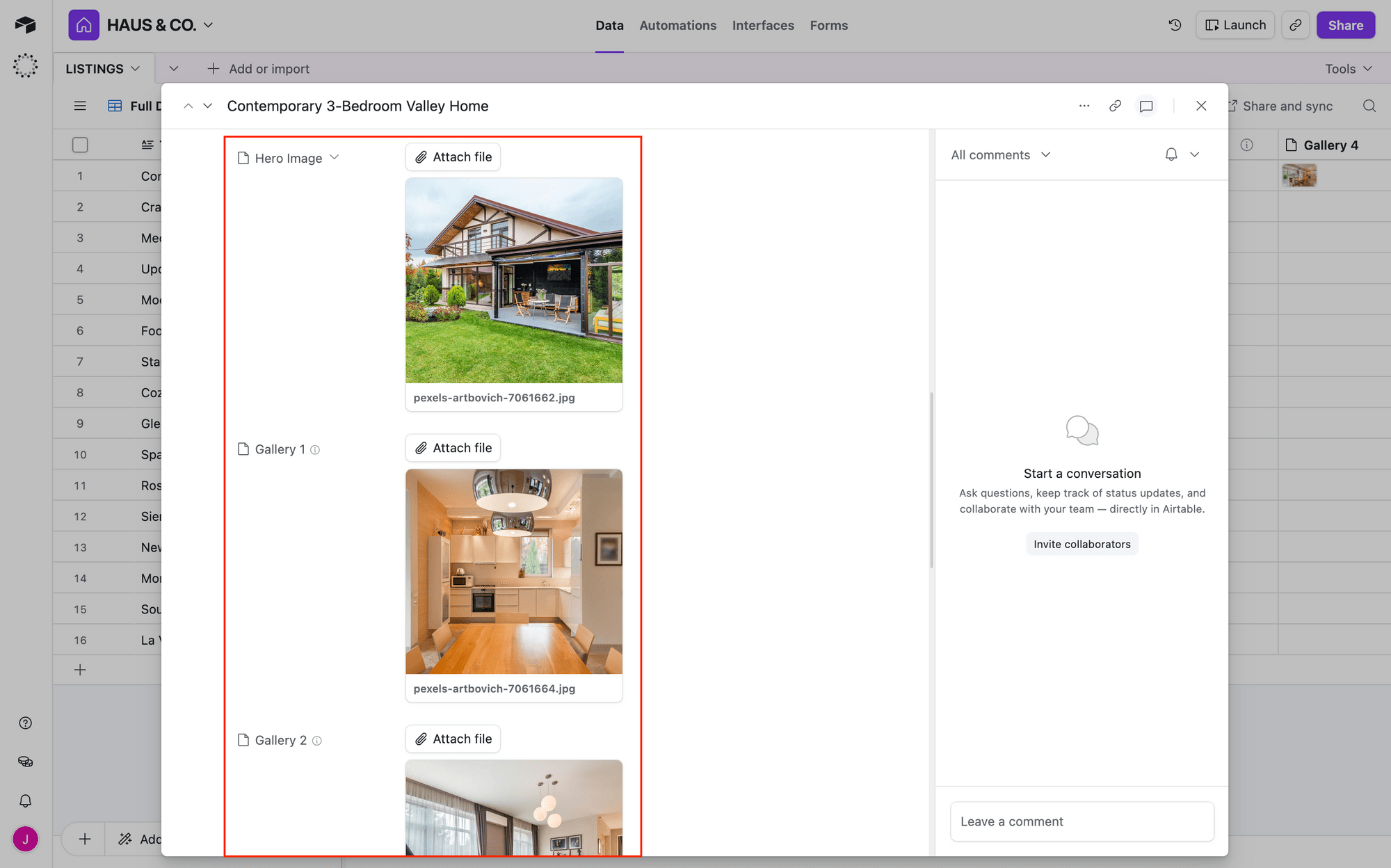
Step one is prepping your data. Start a new base from scratch or add on to something you already have. Create fields for everything you need in your listings: titles, prices, addresses, property details, and photos.
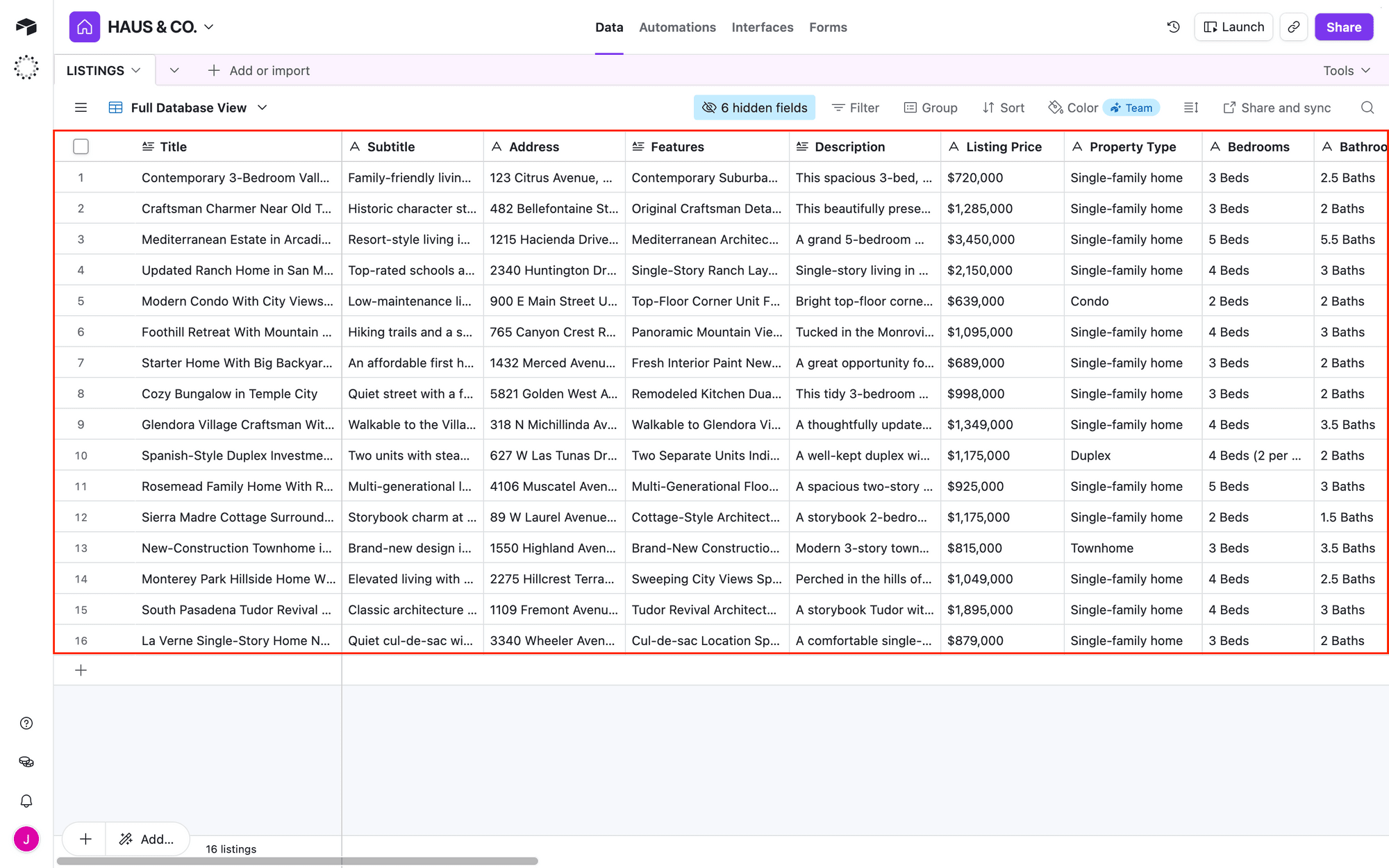
You can upload photos as attachments or use direct image links—either works.
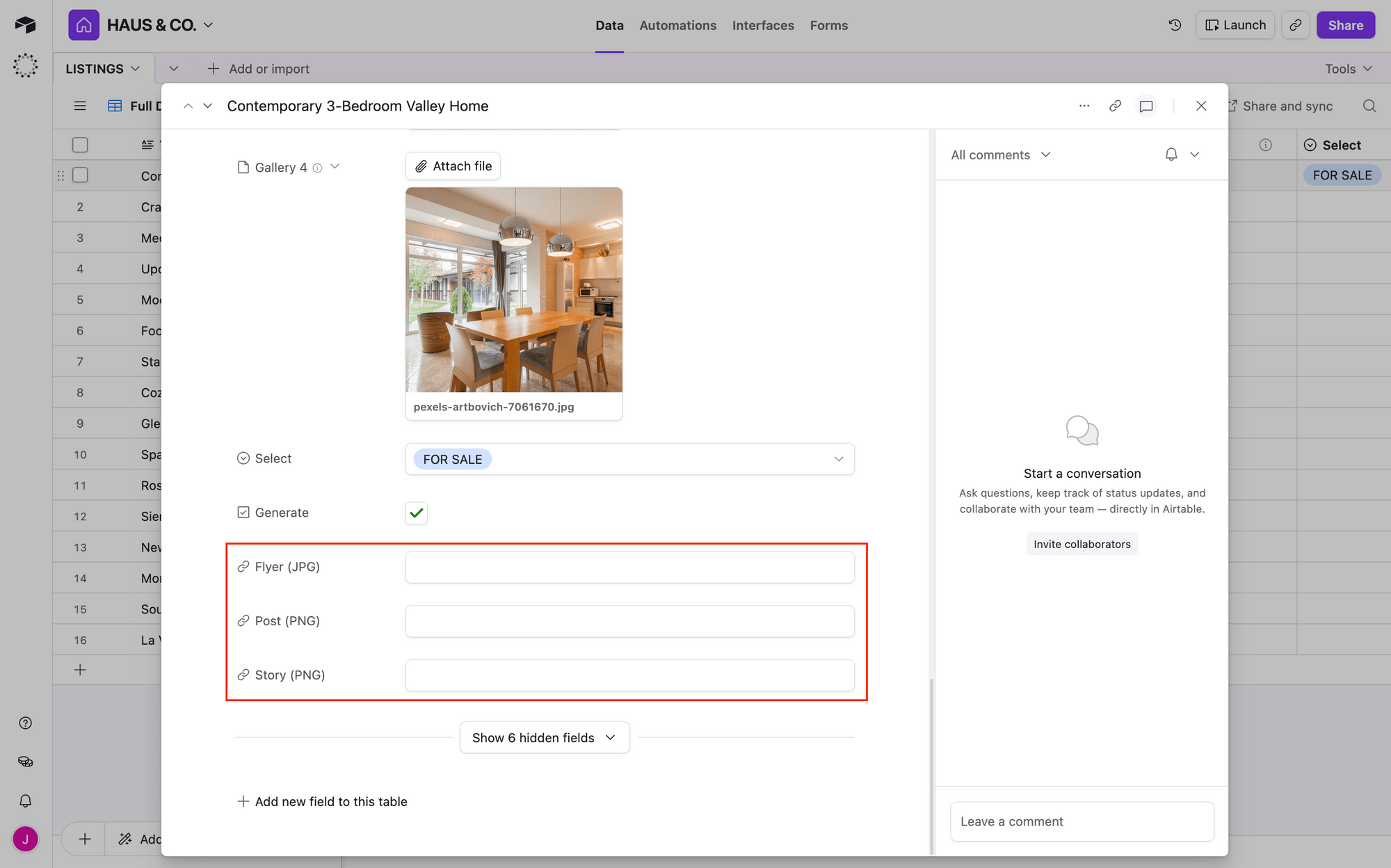
Next, add URL fields. These will store the links to your generated images once they’re created.
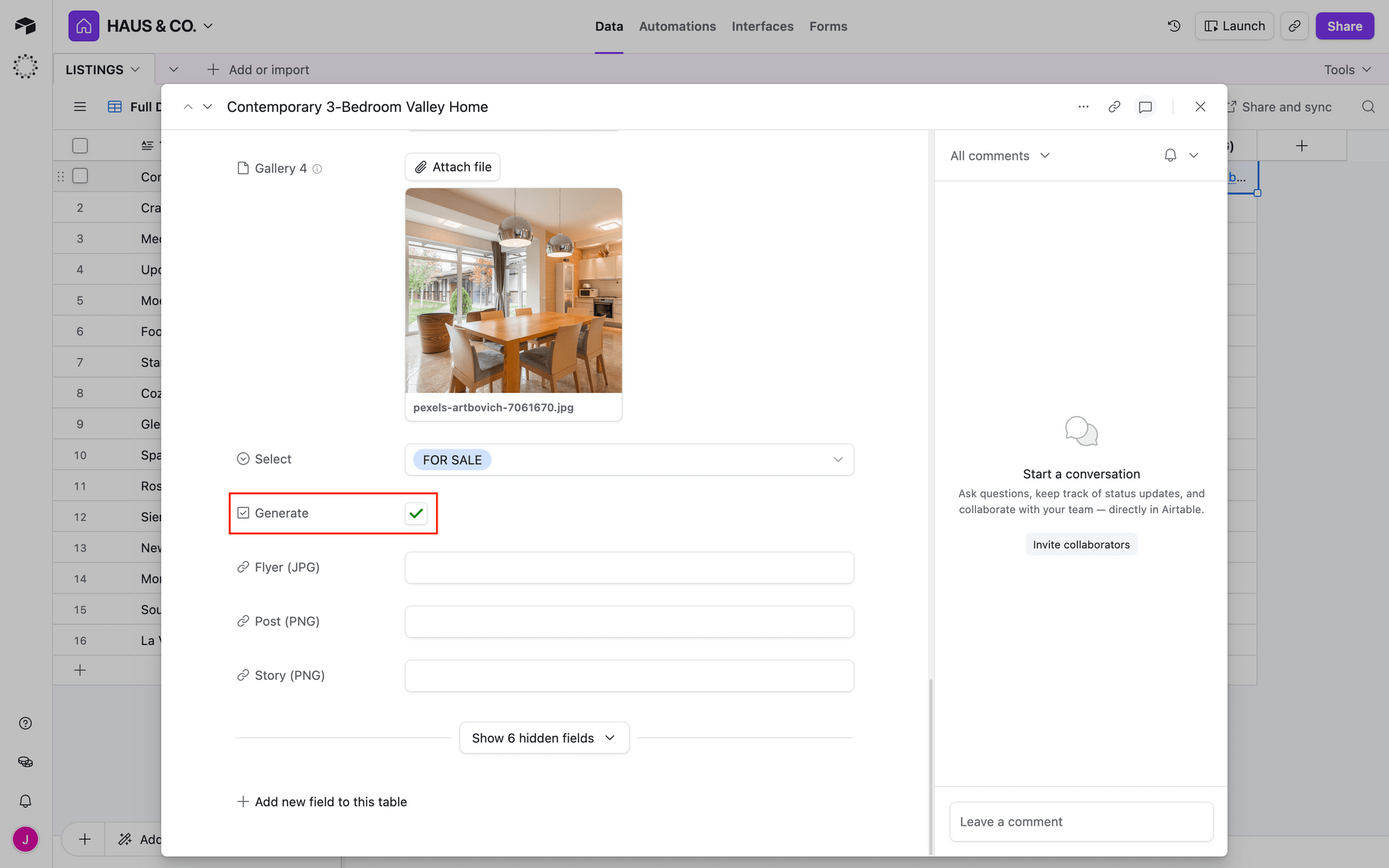
Add a checkbox field to act as your trigger.
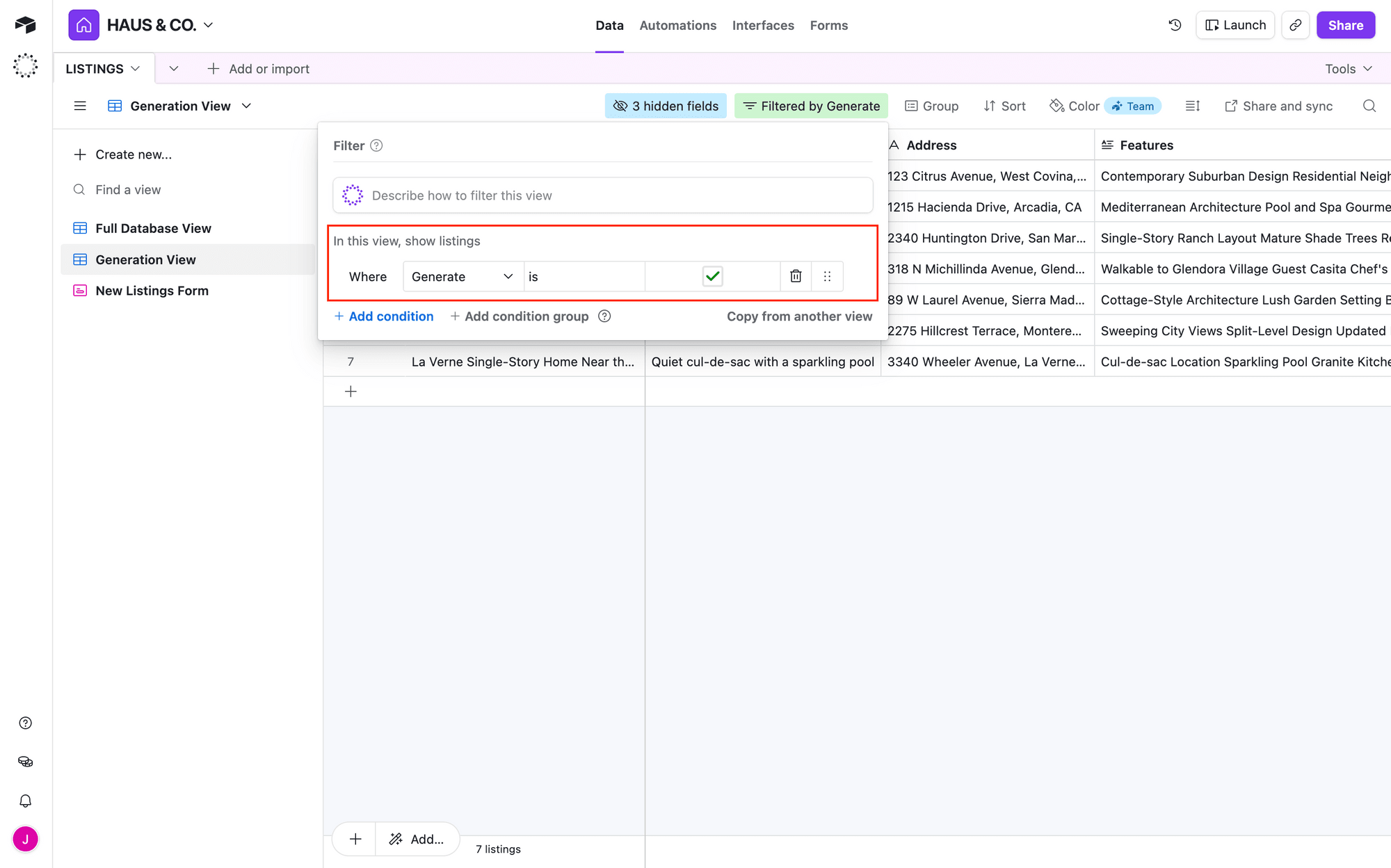
Sort it all by adding a view that only shows checked records. This will be what acts as the trigger, prompting Zapier to fire the rest of the workflow.
Before moving on, make sure you have at least one test record with all fields filled in and the checkbox checked.
2 - Design Bannerbear Image Templates
Each type of marketing material needs its own template: a flyer, social post, or poster. Design them however you want and as many as you want—different sizes, different layouts, maybe even different combinations of information.
Start from scratch, or get started with something from our template library.
The key: each template has layers where your data—text, images, links—will be inserted. Name them to match your Airtable fields. Matching names mean easy data insertion later.
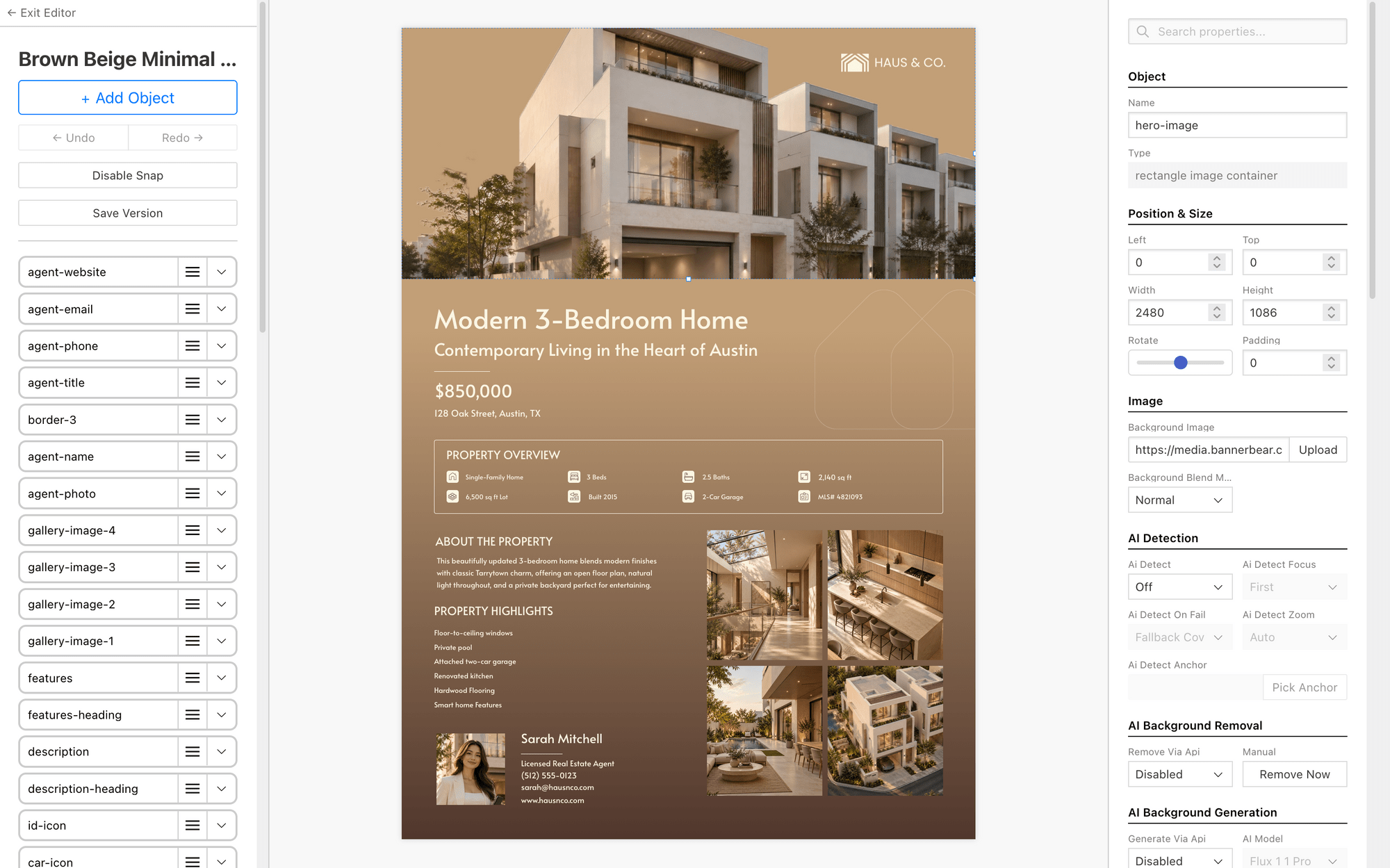
Design as many templates and variations as you need. You’re building them once for indefinite reusability.
Bear Tip 🐻: Already have real estate listing designs you know and love? Import them into your Bannerbear account from Figma or Sketch!
3 - Set Up a Bannerbear Workflow
A Bannerbear Workflow takes one set of data and runs it through multiple functions and templates, generating all your materials in a single pass. Build it once, and it scales infinitely. Even if you want to add more to the flow later on, it’s just a matter of adding another step.
Create a New Workflow
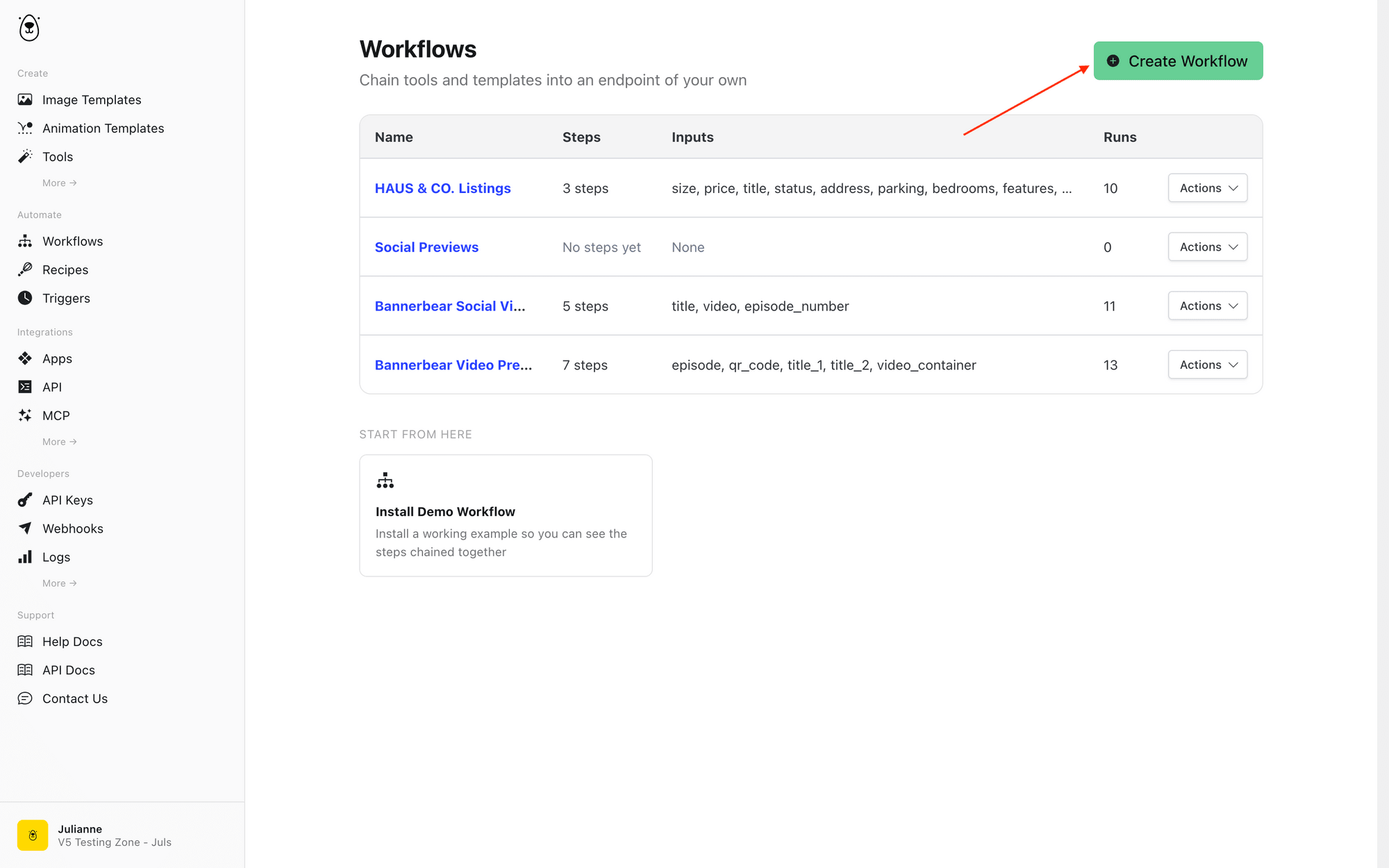
Navigate to the Workflows tab and create a new workflow. Name it, and continue.
Define Your Inputs
Next, tell Bannerbear what data it'll receive. For every Airtable field you want to include—price, number of bedrooms, square footage—create an input. Bannerbear needs to know what type each one is (text, number, link or boolean) so it knows how to handle it.
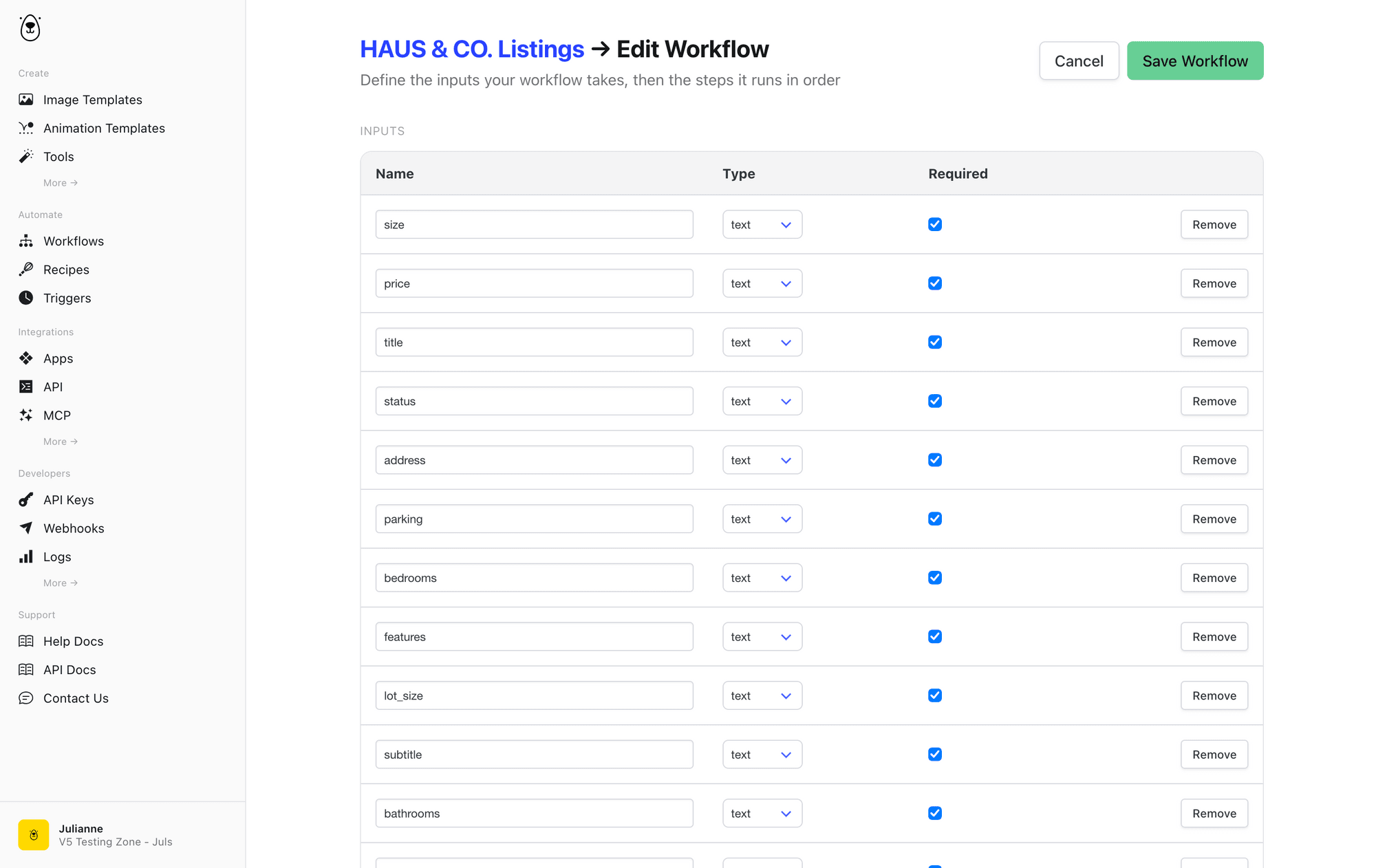
Name each input clearly, and check the Required box for anything the workflow can’t run without.
Bear Tip 🐻: Making sure your Workflow inputs, Airtable fields, and template layer names match will make it easier to map everything together.
Add Your Workflow Steps
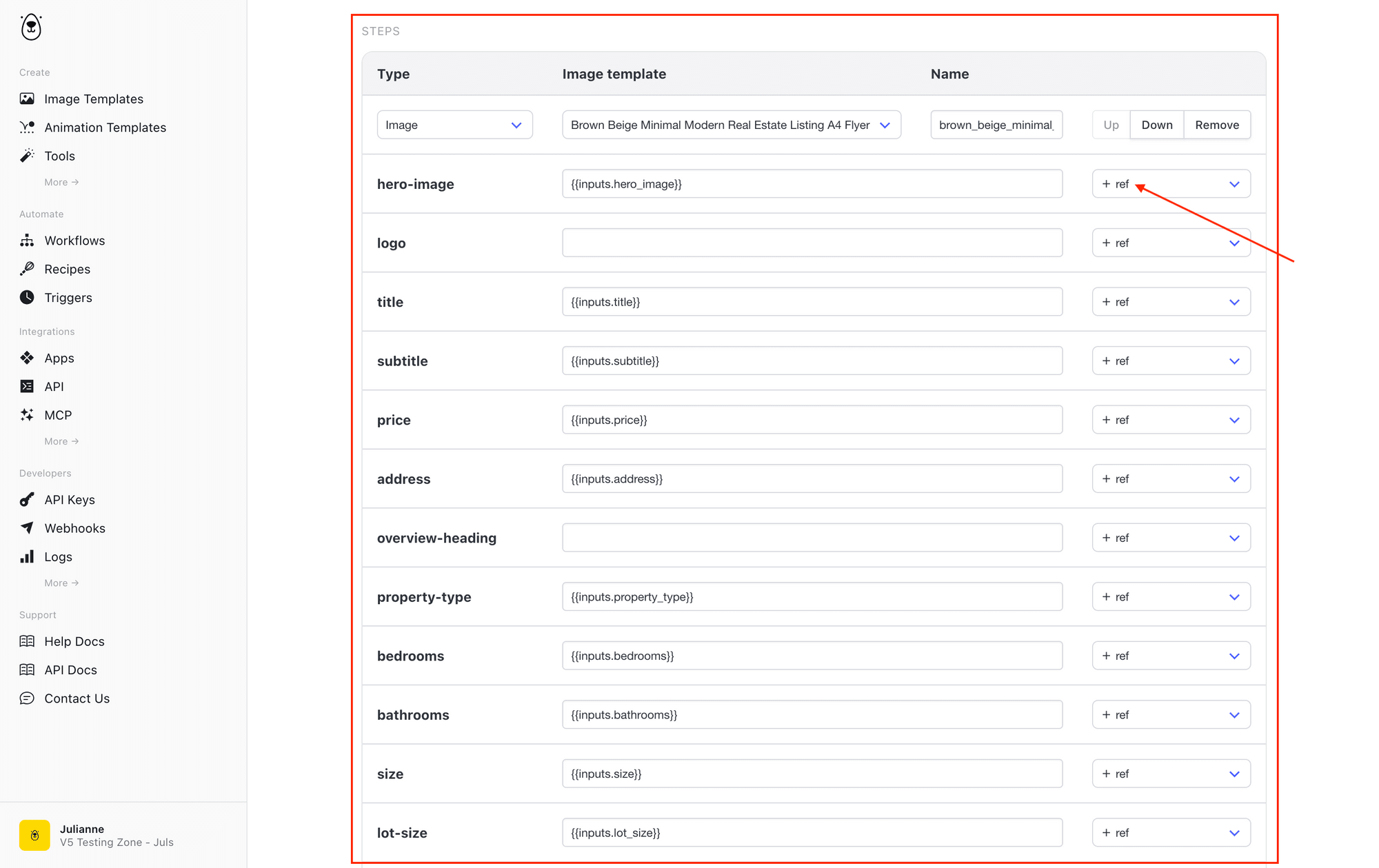
Now, add an image generation step for each template. Each one will start with your design, plug in new data, and generate in the format of your choice.
Add an Image step. Select your first template. Click + ref to reference each dynamic field you want to change from generation run to generation run.
Any static data (that won’t be changing) can be typed directly into the field.
Choose your output format—JPG, PNG, PDF, WebP, or AVIF.
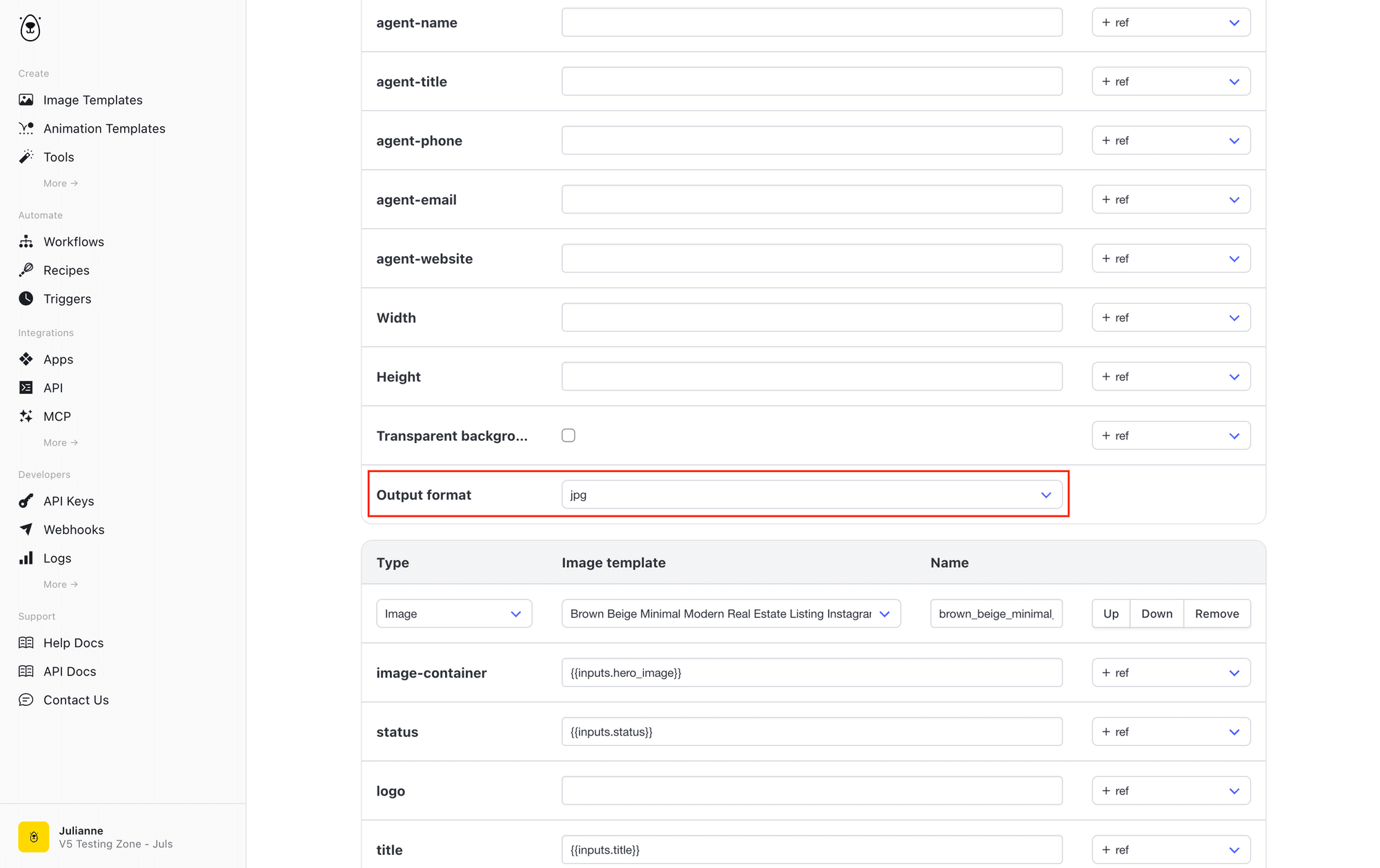
Repeat for each template. When you’re done, scroll up and hit Save.
4 - Create a Zap to Generate Listing Graphics
Now tie everything together. This Zap watches Airtable for checked records and triggers your Bannerbear workflow to generate. Create a new Zap with these steps:
Trigger: New Record in Airtable
Add an Airtable trigger and select New Record. Connect your account if you haven’t done so yet.
Set the event up by selecting your base, table, and the checked view you created earlier.
If you’ve included images as attachments, check Yes in the field to include them.
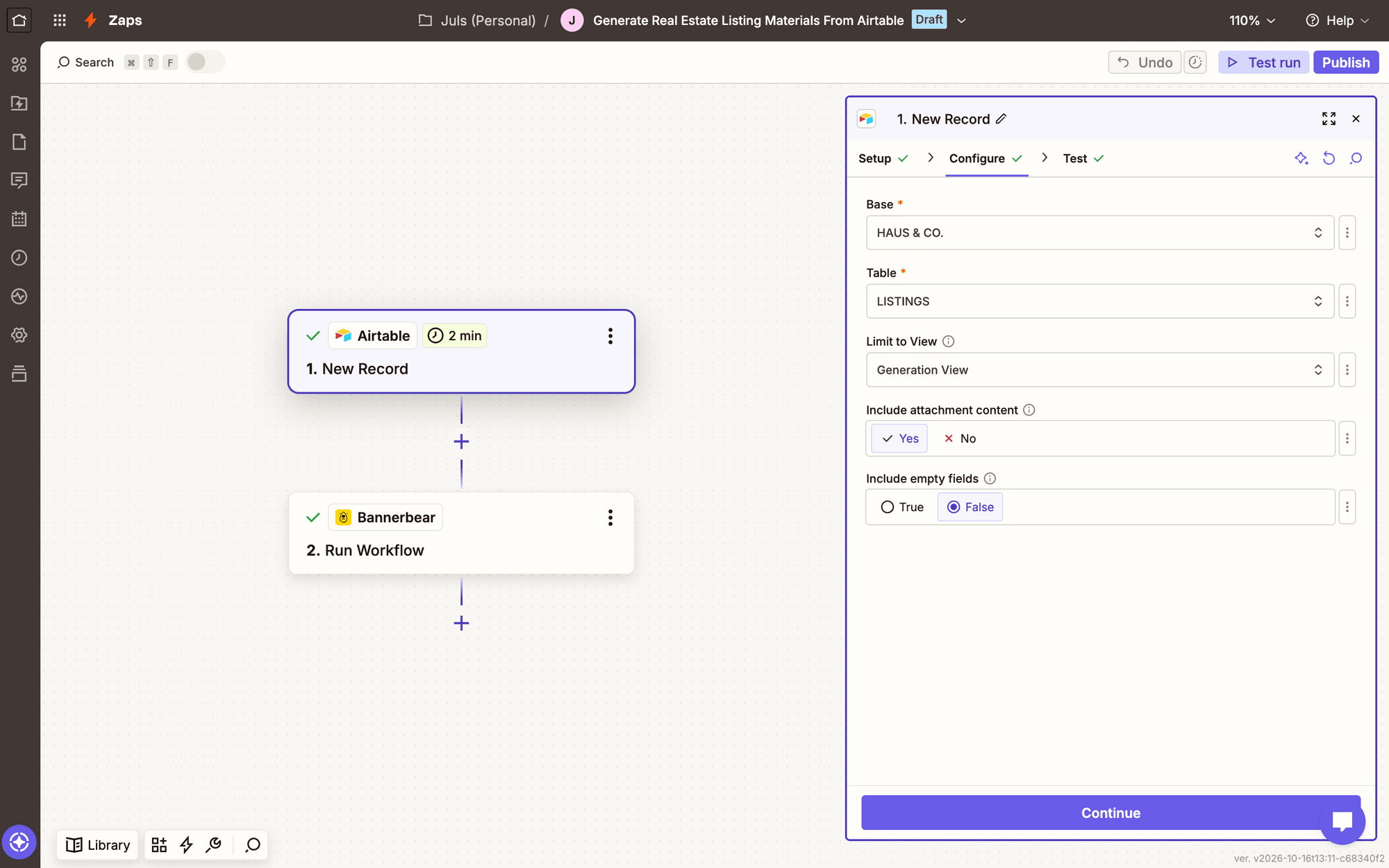
Test to make sure Zapier can find your test record.
Action: Run Workflow in Bannerbear
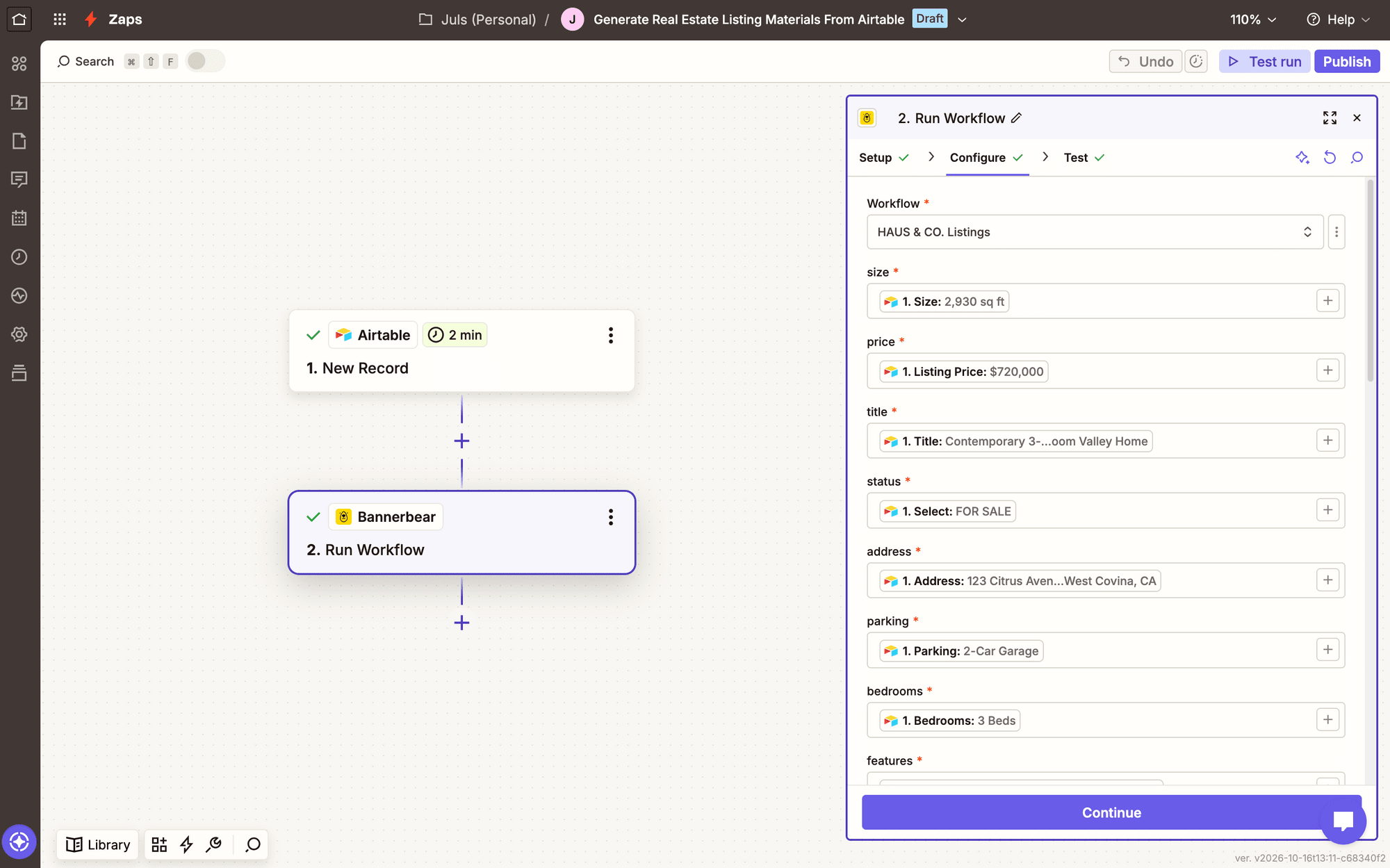
Add a Bannerbear action and select Run Workflow. You might need to connect your account with an API key.
Selecting your workflow, then map each Airtable field to its matching Bannerbear input field.
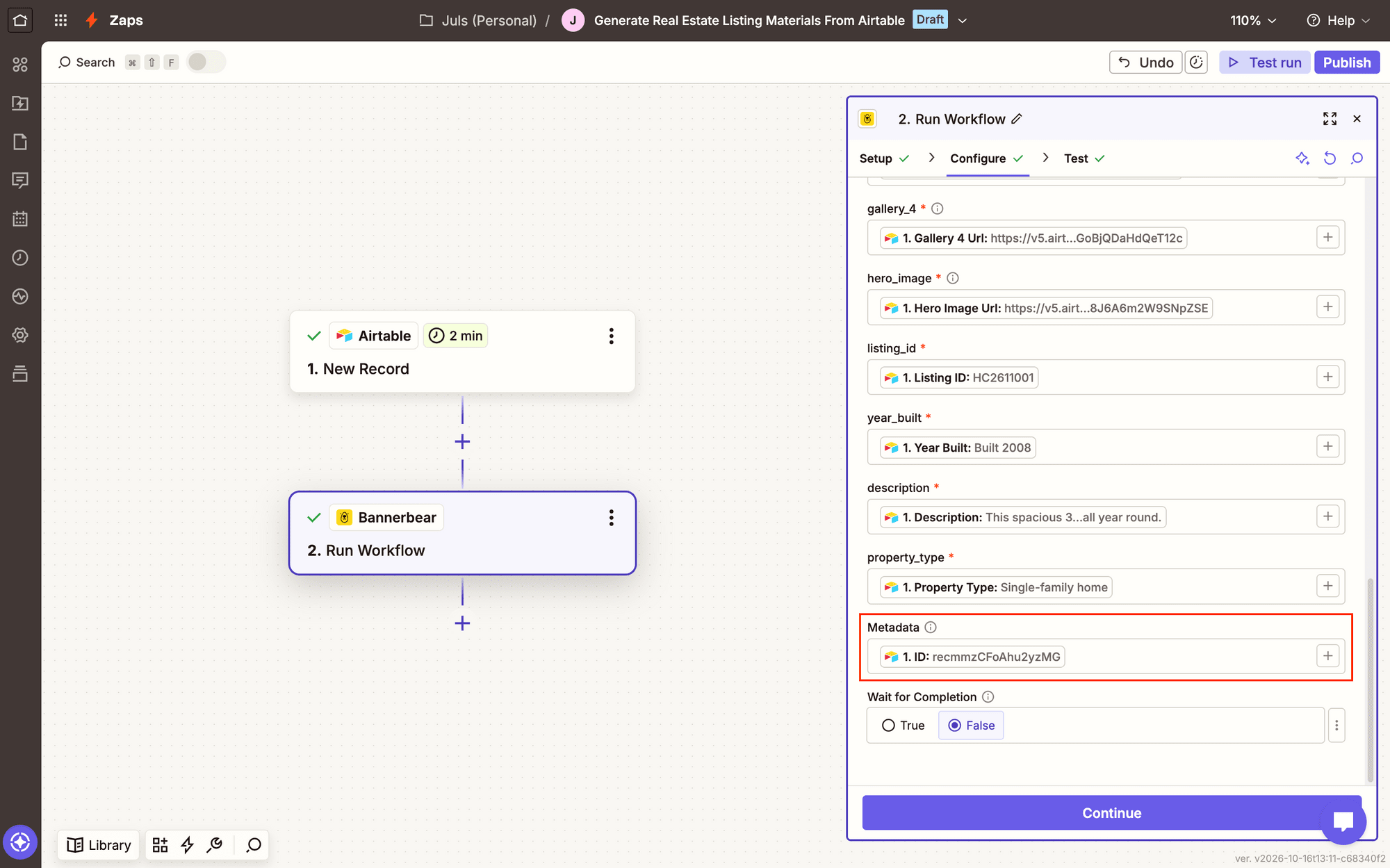
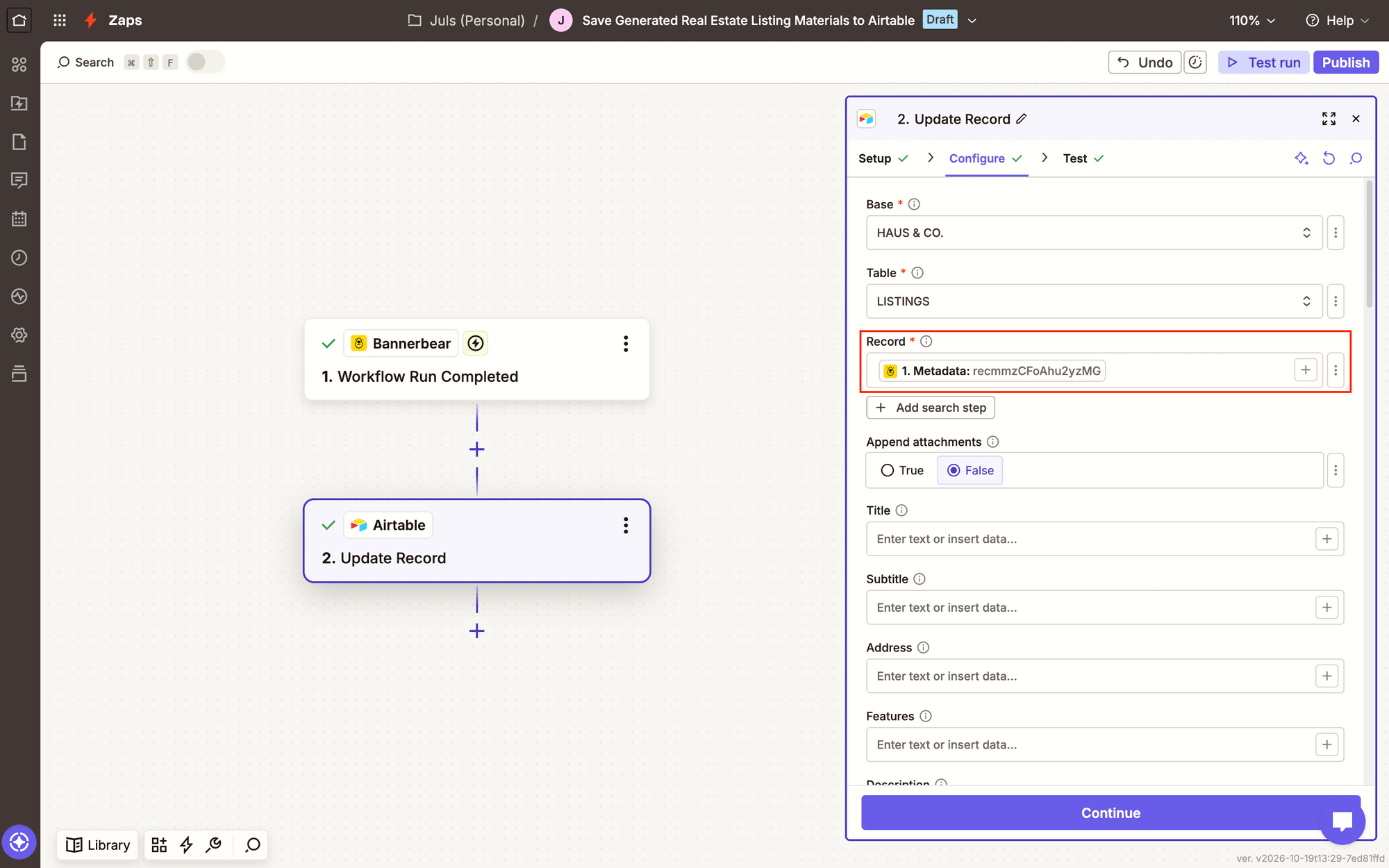
Include the Airtable record ID as the workflow’s metadata. This tags the generated images so you know which listing they belong to.
Test the action, and check your Logs to see the generated output.
5 - Create a Zap to Save Generated Listing Graphics
The first Zap generated the images, and the second will save them back to your database so you can find them. They’re separate because they fire in response to different events—one when you check a box, the other when generation is completed.
Create another Zap with these steps:
Trigger: Workflow Run Completed in Bannerbear
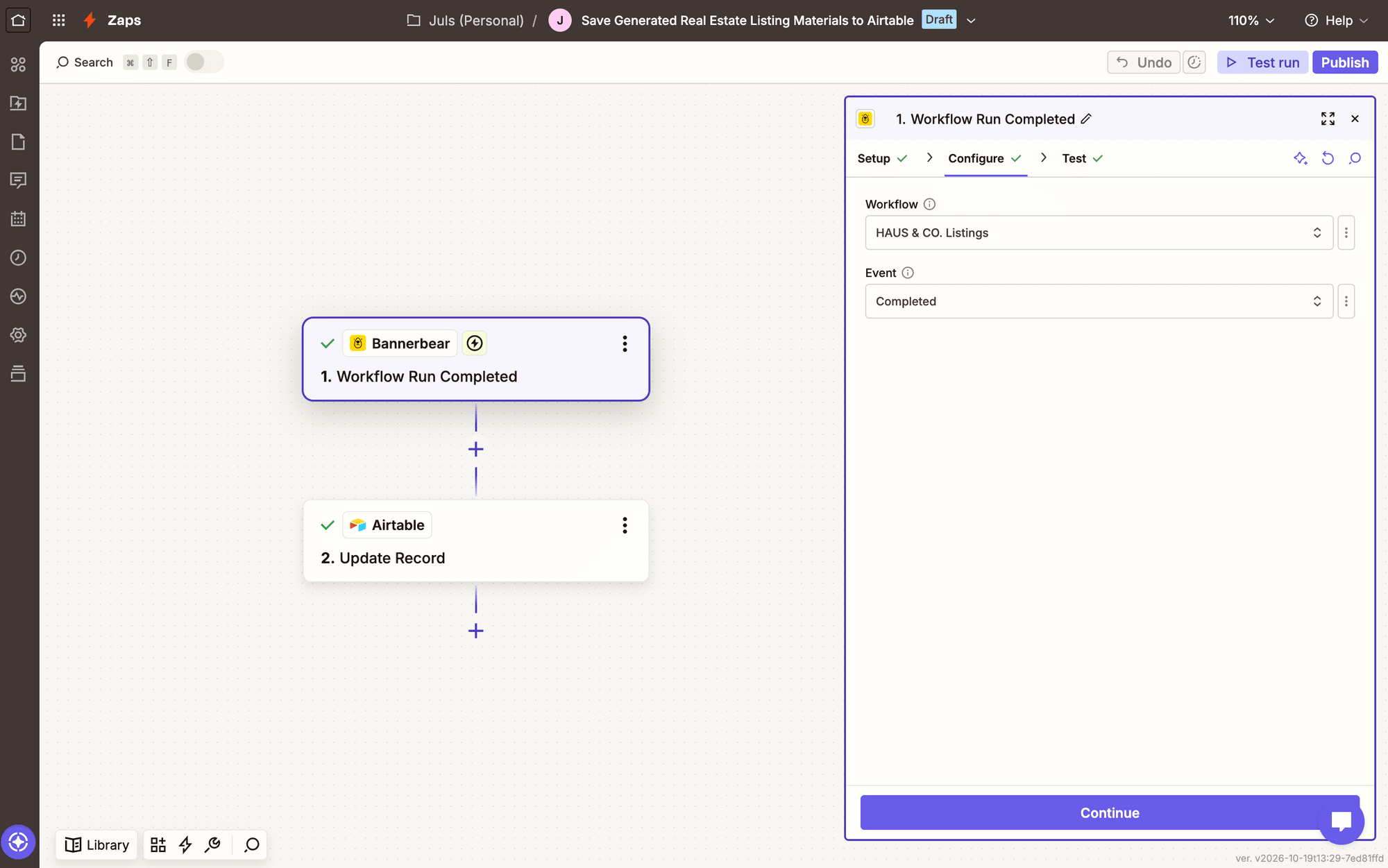
Add a Bannerbear trigger and select Workflow Run Completed.
Set it up by selecting your workflow, then test to confirm it finds your generated images.
Action: Update Record in Airtable
Add an Airtable action and select Update Record. Choose your base and table, then use the record ID metadata saved in the previous Zap to find the right record.
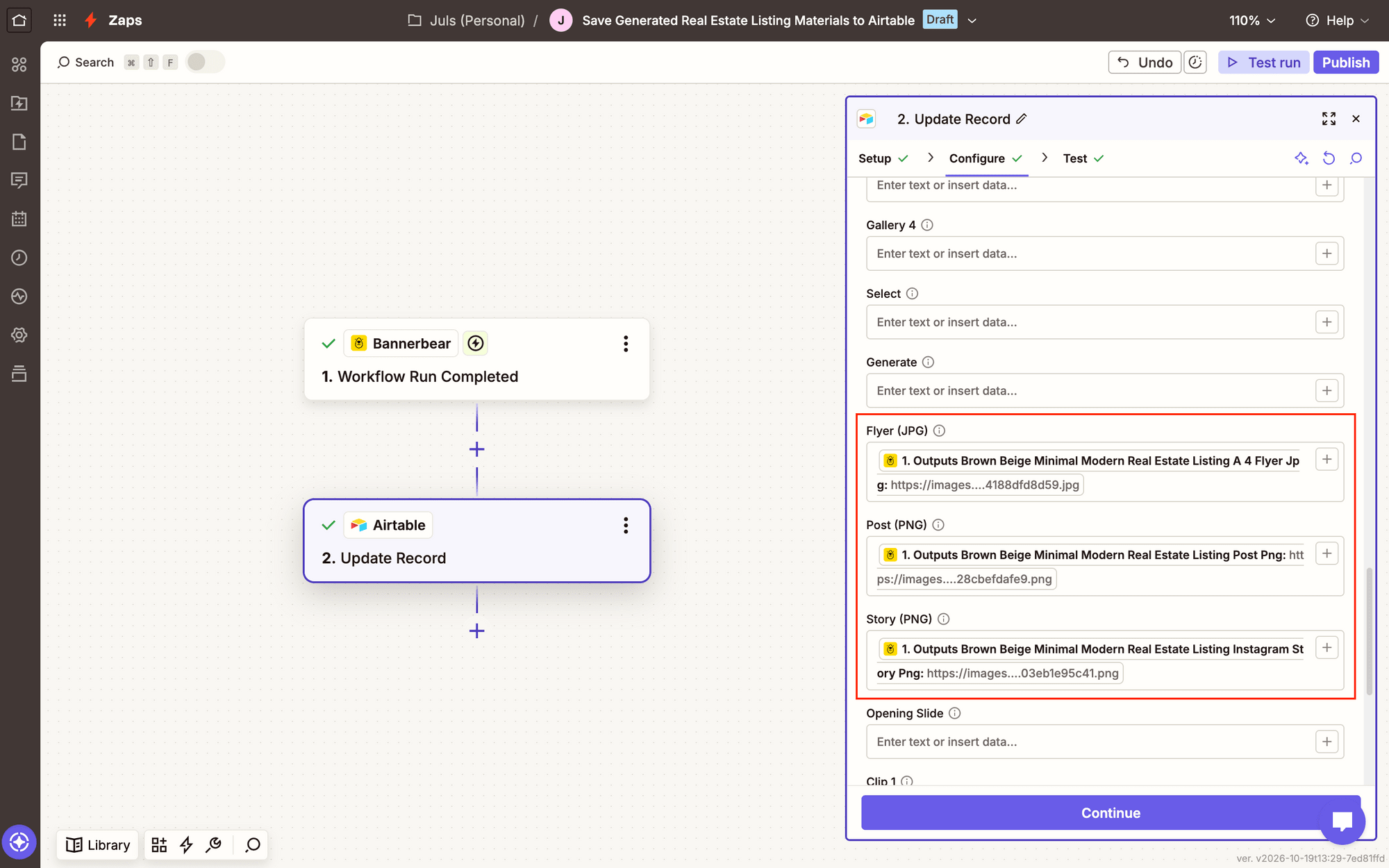
Map each generated image link to its matching URL field in Airtable.
Test, and watch the links appear right in your database.
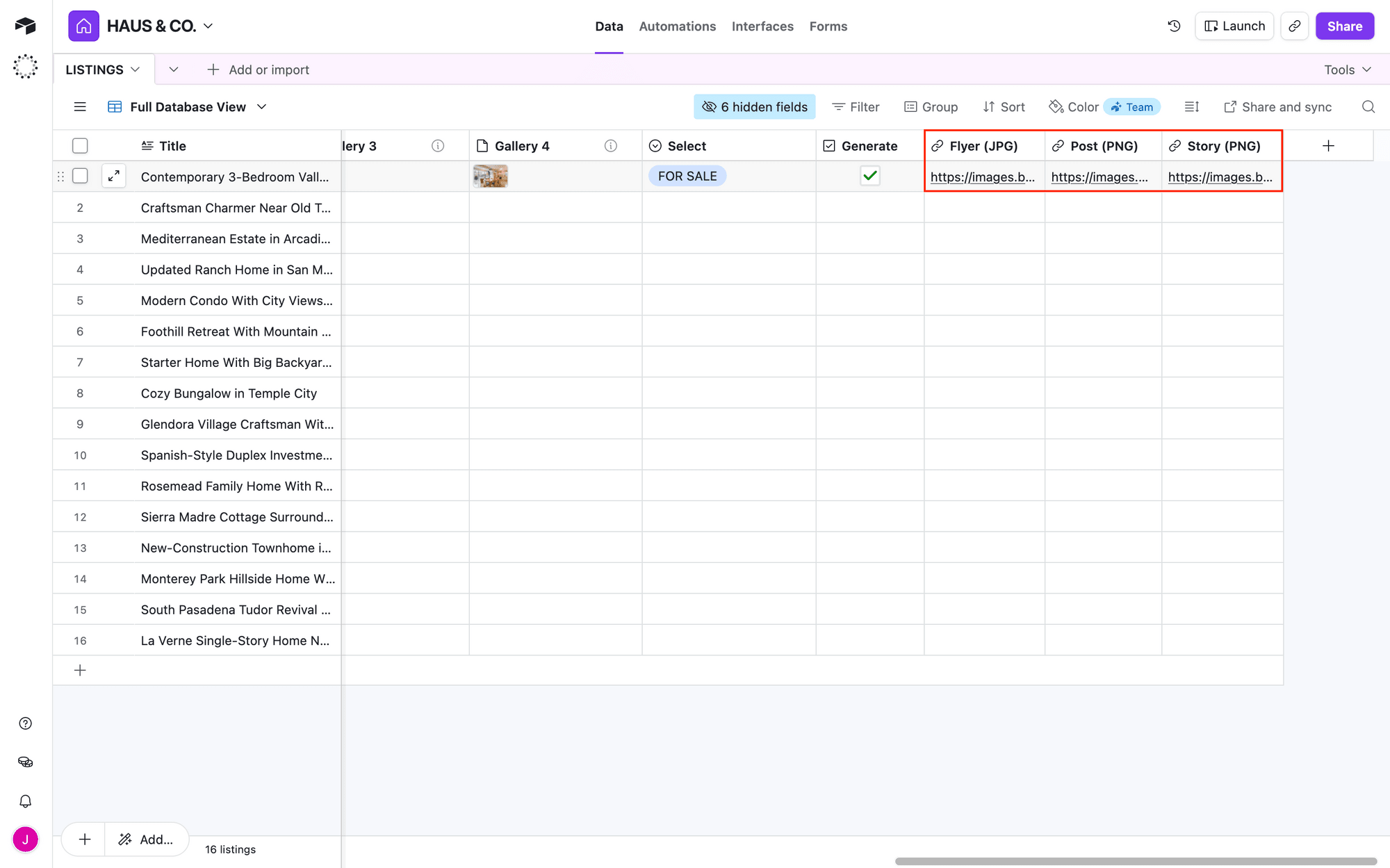
And just like that, an entire set of real estate listings are generated in a click! Take the Zap live, and simply check the generate button when a record is ready to go.
Conclusion
Once you’ve set this workflow up once, you stop trading time for listings. With Airtable as the single source of truth, Bannerbear templates carrying the designs, and Zapier tying it all together, a checked box becomes a full marketing package: flyers, social posts, verticals, and all.
Run a few tests, confirm the field-to-layer mappings, and watch the logs to make sure your output is consistent. Once it works predictably, it’s just maintenance—not another laundry list of manual design work to finish every time your real estate business brings in a new client.